1. Produs terminatview
The Xiaomi Portable Photo Printer Pro is a compact and lightweight device designed for printing photos directly from your smartphone or other compatible devices. It utilizes advanced printing technology to produce high-quality, vibrant prints.
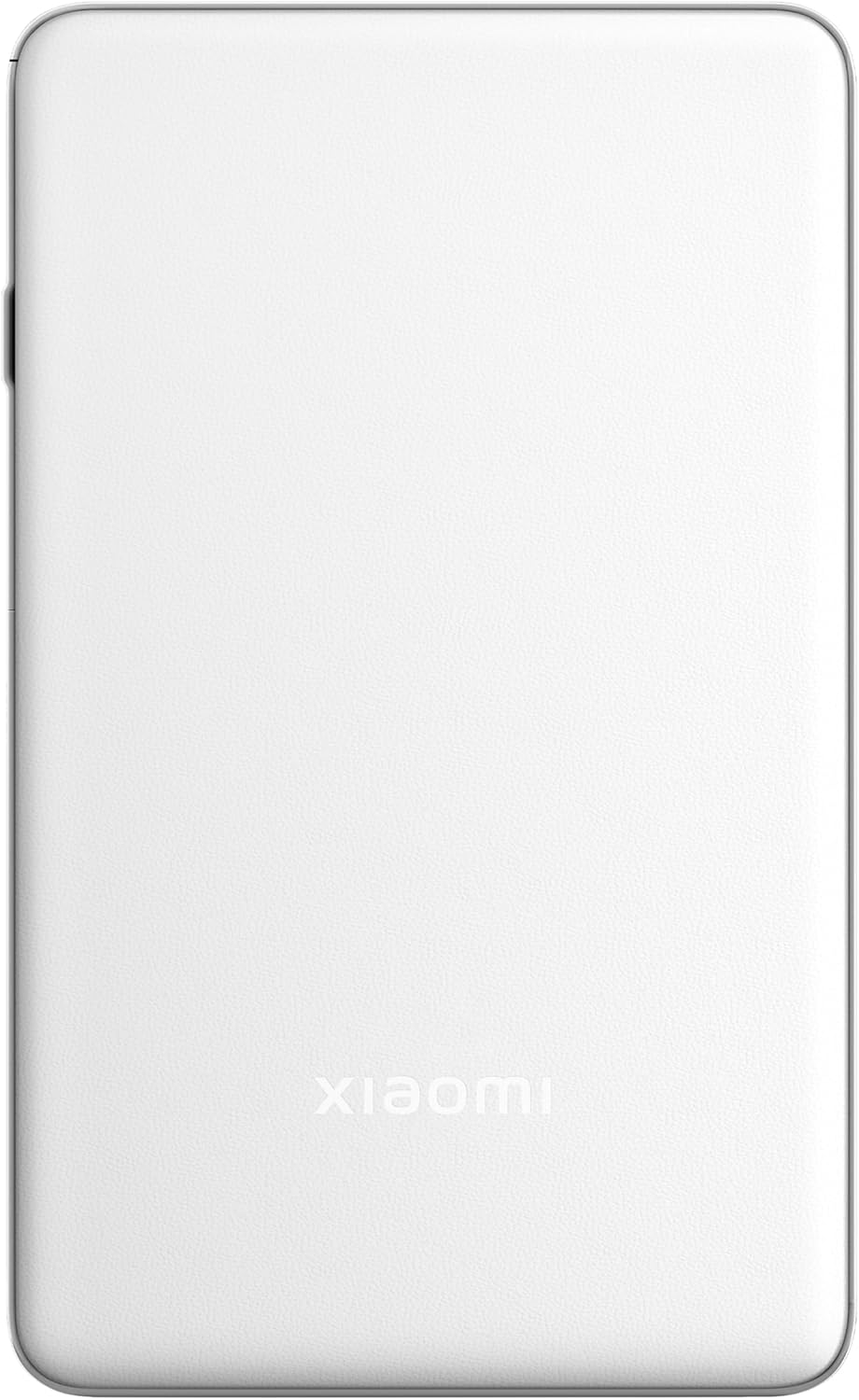
Imaginea 1.1: Sus view of the Xiaomi Portable Photo Printer Pro, showcasing its minimalist design and compact form factor.

Imaginea 1.2: Laterală view of the Xiaomi Portable Photo Printer Pro, highlighting its slim profile and power button location.
2. Configurare
2.1 Încărcarea imprimantei
Before initial use, fully charge the printer. Connect the provided USB charging cable to the printer's charging port and a compatible power adapter. The indicator light will show charging status.
2.2 Încărcarea hârtiei fotografice
- Deschideți capacul tăvii de hârtie de pe imprimantă.
- Insert the photo paper stack into the tray with the glossy side facing up. Ensure the paper is aligned correctly.
- Închideți bine capacul tăvii de hârtie.

Image 2.1: The Xiaomi Portable Photo Printer Pro with photo paper being inserted into the paper tray, demonstrating the correct orientation.
2.3 Instalarea aplicației însoțitoare
Download and install the official Xiaomi Home app (or designated printer app) from your device's app store. This app is required for connecting to the printer and managing print jobs.
2.4 Conectarea prin Bluetooth
- Asigurați-vă că imprimanta este pornită.
- Activați Bluetooth pe smartphone sau tabletă.
- Open the Xiaomi Home app and follow the on-screen instructions to add a new device. Select the Xiaomi Portable Photo Printer Pro from the list of available devices.
- Confirm the pairing request on both your device and the printer if prompted.
3. Instrucțiuni de utilizare
3.1 Pornire/Oprire
- Pentru a porni: Apăsați și țineți apăsat butonul de alimentare timp de aproximativ 3 secunde, până când se aprinde indicatorul luminos.
- Pentru a opri: Apăsați și țineți apăsat butonul de alimentare timp de aproximativ 3 secunde, până când indicatorul luminos se stinge.
3.2 Imprimarea fotografiilor
- Ensure the printer is powered on and connected to your device via Bluetooth.
- Open the Xiaomi Home app and select the photo you wish to print.
- Adjust any print settings (e.g., size, filters) within the app.
- Tap the 'Print' button. The printer will feed the paper and begin printing.

Image 3.1: The Xiaomi Portable Photo Printer Pro positioned on a wooden table, actively printing a photo, with the printed image emerging from the top slot.

Image 3.2: The Xiaomi Portable Photo Printer Pro being held in a hand, illustrating its portability and ease of handling for on-the-go printing.
4. Întreținere
4.1 Curăţarea imprimantei
- Ensure the printer is powered off before cleaning.
- Use a soft, dry, lint-free cloth to wipe the exterior of the printer.
- Nu folosiți substanțe de curățare lichide sau materiale abrazive, deoarece acestea pot deteriora dispozitivul.
4.2 Înlocuirea hârtiei fotografice
When the printer runs out of paper, follow the steps in Section 2.2 to load a new stack of photo paper. Use only genuine Xiaomi photo paper for optimal print quality and to prevent damage to the printer.
4.3 Îngrijirea bateriei
- Avoid exposing the printer to extreme temperatures.
- If storing the printer for an extended period, ensure it is partially charged (around 50%) to prolong battery life.
- Recharge the battery regularly, even if not in frequent use.
5. Depanare
- Imprimanta nu pornește: Ensure the battery is charged. Connect the printer to a power source and try again.
- Nu se poate conecta prin Bluetooth:
- Ensure Bluetooth is enabled on your device and the printer.
- Reporniți atât imprimanta, cât și dispozitivul dvs.
- Forget the device in your phone's Bluetooth settings and attempt to pair again through the app.
- Calitate slabă a imprimării:
- Check if the photo paper is loaded correctly with the glossy side up.
- Ensure you are using genuine Xiaomi photo paper.
- The image resolution might be too low. Try printing a higher-resolution image.
- Blocaj de hârtie:
- Power off the printer immediately.
- Carefully open the paper tray cover and gently remove any jammed paper. Avoid tearing the paper inside the mechanism.
- Close the cover and power on the printer.
- Imprimanta nu răspunde: Try performing a soft reset by pressing and holding the power button for 10-15 seconds until the printer restarts.
6. Specificații
| Caracteristică | Caietul de sarcini |
|---|---|
| Model | KDRSHDY03HT |
| Dimensiunile produsului | 14.25 x 8.68 x 2.68 cm |
| Greutatea articolului | 308 grame |
| Capacitate maximă de intrare a foii | 20 de coli |
| Media de imprimare | Hârtie fotografică lucioasă, hârtie simplă |
| Ieșire imprimantă | Culoare |
| Caracteristici speciale | Portabil |
| baterii | 1 x baterie de 12 V (inclusă) |
| Conectivitate | Bluetooth |
7. Garanție și asistență
7.1 Informații despre garanție
The Xiaomi Portable Photo Printer Pro comes with a standard manufacturer's warranty. Please refer to the warranty card included in the product packaging for specific terms, conditions, and duration. Keep your proof of purchase for warranty claims.
7.2 Asistență pentru clienți
For technical assistance, troubleshooting beyond this manual, or warranty inquiries, please contact Xiaomi customer support. Visit the official Xiaomi website pentru date de contact și resurse de asistență.
Puteți găsi mai multe informații și asistență la adresa oficială XIAOMI Store.


