1. Introducere
This manual provides essential instructions for the setup, operation, and maintenance of your Blackview MP60 Mini PC. Please read this guide thoroughly before using the device to ensure optimal performance and longevity. The Blackview MP60 is a compact desktop computer designed for various applications, including home office, business, education, and multimedia entertainment.

Imagine: față view al Negruluiview MP60 Mini PC, highlighting its compact design and Intel N150 processor branding.
2. Ce se află în cutie
Verificați dacă toate articolele sunt prezente în colet:
- 1 x Negruview MP60 Mini PC
- 1 x adaptor de alimentare
- Cablul 1 x HDMI
- 1 x Manual de utilizare (acest document)
- 1 x VESA mount with screws
3. Produs terminatview
3.1 Caracteristici cheie
- Procesor: Intel N150 (4 Cores, 4 Threads, up to 3.6GHz)
- Memorie: 16GB DDR4 RAM (Dual Channel SODIMM DDR4, Max 32GB Expansion Support)
- Depozitare: 512GB PCIe SSD (Max 2TB expansion via M.2 SSD or 2.5" SATA HDD/SSD)
- Sistem de operare: Windows 11 Pro preinstalat
- Grafică: Intel UHD Graphics, supporting Dual 4K@60Hz display output
- Conectivitate: Wi-Fi 5 (802.11ac), Gigabit Ethernet, Bluetooth 4.2
- Porturi: 2x USB 3.0, 2x USB 2.0, 2x HDMI, 1x RJ45 LAN, 1x DC Jack, 1x 3.5mm Audio Jack
- Proiecta: Ultra-compact (5" × 5" × 2", 0.86 lbs), VESA mount compatible
- Răcire: Efficient cooling system with a whisper-quiet fan (<38dB under demanding tasks)

Image: An infographic detailing the Blackview MP60's core specifications: Intel N150 processor, 16GB DDR4 RAM, 512GB SSD, Windows 11, multi-port design, ultra-compact size, silent operation, and efficient heat dissipation.
3.2 Porturi și indicatori
Familiarize yourself with the available ports and indicators on your Mini PC:
- Panoul frontal: Power button, 2x USB 3.0 ports, 2x USB 2.0 ports, 3.5mm Audio Jack (Headphone/Microphone combo)
- Panoul din spate: DC Power Input, 2x HDMI ports, 1x RJ45 Gigabit Ethernet port
- Indicator LED: Blue for power-on, Red for sleep mode.

Imagine: O reprezentare vizuală a Blackview MP60's front and rear ports, including USB, HDMI, LAN, DC power, and audio jack.
4. Ghid de instalare
4.1 Conectarea inițială
- Conectați afișajul: Use the provided HDMI cable to connect the Mini PC to your monitor or TV. The MP60 supports dual displays; connect a second monitor if desired.
- Conectați periferice: Plug in your USB keyboard and mouse to the available USB ports.
- Conectare alimentare: Connect the power adapter to the DC input port on the Mini PC, then plug the adapter into a power outlet.
- Conexiune la rețea (opțională): For a wired internet connection, connect an Ethernet cable to the RJ45 LAN port. For wireless, Wi-Fi will be configured during the initial Windows setup.
4.2 Prima pornire și configurarea Windows
- Press the power button on the front of the Mini PC. The LED indicator will turn blue.
- Follow the on-screen instructions to complete the Windows 11 Pro initial setup. This includes selecting your region, keyboard layout, connecting to a Wi-Fi network (if not using Ethernet), and creating a user account.
- Once setup is complete, your Blackview MP60 Mini PC is ready for use.
4.3 Instalarea suportului VESA (opțional)
The included VESA mount allows you to attach the Mini PC to the back of a compatible monitor or to a wall mount.
- Attach the VESA bracket to the back of your monitor using the provided screws. Ensure the monitor has standard VESA mounting holes.
- Slide the Blackview MP60 Mini PC onto the mounted bracket until it clicks securely into place.

Imagine: Negrulview MP60 Mini PC demonstrating its small form factor and how it can be discreetly mounted behind a monitor using the VESA bracket.
5. Instrucțiuni de utilizare
5.1 Pornire/Oprire și Mod repaus
- Pornire: Press the power button. The LED will turn blue.
- Modul de somn: Briefly press the power button or select 'Sleep' from the Windows Start menu. The LED will turn red.
- Închidere: Selectați „Oprire” din meniul Start al Windows.
- Oprire forțată: If the system is unresponsive, press and hold the power button for approximately 5-10 seconds until the device powers off. Use this only as a last resort.
5.2 Conectarea perifericelor
Utilize the various ports to connect your devices:
- Dispozitive USB: Connect external hard drives, USB flash drives, printers, or other USB accessories to the USB 3.0 or USB 2.0 ports.
- Dispozitive audio: Conectați căștile sau difuzoarele externe la mufa audio de 3.5 mm.
- Dispozitive Bluetooth: Pair Bluetooth-enabled keyboards, mice, headphones, or other devices via Windows Bluetooth settings.
5.3 Configurarea cu afișaj dual
Negrulview MP60 supports two 4K displays simultaneously via its two HDMI ports, enhancing productivity for tasks like financial analysis, creative design, or coding.
- Conectați ambele monitoare la porturile HDMI ale Mini PC-ului.
- In Windows, right-click on the desktop and select 'Display settings'.
- Configure your display preferences (e.g., extend desktop, duplicate displays) as needed.

Image: A workstation featuring two 4K monitors connected to the Blackview MP60, illustrating its dual display capability for enhanced multitasking.
5.4 Extinderea spațiului de stocare
Negrulview MP60 allows for easy storage expansion:
- The device supports an additional 2.5-inch SATA HDD/SSD (256GB/512GB/up to 2TB).
- To install, carefully remove the bottom cover of the Mini PC.
- Connect the 2.5-inch drive to the SATA connector and secure it in the designated bay.
- Reattach the bottom cover.

Imagine: O explozie view illustrating the removable storage base and the process of installing an additional 2.5-inch SATA HDD/SSD into the Blackview Mini-PC-ul MP60.
6. Întreținere
6.1 Curățare
- Curățați regulat exteriorul Mini PC-ului cu o lavetă moale și uscată.
- Use compressed air to gently clear dust from ventilation openings to maintain optimal airflow and cooling efficiency.
- Nu utilizați substanțe de curățare lichide sau solvenți direct pe dispozitiv.
6.2 Actualizări de software
- Keep your Windows 11 Pro operating system updated to ensure security and performance. Access Windows Update through 'Settings > Windows Update'.
- Regularly update device drivers (e.g., graphics, chipset) from the Blackview sprijin website sau prin Windows Update.
6.3 Disiparea căldurii
Negrulview MP60 features an efficient cooling system. To ensure proper heat dissipation:
- Asigurați-vă că Mini PC-ul este amplasat într-o zonă bine ventilată.
- Nu blocați orificiile de ventilație.
- Avoid placing the device on soft surfaces that can obstruct airflow.
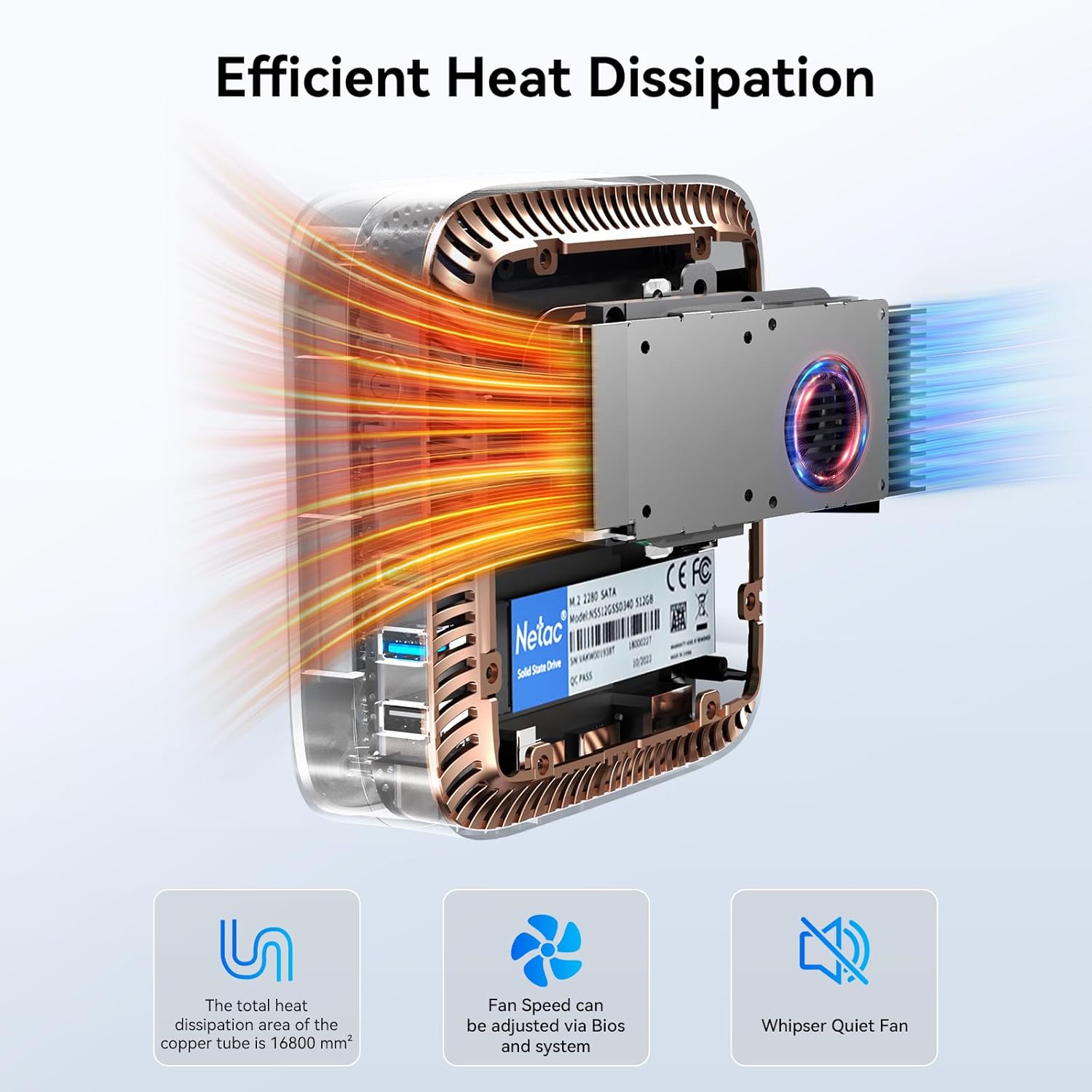
Imagine: O imagine internă view al Negruluiview MP60, highlighting its efficient cooling system with a copper tube and fan designed for optimal heat dissipation.
7. Depanare
Această secțiune abordează problemele comune pe care le-ați putea întâmpina cu dispozitivul dvs. Blackview Mini-PC-ul MP60.
| Problemă | Cauza posibila | Soluţie |
|---|---|---|
| Nicio afișare pe monitor | Loose HDMI cable, incorrect input source on monitor, power issue. | Check HDMI cable connections. Ensure monitor is on and set to the correct input. Verify power adapter is securely connected to both the PC and outlet. |
| Mini PC does not power on | Fără curent, adaptor de alimentare defect. | Ensure power adapter is correctly connected and the power outlet is functional. Try a different power outlet. |
| Fără ieșire audio | Incorrect audio settings, loose cable, driver issue. | Check audio cable connections. Verify audio output device in Windows Sound settings. Update audio drivers if necessary. |
| Slow Wi-Fi connection | Weak signal, router issues, interference. | Ensure the Mini PC is within range of your Wi-Fi router. Restart your router. Check for other devices causing interference. Consider a wired Ethernet connection for maximum speed. |
| System freezes or crashes | Overheating, software conflict, insufficient resources. | Ensure proper ventilation. Close unnecessary applications. Check for Windows updates and driver updates. If persistent, consider a system restore or reinstall. |
8. Specificații
Specificații tehnice detaliate pentru Blackview Mini-PC MP60:
| Caracteristică | Detaliu |
|---|---|
| Procesor | Intel N150 (3.6 GHz Celeron) |
| RAM | 16 GB DDR4 SDRAM |
| Depozitare | 512 GB SSD (Expandable up to 2TB) |
| Coprocesor grafic | Intel Processor N150 (Integrated) |
| Sistem de operare | Windows 11 Pro |
| Rezoluția maximă a ecranului | 4096 x 2160 pixeli (4K) |
| Tip fără fir | Wi-Fi 5 (802.11ac), Bluetooth 4.2 |
| Porturi USB | 2x USB 3.0, 2x USB 2.0 |
| Ieșire video | 2x HDMI |
| LAN | Gigabit Ethernet |
| Greutatea articolului | 2.38 livre (aproximativ 1.08 kg) |
| Dimensiuni pachet | 9.76 x 7.63 x 2.59 inci |
| Culoare | Negru |
9. Garanție și asistență
Negruview provides comprehensive support for your MP60 Mini PC:
- 3-Year Worry-Free Warranty: Negrul tăuview MP60 Mini PC is covered by an industry-leading 3-year warranty.
- Suport tehnic pe viață: Access to dedicated technical support for the lifetime of your product.
- USA Support: Dedicated support services available in the USA.
- Suport post-vânzare: For any questions or issues, contact Blackview customer service through your purchase platform's "Account Service" or "Order History." Responses are typically provided within 24 hours.

Image: An infographic detailing Blackview's after-sales support, including 3 years of quality support, 24-hour customer service, and lifetime technical support.


