FIFINE AmpManual de utilizare mixer audio pentru jocuri ligame SC8
Model: SC8
Marcă: FIFINE
1. Introducere
FIFINE Ampligame SC8 is a versatile gaming audio mixer designed to enhance your audio experience for gaming, streaming, and voice chat. It features an XLR microphone preamp, 7.1 virtual surround sound, voice changer effects, customizable sound pads, and intuitive controls for managing multiple audio sources.

Image 1.1: The FIFINE Ampligame SC8 Gaming Audio Mixer, showcasing its control layout and RGB lighting.
2. Informații de siguranță
- Citiți cu atenție toate instrucțiunile înainte de utilizare.
- Țineți dispozitivul departe de apă, umiditate și temperaturi extreme.
- Nu încercați să dezasamblați sau să reparați dispozitivul singur. Apelați la personal calificat pentru toate lucrările de service.
- Folosiți doar sursa de alimentare specificată de producător.
- Evitați plasarea obiectelor grele pe dispozitiv.
- Asigurați o ventilație adecvată pentru a preveni supraîncălzirea.
3. Conținutul pachetului
Verificați dacă toate articolele sunt prezente în colet:
- FIFINE Ampligame SC8 Gaming Audio Mixer
- Cablu USB (Tip C la USB-A)
- Cablu audio de la 3.5 mm la 3.5 mm
- Manualul utilizatorului (acest document)
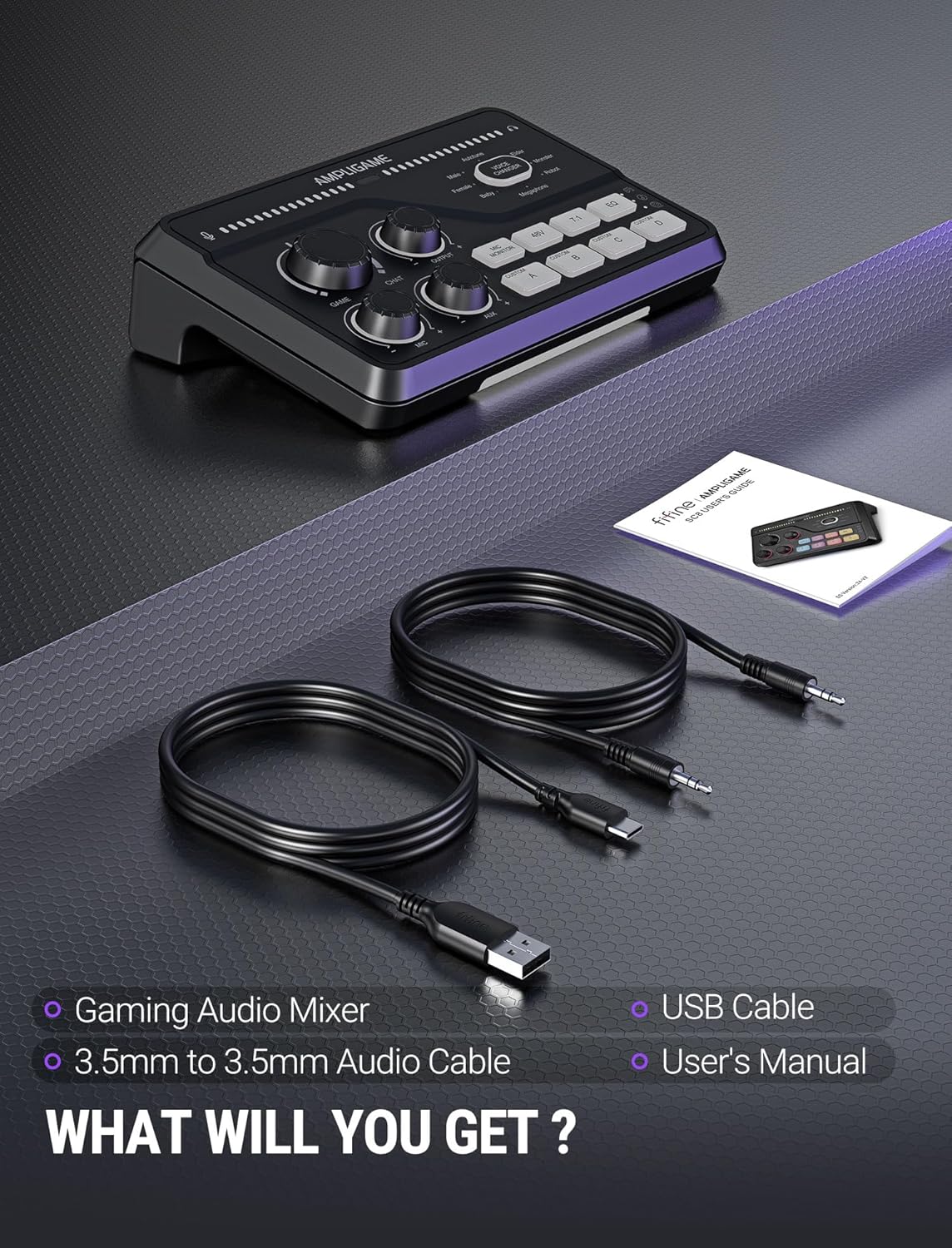
Image 3.1: Contents of the FIFINE Ampligame SC8 package, including the mixer, USB cable, 3.5mm audio cable, and user manual.
4. Produs terminatview (Componente)
Familiarize yourself with the various ports and controls on your Ampligame SC8 mixer.
Controale panoului frontal:
- Game Knob: Adjusts the volume of the game audio.
- Chat Knob: Adjusts the volume of the chat audio.
- Buton de ieșire: Controls the overall output volume to your headphones.
- Buton microfon: Adjusts the microphone input gain.
- Buton AUX: Adjusts the volume of the AUX input.
- Mic Monitor Button: Toggles microphone monitoring (sidetone).
- Buton 48V: Activates/deactivates 48V phantom power for XLR microphones.
- 7.1 Buton: Toggles 7.1 virtual surround sound.
- Buton EQ: Cycles through 3 EQ presets (Game, Music, Movie).
- Butonul de schimbare a vocii: Activates and cycles through 8 voice changer effects.
- Custom Buttons (A, B, C, D): Programmable buttons for custom sound samples or effects.
- Iluminare RGB: Customizable RGB lighting effects.

Image 4.1: Close-up of the FIFINE Ampligame SC8's front panel, highlighting the finely graduated knobs, quick press mute function, and game/chat balance control.
Conexiuni la panoul din spate:
- Port USB-C: For connection to PC, PS5, Switch, or mobile devices.
- Optical AUX Input: For connecting PS4/TV.
- 3.5mm AUX-In: For mixing commentary audio or other external audio sources.
- Ieșire căști: 3.5mm jack for connecting your gaming headset or headphones.
- Intrare XLR: For connecting XLR microphones.
- Dynamic/Condenser Toggle: Switch to match your microphone type.
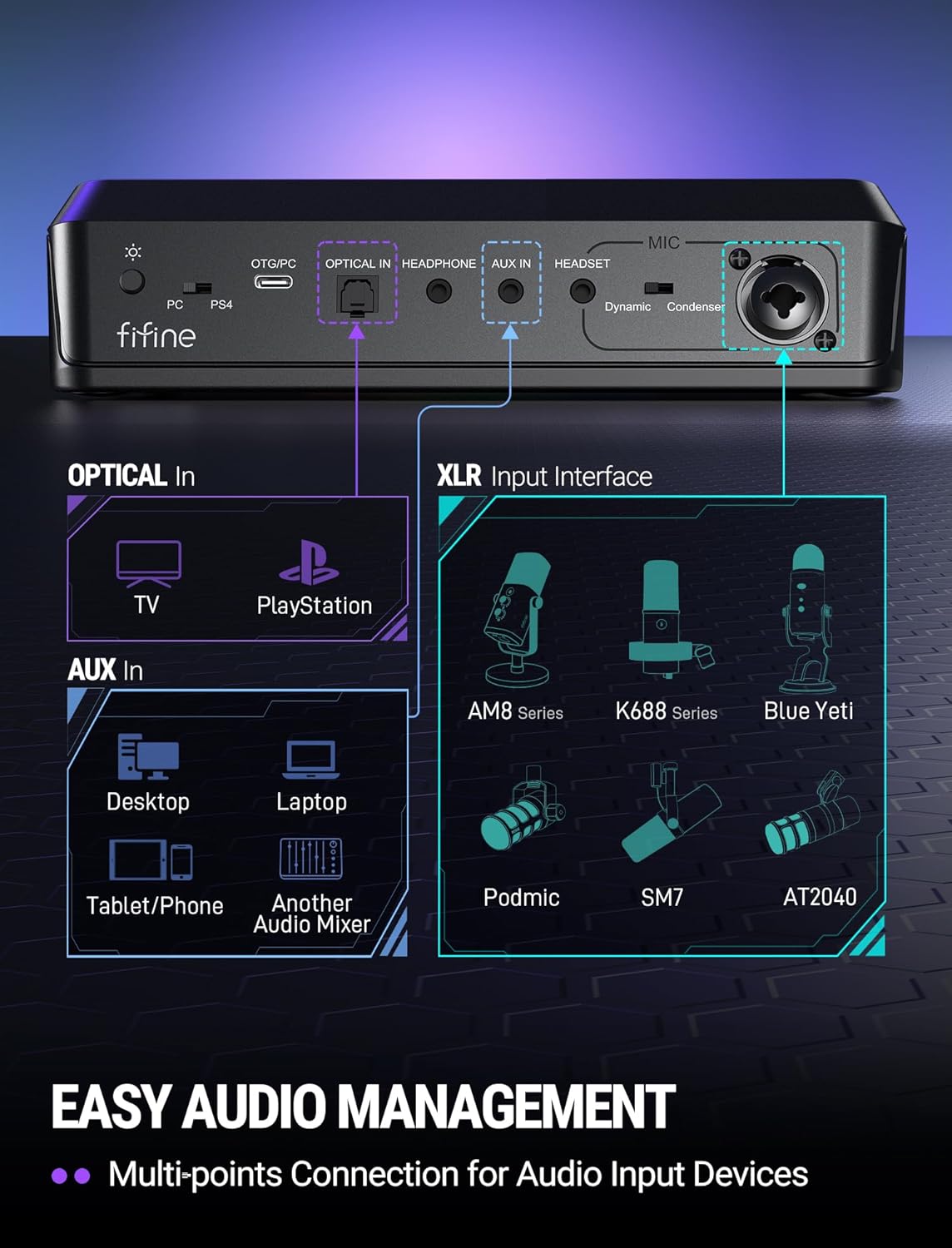
Image 4.2: Diagram of the FIFINE Ampligame SC8's rear panel, illustrating the various input and output ports and their typical connections.
5. Configurare
5.1 Conectarea inițială
- Connect the FIFINE Ampligame SC8 to your computer (PC/PS5/Switch) using the provided USB-C to USB-A cable. The device is Plug & Play and should be recognized automatically.
- Connect your gaming headset or headphones to the 3.5mm Headphone Output jack on the rear panel.
5.2 Conexiune microfon
- Connect your XLR microphone to the XLR Input port on the rear panel.
- Setați Dynamic/Condenser Toggle switch to match your microphone type.
- If using a condenser microphone that requires power, press the Buton 48V to activate phantom power. The button will illuminate when active.
- Reglați Butonul pentru microfon on the front panel to set your microphone's input gain.

Image 5.1: Illustration of the XLR connection and 48V phantom power feature, emphasizing wide compatibility with various microphones.
5.3 Connecting External Audio Sources
- Optical AUX: For PS4/TV audio, connect an optical cable from your console/TV to the Optical AUX Input on the mixer.
- 3.5mm AUX-In: For mobile devices, tablets, or other audio mixers, connect a 3.5mm audio cable from the device's output to the 3.5mm AUX-In on the mixer. Adjust its volume using the Buton AUX.
6. Instrucțiuni de utilizare
6.1 Volume Control and Muting
- Volumul jocului: Rotiți Game Knob to adjust the volume of your game audio.
- Chat Volume: Rotiți Chat Knob to adjust the volume of your voice chat.
- Sold joc/chat: The Joc şi Chat knobs allow you to prioritize game audio or chat audio as needed.
- Volum de ieșire: Rotiți Buton de ieșire to control the master volume for your headphones. Pressing this knob will mute/unmute the output.
- Dezactivare microfon: Apăsați tasta Butonul pentru microfon to mute/unmute your microphone.
- AUX Mute: Apăsați tasta Buton AUX to mute/unmute the AUX input.
6.2 Microphone Monitoring
Apăsați tasta Mic Monitor Button to toggle microphone monitoring (sidetone). This allows you to hear your own voice through your headphones, which can help prevent shouting and ensure clear communication.
Sunet surround virtual 6.3 7.1
Apăsați tasta 7.1 Buton to activate or deactivate the 7.1 virtual surround sound feature. This can enhance spatial awareness in games, allowing you to better pinpoint the direction of sounds.
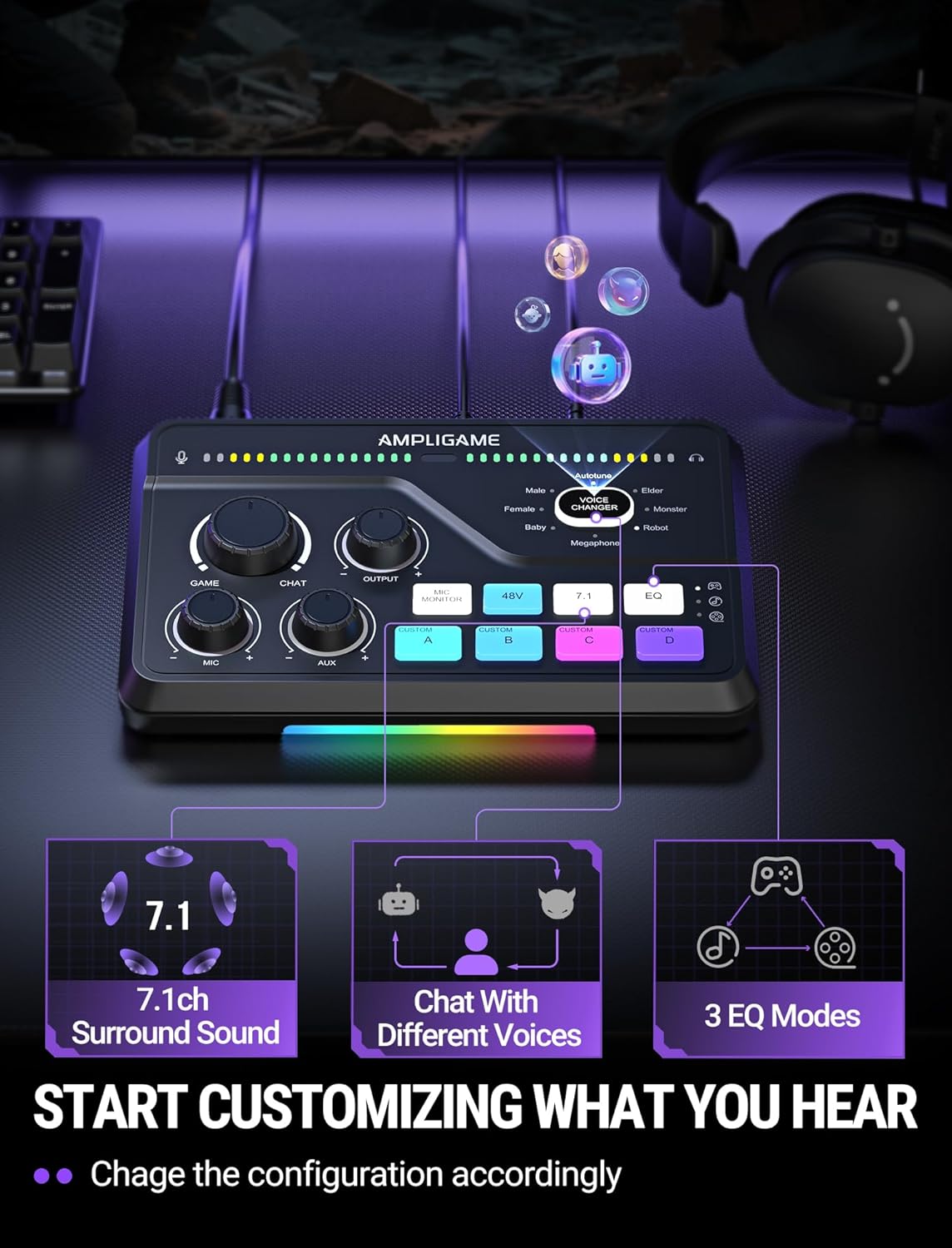
Image 6.1: Visual representation of the 7.1ch surround sound, voice chat, and 3 EQ modes features available on the mixer.
6.4 presetări EQ
Apăsați tasta Butonul EQ to cycle through three distinct equalization presets:
- Mod joc: Optimized for in-game audio, enhancing footsteps and other critical sound cues.
- Modul muzical: Balanced audio for listening to music.
- Mod film: Enhanced audio for cinematic experiences.
Schimbător de voce 6.5
Apăsați tasta Butonul de schimbare a vocii to activate the voice changer and cycle through 8 different voice effects, such as Demon, Robot, Megaphone, etc. This feature can be used for entertainment during streams or voice chats.

Image 6.2: A user enjoying the voice changer function of the FIFINE Ampligame SC8, illustrating the playful aspect of the device's features.
6.6 Customizable Sound Pads (Custom A, B, C, D)
Cei patru Custom Buttons (A, B, C, D) can be programmed to play custom sound samples or effects. Refer to the FIFINE website or support resources for detailed instructions on how to load and manage custom audio files for these buttons.
6.7 Iluminare RGB
The Ampligame SC8 features dynamic RGB lighting. The lighting effects can synchronize with audio peaks, providing visual feedback. Specific controls for RGB customization may be available through dedicated software or by cycling through presets on the device itself (if applicable, consult FIFINE support for details).
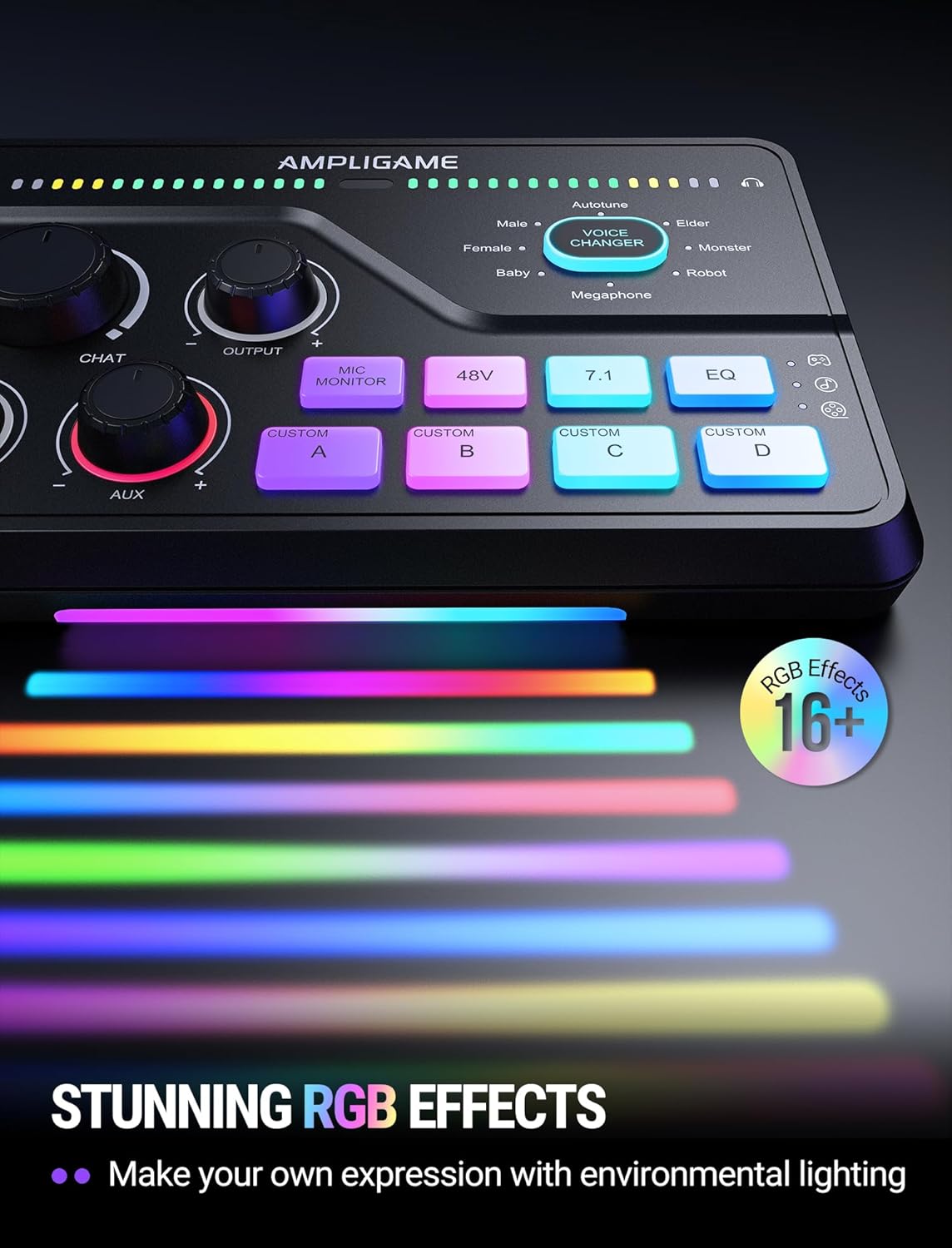
Image 6.3: The FIFINE Ampligame SC8 displaying its stunning RGB lighting effects, which can be customized to match environmental lighting.
7. Întreținere
- Clean the device regularly with a soft, dry cloth. Do not use liquid cleaners or abrasive materials.
- Păstrați porturile fără praf și resturi.
- Păstrați mixerul într-un loc răcoros și uscat atunci când nu este utilizat.
8. Depanare
| Problemă | Cauza posibila | Soluţie |
|---|---|---|
| No audio output from headphones. |
|
|
| Microfonul nu funcționează. |
|
|
| No game/chat audio. |
|
|
9. Specificații
| Caracteristică | Detaliu |
|---|---|
| Numărul de model | SC8 |
| Greutatea articolului | 1.37 lire sterline |
| Dimensiuni pachet | 9.65 x 6.22 x 2.87 inci |
| Tehnologia de conectivitate | USB |
| Tip conector de ieșire | USB |
| Numărul de canale | 5 |
| Sursa de alimentare | Electric cu fir |
| Dispozitive compatibile | Headphone, Laptop, Microphone, Personal Computer, Smartphone |
| Software acceptat | Discord, OBS, Twitch, Streamlabs |
10. Garanție și asistență
FIFINE products are designed and manufactured to the highest quality standards. For information regarding warranty coverage, technical support, or service, please visit the official FIFINE website-ul lor sau contactați direct serviciul de asistență pentru clienți. Păstrați bonul fiscal ca dovadă a achiziției pentru reclamațiile în garanție.
FIFINE Official Website: www.fifinemic.com


