1. Introducere și Pesteview
Thank you for choosing the Ninkear L12Pro Gaming Mini PC. This compact yet powerful desktop computer is designed to deliver exceptional performance for a wide range of applications, from demanding gaming and 4K video editing to business productivity and multi-display setups. Featuring an Intel Core i9-12900HK processor, 32GB of RAM, and a 1TB NVMe SSD, the L12Pro offers a seamless and responsive computing experience. This manual provides essential information for setting up, operating, maintaining, and troubleshooting your new Mini PC.
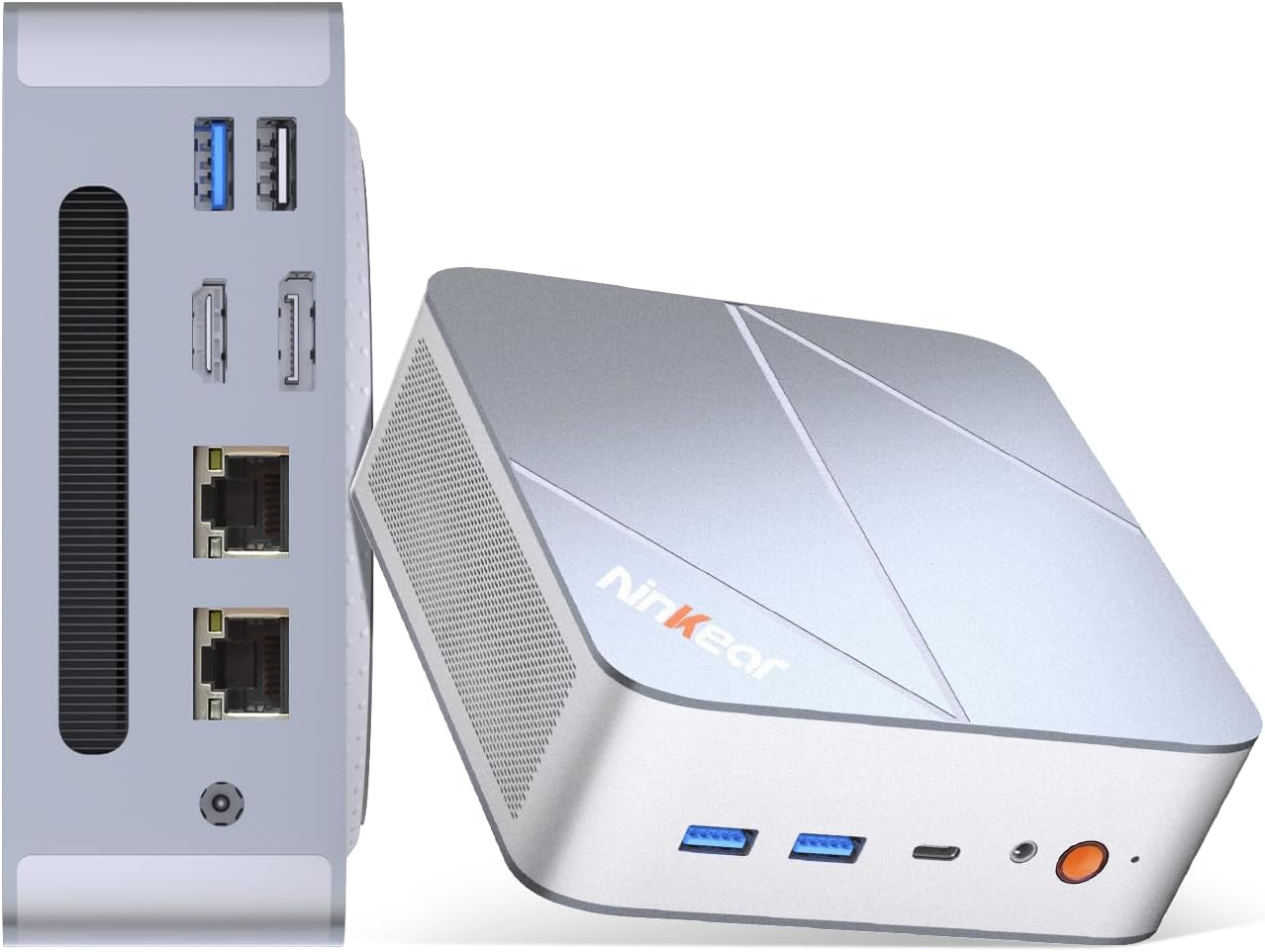
Figure 1.1: Ninkear L12Pro Mini PC - Front and Side View cu Porturi.
2. Caracteristicile produsului
- Lightning-Fast Performance: Powered by Intel’s 12th Gen i9-12900HK processor (14 cores, 20 threads, up to 5.0GHz), capable of handling 4K video editing, coding, and intensive multitasking.
- Memorie și stocare de mare viteză: Equipped with 32GB DDR4 RAM and an ultra-fast 1TB NVMe SSD for instant file access, smooth application performance, and rapid boot times.
- Triple 8K UHD Display Support: Create an immersive multi-screen setup with HDMI 2.0 (up to 4K@60Hz), DisplayPort 1.4 (up to 8K@60Hz), and USB4/Thunderbolt 4 (up to 8K@60Hz) outputs.
- Compact and Flexible Design: Small form factor allows for versatile placement behind monitors, under desks, or in backpacks, offering powerful desktop capabilities in a portable size.
- Conectivitate avansată: Features USB4.0, USB-C, WiFi 6, Bluetooth 5.2, dual 2.5G LAN ports, and multiple USB 3.2 Gen 2 and USB 2.0 ports for comprehensive peripheral support and high-speed data transfer.
- Sistem de racire eficient: Designed with an all-metal cooling system for quiet and efficient operation, ensuring stable performance even under heavy loads.
- Stocare extensibilă: Supports additional M.2 NVMe PCIe SSD (up to 4TB) and an optional 2.5-inch HDD for expanded storage capacity.

Figura 2.1: Caracteristici și specificații cheie de mai susview.

Figure 2.2: Triple 8K Display Setup for Enhanced Productivity.

Figure 2.3: Comprehensive Connectivity Options.
3. Ce se află în cutie
La deschiderea pachetului, vă rugăm să vă asigurați că sunt prezente toate următoarele elemente:
- Ninkear L12Pro Mini PC
- Cablu HDMI
- Adaptor de alimentare
- Manual de utilizare (acest document)
4. Ghid de instalare
Follow these steps to set up your Ninkear L12Pro Mini PC:
- Despachetați mini-PC-ul: Scoateți cu grijă Mini PC-ul și toate accesoriile din ambalaj.
- Conectarea la un afișaj:
- Connect one end of the HDMI cable (included) to the HDMI port on the Mini PC and the other end to an available HDMI input on your monitor or TV.
- For DisplayPort or USB4/Thunderbolt 4 connections, use appropriate cables (not included) to connect to compatible displays.
- For triple display setup, connect additional monitors using the available DisplayPort, USB4/Thunderbolt 4, or a USB-C to HDMI/DP adapter (not included).
- Conectați periferice:
- Plug your USB keyboard and mouse into any available USB ports on the Mini PC.
- If using wireless peripherals, ensure their receivers are plugged into a USB port.
- Conectare la alimentare: Plug the power adapter into the DC-in port on the Mini PC, then plug the other end into a power outlet.
- Conexiune la rețea (opțională):
- For a wired connection, connect an Ethernet cable from your router or modem to one of the 2.5G LAN ports on the Mini PC.
- For a wireless connection, the Mini PC supports WiFi 6. You will configure this after the initial boot.
- Pornire inițială: Press the power button on the front of the Mini PC. The system will power on and begin the initial setup process for Windows 11 Pro. Follow the on-screen instructions to complete the operating system setup.
5. Instrucțiuni de utilizare
5.1 Pornire/Oprire
- Pornire: Apăsați butonul de pornire o dată.
- Închidere: Faceți clic pe butonul Start din Windows, apoi selectați Alimentare > Oprire.
- Repornire: Faceți clic pe butonul Start din Windows, apoi selectați Alimentare > Repornire.
- Oprire forțată: If the system is unresponsive, press and hold the power button for approximately 5-7 seconds until the unit powers off. Use this only as a last resort.
5.2 Configurarea afișajului
The Ninkear L12Pro supports up to three independent displays simultaneously. After connecting your monitors, Windows will typically detect them automatically. If not, or to configure display settings:
- Faceți clic dreapta pe o zonă goală de pe desktop.
- Selectați „Setări de afișare”.
- From here, you can detect displays, arrange them, change resolution, and set display modes (Extend, Duplicate, Second screen only).
5.3 Conectivitate la rețea
- Prin cablu (Ethernet): Ensure an Ethernet cable is connected to one of the 2.5G LAN ports. Windows will automatically establish a connection.
- Fără fir (Wi-Fi):
- Click the Wi-Fi icon in the system tray (bottom right of the taskbar).
- Selectați rețeaua Wi-Fi dorită din listă.
- Introduceți parola de rețea dacă vi se solicită și faceți clic pe „Conectare”.
5.4 Conectarea dispozitivelor externe
The Mini PC offers a variety of ports for connecting external devices:
- Porturi USB: Use USB 3.2 Gen 2 ports for high-speed devices like external hard drives or SSDs, and USB 2.0 for standard peripherals like keyboards, mice, or printers.
- USB4/Thunderbolt 4: This versatile port supports high-speed data transfer (40Gbps), video output, and power delivery (with compatible devices).
- Mufa audio: Conectați căștile sau difuzoarele externe la mufa audio de 3.5 mm.
6. Întreținere
Proper maintenance ensures the longevity and optimal performance of your Ninkear L12Pro Mini PC:
- Păstrați aerisirea liberă: Ensure the ventilation openings on the Mini PC are not obstructed. Blocked vents can lead to overheating and reduced performance.
- Curățare regulată: Use a soft, dry cloth to clean the exterior of the Mini PC. For dust in vents, use compressed air. Do not use liquid cleaners directly on the device.
- Actualizări de software: Regularly update your Windows operating system, drivers, and applications to ensure security, stability, and performance.
- Oprire sigură: Închideți întotdeauna Mini PC-ul în mod corespunzător prin intermediul sistemului de operare pentru a preveni coruperea datelor.
- Conditii de mediu: Operate the Mini PC in a clean, dry environment, away from direct sunlight, excessive heat, and humidity.

Figure 6.1: Smart Cooling System for Quiet Operation.
7. Depanare
If you encounter issues with your Ninkear L12Pro Mini PC, refer to the following common problems and solutions:
| Problemă | Cauza posibila | Soluţie |
|---|---|---|
| Fără putere | Power adapter not connected; Power outlet issue; Faulty power adapter. | Ensure power adapter is securely connected to the Mini PC and a working power outlet. Try a different outlet. |
| Fără afișare | Monitor not connected; Incorrect input selected on monitor; Faulty cable; Display driver issue. | Check display cable connections. Ensure monitor is on and set to the correct input source (HDMI, DP, USB-C). Try a different cable or monitor. Update display drivers in Windows. |
| No Internet Connection (Wired) | Ethernet cable disconnected; Router/modem issue; Network driver issue. | Check Ethernet cable connection. Restart your router/modem. Check network adapter settings in Windows Device Manager. |
| Fără conexiune la internet (Wi-Fi) | Wi-Fi disabled; Incorrect password; Router too far; Driver issue. | Ensure Wi-Fi is enabled in Windows. Re-enter Wi-Fi password. Move closer to the router. Update Wi-Fi drivers. |
| Performanță lentă | Too many applications running; Overheating; Low disk space; Malware. | Close unnecessary applications. Ensure vents are clear. Free up disk space. Run a malware scan. |
8. Specificații
Detailed technical specifications for the Ninkear L12Pro Mini PC:
| Caracteristică | Detaliu |
|---|---|
| Marca | Ninkear |
| Numărul de model | L12Pro |
| Procesor | Intel Core i9-12900HK (14 Cores, 20 Threads, up to 5.0GHz) |
| RAM | 32GB DDR4 (extensibilă până la 64GB) |
| Depozitare | 1TB NVMe SSD (M.2 PCIe 3.0, Expandable up to 4TB) |
| Coprocesor grafic | Placă grafică Intel Iris Xe (96EU) |
| Rezoluția maximă a ecranului | 8K (7680x4320) via DisplayPort/USB4, 4K (4096x2160) via HDMI |
| Ieșiri video | 1x HDMI 2.0, 1x DisplayPort 1.4, 1x USB4/Thunderbolt 4 |
| Porturi USB | 3x USB 3.2 Gen 2, 1x USB 2.0, 1x USB4/Thunderbolt 4 (Type-C) |
| Reţea | Dual 2.5G LAN (RJ45), WiFi 6 (802.11ax) |
| Bluetooth | Bluetooth 5.2 |
| Sistem de operare | Windows 11 Pro |
| Greutatea articolului | 2.51 livre (aprox. 1.14 kg) |
| Dimensiuni | 10.44 x 6.73 x 2.79 inci (dimensiunile pachetului) |
| Culoare | Premium Brushed Silver |
9. Garanție și asistență
The Ninkear L12Pro Mini PC comes with a standard manufacturer's warranty. For specific warranty terms and conditions, please refer to the documentation included with your purchase or visit the official Ninkear website-ul.
For technical support, troubleshooting assistance, or any inquiries regarding your product, please contact Ninkear customer service through their official channels.
Suport online: Vizitați Ninkear Store on Amazon pentru Întrebări frecvente și opțiuni de contact.


