1. Introducere
This manual provides detailed instructions for the installation, operation, and maintenance of your SINOVCLE 7-inch Wireless CarPlay & Android Auto Portable Car Stereo. Please read this manual thoroughly before using the device to ensure proper functionality and safety. Keep this manual for future reference.
2. Produs terminatview
2.1 Conținutul pachetului
Verificați dacă toate articolele sunt prezente în colet:
- Car Stereo Display
- Mounting Hardware (High Freedom Stand)
- Manual de utilizare
- Reversing Camera (Optional, if included in your package)
- 64G TF Card (Optional, if included in your package)
- 1 USB Cigarette Lighter Power Plug
- AV IN Input Cable
- Cablu AUX

Image: Contents of the SINOVCLE Portable Car Stereo package, including the main unit, mounting stand, cables, and optional accessories.
2.2 Caracteristici cheie
- Ecran tactil IPS de 7 inci: Provides a clear display with 1024x600 resolution.
- CarPlay/Android Auto fără fir și cu fir: Integrare perfectă cu smartphone-ul pentru navigare, muzică și comunicare.
- Bluetooth 5.0: Supports hands-free calling and wireless audio streaming.
- Navigare prin GPS: Utilizes online maps from your connected smartphone for real-time navigation.
- Legătură oglindă: Afișează ecranul smartphone-ului direct pe dispozitiv.
- Transmițător FM: Transmits audio to your vehicle's FM radio for sound output through car speakers.
- Ieșire AUX: Connects directly to your car's AUX input for audio output.
- Backup Camera Input (AVIN): Supports connection to a reversing camera for parking assistance.
- Potrivire universală: Compatible with a wide range of vehicles (12V-30V DC power supply).
- Port de încărcare USB: Dedicated USB port on the power plug for phone charging.

Image: The SINOVCLE 7-inch Portable Car Stereo display unit along with its suction cup mount, backup camera, AUX cable, and 64GB TF card.
3. Instrucțiuni de configurare
3.1 Montarea dispozitivului
Attach the provided mounting hardware to the back of the car stereo display. Secure the mount to your dashboard or windshield using the suction cup. Adjust the screen angle for optimal viewing. The mount allows for 360-degree adjustment.
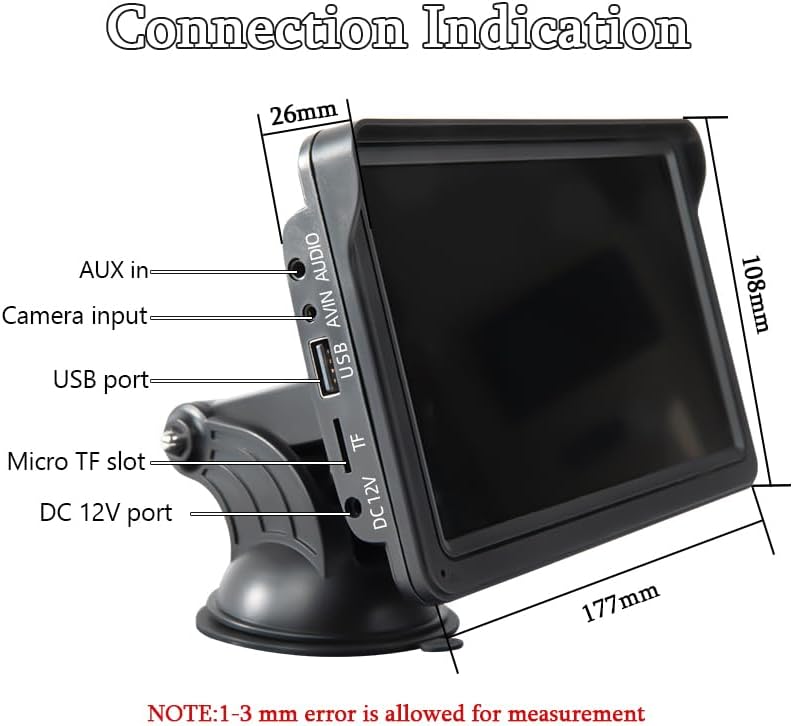
Image: Illustrations demonstrating the 360-degree adjustability of the screen mount, allowing for various viewunghiuri și poziții.
3.2 Conexiune la alimentare
This device is powered via the cigarette lighter power plug. Insert the power plug into your vehicle's cigarette lighter socket. The device will power on automatically. The power supply voltage range is 12V to 30V DC, making it suitable for most vehicle models.

Image: The car stereo installed on a dashboard, showing the power cable connected to the cigarette lighter socket, which includes a dedicated USB port for phone charging.
3.3 Connecting a Backup Camera (Optional)
If you have a backup camera, connect its video output to the AVIN (Reversing camera input) port on the car stereo using a 2.5mm to RCA adapter cable. Ensure the camera is properly installed and powered according to its own instructions.

Image: The car stereo displaying a backup camera feed with parking guidelines, alongside a separate image of a rear-view unitate de cameră.
4. Instrucțiuni de utilizare
4.1 CarPlay & Android Auto Connection
The device supports both wired and wireless connections for Apple CarPlay and Android Auto.
4.1.1 Conexiune cu fir
- Connect your smartphone to the car stereo's USB port using a USB data cable.
- The device will automatically enter the CarPlay or Android Auto interface.
4.1.2 Conexiune wireless
- On your smartphone, enable both Bluetooth and Wi-Fi functions.
- On the car stereo, navigate to the 'PhoneLink' or 'CarPlay/Android Auto' section.
- Caută and connect to the car stereo's Bluetooth device name from your phone's Bluetooth settings.
- Once Bluetooth is paired, the device will automatically initiate the CarPlay or Android Auto interface via Wi-Fi.

Image: A sequence of smartphone screenshots illustrating the steps to connect to CarPlay wirelessly, including enabling Wi-Fi and Bluetooth, selecting the device, and confirming pairing.

Image: A sequence of smartphone screenshots illustrating the steps to connect to Android Auto wirelessly, including enabling Wi-Fi and Bluetooth, selecting the device, and confirming pairing.
4.2 Navigare GPS
When connected to CarPlay or Android Auto, the device utilizes your smartphone's online map applications (e.g., Google Maps, Apple Maps) for navigation. This provides live GPS tracking, instant route adjustments for traffic, and access to up-to-date maps without manual updates. The 7-inch screen offers a larger, clearer view pentru navigare.

Image: The car stereo displaying a navigation route from a mapping application, with various map app icons shown alongside.
4.3 Funcții Bluetooth
The integrated Bluetooth 5.0 allows for:
- Apeluri fără mâini: Make and receive calls directly from the car stereo display using the built-in microphone.
- Streaming de muzică fără fir: Play audio from your smartphone through the car stereo.
- Dual-Device Pairing: Maintain connection with two devices for seamless switching between audio sources.

Image: The car stereo displaying a phone dialer interface, indicating active Bluetooth connection for hands-free calling, with a smartphone also showing a call screen.
4.4 FM Transmitting
To output audio through your vehicle's speakers via FM radio:
- On the car stereo, select the FM Transmitter function.
- Choose an unoccupied FM frequency on the car stereo.
- Tune your vehicle's FM radio to the exact same frequency.
- Audio from the car stereo will now play through your car's speakers. Avoid frequencies occupied by local FM stations to prevent interference.

Image: The car stereo displaying FM transmission settings, with a car's built-in radio also tuned to the same FM frequency, illustrating the audio transmission process.
4.5 AUX Cable Connection
If your car has an AUX input, you can connect the car stereo directly using the provided AUX cable for audio output. Plug one end into the car stereo's audio port and the other into your car's AUX input.
4.6 Legătură în oglindă
The Mirror Link function allows you to display your smartphone's screen directly on the car stereo. Connect your iPhone via USB cable for casting. For Android phones, connect via USB and follow prompts to install any necessary app software on your mobile phone.

Image: The car stereo displaying a mirrored smartphone screen, with separate images showing wired connection methods for iPhone and Android devices to enable Mirror Link.
5. Întreținere
To ensure the longevity and optimal performance of your SINOVCLE car stereo, follow these maintenance guidelines:
- curatenie: Folosiți o cârpă moale și uscată pentru a curăța ecranul și exteriorul. Pentru petele persistente, ștergeți ușor.ampCurățați laveta cu apă sau cu un produs de curățare sigur pentru ecran. Evitați materialele abrazive sau substanțele chimice dure.
- Temperatură: Evitați expunerea dispozitivului la temperaturi extreme, atât calde, cât și reci, pentru perioade lungi de timp.
- Umiditate: Keep the device dry. Do not expose it to water or other liquids.
- Organizare de cabluri: Ensure all cables are securely connected and not pinched or tangled, which can cause damage.
- Actualizări de software: Verifică-l pe cel al producătorului webVerificați periodic site-ul pentru actualizări de firmware disponibile, pentru a îmbunătăți performanța și a adăuga funcții.
6. Depanare
Dacă întâmpinați probleme cu dispozitivul dvs., consultați următoarele probleme și soluții frecvente:
6.1 Fara putere
- Verificați conexiunea la alimentare: Ensure the cigarette lighter power plug is fully inserted into the vehicle's socket and the vehicle's ignition is on.
- Puterea vehiculului: Verificați dacă mufa brichetei vehiculului funcționează (de exemplu, testați cu un alt dispozitiv).
- Siguranță: Check the fuse in the cigarette lighter plug or your vehicle's fuse box if applicable.
6.2 Probleme de conectare wireless CarPlay/Android Auto
- Bluetooth și Wi-Fi: Asigurați-vă că atât Bluetooth, cât și Wi-Fi sunt activate pe smartphone-ul dvs.
- Uitați de dispozitiv: On your smartphone, 'forget' the car stereo from your Bluetooth and Wi-Fi settings, then attempt to pair again.
- Reporniți dispozitivele: Restart both your smartphone and the car stereo.
- Manual Discrepancy: If the on-screen display differs from the manual's instructions, prioritize the on-screen prompts or contact support.
- Test de conectare prin cablu: Try a wired connection to confirm basic functionality of CarPlay/Android Auto.
6.3 Fără ieșire audio
- Niveluri de volum: Check the volume settings on both the car stereo and your vehicle's audio system.
- Transmițător FM: If using FM transmission, ensure the car stereo and your vehicle's radio are tuned to the exact same, unoccupied frequency.
- Conexiune AUX: If using AUX, ensure the cable is securely connected to both the car stereo and your vehicle's AUX input, and your car's audio source is set to AUX.
- Audio Bluetooth: If using Bluetooth, ensure your phone's audio output is directed to the car stereo.
6.4 Backup Camera Not Displaying
- Conexiune prin cablu: Verify the AVIN cable is securely connected to the car stereo.
- Putere camerei: Ensure the backup camera itself is receiving power and is functioning correctly.
- Cablu adaptor: Confirm the 2.5mm to RCA adapter cable is correctly used and not damaged.
6.5 Ecranul tactil nu răspunde
- Repornire: Opriți și reporniți dispozitivul.
- Ecran curat: Asigurați-vă că ecranul este curat și fără resturi sau umezeală.
7. Specificații
| Caracteristică | Caietul de sarcini |
|---|---|
| Numărul de model | XSP-207-SXT-303-12D |
| Dimensiunea ecranului | 7 inci |
| Rezoluția afișajului | IPS 1024x600 |
| Tehnologia de conectivitate | Auxiliar, Bluetooth, USB |
| Versiune Bluetooth | 5.0 |
| Tip controler | Touch screen |
| Caracteristici speciale | Android Auto, Built-In Bluetooth, Multi-device Support, Touchscreen, Wireless Carplay |
| Dispozitive compatibile | Smartphones (iOS/Android), Backup Cameras |
| Alimentare Voltage | 12V~30V DC |
| Mod ieșire audio | Stereo |
| Tip conector | Mufă de 3.5 mm, USB |
| Dimensiunile produsului | 5.08 x 17.78 x 11.43 cm (A x L x Î) |
| Greutatea articolului | 1.59 lire (0.72 kg) |

Imagine: O parte view of the SINOVCLE car stereo, highlighting its slim profile and IPS 1024x600 touch screen, with comparison images showing clarity differences.
8. Informații de siguranță
- Folosiți întotdeauna dispozitivul în mod responsabil și în conformitate cu legile locale privind traficul.
- Do not attempt to install or service the device while driving.
- Asigurați-vă că dispozitivul este montat în siguranță și nu vă obstrucționează view drumului sau să interfereze cu comenzile vehiculului.
- Avoid prolonged exposure to direct sunlight or extreme temperatures inside the vehicle.
- Țineți aparatul departe de apă și alte lichide.
9. Garanție și asistență
For warranty information and technical support, please refer to the documentation provided with your purchase or contact SINOVCLE customer service directly. Contact details can typically be found on the product packaging or the official SINOVCLE website-ul.


