1. Introducere
The FIREBAT X3 Wired RGB Gaming Mouse is designed for precision and comfort, suitable for various computing tasks including gaming, office work, and general use. This manual provides detailed instructions for setting up, operating, and maintaining your mouse.

Pesteview of the FIREBAT X3 Wired RGB Gaming Mouse highlighting its main features.
2. Configurare
2.1 Conectarea mouse-ului
The FIREBAT X3 Gaming Mouse features a simple plug-and-play design for easy setup.
- Locate an available USB-A port on your computer or laptop.
- Insert the USB connector of the mouse into the USB-A port.
- Your operating system will automatically detect and install the necessary drivers. No additional software installation is required for basic functionality.

The FIREBAT X3 mouse connects via a standard USB-A port for immediate use.
3. Funcționare
3.1 Funcțiile butoanelor
The FIREBAT X3 Gaming Mouse is equipped with 6 programmable buttons for enhanced control.
- Butonul din stânga: Funcție standard de clic.
- Butonul din dreapta: Funcția standard de clic dreapta.
- Rotiță de defilare: Scrolls up and down. Can also be pressed for a middle-click function.
- DPI Adjustment Key: Changes the mouse sensitivity (DPI).
- Buton înainte: Navighează înainte în web browsere sau file exploratori.
- Butonul Înapoi: Navighează înapoi în web browsere sau file exploratori.

Illustration of the 6-button layout on the FIREBAT X3 Gaming Mouse.
3.2 Reglarea DPI-ului (Sensibilității)
The mouse features 4 adjustable DPI levels to suit different tasks and preferences.
- Apăsați tasta DPI Adjustment Key (located behind the scroll wheel) to cycle through the preset DPI settings.
- The default DPI levels are 1200, 1800, 2400, and 3600.
- Each press will switch to the next DPI level, allowing you to find the optimal sensitivity for your current activity.

The DPI adjustment key allows for quick changes in mouse sensitivity.
3.3 moduri de iluminare RGB
The FIREBAT X3 mouse features 7 dynamic RGB backlit modes to enhance your setup.
- The RGB lighting automatically cycles through its 7 distinct modes.
- There is no manual button to change the RGB mode; the mouse will continuously display various lighting effects.
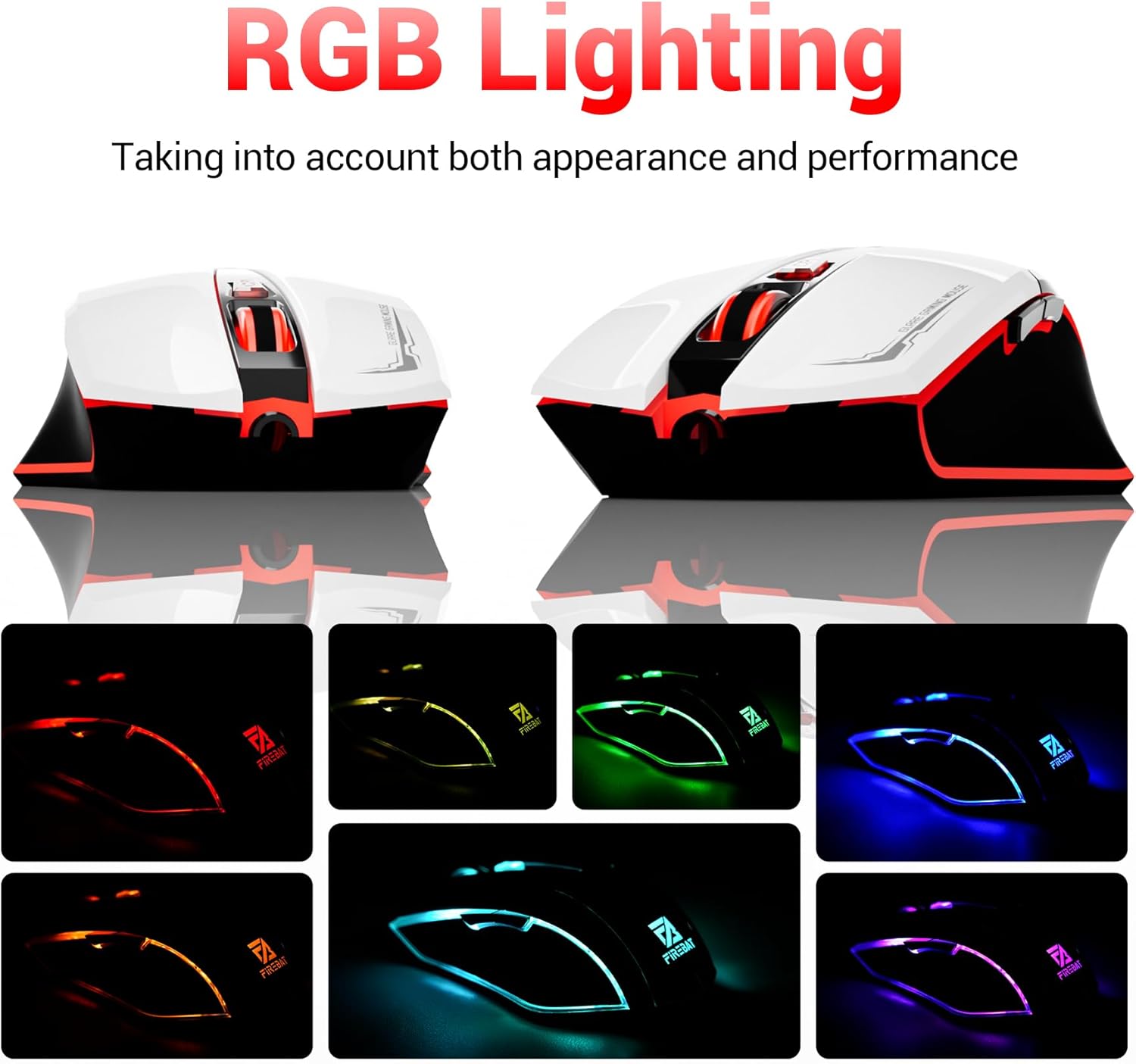
The mouse features vibrant RGB lighting with multiple dynamic modes.
3.4 Design ergonomic și confort
The mouse is designed with an ergonomic shape to provide a comfortable grip and reduce hand fatigue during extended use, suitable for both right and left-hand users.

The ergonomic design ensures comfort during prolonged use.
3.5 Quiet Click Feature
The mouse incorporates a 'Heavy Bass Design' for its key sounds, ensuring soft clicks without excessive noise, which is beneficial in quiet environments.

The mouse features quiet clicks, minimizing noise during use.
4. Întreținere
4.1 Curățare
To ensure optimal performance and longevity, keep your mouse clean.
- Deconectați mouse-ul de la computer înainte de curățare.
- Utilizați ușor o cârpă moale, fără scame dampclătiți cu apă sau o soluție de curățare blândă pentru a șterge suprafața mouse-ului.
- Evitați utilizarea substanțelor chimice dure, a produselor de curățare abrazive sau a umidității excesive, deoarece acestea pot deteriora mouse-ul.
- For the optical sensor, use a cotton swab to gently remove any dust or debris.
4.2 Depozitare
Când nu este utilizat, depozitați mouse-ul într-un mediu curat și uscat, ferit de temperaturi extreme și de lumina directă a soarelui.
5. Depanare
5.1 Mouse-ul nu răspunde
- Verificați conexiunea USB: Asigurați-vă că cablul USB este conectat corect la un port USB funcțional al computerului. Încercați un alt port USB.
- Reporniți computerul: Uneori, o simplă repornire poate rezolva problemele de conectivitate.
- Testați pe un alt computer: Dacă este posibil, testați mouse-ul pe un alt computer pentru a determina dacă problema este cu mouse-ul sau cu configurația computerului.
5.2 Cursor Movement is Erratic or Jumpy
- Curățarea senzorului optic: Dust or debris on the optical sensor can cause erratic movement. Refer to the cleaning instructions in the Maintenance section.
- Use a Mouse Pad: Ensure you are using the mouse on a suitable surface. Reflective, transparent, or uneven surfaces can interfere with the optical sensor.
5.3 Iluminarea RGB nu funcționează
- Verificați alimentarea prin USB: Ensure the mouse is receiving sufficient power through the USB connection.
- Fără control manual: Remember that the RGB lighting cycles automatically and does not have a manual control button. If the mouse is functioning otherwise, the lighting should be active.
6. Specificații
| Caracteristică | Detaliu |
|---|---|
| Numărul de model | X3 Gaming Mouse |
| Marca | FIREBAT |
| Tehnologia de conectivitate | USB cu fir |
| Detectarea mișcării | Optic |
| Niveluri DPI | 1200 / 1800 / 2400 / 3600 |
| Numărul de butoane | 6 (programabile) |
| Iluminare de fundal | 7 de moduri RGB |
| Dimensiunile produsului | 5 x 3 x 0.1 inchi (12.7 x 7.6 x 0.25 cm) |
| Greutatea articolului | 5.1 uncii (144.6 grame) |
| Ergonomie | Right or Left Hand Use |
| Producător | FIREBAT |
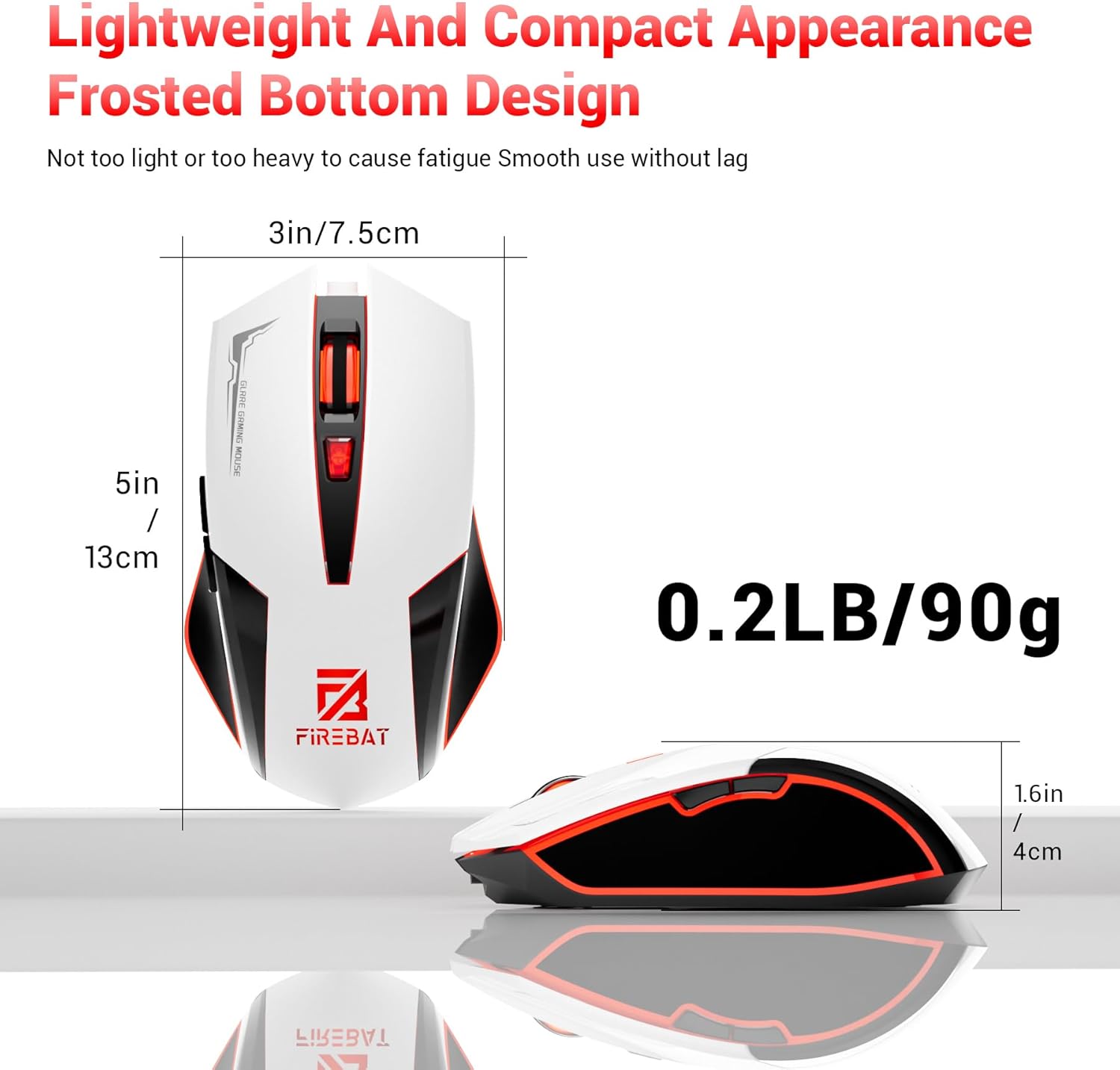
Physical dimensions and weight of the FIREBAT X3 Gaming Mouse.
7. Garanție și asistență
7.1 Informații despre garanție
FIREBAT products are manufactured to high-quality standards. For specific warranty details, please refer to the warranty card included with your product or visit the official FIREBAT website. Typically, products come with a limited warranty covering manufacturing defects.
7.2 Asistență pentru clienți
If you encounter any issues or have questions regarding your FIREBAT X3 Gaming Mouse, please contact our customer support team:
- E-mail: support@firebatpc.com
- Website: www.firebatpc.com
Please provide your product model number (X3 Gaming Mouse) and a detailed description of your issue when contacting support for faster assistance.


