1. Introducere
Bine ați venit la Negruview Acebook6 Laptop User Manual. This guide provides essential information for setting up, operating, maintaining, and troubleshooting your new laptop. Please read this manual thoroughly to ensure optimal performance and longevity of your device.
2. Produs terminatview
Negrulview Acebook6 is a versatile laptop designed for business, student, and everyday use. It features a powerful Intel N150 processor, ample memory and storage, and a comfortable display with eye-care technology.
Caracteristici cheie:
- Procesor: Intel N150 Quad-Core (up to 3.6GHz) for efficient performance.
- Memorie și stocare: 16GB DDR4 RAM and 256GB M.2 SSD, expandable up to 32GB RAM and 2TB SSD.
- Afişa: 15.6-inch Full HD IPS screen (1920x1080) with TÜV Rheinland Eye Care certification.
- Încărcare baterie: 5000mAh (38Whr) battery with 45W Type-C fast charging (supports 100W).
- Conectivitate: Type-C (PD 3.0), 2x USB 3.2 Gen1, 1x USB 2.0, HDMI 2.0, 3.5mm audio jack, TF card slot, Dual-band Wi-Fi, Bluetooth 5.0.
- Sistem de operare: Windows 11 Home preinstalat.
- Proiecta: Slim 19.5mm profile, 1.7kg lightweight build, 180° lay-flat hinge.

Imagine: Negrulview Acebook6 laptop displaying the Windows 11 operating system interface.
3. Configurare inițială
3.1 Despachetarea și inspecția
- Scoateți cu grijă laptopul și toate accesoriile din ambalaj.
- Verify that all items listed in the "What's in the Box" section are present: Laptop, Type-C charging cable, Adapter, User Manual.
- Inspect the laptop for any signs of physical damage. If damage is found, contact customer support immediately.
3.2 Conectarea adaptorului de alimentare
Before first use, ensure the laptop is fully charged. Connect the Type-C charging cable to the laptop's Type-C port and the adapter to a power outlet.

Imagine: Negrulview Acebook6 laptop with a Type-C charging cable connected to its port, illustrating the fast charging capability.
3.3 Pornirea inițială și configurarea Windows
- Apăsați butonul de pornire situat în partea dreaptă sus a tastaturii pentru a porni laptopul.
- Follow the on-screen instructions to complete the Windows 11 initial setup. This includes selecting your region, language, connecting to a Wi-Fi network, and creating a user account.
- Se recomandă conectarea la internet în timpul configurării pentru a descărca cele mai recente actualizări.
4. Utilizarea laptopului
4.1 Tastatură și touchpad
The laptop features a full-sized keyboard with an independent numeric keypad for efficient data entry. The touchpad supports multi-touch gestures for navigation.
- Gesturi touchpad: Refer to Windows 11 settings for customizing touchpad gestures (e.g., two-finger scroll, pinch-to-zoom).
- Taste funcționale: Utilizați Fn key in combination with the F1-F12 keys for quick access to functions like screen brightness, volume control, and Wi-Fi toggle.

Imagine: O imagine detaliată view of the laptop's keyboard, emphasizing the integrated numeric keypad for enhanced productivity.
4.2 Conectarea dispozitivelor externe
The Acebook6 offers various ports for connecting peripherals:
- Porturi USB: Connect USB drives, external keyboards, mice, or other USB devices to the USB 3.2 Gen1 or USB 2.0 ports.
- Port de tip C: Use for charging, data transfer, or connecting compatible USB-C accessories.
- Port HDMI: Connect to an external monitor or TV for extended display or presentations. Supports 4K output.
- Mufă audio de 3.5 mm: Conectați căști sau difuzoare externe.
- Slot pentru carduri TF: Insert a TF (microSD) card for additional storage or data transfer.

Imagine: Side profile al Negruluiview Acebook6 laptop, highlighting the arrangement and types of available ports for connectivity.
4.3 Managementul bateriei
The laptop is equipped with a 5000mAh battery. To optimize battery life:
- Reglați luminozitatea ecranului la un nivel confortabil.
- Închideți aplicațiile și filele de browser neutilizate.
- Utilize Windows power-saving modes (Power-saving, Balanced, Performance) accessible via the battery icon in the taskbar.
- Evitați temperaturile extreme.

Image: An illustration detailing the laptop's battery capacity and the three available power modes: Power-saving, Balanced, and Performance.
5. Întreținere și îngrijire
5.1 Curățarea laptopului
- Opriți întotdeauna laptopul și deconectați adaptorul de alimentare înainte de curățare.
- Folosiți o cârpă moale, fără scame dampened with water or a screen cleaner to wipe the display. Avoid harsh chemicals.
- For the keyboard and chassis, use a soft cloth. A can of compressed air can help remove dust from between keys and vents.
5.2 Depozitare și manipulare
- Depozitați laptopul într-un loc răcoros și uscat, ferit de lumina directă a soarelui și de temperaturi extreme.
- Evitați să așezați obiecte grele pe laptop.
- Transport the laptop in a protective sleeve or bag to prevent scratches and impacts.
5.3 Actualizări de software
Verificați și instalați periodic actualizări Windows pentru a vă asigura că sistemul dvs. are cele mai recente corecții de securitate și îmbunătățiri de performanță. Accesați Setări > Actualizare Windows.
6. Depanare
Această secțiune abordează problemele comune pe care le-ați putea întâmpina cu dispozitivul dvs. Blackview Acebook6 laptop.
| Problemă | Cauza posibila | Soluţie |
|---|---|---|
| Laptopul nu pornește. | Baterie descărcată, problemă cu adaptorul de alimentare. | Connect the power adapter and allow the laptop to charge for at least 30 minutes. Ensure the power outlet is functional. |
| Ecranul este gol sau negru. | Mod repaus, setări afișaj, problemă hardware. | Press any key or move the mouse to wake the laptop. Check if an external monitor is connected and configured as the primary display. Restart the laptop. |
| Probleme cu conexiunea Wi-Fi. | Wi-Fi adapter off, incorrect password, router issue. | Asigurați-vă că Wi-Fi-ul este activat în setările Windows. Verificați parola Wi-Fi. Reporniți routerul și laptopul. |
| Performanță lentă. | Prea multe aplicații rulează, spațiu de stocare insuficient, drivere învechite. | Close unnecessary programs. Free up disk space. Update Windows and device drivers. Consider upgrading RAM or SSD if performance remains an issue (supports up to 32GB RAM + 2TB SSD). |
| Bateria nu se încarcă. | Faulty charger, port issue, battery issue. | Ensure the Type-C cable and adapter are securely connected. Try a different compatible Type-C charger if available. Contact support if the issue persists. |
7. Specificatii tehnice
Below are the detailed technical specifications for the Blackview Acebook6 Laptop:
| Caracteristică | Caietul de sarcini |
|---|---|
| Numele modelului | Acebook6 |
| Procesor | Intel N150 Quad-Core (up to 3.6GHz, 6MB Cache) |
| Sistem de operare | Windows 11 Home |
| RAM | 16GB DDR4 (2666MHz), expandable to 32GB |
| Depozitare | 256GB M.2 SSD, expandable to 2TB |
| Afişa | 15.6-inch Full HD (1920x1080) IPS, 220 nits, 45% NTSC, TÜV Rheinland Eye Care |
| Grafică | Intel UHD Graphics (supports 4K output via HDMI) |
| Baterie | 5000mAh (38Whr) |
| Încărcare | 45W Type-C Fast Charging (PD 3.0 compliant, supports 100W) |
| Porturi | 1x Type-C (PD 3.0), 2x USB 3.2 Gen1, 1x USB 2.0, 1x HDMI 2.0, 1x 3.5mm Audio Jack, 1x TF Card Slot |
| Conectivitate wireless | Dual-band Wi-Fi, Bluetooth 5.0 |
| Dimensiuni (Lxlxh) | 14.07 x 9 x 0.66 inchi (35.74 x 22.86 x 1.68 cm) |
| Greutate | 3.74 lire (1.7 kg) |
| Culoare | Gri spațial |
8. Garanție și asistență
Negruview is committed to providing reliable products and comprehensive customer support.
8.1 Informații despre garanție
- Negrul tăuview Acebook6 laptop comes with a 24-month repair warranty pentru defecte de fabricație.
- Această garanție acoperă defectele de materiale și de manoperă în condiții normale de utilizare.
- For detailed warranty terms and conditions, please refer to the warranty card included with your product or visit the official Blackview website-ul.
8.2 Suport tehnic
Negruview offers lifetime technical support for your laptop. If you encounter any issues or have questions:
- Suport online: Vizitați pagina oficială Blackview sprijin website pentru întrebări frecvente, drivere și descărcări de software.
- Asistență prin e-mail: Contact our support team via email for assistance. Responses are typically provided within 24 hours (Mon-Sat).
- Offline Stores: Dedicated Blackview service centers are available in various locations, including the U.S., for in-person assistance.
- Cod QR: Scan the QR code provided with your laptop for quick access to support resources.
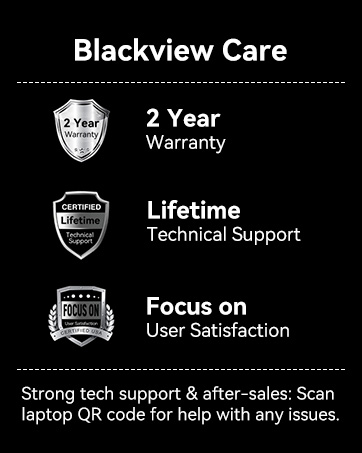
Image: An infographic detailing Blackview's customer care, including a 2-year warranty and lifetime technical support.


