1. Introducere
This manual provides essential information for the safe and effective operation of your Ortur Laser Master 2 S2 1064nm Infrared Laser Engraver. Please read this manual thoroughly before assembly and operation to ensure proper usage and to prevent damage or injury. This device is designed for precise engraving on various materials, including metals, plastics, and acrylics.

Image 1.1: The Ortur Laser Master 2 S2 1064nm Infrared Laser Engraver, showcasindesignul și ex-ul săuamples of engraved items like cutlery, a flask, and a mug.
2. Informații de siguranță
The Ortur Laser Master 2 S2 is a Class 4 laser product. Improper use can result in serious injury, including eye damage, skin burns, and fire. Always adhere to the following safety guidelines:
- Protecția ochilor: Always wear appropriate laser safety goggles designed for the 1064nm wavelength during operation. Never look directly at the laser beam or its reflection.
- Zona de lucru: Operate the engraver in a well-ventilated area. Ensure the work area is free of flammable materials.
- Supraveghere: Nu lăsați niciodată mașina nesupravegheată în timpul funcționării.
- Siguranța materialelor: Engrave only approved materials. Some materials can produce hazardous fumes when engraved.
- Oprire de urgență: Familiarizați-vă cu amplasarea și funcția butonului de oprire de urgență.
- Copii și animale de companie: Țineți copiii și animalele de companie departe de zona de operare.
- Alimentare electrică: Utilizați numai adaptorul de alimentare furnizat.

Imaginea 2.1: Pesteview of the four main safety features integrated into the Ortur Laser Master 2 S2 design.
3. Produs terminatview
3.1 Componente
The Ortur Laser Master 2 S2 consists of a robust frame, a 1064nm infrared laser module, and control electronics. Key components include:
- Modul laser: 1000mW (1W) 1064nm Infrared Laser.
- Cadru: Industrial-grade full metal structure for stability and precision.
- Panou de control: Manages laser operations and communication.
- Motoare pas cu pas: Drive the X and Y axes for precise movement.
- Întrerupătoare de limită: Define the engraving area boundaries.
3.2 Caracteristici cheie
- Multi-Material Compatibility: Capable of engraving various metals (gold, silver, platinum, copper, aluminum, stainless steel), leathers, plastics, acrylics, glass, and stones.
- Precizie ridicată: Motion accuracy up to 0.03mm for detailed engravings.
- Large Engraving Area: 390 x 410 mm (approximately 15.35" x 16.14").
- De mare viteză: Engraving speeds up to 10000mm/min.
- Compatibilitate software: Supports LaserGRBL and LightBurn.
- Suport pentru sistemul de operare: Compatible with Windows 7/8/XP/10/11 and Mac systems (via LightBurn).
- File Suport format: SVG, DXF, JPG, JPEG, PNG, BMP, TIF, CR2, etc.
- Design modular: Facilitates easy assembly, repair, and upgrades.

Image 3.1: The powerful 1064nm 1W infrared laser module with dual fan cooling, designed for long operational life.

Image 3.2: The generous 390 x 410 mm (15.35" x 16.14") engraving area of the OLM2S2.
4. Configurare
4.1 Despachetarea și inspecția
Carefully unpack all components. Verify that all parts listed in the packing list are present and undamaged. If any parts are missing or damaged, contact customer support immediately.
4.2 Asamblare
The Ortur Laser Master 2 S2 features a modular design for straightforward assembly. Typical assembly time is 10-15 minutes. Follow the detailed assembly instructions provided in the separate assembly guide or refer to official Ortur assembly videos. Ensure all connections are secure and the frame is rigid.
- Assemble the frame components according to the diagrams.
- Mount the laser module onto the gantry.
- Connect all cables (power, USB, motor cables) securely.
- Ensure the timing belts are properly tensioned.
4.3 Instalare software
Download the latest version of your preferred engraving software (LaserGRBL or LightBurn) from their official websites. Install the software on your computer and follow the on-screen instructions for driver installation and initial setup.
5. Instrucțiuni de utilizare
5.1 Preparing for Engraving
- Materialul locului: Position the material to be engraved on the work surface.
- Focalizarea laserului: Adjust the laser module height to achieve the optimal focal point on the material surface. Refer to the laser module's specific focusing instructions.
- Conectare la computer: Connect the engraver to your computer via USB.
- Lansați software: Open LaserGRBL or LightBurn.
- Load Design: Import your desired engraving design (SVG, DXF, JPG, etc.).
- Setați parametri: Configure engraving parameters such as speed, power, and number of passes based on the material type and desired effect.
5.2 Engraving Process
- Wear Safety Goggles: Ensure all individuals in the vicinity are wearing appropriate laser safety goggles.
- Începeți gravura: Initiate the engraving process through the software.
- Monitorizare funcționare: Continuously monitor the engraving process. Be prepared to use the emergency stop if any issues arise.
- Finalizare: Once engraving is complete, the laser will stop. Wait for any fumes to clear before removing the engraved item.
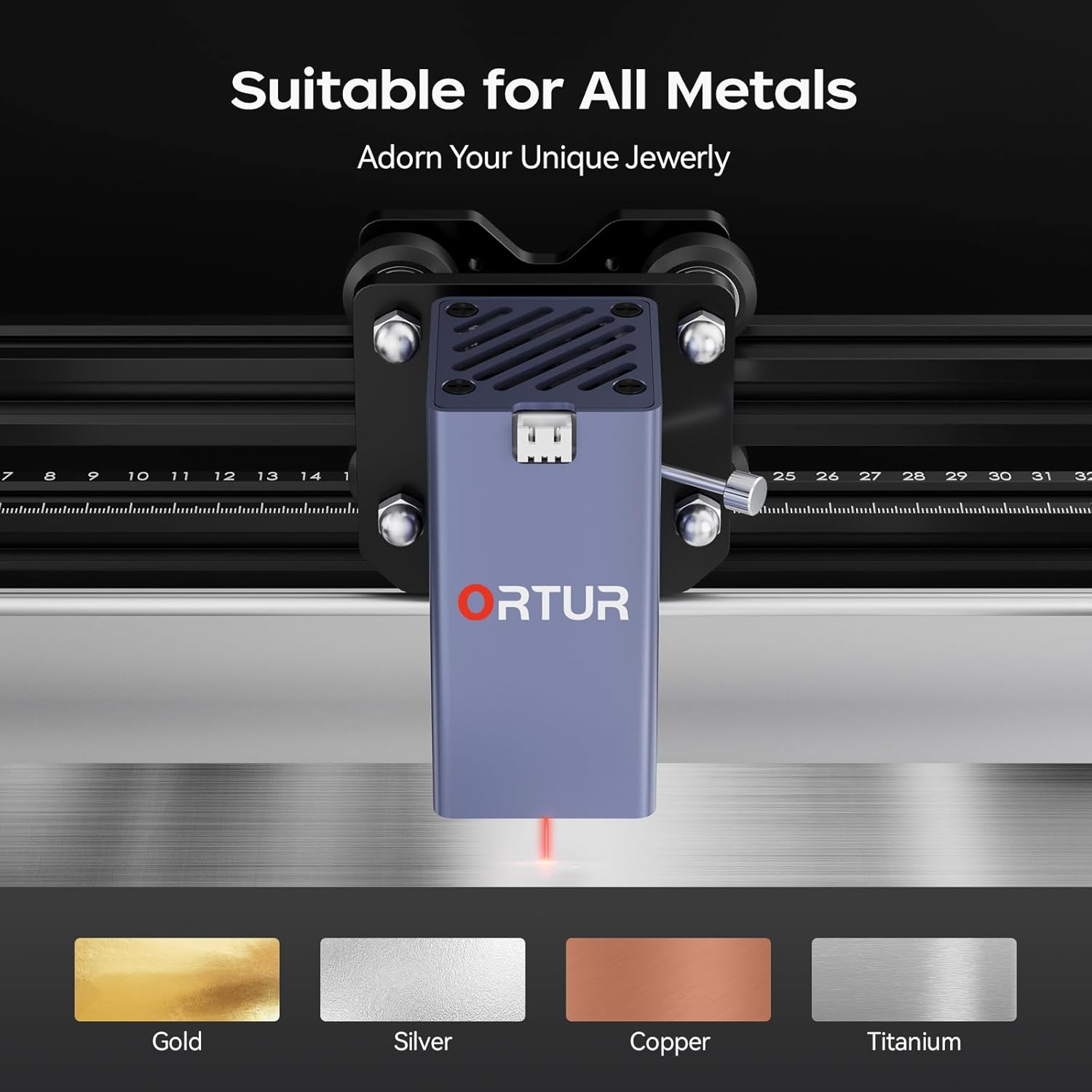
Image 5.1: The Ortur Laser Master 2 S2 is suitable for engraving on various metals, including gold, silver, copper, and titanium.

Imaginea 5.2: Examples of materials that can be engraved, such as various metals, plastics, and acrylics.
6. Compatibilitatea software-ului
The Ortur Laser Master 2 S2 is compatible with widely used laser engraving software:
- LaserGRBL: A free, open-source software primarily for Windows users. It is suitable for basic engraving tasks and image processing.
- LightBurn: A powerful, paid software compatible with Windows, Mac, and Linux. It offers advanced features for design, layout, and control, making it suitable for more complex projects.
Ensure your software is updated to the latest version for optimal performance and compatibility.

Image 6.1: The laser engraver adapts to common software like LightBurn and LaserGRBL.
7. Întreținere
Întreținerea regulată asigură longevitatea și performanța optimă a gravatorului laser.
- curatenie: Regularly clean the lens of the laser module with a lint-free cloth and isopropyl alcohol. Keep the rails and belts free of dust and debris.
- Lubrifiere: Periodically apply a small amount of lubricant to the linear rails to ensure smooth movement.
- Tensiunea curelei: Check and adjust the tension of the timing belts as needed to prevent skipping or inaccurate engraving.
- Actualizări firmware: Check the official Ortur website for any firmware updates for your machine.
8. Depanare
Această secțiune abordează problemele frecvente pe care le-ați putea întâmpina.
| Problemă | Cauza posibila | Soluţie |
|---|---|---|
| Laserul nu se declanșează sau puterea laserului este slabă. | Incorrect focus, dirty lens, low power setting, faulty laser module. | Adjust focus, clean lens, increase power in software, contact support if module is faulty. |
| Engraving is inaccurate or distorted. | Loose belts, loose frame components, incorrect software settings, material movement. | Check and tighten belts, ensure frame is rigid, verify software settings, secure material. |
| Machine not connecting to computer. | USB cable issue, driver not installed, incorrect COM port selected. | Try a different USB port/cable, reinstall drivers, select correct COM port in software. |
| Machine powers on but does not move. | Motor cables disconnected, emergency stop engaged, software error. | Check motor connections, disengage emergency stop, restart software and machine. |
9. Specificații
| Caracteristică | Detaliu |
|---|---|
| Marca | Ortur |
| Model | OLM2S2 |
| Modulul laser | 1000mW (1W) 1064nm Infrared Laser |
| Zona de gravură | 390 x 410 mm (15.35" x 16.14") |
| Viteza de gravare | Până la 10000 mm/min |
| Motion Accuracy | 0.03mm |
| Software acceptat | LaserGRBL, LightBurn |
| Sistem de operare acceptat | Windows 7/8/XP/10/11, Mac (LightBurn) |
| Sprijinit File Formate | SVG, DXF, JPG, JPEG, PNG, BMP, TIF, CR2, etc. |
| Dimensiunile produsului | 22.4 x 9 x 5.1 inci |
| Greutatea articolului | 8.67 lire sterline |

Image 9.1: The motion accuracy of 0.03mm ensures clear and detailed engraving patterns.
10. Garanție și asistență
Ortur is committed to providing high-quality after-sales service. If you encounter any problems with your product, please contact our customer support team.
- Serviciu clienți: Professional technicians are available to provide solutions and assistance.
- Informații de contact: Refer to the official Ortur website or product packaging for current contact methods (email, live chat, Facebook support).

Image 10.1: Ortur offers round-the-clock support via email, live chat, and Facebook.


