1. Introducere
Thank you for choosing the seenda COE310 Bluetooth Ergonomic Keyboard and Mouse Combo. This manual provides detailed instructions for setting up, operating, and maintaining your new device. Please read it carefully to ensure optimal performance and longevity of your product.
2. Produs terminatview
The seenda COE310 combo offers a comfortable and efficient typing experience with its ergonomic design and multi-device connectivity. It is designed to enhance productivity across various platforms.
Caracteristici cheie:
- Ergonomic Wave Design: The keyboard features a wave-curved layout and a cushioned wrist rest to reduce strain during extended use.
- Conectivitate cu mai multe dispozitive: Connects to up to three devices via USB-A, Type-C, or Bluetooth, allowing seamless switching.
- Universal Compatibilitate: Supports Windows, macOS, iOS, and Android operating systems with dual layouts for Windows and Mac.
- Baterii reîncărcabile: Built-in rechargeable batteries for both keyboard (500mAh) and mouse (300mAh) provide long active use and standby times.
- Funcționare silențioasă: The mouse features silent clicks for a focused work environment.
- Înclinare reglabilă: The keyboard includes five adjustable tilt angles for personalized comfort.
- 12 Shortcut Keys: Enhance efficiency with dedicated shortcut keys.

Figure 1: seenda COE310 Ergonomic Keyboard and Mouse Combo.
3. Configurare
3.1 Conținutul pachetului
- seenda COE310 Ergonomic Keyboard
- seenda COE310 Wireless Mouse
- USB-A Receiver (stored in mouse)
- Type-C Receiver (stored in mouse)
- Cablu de încărcare USB-C
- Manual de utilizare
- Ghid de pornire rapidă
3.2 Încărcarea dispozitivelor
- Locate the USB-C charging ports on both the keyboard and the mouse.
- Connect the provided USB-C charging cable to the devices and a power source (e.g., computer USB port, USB wall adapter).
- The indicator lights will show charging status. A full charge typically takes 2-3 hours.
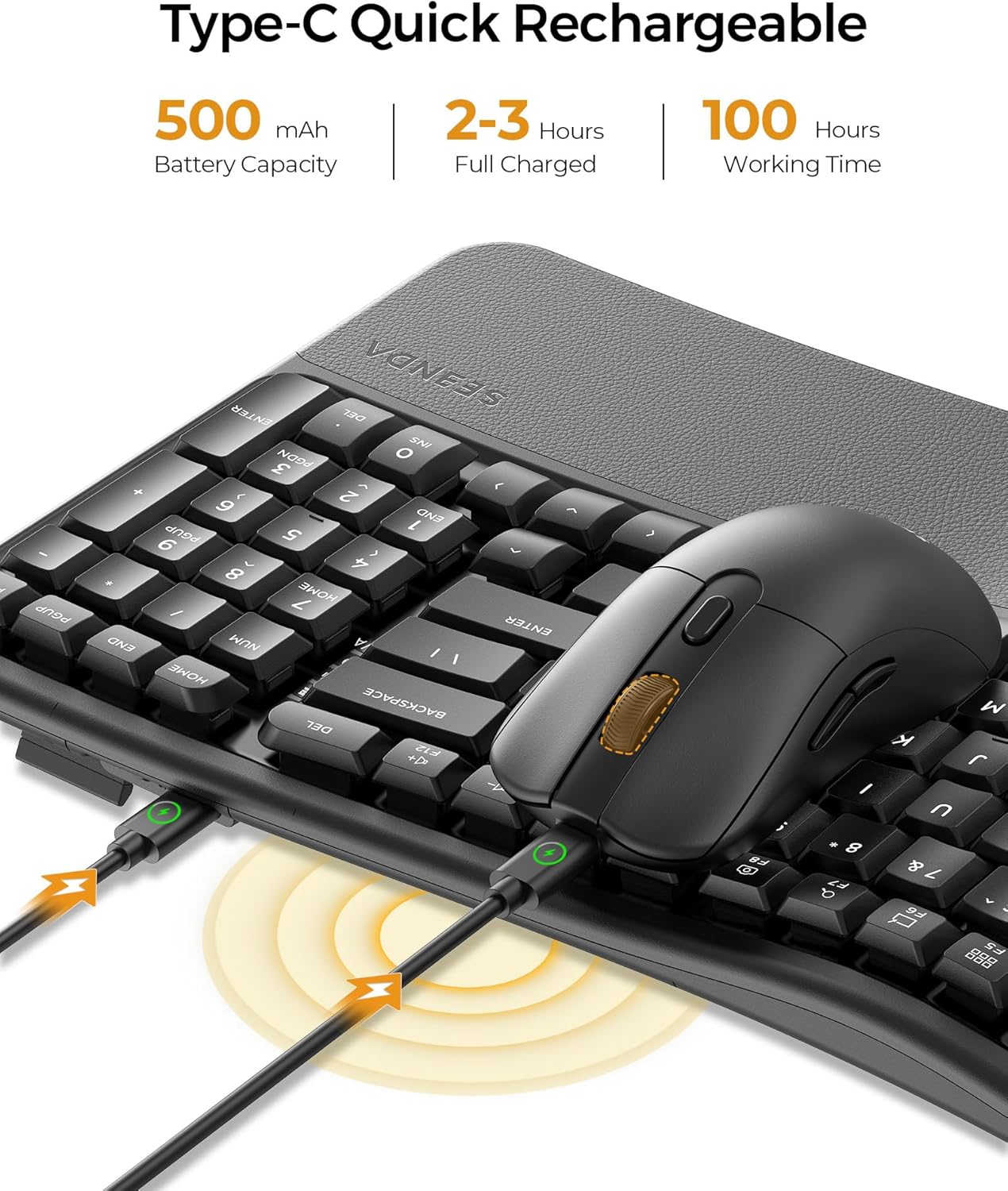
Figure 2: Keyboard and mouse connected to power via USB-C for charging.
3.3 Conectarea mouse-ului
The mouse offers three connection modes: 2.4G USB-A, 2.4G Type-C, and Bluetooth.
- For 2.4G USB-A/Type-C Connection:
- Deschideți compartimentul bateriilor de pe partea inferioară a mouse-ului.
- Remove the desired USB-A or Type-C receiver.
- Plug the receiver into an available USB-A or Type-C port on your computer or device.
- Porniți mouse-ul folosind comutatorul de alimentare de pe partea inferioară a acestuia.
- Toggle the mode switch button on the mouse to the corresponding 2.4G channel (indicated by a light). The mouse should connect automatically.
- Pentru conexiune Bluetooth:
- Porniți mouse-ul folosind comutatorul de alimentare.
- Toggle the mode switch button on the mouse to one of the Bluetooth channels (e.g., BT1 or BT2). The indicator light will flash.
- On your device, go to Bluetooth settings and search for "SEENDA COE310".
- Select the device and follow the on-screen prompts to pair.

Figure 3: Mouse underside showing USB and Type-C receivers.
3.4 Conectarea tastaturii
The keyboard also offers three connection modes: 2.4G USB-A, 2.4G Type-C, and Bluetooth.
- For 2.4G USB-A/Type-C Connection:
- Ensure the corresponding USB-A or Type-C receiver is plugged into your device.
- Turn on the keyboard using the power switch (usually on the side or back).
- Press the Fn key + F1 (for USB-A) or Fn key + F2 (for Type-C) to select the channel. The indicator light will confirm connection.
- Pentru conexiune Bluetooth:
- Porniți tastatura.
- Press the Fn key + F3 (for BT1) or Fn key + F4 (for BT2) or Fn key + F5 (for BT3) to select a Bluetooth channel. The indicator light will flash.
- On your device, go to Bluetooth settings and search for "SEENDA COE310".
- Select the device and follow the on-screen prompts to pair.
Video 1: Produsul oficial s-a încheiatview of the seenda COE310 Multi-Device Ergonomic Keyboard and Mouse, demonstrating its features and multi-device connectivity.
4. Instrucțiuni de utilizare
4.1 Funcțiile tastaturii
- tastare: The wave-curved design promotes a natural hand position for comfortable typing.
- Înclinare reglabilă: Use the adjustable feet on the underside of the keyboard to set your preferred typing angle. There are five adjustable tilts.
- Windows/macOS Layout Switch: Presa fn + A to switch to Windows layout or Fn + S to switch to macOS layout.
- Taste rapide: The keyboard includes 12 dedicated shortcut keys for common functions. Refer to the Quick Start Guide for specific key functions.

Figure 4: Keyboard layout with Windows and macOS switch keys highlighted.
4.2 Funcțiile mouse-ului
- Ajustare DPI: The mouse features 3 adjustable DPI settings (1000-1600-2400) for precise cursor control. Press the DPI button on the top of the mouse to cycle through settings.
- Clicuri silențioase: Enjoy a quiet working environment with the noiseless click design.
- Butoane Înainte/Înapoi: Folosește butoanele laterale pentru navigare rapidă în web browsere sau file exploratori.

Figure 5: seenda wireless mouse, highlighting its silent operation.
4.3 Comutarea între dispozitive
Pentru a comuta între dispozitivele conectate:
- Tastatura: Presa Fn + F1/F2/F3/F4/F5 to switch to the corresponding connected device (F1 for USB-A, F2 for Type-C, F3/F4/F5 for Bluetooth channels).
- Mouse: Press the mode switch button on the underside of the mouse to cycle through the connected 2.4G (USB-A/Type-C) and Bluetooth channels.
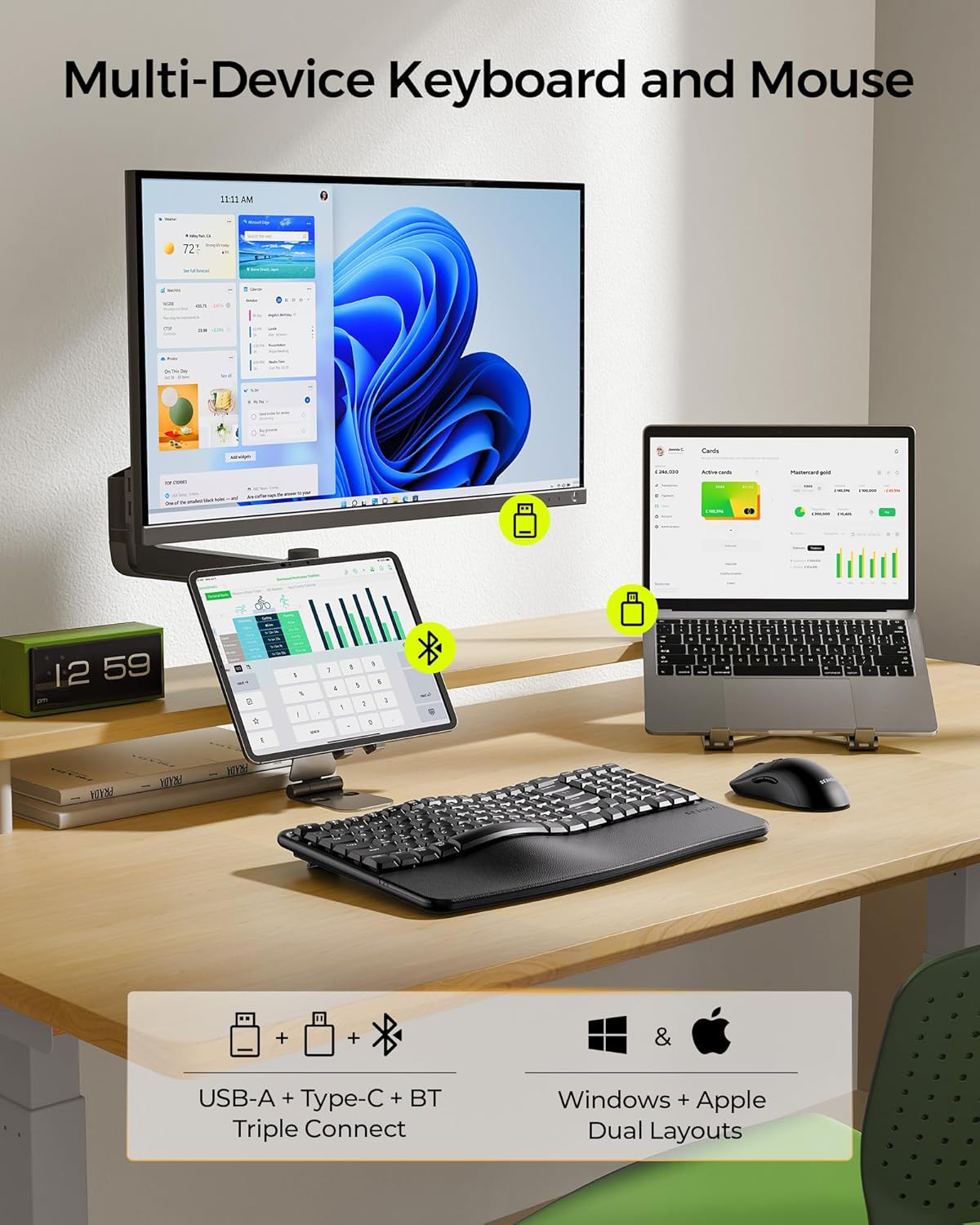
Figure 6: Multi-device connectivity example with the keyboard and mouse.
5. Întreținere
5.1 Curățare
- Use a soft, dry cloth to wipe down the keyboard and mouse surfaces.
- Pentru murdăria persistentă, dreaptă ușoramproți cârpa cu apă sau cu un detergent ușor, neabraziv.
- Evitați utilizarea substanțelor chimice dure, a solvenților sau a materialelor abrazive, deoarece acestea pot deteriora finisajul.
- Do not immerse the devices in water or any liquid.
5.2 Îngrijirea bateriei
- Charge the devices regularly to maintain battery health.
- Evitați descărcarea completă frecventă a bateriilor.
- Dacă depozitați dispozitivele pentru o perioadă lungă de timp, încărcați-le la aproximativ 50% înainte de depozitare.
5.3 Depozitare
- Depozitați tastatura și mouse-ul într-un loc răcoros și uscat, ferit de lumina directă a soarelui și de temperaturi extreme.
- Keep the USB-A and Type-C receivers stored securely in the mouse's compartment when not in use to prevent loss.
6. Depanare
- Dispozitivul nu se conectează:
- Ensure the devices are powered on and fully charged.
- Verify the correct connection mode (2.4G or Bluetooth) is selected on both the keyboard and mouse.
- For 2.4G, ensure the USB-A or Type-C receiver is securely plugged into your device.
- Pentru Bluetooth, asigurați-vă că Bluetooth este activat pe dispozitiv și încercați să reconectați.
- Try connecting to a different USB port or device to rule out port/device specific issues.
- Conexiune cu întârziere sau intermitentă:
- Move the devices closer to your computer to minimize interference.
- Ensure there are no large metal objects or other wireless devices causing interference.
- Check battery levels; low battery can affect performance.
- Keys or mouse buttons not responding:
- Reîncărcați dispozitivele.
- Reporniți computerul sau dispozitivul.
- If using 2.4G, try re-inserting the receiver.
- Incorrect key layout (Windows/macOS):
- Presa fn + A for Windows layout or Fn + S for macOS layout.
7. Specificații
| Caracteristică | Detaliu |
|---|---|
| Numărul de model | COE310 |
| Tehnologia de conectivitate | USB (2.4G), Type-C (2.4G), Bluetooth |
| Dispozitive compatibile | PC, Laptop, Tablet, Mac, MacBook Pro/Air, iPad, iPhone |
| Capacitatea bateriei tastaturii | 500mAh |
| Capacitatea bateriei mouse-ului | 300mAh |
| Timp de lucru | Up to 100 hours (active use) |
| Timp de așteptare | Până la 300 de zile |
| Timp de încărcare | 2-3 ore |
| Setări DPI mouse | 1000, 1600, 2400 |
| Unghiuri de înclinare a tastaturii | 5 niveluri reglabile |
| Greutatea articolului | 2.83 lire sterline |
| Dimensiuni pachet | 17.28 x 12.01 x 2.13 inci |
8. Garanție și asistență
seenda products are designed for reliability and performance. For warranty information, technical support, or any inquiries regarding your COE310 keyboard and mouse combo, please refer to the contact information provided in your product packaging or visit the official seenda website-ul.


