Introducere
This manual provides detailed instructions for the FIDECO M.2 NVMe SATA SSD Cloner Dock, Model M2082. It covers product features, setup, operation modes (data transfer and offline cloning), maintenance, and troubleshooting to ensure optimal performance and longevity of your device.
Caracteristicile produsului
- Supported SSDs: Compatible with M.2 PCIe NVMe SSDs (M-Key or M+B Key) and M.2 SATA SSDs (M+B Key). Supports M.2 SSD sizes: 2230, 2242, 2260, 2280, 22110.
- Viteză mare de transfer: Utilizes USB 3.2 Gen 2x2 standard with UASP support, offering theoretical speeds up to 20Gbps.
- Funcția de clonare offline: Enables direct SSD cloning without a computer connection.
- Foldable Cooling Fan: Integrated fan helps maintain optimal SSD temperatures, extending lifespan.
- Conectivitate universală: Includes a USB-C to USB-C/A cable for broad compatibility with desktops and laptops.
- Plug and Play: No driver installation required for Windows, Mac OS, and Linux systems.
Conținutul pachetului
- FIDECO M.2 NVMe SATA SSD Cloner Dock (Model M2082)
- Cablu USB-C la USB-C/A
- Adaptor de alimentare
- Manual de utilizare
Dispozitiv Dispozitiv
Familiarize yourself with the ports and indicators on the cloner dock.

Imagine: Pesteview of the FIDECO M.2 NVMe SATA SSD Cloner Dock, highlighting its various ports, buttons, and LED indicators for Source, Target, PC mode, Power, Clone status, and clone progress (25%, 50%, 75%, 100%). The back panel shows the Power Switch, USB-C port, DC 5V power port, and Fan Switch.
Instrucțiuni de configurare
- Conexiune de alimentare: Connect the provided power adapter to the DC 5V port on the cloner dock and plug it into a power outlet.
- SSD Insertion:
- Ensure the cloner dock is powered off.
- Carefully insert your M.2 NVMe or SATA SSDs into the designated 'Source' (S1) and 'Target' (S2) slots. Ensure they are fully seated.

Imagine: This diagram illustrates the types of M.2 SSDs supported by the dock, including NVMe (M-Key and M+B Key) and SATA (M+B Key), along with compatible physical sizes ranging from 2230 to 22110.
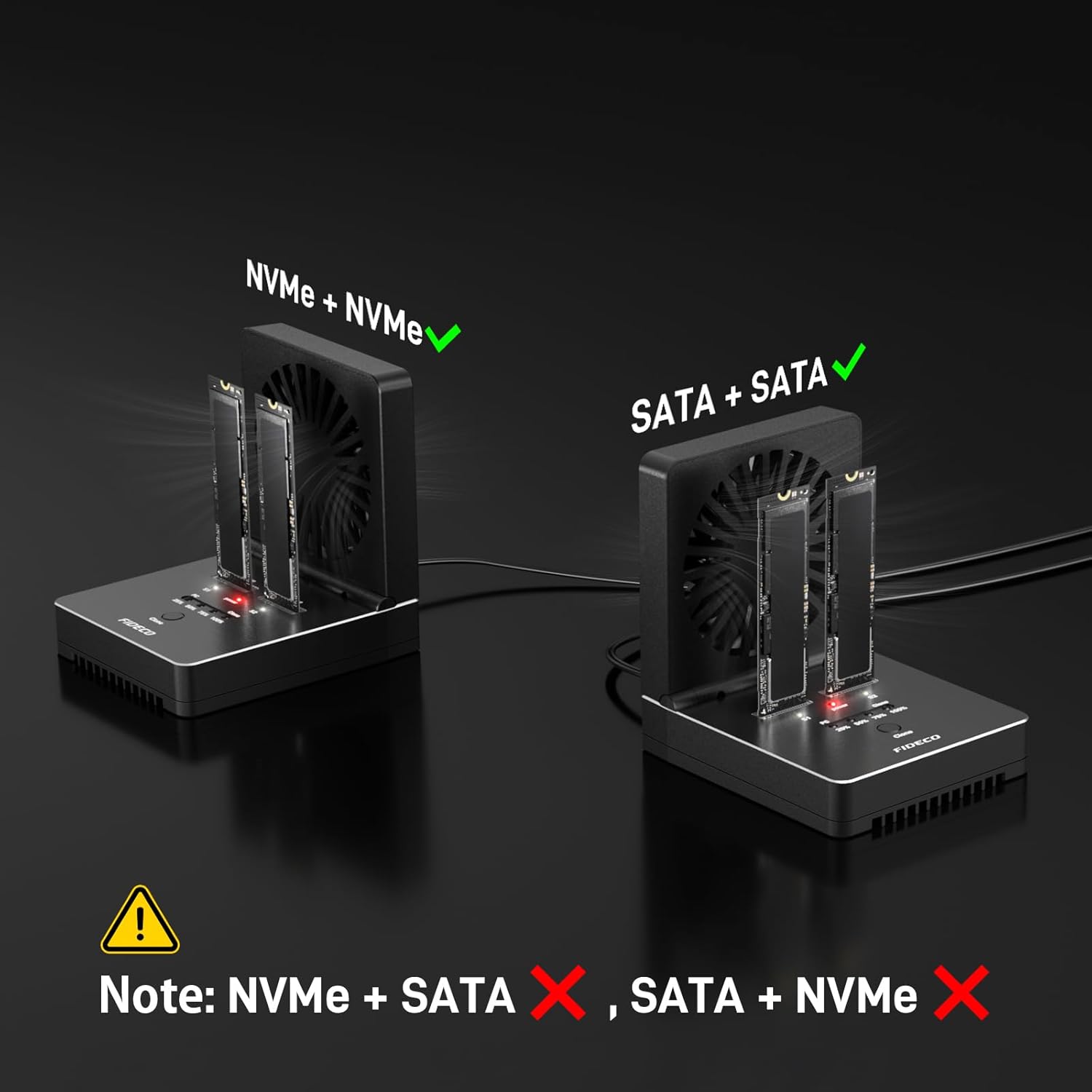
Imagine: This image demonstrates correct SSD configurations: two NVMe SSDs or two SATA SSDs. It explicitly warns against mixing NVMe and SATA SSDs simultaneously in the dock.
- Funcționarea ventilatorului: The foldable cooling fan can be turned on or off using the fan switch on the back panel. It is recommended to keep the fan on during operation to prevent overheating.
- Connectivity (for Data Transfer Mode): If using the dock for data transfer to a computer, connect the USB-C to USB-C/A cable from the dock's USB-C port to your computer.
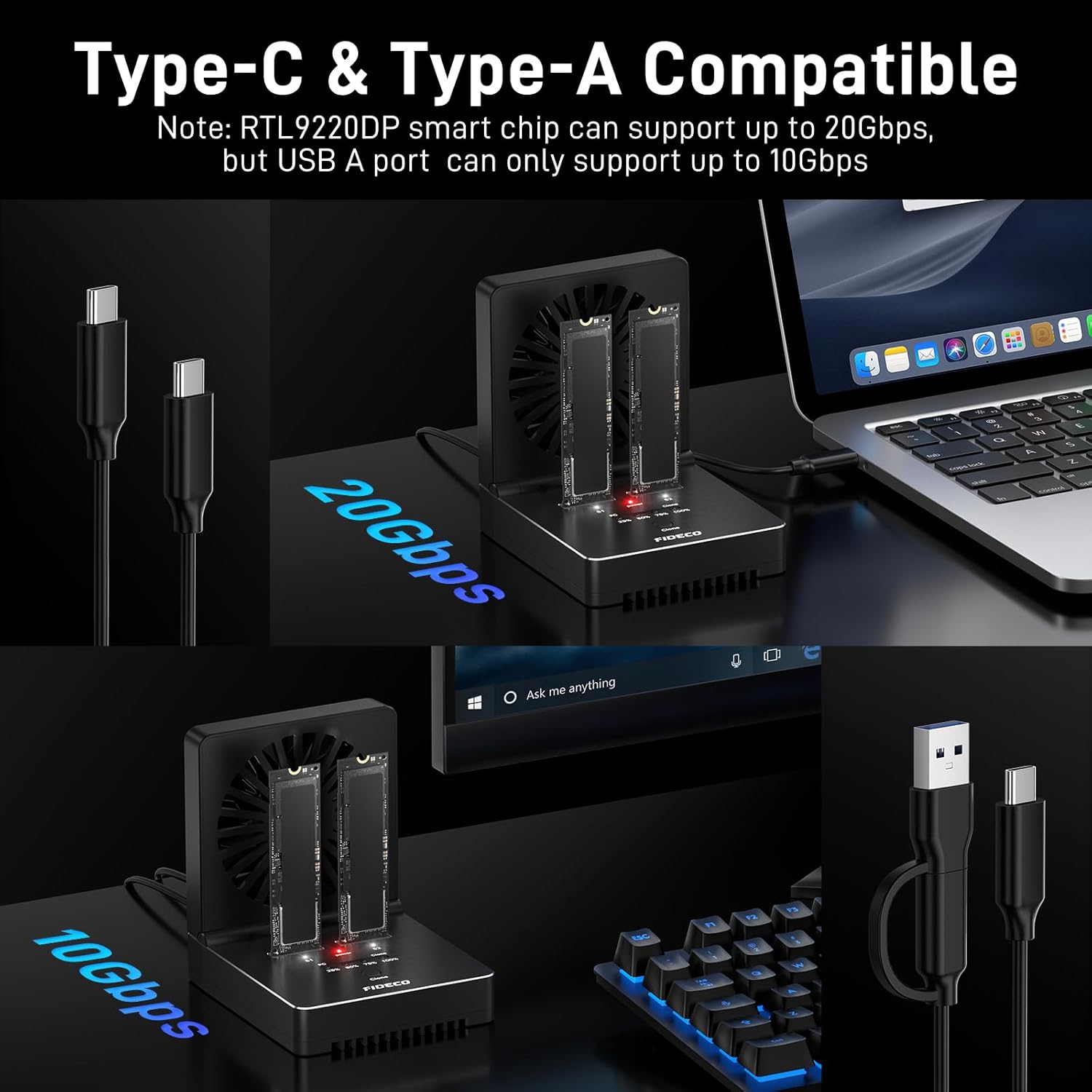
Imagine: This image illustrates the dual compatibility of the FIDECO dock, showing connections to both Type-C and Type-A ports. It highlights that a USB-C connection can achieve 20Gbps, while a USB-A connection supports up to 10Gbps.
Instrucțiuni de operare
A. Data Transfer Mode (PC Mode)
- Ensure the cloner dock is connected to your computer via the USB-C cable.
- Insert one or two compatible M.2 SSDs into the 'Source' (S1) and/or 'Target' (S2) slots.
- Turn on the power switch. The 'PC' blue light will illuminate, indicating the dock is in data transfer mode.
- Your computer should recognize the SSD(s) as external drives. You can now transfer data to and from the SSDs.
- New SSD Initialization: For new SSDs, they must be initialized and formatted before they can be recognized by your computer. Refer to the video below for detailed instructions.
Video: This video provides a step-by-step guide on how to initialize a new hard drive under both Windows and Mac OS operating systems, making it ready for use with the FIDECO M.2 NVMe SATA SSD Cloner Dock.
B. Offline Clone Mode
The offline clone function allows you to duplicate an SSD without connecting to a computer.
- Preparare:
- Ensure the cloner dock is disconnected from any computer.
- Insert the source SSD into the 'Source' (S1) slot.
- Insert the target SSD into the 'Target' (S2) slot.
- Important: The target SSD's capacity must be equal to or larger than the source SSD's capacity. Verify this in your computer's 'Disk Management' before cloning.
- Porniți întrerupătorul de alimentare.
- Inițiază clona: Press and hold the 'Clone' button for 5 seconds until the first blue light (25%) begins to flash. This indicates the cloning process has started.
- Monitorizarea progresului: The four blue LED indicators (25%, 50%, 75%, 100%) will illuminate sequentially to show the cloning progress.
- Finalizare: Once all four blue lights are steadily lit, the cloning process is complete.

Imagine: This image demonstrates the offline cloning process, showing the source (S1) and target (S2) SSDs inserted. It emphasizes the 20Gbps cloning speed and the critical requirement that the target SSD's capacity must be equal to or larger than the source SSD's capacity. Instructions for initiating the clone by holding the button are also included.
Video: This video demonstrates the physical setup and operation of the FIDECO M.2 NVMe SATA SSD Cloner Dock, including inserting SSDs, connecting power, and initiating the cloning process. It also highlights the integrated foldable cooling fan.
Întreţinere
- curatenie: Use a soft, dry cloth to clean the exterior of the device. Avoid liquid cleaners or solvents.
- Depozitare: Store the cloner dock in a cool, dry place away from direct sunlight and extreme temperatures.
- Îngrijirea ventilatorului: Periodically check the cooling fan for dust accumulation and gently clean it to ensure proper airflow.
- SSD Handling: Always handle SSDs by their edges to avoid touching the connectors or components.
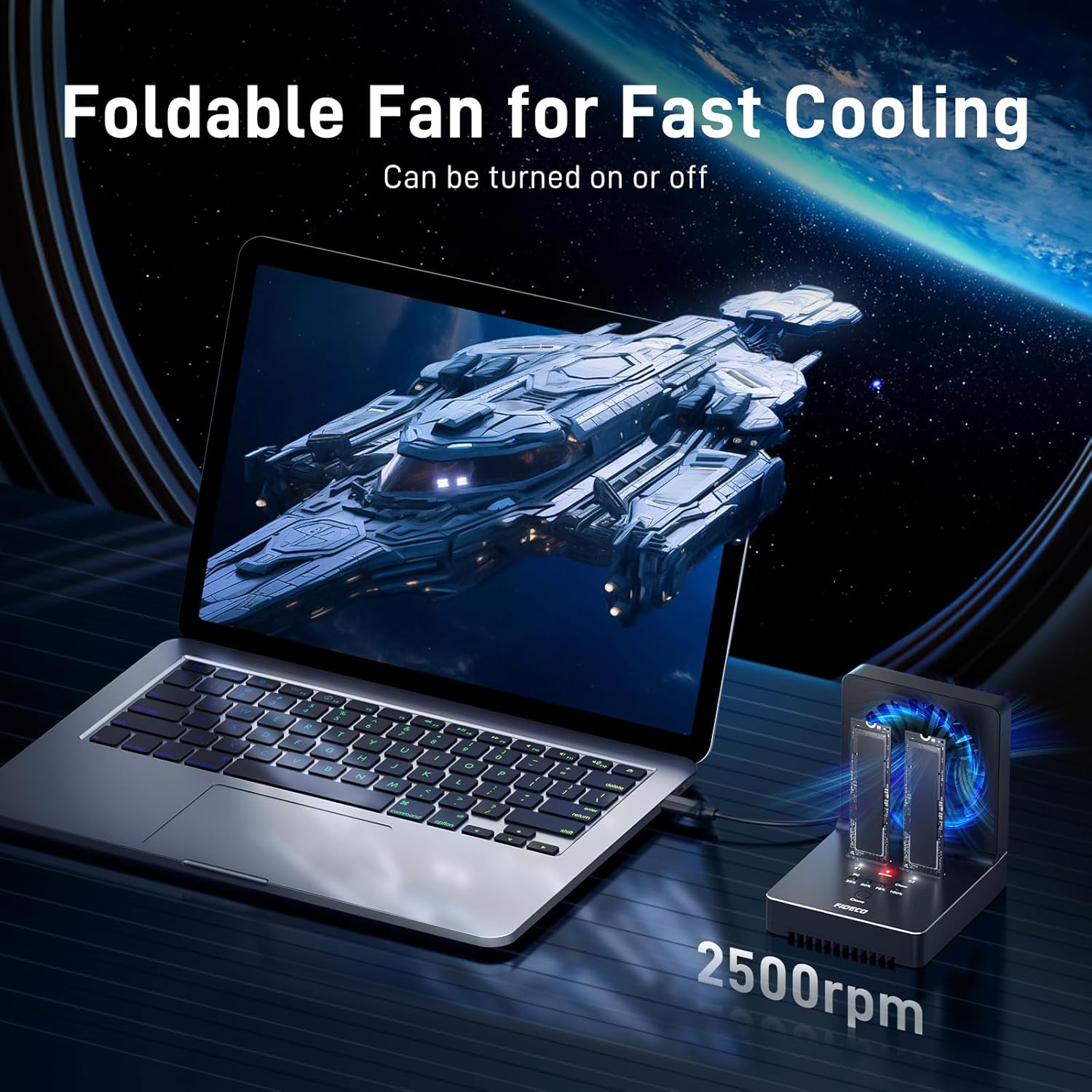
Imagine: This image highlights the foldable cooling fan feature of the FIDECO dock, showing it in operation at 2500rpm to effectively cool the SSDs during use, which helps prolong their lifespan.
Depanare
- SSD nerecunoscut:
- Ensure the SSD is correctly inserted into the slot.
- For new SSDs, they need to be initialized and formatted in your operating system's Disk Management utility. Refer to the initialization video in the Operating Instructions section.
- Verify that the USB cable is securely connected to both the dock and the computer.
- If using both slots, ensure you are not mixing NVMe and SATA SSDs simultaneously for data transfer, as only SSD S1 might be recognized.
- Offline Clone Failure (4 blue lights flashing):
- The target SSD's capacity must be equal to or larger than the source SSD's capacity. Check this in Windows "Disk Management" or Mac "Disk Utility" before attempting to clone.
- Ensure the dock is disconnected from any computer during offline cloning.
- Verify that both SSDs are securely inserted.
- Viteză de transfer lentă:
- Ensure your computer's USB port supports USB 3.2 Gen 2x2 for maximum 20Gbps speed. USB-A ports typically support up to 10Gbps.
- Confirm the USB cable used is rated for the desired speed.
- Supraîncălzire: Ensure the foldable cooling fan is turned on during extended use or high-speed operations.
Specificații
| Marca | FIDECO |
| Numărul de model | M2082 |
| Tipuri de SSD-uri acceptate | M.2 PCIe NVMe (M-Key, M+B Key), M.2 SATA (M+B Key) |
| Dimensiuni SSD acceptate | 2230, 2242, 2260, 2280, 22110 |
| Numărul maxim de dispozitive acceptate | 2 |
| Rata de transfer de date | Up to 20 Gigabits Per Second (USB 3.2 Gen 2x2) |
| Interfață hardware | USB 3.2 Gen 2x2 |
| Caracteristici | Offline Clone, UASP, Trim, Foldable Cooling Fan |
| Sistem compatibil | Windows, Mac OS, Linux |
| Material | Acrilonitril butadien stiren (ABS), aluminiu |
| Greutatea articolului | 1.25 lire sterline |
Garanție și suport
FIDECO offers firmware updates and technical support for this product. For any questions or assistance, please contact us at support@fideco.cn.


