1. Introducere
Thank you for choosing the PEDOOLO A40 Portable Thermal Printer. This compact and lightweight inkless printer is designed for convenience, offering wireless printing capabilities for various scenarios including travel, business, and home use. It supports 8.5 x 11 inch thermal paper and is compatible with iOS, Android, and PC devices. This manual provides detailed instructions to help you set up, operate, and maintain your printer for optimal performance.

Image: The PEDOOLO A40 printer in black, shown with various documents being printed, including a coloring page, a diagram, and a business report. A smartphone with the printer app is visible on the right.
2. Ce se află în cutie
Vă rugăm să verificați conținutul coletului pentru a vă asigura că toate articolele sunt prezente:
- 1x PEDOOLO Portable Printer
- 10x Sheets of US Letter Thermal Paper
- 3x Rolls of Thermal Paper
- 1x cablu de încărcare USB-C
- 1x adaptor USB-A la USB-C
- 1x Manual de utilizare
- 1x Smartphone APP Quick User Guide
3. Ghid de instalare
3.1. Pornire/Oprire
To turn the printer on or off, press and hold the power button for 2 seconds. The indicator light will illuminate when the printer is on.

Image: Step-by-step visual guide for powering on the printer and loading paper, including opening the cover and adjusting the paper slot.
3.2. Încărcarea hârtiei
The PEDOOLO A40 supports both roll paper and folded thermal sheets.
3.2.1. Roll Paper Installation
- Press the buttons on both sides of the printer simultaneously to open the cover.
- Load the thermal roll paper with the printing side (smooth, leaves a black mark when scratched) facing up.
- Adjust the sliding slot to properly load the paper, ensuring the paper edge is over the printer's feed mechanism.
- Press down firmly to close the cover until it clicks into place.

Image: Visual instructions demonstrating how to open the printer cover, load roll paper with the printing side up, adjust the paper, and close the cover.
3.2.2. Fold Paper Installation
- Ensure the paper compartment is empty and the cover is tightly closed. Do not open the printer cover for fold paper.
- Long press the power button for 2 seconds to turn on the printer.
- Align the folded thermal paper with the paper inlet at the rear of the printer and gently insert it until the printer automatically pulls it in.

Image: Visual instructions showing how to insert folded thermal paper into the printer's rear inlet after powering it on.
3.3. Conectivitate
The printer offers both Bluetooth and USB connectivity options.
3.3.1. Bluetooth Connection (for Smartphones/Tablets)
- Download the official "AiYin" APP from the App Store (iOS) or Google Play Store (Android). You can find the app here: AiYin App Download.
- Open the "AiYin" APP and connect to the printer via the app's Bluetooth channel. Do not connect via your phone's native Bluetooth settings.
- Once connected within the app, select the print type and paper settings to begin printing.

Image: Visual guide showing how to download the AiYin app, connect to the printer via Bluetooth within the app, and select print settings.
3.3.2. USB Connection (for Computers)
- The printer driver is included on the USB drive provided in the package.
- Connect the printer to your laptop or desktop computer using the USB cable.
- Install the driver from the USB drive.
- Adjust print settings on your computer and begin printing.
Nota: Chromebooks do not support Bluetooth printing with this device. For Windows, ensure the driver is installed and connected via USB before attempting Bluetooth connection through the driver/app.

Image: Visual guide showing how to use the included USB stick for driver installation and connect the printer to a laptop via USB for printing.
3.4. Compatibilitate universală
The PEDOOLO A40 printer is designed for broad compatibility, working seamlessly with various operating systems:
- Mobil: iOS 13+ and Android devices.
- Calculatoare: Windows, macOS, and Linux.

Image: A visual representation of the printer connected to various devices, highlighting its compatibility with iOS, Android, macOS, Windows, Chrome OS, and Linux.
4. Instrucțiuni de utilizare
4.1. Procesul de imprimare
Once your printer is connected and paper is loaded, you can initiate printing from your device. Ensure the paper size selected in your print settings matches the physical paper loaded (e.g., US Letter for 8.5 x 11 inch paper).
4.2. Supported Paper Types and Sizes
This printer utilizes thermal direct technology and requires specific thermal paper. It supports:
- Thermal Roll Paper: All thermal roll papers are compatible.
- Thermal Sheets: Compatible with continuous labels, but nu gap labels. Note that thermal sheets from different brands may not always be compatible.
- Important: This printer does nu support regular copy paper and only prints in black and white.
The printer supports paper widths ranging from 1.98 inches (50.29mm) to 6.5 inches (165mm) for roll paper, and 2.24 inches (57mm) to 8.5 inches (216mm) for folded sheets.
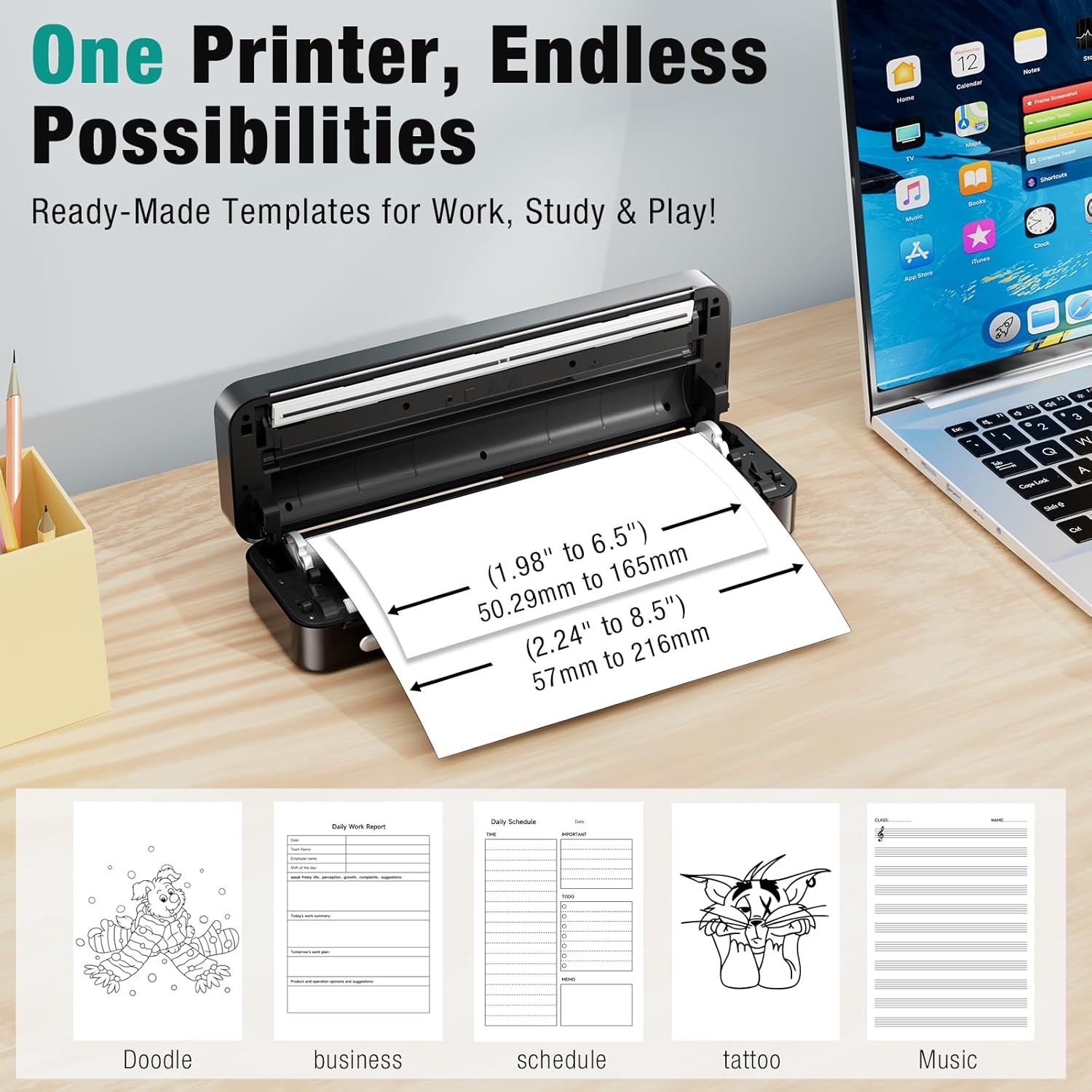
Image: The printer with a sheet of paper, illustrating the supported paper width ranges for both roll and folded paper.
4.3. User-Friendly App Features
The "AiYin" app enhances your printing experience with various features:
- Imprimarea documentelor: Print various documents directly from your phone.
- Imprimare imagini: Print images with ease.
- Recunoaștere text: Convert images of text into editable text.
- Șabloane: Access ready-made templates for work, study, and creative projects (e.g., doodles, business forms, schedules, tattoo designs, music sheets).
- Help Guides: Instant access to video tutorials and product manuals.

Image: Three screenshots of the AiYin app, demonstrating its main interface, template selection (Doodle, Business, Schedule), and help/settings menu.
4.4. Multiple Scenarios
The PEDOOLO A40 printer is versatile and suitable for a wide range of applications:
- Business & Office Work: Ideal for printing documents, reports, and receipts on the go.
- Educational Supplies: Useful for students and teachers for notes, assignments, and study materials.
- Home Life: Print lists, recipes, or personal documents.
- Design creativ: Print tattoo stencils, doodles, or other artistic designs.
- Voiaj: Its compact design makes it perfect for mobile printing during trips.
- Sheet Music Printing: Convenient for musicians to print scores.

Image: A collage illustrating various uses for the printer, including in an office, classroom, home, for creative projects, in a car, and for printing sheet music.
5. Întreținere
5.1. Curățarea capului de imprimare
Regular cleaning of the print head ensures clear and consistent print quality.
- Power off the printer and remove any paper.
- Deschideți capacul imprimantei.
- Gently wipe the print head with an alcohol swab or a soft cotton cloth.
- Wait until the alcohol has fully evaporated before closing the cover and using the printer.

Image: Visual instructions for cleaning the printer: remove paper, open cover, wipe print head with an alcohol swab, and wait for evaporation.
5.2. Îngrijirea bateriei
The printer is equipped with a 2600mAh high-capacity lithium-ion battery, providing approximately 1.5 hours of continuous printing on a full charge. It supports USB-C charging. To prolong battery life:
- Charge the printer fully before first use.
- Evitați descărcarea completă și frecventă a bateriei.
- Depozitați imprimanta într-un loc răcoros și uscat atunci când nu o utilizați pentru perioade lungi de timp.
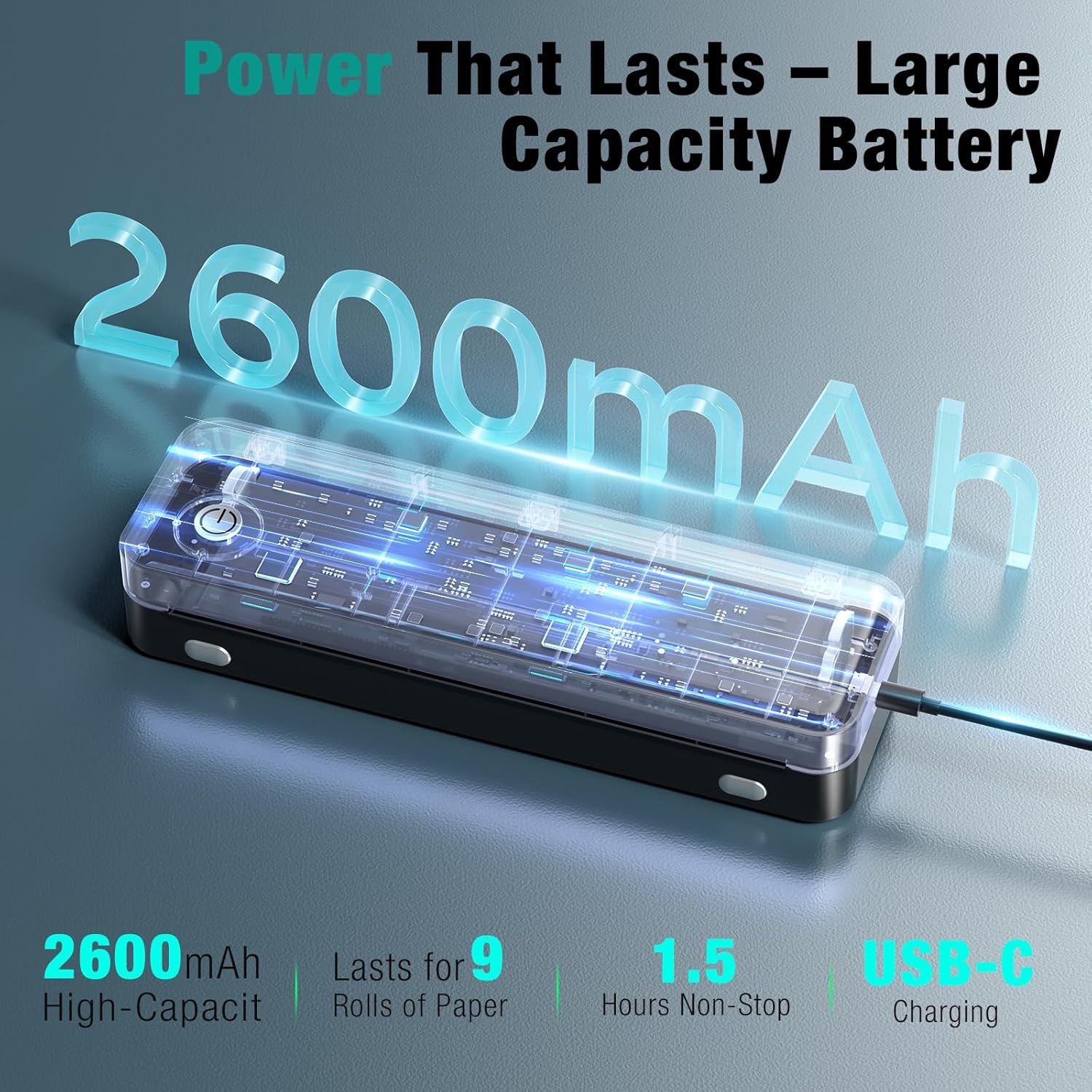
Imagine: O imagine transparentă view of the printer showing its internal battery, with text indicating 2600mAh capacity, 1.5 hours non-stop printing, and USB-C charging.
6. Depanare
6.1. Why is the paper printed blank?
Potential causes and solutions:
- Incorrect Label Loading: The labels might have been loaded in the wrong orientation. Ensure the smooth, coated side (printing side) is facing the print head. You can scratch the paper lightly; the side that leaves a black mark is the printing side.
- Inappropriate Label Type: This printer is specifically designed to work only with direct thermal labels. Using regular paper or incorrect label types will result in blank prints.
- Label Size Recognition Issue: The printer may have failed to accurately identify the size of the labels. Ensure paper is loaded correctly and try restarting the printer.
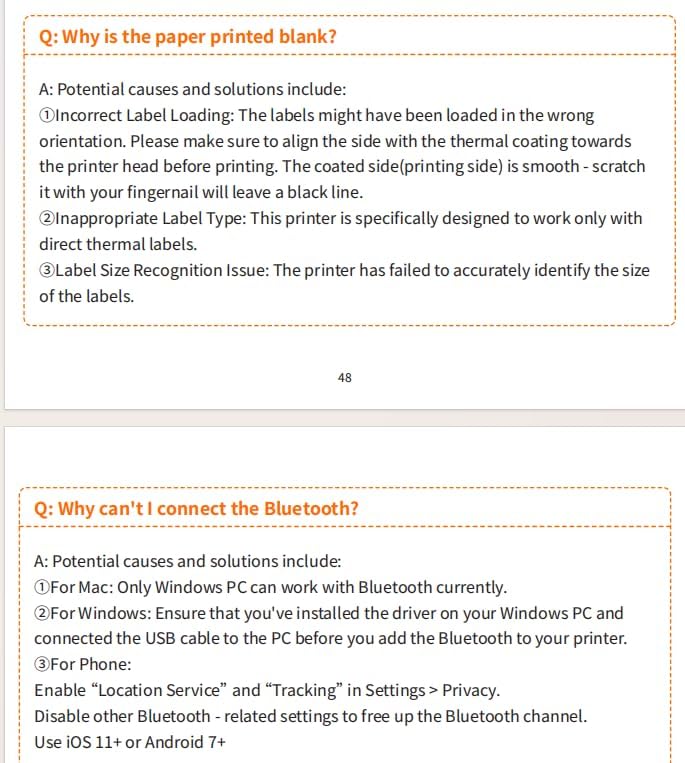
Image: A Q&A section from the manual addressing why paper might print blank, with solutions related to paper loading, type, and size recognition.
6.2. Why can't I connect the Bluetooth?
Potential causes and solutions:
- Pentru Mac: Only Windows PC can work with Bluetooth currently.
- Pentru Windows: Ensure that you've installed the driver on your Windows PC and connected the USB cable to the PC before you add the Bluetooth to your printer.
- For Phone (iOS 13+ or Android 7+):
- Enable "Location Service" and "Tracking" in Settings > Privacy.
- Disable other Bluetooth-related settings to free up the Bluetooth channel.
- Ensure you are connecting via the "AiYin" APP's Bluetooth channel, not your phone's native Bluetooth settings.

Image: A Q&A section from the manual addressing Bluetooth connectivity issues, providing solutions for Mac, Windows, and phone users.
7. Specificații
| Caracteristică | Descriere |
|---|---|
| Numele modelului | A40 |
| Marca | PEDOOLO |
| Tehnologia de conectivitate | Wireless (Bluetooth), USB |
| Tehnologia de imprimare | Bluetooth Thermal Printer (Roll Paper & Single Paper) |
| Caracteristica specială | Inkless Thermal Printing, Portable, Wireless, Mobile Phone & PC Compatible |
| Culoare | Negru |
| Ieșire imprimantă | Monocrom |
| Viteză maximă de imprimare (monocrom) | 2 ppm |
| Capacitate maximă de intrare a foii | 10 de coli |
| Rezoluție maximă de copiere (alb-negru) | 203 de puncte_per_inch |
| Duplex | Simplex |
| Media de imprimare | Hârtie termică |
| Culoare cerneală | Black (Inkless) |
| Metoda de control | App |
| Dimensiunile produsului | 12 x 3.15 x 5.51 inchi (30.48 x 8 x 14 cm) |
| Greutatea articolului | 2.4 lire sterline (1.09 kilograme) |
| baterii | Sunt necesare 6 baterii litiu-ion (incluse) |
| Producător | PEDOOLO |
| UPC | 726384900766 |
8. Garanție și asistență
PEDOOLO is committed to providing high-quality products and customer satisfaction. For any questions, technical support, or warranty inquiries regarding your PEDOOLO A40 printer, please contact PEDOOLO customer service through the platform where you purchased the product or refer to the contact information provided in the quick user guide included in your package.
Vă rugăm să păstrați dovada achiziției pentru cererile de garanție.


