1. Introducere
The LAMTTO HDMI Input Car TV & Wireless CarPlay Adapter (Model CAR TV MATE) is a 2-in-1 dongle designed to enhance your in-car entertainment and connectivity. It converts your vehicle's existing wired CarPlay system into a wireless one and allows you to stream content from HDMI-enabled devices directly to your car's display. This manual provides detailed instructions for setup, operation, and maintenance to ensure optimal performance.
2. Compatibilitate
This adapter is compatible with vehicles that meet the following criteria:
- Vehicles supporting OEM wired CarPlay.
- Vehicles equipped with a touch screen display.
- iOS devices running iOS 10 or above for Wireless CarPlay functionality.
Note importante:
- Android Auto and OEM wireless CarPlay vehicles are not supported.
- Ensure your vehicle's Wi-Fi and Bluetooth are enabled and not in use by other devices before connecting.

Image: Visual representation of compatibility requirements, highlighting wired CarPlay and iOS device support.
3. Caracteristicile produsului
The LAMTTO CAR TV MATE offers a range of features designed to enhance your driving experience:
- Wireless CarPlay: Converts wired CarPlay to wireless, allowing automatic connection upon vehicle startup.
- Intrare HDMI: Connect devices with HDMI output (e.g., Fire TV Stick, Nintendo Switch) to display content on your car screen.
- Comenzi integrate: Supports Siri voice assistant, Bluetooth 5.0, and Wi-Fi for seamless control of navigation, music, and messages. Compatible with OEM knob, touch screen, and steering wheel controls.
- Upgrade online OTA: Allows for convenient firmware updates via mobile cellular network, ensuring improved performance and new features.
- Configurare Plug & Play: Designed for easy, two-step installation.
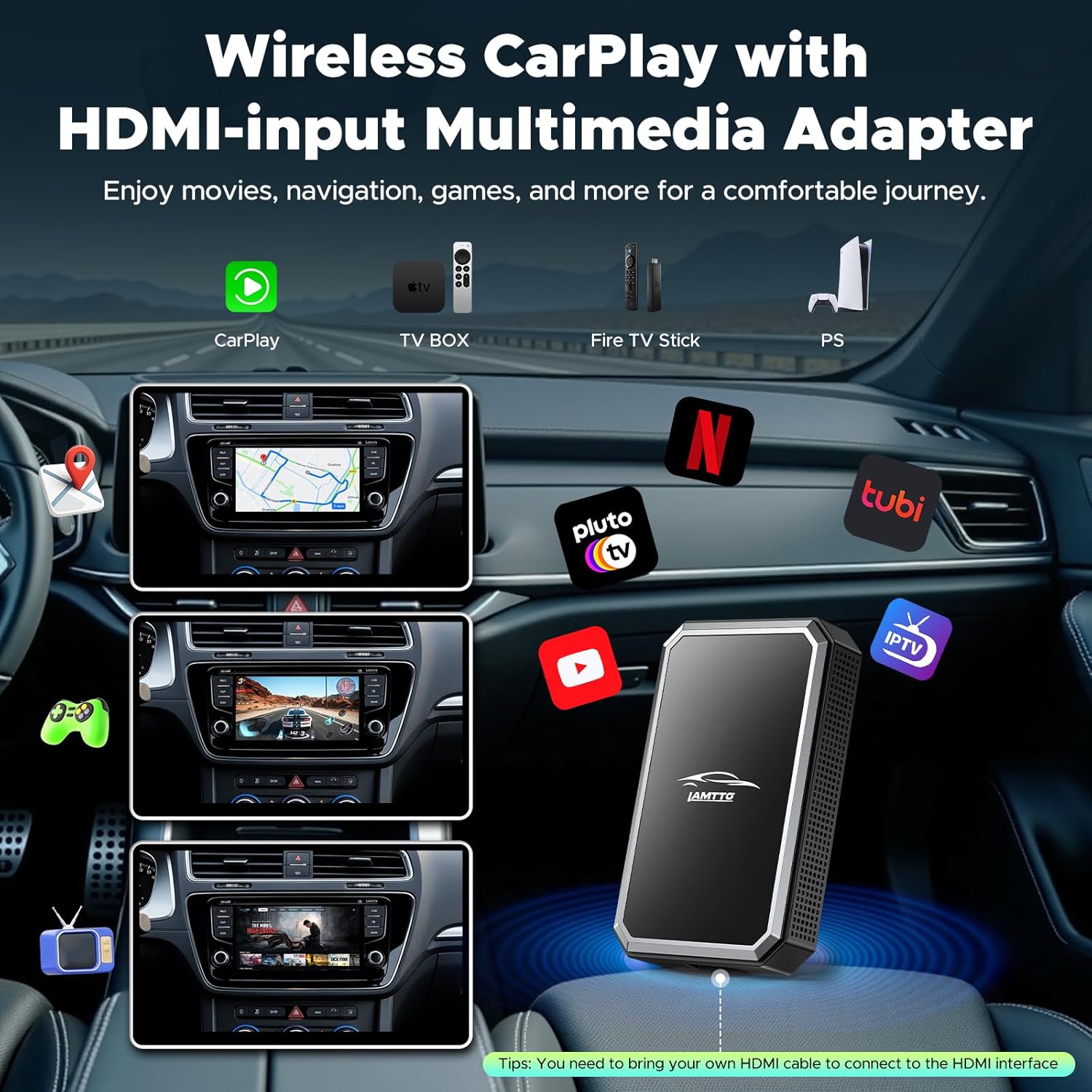
Imagine: Pesteview of the adapter's capabilities, showing Wireless CarPlay, TV Box, Fire TV Stick, and PS compatibility.

Image: Demonstrates how the adapter integrates with existing vehicle controls such as voice commands, OEM knobs, touch screen, and steering wheel controls.
4. Configurare și instalare
Follow these steps to set up your LAMTTO CAR TV MATE adapter:
- Connect to CarPlay Data Port: Plug the Car TV Companion into your car's CarPlay data port using the provided USB cable.
- Connect HDMI Device (Optional): If you wish to stream content, connect your HDMI device (e.g., Fire TV Stick) to the adapter's HDMI input. Ensure the HDMI device is powered separately if required.
- Select HDMI Function: On your car's screen, select the HDMI function.
- Enjoy Entertainment: Once connected, you can begin enjoying content from your HDMI device or use Wireless CarPlay.

Image: Illustrates the four-step setup process: connecting to the CarPlay port, plugging in a TV stick, selecting HDMI on the car screen, and enjoying content.
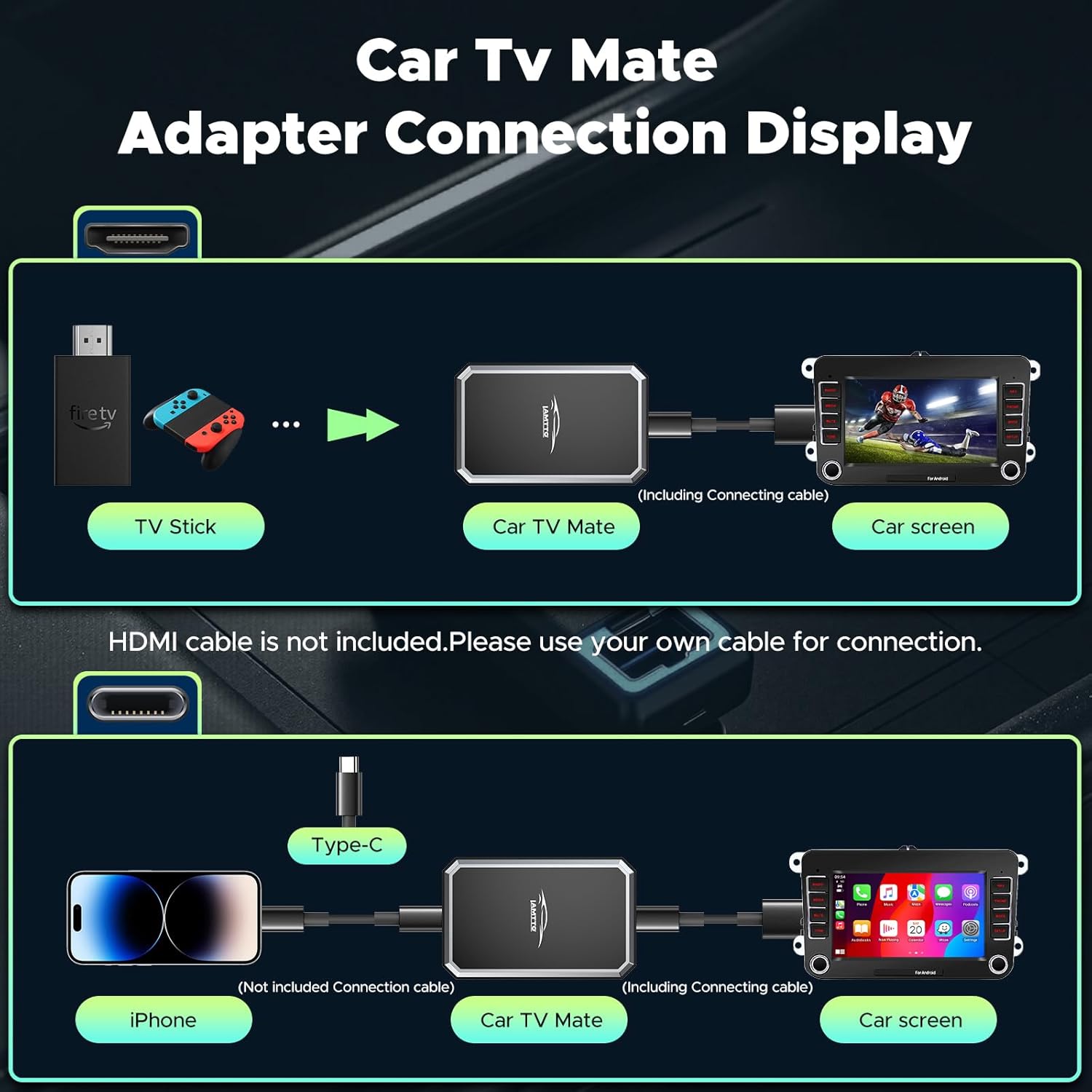
Image: Detailed diagrams showing how to connect the Car TV Mate adapter for both HDMI input (e.g., TV Stick) and Wireless CarPlay (iPhone) functionality.
5. Instrucțiuni de utilizare
5.1 Wireless CarPlay
After initial setup, the adapter will automatically connect to your iOS device when the vehicle starts. This enables wireless access to navigation, calls, and messages through your car's display, utilizing native system support.
- Ensure your iPhone's Bluetooth and Wi-Fi are active.
- Pair your iPhone with the adapter via Bluetooth.
- CarPlay will then connect wirelessly.
5.2 HDMI Input Streaming
To use the HDMI input for streaming content:
- Connect your HDMI output device (e.g., Fire TV Stick, Switch) to the adapter's HDMI port.
- Ensure the HDMI device has its own power supply if needed.
- Select the HDMI input source on your car's display.
- Content from your HDMI device will now be displayed on your car screen.

Image: Shows various entertainment options, including connecting game consoles, TV sticks, and screen mirroring from a phone to the car display.
6. OTA Online Upgrade
The adapter supports Over-The-Air (OTA) updates to ensure you always have the latest features and performance improvements. The upgrade process typically takes 2-3 minutes and requires a mobile cellular network connection.
- Turn on Wi-Fi on your phone and connect to the adapter's Wi-Fi network. The network name will be displayed on your car screen or in the adapter's settings.
- Introduceți adresa IP 192.168.1.101 in your phone's Safari browser.
- Enter the password '12345678' and tap 'Connect'.
- On the update page, tap 'Update' and wait for the process to complete. The device will automatically restart after the update.
- After restarting, reconnect and re-pair your previous Bluetooth device to resume normal operation.

Image: Visual guide for the OTA update process, showing phone screens for Wi-Fi connection, IP address entry, and update confirmation.
7. Specificațiile produsului
| Caracteristică | Caietul de sarcini |
|---|---|
| Numărul de model | CAR TV MATE |
| Dimensiunile produsului | 4.72 x 3.66 x 0.97 inci |
| Greutatea articolului | 2.89 uncii |
| Tehnologia de conectivitate | Bluetooth, HDMI, Wi-Fi |
| Total porturi HDMI | 1 |
| Tip conector | HDMI, USB-C |
| Mod ieșire audio | Stereo |
| Configurare canal de sunet surround | 5.1 |
| Codificare video | H.264, H.265/HEVC, MPEG-4 |
| Culoare | NEGRU |
8. Ce se află în cutie
The LAMTTO HDMI Input Car TV & Wireless CarPlay Adapter package includes:
- 1 x 2-in-1 Car TV Adapter (Car TV Companion)
- 1 x TYPE-C to USB-A Cable (250mm length)
- 1 x TYPE-C to TYPE-C Cable (250mm length)
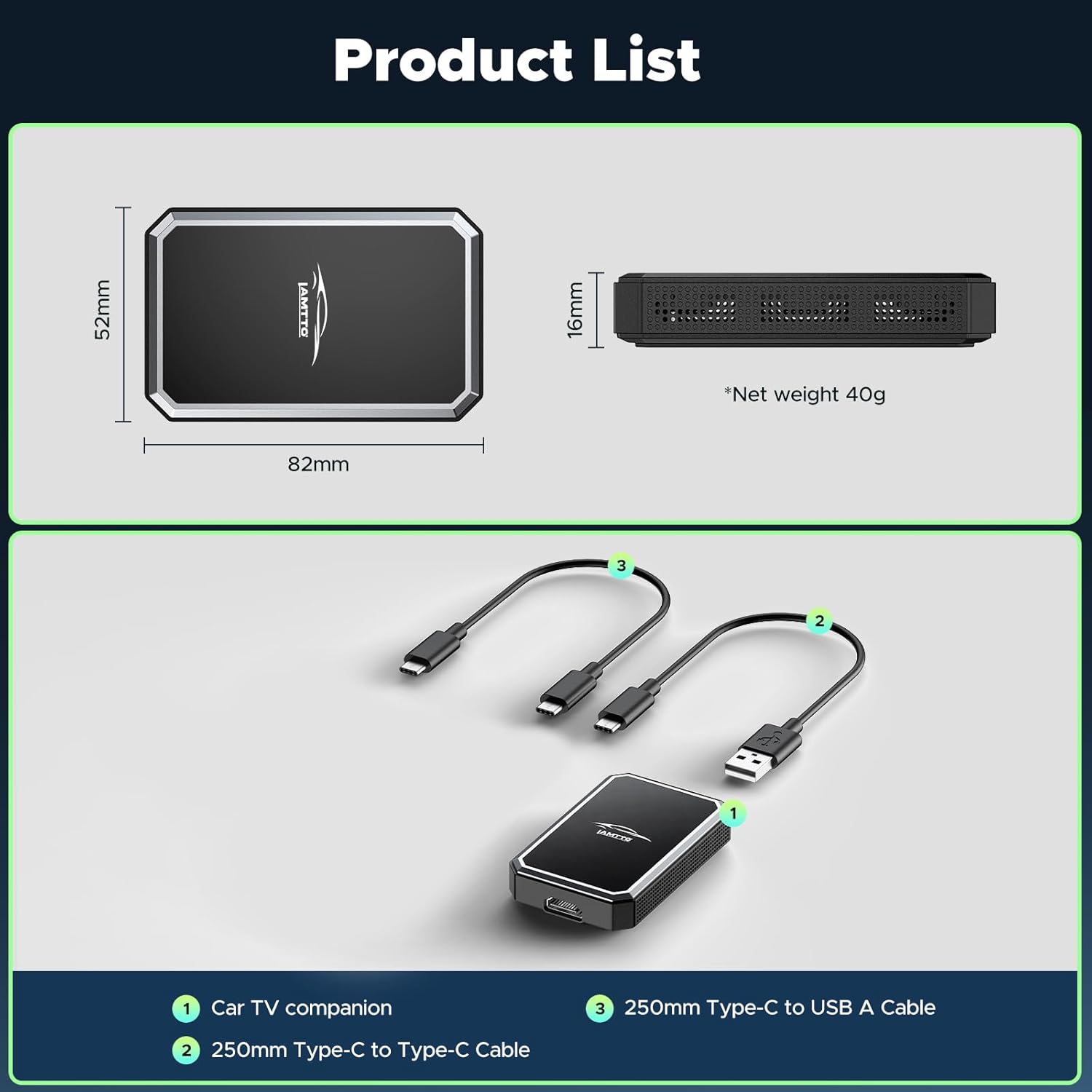
Image: Displays the Car TV Companion adapter and the two included USB cables (Type-C to USB-A and Type-C to Type-C).
9. Depanare
If you encounter issues with your LAMTTO CAR TV MATE adapter, consider the following:
- Fără conexiune/Conexiune intermitentă: Ensure your vehicle's Wi-Fi and Bluetooth are active and not connected to other devices. Restart both your phone and the adapter. Check all cable connections for secure fit.
- No HDMI Signal: Verify that your HDMI input device (e.g., Fire TV Stick) is properly connected and powered on. Ensure the correct HDMI input is selected on your car's screen.
- Probleme audio: Check your car's audio source selection. Ensure Bluetooth audio is correctly paired and selected if using Wireless CarPlay.
- Performanță lentă: Ensure the adapter's firmware is up to date using the OTA update process.
- Compatibilitate: Double-check that your vehicle supports OEM wired CarPlay and has a touch screen. Android Auto and OEM wireless CarPlay are not supported.
10. Garanție și asistență
LAMTTO provides comprehensive support for its products:
- Suport tehnic pe viață: The LAMTTO team offers free technical support for the lifetime of the product.
- Garanție 12 pe lună: Produsul este acoperit de o garanție de 12 luni de la data achiziției.
For technical assistance or warranty claims, please contact LAMTTO customer service.


