1. Introducere
Thank you for choosing the ATTACK SHARK×Magic-Refiner G6 Wireless Gaming Mouse. This manual provides detailed instructions on how to set up, operate, and maintain your new gaming mouse. The G6 mouse features tri-mode connectivity, a high-precision PixArt PAW3311 sensor, and a lightweight ergonomic design, making it ideal for various computing tasks and gaming scenarios.
2. Conținutul pachetului
Vă rugăm să bifați căsuța pentru următoarele elemente:
- ATTACK SHARK×Magic-Refiner G6 Wireless Gaming Mouse
- Receptor USB 2.4G
- Cablu de încărcare USB-C
- Anti-Slip Grip Tape Set

Image: The ATTACK SHARK G6 Wireless Gaming Mouse in white, shown with its accompanying USB receiver.
3. Produs terminatview
The G6 gaming mouse is designed for versatility and performance. Familiarize yourself with its key components and features.

Image: Detailed diagram of the G6 mouse, highlighting its buttons and features including the Left Button, Scroll Wheel + Middle Button, Right Button, Back Button, Forward Button, Power Toggle Switch (2.4G-OFF-Bluetooth), DPI Cycle Button, Atmosphere Light Switch & Wireless Mode Frequency Binding Button, Battery & DPI Indicator Light, Atmosphere Light, and USB Receiver storage.
3.1. Caracteristici cheie
- Conectivitate trimodală: Seamlessly switch between USB-C wired, 2.4GHz wireless, and Bluetooth 5.0 connections. The 2.4GHz mode offers a polling rate of 125-1000Hz, while Bluetooth operates at 125Hz. This allows for flexible use across various devices and scenarios.
- Senzor de înaltă precizie: Equipped with the PixArt PAW3311 optical sensor, offering six adjustable DPI levels from 800 to 24000. Features a 1000Hz polling rate, 1ms response time, 300 IPS tracking, and 35G acceleration for precise control.
- Lightweight Design & Long Battery Life: Weighs approximately 72±3g, minimizing hand fatigue during extended use. The built-in 750mAh battery provides over 150 hours of wireless usage on a single charge.
- Durable Switches & Customization: Features 10M micro switches with a 10 million click lifespan. Includes a 1.5m braided USB-C cable. Customize rear RGB lighting via a bottom button for various effects.
- Anti-Slip Grips: Comes with a set of 6 DIY anti-slip grip tapes for enhanced control and sweat resistance.

Image: The G6 mouse illustrating its 2.4GHz Wireless, USB-C Wired, and Bluetooth connection modes.
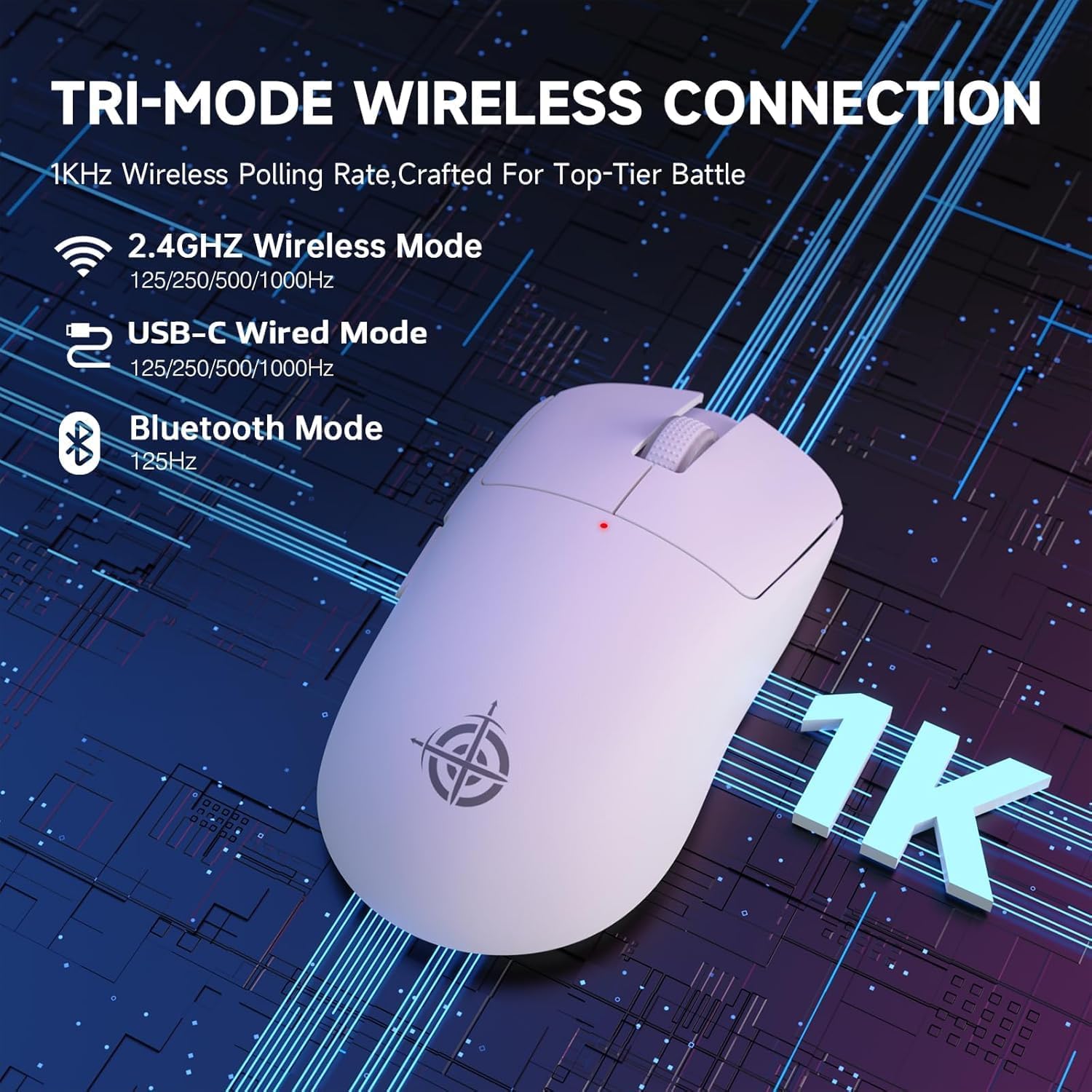
Image: The G6 mouse with an overlay indicating DPI levels (800-24000) and their associated indicator light colors (Red, Green, Blue, Yellow, Cyan, Purple).

Image: The G6 mouse displaying its customizable RGB lighting effects, including rainbow and single color options.

Image: The G6 mouse with its practical non-slip stickers applied, showing the textured surface for improved grip.
4. Ghid de instalare
The G6 mouse offers three connection methods. Choose the one that best suits your needs.
4.1. Mod wireless 2.4GHz
- Locate the 2.4G USB receiver stored in the compartment on the bottom of the mouse.
- Conectați receptorul USB la un port USB disponibil de pe computer.
- Slide the power toggle switch on the bottom of the mouse to the '2.4G' position.
- The mouse should automatically connect. If not, press the 'Atmosphere light switch & wireless mode frequency binding button' on the bottom of the mouse to initiate pairing.
4.2. Mod Bluetooth
- Slide the power toggle switch on the bottom of the mouse to the 'Bluetooth' position.
- Indicatorul luminos al mouse-ului va începe să clipească, indicând faptul că este în modul de asociere.
- Pe computer sau dispozitiv, accesați setările Bluetooth și căutați dispozitive noi.
- Select 'ATTACK SHARK G6' (or similar name) from the list of available devices to pair.
4.3. Mod USB-C cu fir
- Conectați cablul USB-C furnizat la portul frontal al mouse-ului.
- Conectați celălalt capăt al cablului USB-C la un port USB disponibil de pe computer.
- Mouse-ul va trece automat în modul cu fir și va începe încărcarea.
5. Instrucțiuni de utilizare
5.1. Ajustarea DPI-ului
The G6 mouse has a dedicated DPI cycle button on the bottom. Press this button to cycle through the preset DPI levels (800, 1600, 2400, 3200, 6400, 24000). The indicator light will change color to reflect the current DPI setting (Red, Green, Blue, Yellow, Cyan, Purple respectively).
5.2. Funcții butoane
The G6 mouse features 5 programmable buttons:
- Butonul din stânga: Standard left click.
- Butonul din dreapta: Standard right click.
- Scroll Wheel + Middle Button: Derulați în sus/în jos, faceți clic pe butonul din mijloc.
- Buton înainte: Navighează înainte în web browsere sau file exploratori.
- Buton înapoi: Navighează înapoi în web browsere sau file exploratori.
For advanced customization of button functions and macros, please download the official driver software from the ATTACK SHARK website-ul.
5.3. Controlul iluminării RGB
The G6 mouse features customizable RGB lighting. Use the 'Atmosphere light switch' button on the bottom of the mouse to cycle through different lighting effects (e.g., Rainbow Lighting, Single Lighting) or to turn the lighting off.
6. Întreținere
To ensure the longevity and optimal performance of your G6 gaming mouse, follow these maintenance guidelines:
- curatenie: Folosiți o cârpă moale și uscată pentru a șterge suprafața mouse-ului. Pentru murdăria persistentă, ștergeți ușor.ampClătiți laveta cu apă sau o soluție de curățare delicată. Evitați substanțele chimice dure sau materialele abrazive.
- Îngrijirea senzorului: Păstrați senzorul optic din partea inferioară a mouse-ului curat și fără praf sau resturi. Folosiți un bețișor de bumbac sau aer comprimat, dacă este necesar.
- Depozitare: Când nu îl utilizați pentru perioade lungi de timp, depozitați mouse-ul într-un loc răcoros și uscat, ferit de lumina directă a soarelui și de temperaturi extreme.
- Baterie: Avoid fully discharging the battery frequently. Charge the mouse regularly to maintain battery health.
7. Depanare
If you encounter any issues with your G6 gaming mouse, please refer to the following common solutions:
- Mouse-ul nu răspunde:
- Asigurați-vă că mouse-ul este încărcat. Conectați-l prin cablul USB-C pentru a-l încărca.
- Check the power toggle switch on the bottom of the mouse is in the correct position (2.4G, BT, or OFF for wired).
- For 2.4GHz mode, ensure the USB receiver is securely plugged into a working USB port. Try a different USB port.
- For Bluetooth mode, ensure Bluetooth is enabled on your device and the mouse is paired. Try unpairing and re-pairing.
- Mișcarea cursorului este neregulată sau imprecisă:
- Curățați senzorul optic din partea inferioară a mouse-ului.
- Ensure you are using the mouse on a suitable surface. Some surfaces (e.g., plain black neoprene pads, highly reflective surfaces) may interfere with optical tracking. Try a different mouse pad or surface.
- Adjust the DPI setting using the DPI cycle button.
- 2.4GHz dongle not working:
- Ensure the mouse is switched to 2.4G mode.
- Try plugging the dongle into a different USB port on your computer.
- If issues persist, try re-pairing the mouse with the dongle by pressing the binding button on the mouse while the dongle is connected.
- Probleme de conexiune Bluetooth:
- Ensure the mouse is in Bluetooth pairing mode (indicator light blinking).
- Eliminați mouse-ul din lista Bluetooth a dispozitivului și încercați să îl conectați din nou.
- Asigurați-vă că driverele Bluetooth ale dispozitivului dvs. sunt actualizate.
8. Specificații
| Caracteristică | Caietul de sarcini |
|---|---|
| Numărul de model | G6 |
| Tehnologia de conectivitate | 2.4Ghz / Bluetooth / USB-C Wired |
| Tehnologia de detectare a mișcării | Optical (PixArt PAW3311) |
| Niveluri DPI | 800-24000 (6 niveluri reglabile) |
| Rata de sondare | 125-1000Hz (2.4Ghz), 125Hz (Bluetooth) |
| Capacitatea bateriei | 750mAh |
| Greutatea articolului | 72±3g (2.54 ounces) |
| Dimensiuni | 116.2 x 62.2 x 37.3 mm (aprox.) |
| Schimbați durata de viață | 10 de milioane de clicuri |
| Lungimea cablului | 1.5m (Braided USB-C) |
| Compatibilitate | Windows, macOS, Linux, Chrome OS, Consoles, Tablets, Smartphones |
9. Garanție și asistență
The ATTACK SHARK×Magic-Refiner G6 Wireless Gaming Mouse comes with a standard manufacturer's warranty. Please refer to the product packaging or the official ATTACK SHARK website-ul pentru termenii și condițiile specifice de garanție.
For technical support, troubleshooting assistance, or warranty claims, please contact ATTACK SHARK customer service through their official website-ul sau comerciantul de unde ați achiziționat produsul.
Nota: Nu au fost disponibile videoclipuri oficiale cu produsul de la vânzător pentru a fi încorporate în acest manual.


