Introducere
The AMD FirePro W2100 is a professional-grade graphics card designed to meet the demands of various professional applications. It features advanced GPU architecture and dedicated GDDR3 video memory, providing robust performance for tasks such as 3D modeling, video editing, and CAD/CAM workflows. This low-profile card supports multiple high-resolution displays, enabling an expansive digital workspace. Its optimized drivers ensure reliable operation and compatibility with industry-standard software. This manual provides essential information for the installation, operation, and maintenance of your FirePro W2100 graphics card.
Ce este în cutie
La deschiderea ambalajului, verificați dacă sunt prezente toate componentele:
- Placă grafică AMD FirePro W2100
- Driver CD (may be included for initial setup)
If any items are missing or damaged, please contact your vendor or Amazon Renewed support.
Specificații
| Caracteristică | Detaliu |
|---|---|
| Dimensiunile produsului | 6.5 x 4.5 x 0.1 inci |
| Greutatea articolului | 4 uncii |
| Producător | Amd |
| Coprocesor grafic | Amd Firepro |
| Dimensiunea RAM-ului grafic | 2 GB GDDR3 |
| Viteza ceasului GPU | 630 GHz |
| Interfață de ieșire video | DisplayPort |
| Factor de formă | Low Profile |
Configurare și instalare
Follow these steps to properly install your AMD FirePro W2100 graphics card into your computer system.
1. Pregătire
- Oprire: Opriți complet computerul și deconectați cablul de alimentare de la priza de perete.
- Caz deschis: Open your computer's case to access the motherboard and expansion slots.
- Descărcare statică: Discharge any static electricity by touching a grounded metal object, such as the computer case's unpainted metal surface.
2. Installing the Graphics Card
- Localizați slotul PCIe: Identify an available PCI Express x16 slot on your motherboard. The FirePro W2100 is a low-profile card, so ensure your case supports this form factor or that you have the correct bracket.
- Scoateți capacul slotului: Scoateți capacul metalic al slotului din spatele carcasei computerului, corespunzător slotului PCIe ales.
- Introduceți card: Carefully align the graphics card with the PCIe slot and press down firmly until it is fully seated. You should hear a click as the retention clip engages.
- Card securizat: Secure the graphics card to the computer case with the screw or latch mechanism provided by your case.
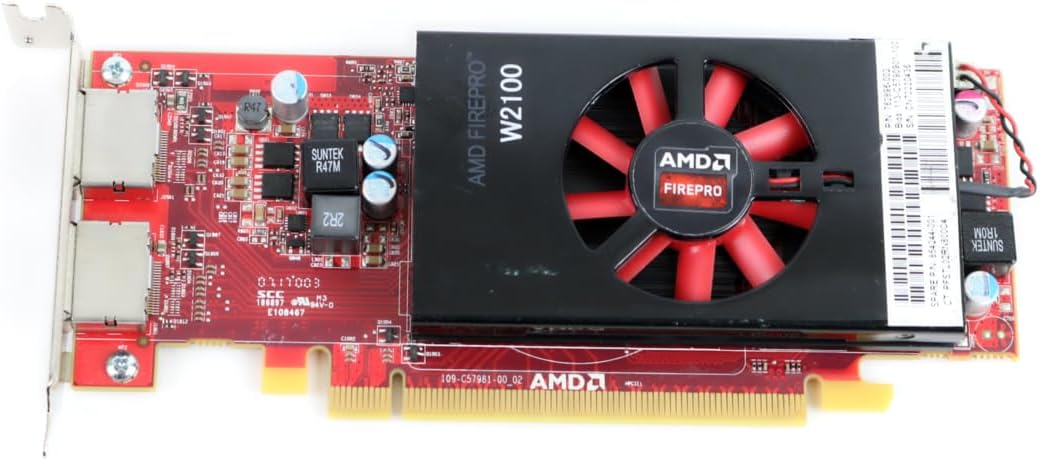
Imagine: Sus view of the AMD FirePro W2100 graphics card, highlighting its low-profile design, cooling fan, and primary circuit board.
3. Conectarea afișajelor
- Cabluri de conectare: Connect your display cables (DisplayPort) to the corresponding ports on the graphics card.

Imagine: Laterală view of the AMD FirePro W2100 graphics card, illustrating the two DisplayPort outputs available for connecting monitors.
4. Finalizarea instalării
- Închideți cazul: Close your computer's case and reconnect the power cable.
- Pornire: Porniți computerul.
- Instalare driver: Once the operating system loads, install the latest drivers for the AMD FirePro W2100. You can typically find these on the official AMD website or use the provided driver CD if applicable.
Operarea plăcii grafice
After successful installation and driver setup, your AMD FirePro W2100 graphics card is ready for operation.
Software de driver
- AMD Radeon Pro Software: For optimal performance and access to professional features, install the AMD Radeon Pro Software. This suite provides tools for managing display settings, optimizing applications, and monitoring card performance.
- Actualizări: Regularly check for driver updates from the official AMD website to ensure compatibility with the latest software and operating systems, and to benefit from performance improvements and bug fixes.
Configurație cu afișaje multiple
The FirePro W2100 supports multiple displays via its DisplayPort outputs. You can configure your display setup through your operating system's display settings or the AMD Radeon Pro Software. Common configurations include:
- Extended Desktop: Expand your desktop across multiple monitors.
- Afișări duplicate: Show the same content on all connected monitors.
- Eyefinity (AMD Specific): Create a large, single desktop surface across multiple displays for an immersive experience in supported applications.
Întreţinere
Întreținerea corectă poate prelungi durata de viață și poate asigura performanțe constante ale plăcii grafice.
- Îndepărtarea prafului: Curățați periodic praful de pe ventilatorul și radiatorul plăcii grafice folosind aer comprimat. Asigurați-vă că computerul este oprit și deconectat de la priză înainte de curățare.
- Actualizări ale driverului: Keep your graphics drivers updated. New drivers often include performance optimizations and bug fixes.
- System Ventilation: Ensure your computer case has adequate airflow to prevent overheating of components, including the graphics card.

Imagine: Spate view of the AMD FirePro W2100 graphics card, displaying the intricate circuit board and various electronic components.
Depanare
Această secțiune abordează problemele frecvente pe care le puteți întâmpina cu placa grafică.
Fără ieșire de afișare
- Verificați conexiunile: Ensure all display cables are securely connected to both the graphics card and the monitor.
- Intrare monitor: Verify that your monitor is set to the correct input source (e.g., DisplayPort).
- Card Seating: Power off the computer and re-seat the graphics card firmly in its PCIe slot.
- Alimentare electrică: Although this card is low-power, ensure your power supply unit (PSU) is sufficient for your system's components.
- Grafică integrată: If your CPU has integrated graphics, try connecting your monitor to the motherboard's video output to verify basic system functionality.
Probleme cu șoferul
- Reinstalați driverele: If you experience crashes or performance issues, try uninstalling the current drivers using a utility like Display Driver Uninstaller (DDU) in Safe Mode, then reinstall the latest drivers from the AMD website-ul.
- Actualizări ale sistemului de operare: Ensure your operating system is fully updated.
Supraîncălzire
- Clean Fan/Heatsink: Dust buildup can cause overheating. Clean the card as described in the Maintenance section.
- Flux de aer al carcasei: Improve case airflow by ensuring fans are properly oriented and cables are managed to not obstruct air paths.
- Monitorizare temperaturi: Use monitoring software to check the GPU temperature during operation.
Garanție și suport
As an Amazon Renewed product, this AMD FirePro W2100 graphics card is backed by the Amazon Renewed Guarantee.
- Garanție reînnoită Amazon: This product is eligible for a replacement or refund within 90 days of receipt if it does not work as expected.
- Contactați asistența: For any issues or support inquiries, please contact Amazon Customer Service or the seller (USTecno) directly through your Amazon order history.
- Resurse online: For driver downloads and additional technical documentation, visit the official AMD website-ul.


