1. Introducere
This manual provides instructions for the installation, operation, and maintenance of your SOUNDKITS Single Din Touchscreen Radio. This device integrates modern infotainment features such as Apple CarPlay, Android Auto, Bluetooth connectivity, and a 6.5-inch IPS display into a standard single DIN form factor, suitable for upgrading classic vehicles.

Image: The SOUNDKITS Single Din Touchscreen Radio unit, featuring a 6.5-inch IPS display showing the Apple CarPlay interface, accompanied by its infrared remote control.
2. Informații de siguranță
Read all instructions carefully before installation and operation. Failure to follow these instructions may result in injury or damage to the device or vehicle.
- Instalare profesională recomandată: Due to the complexity of car audio systems, professional installation is advised.
- Sursa de alimentare: Conectați unitatea doar la o sursă de alimentare de 12V CC cu împământare negativă.
- Cablaj: Ensure all wiring is correctly connected to prevent short circuits and damage. Insulate all exposed wires.
- Siguranța la conducere: Nu utilizați unitatea într-un mod care vă distrage atenția de la condus. Acordați întotdeauna prioritate siguranței rutiere.
- Temperatură: Evitați expunerea unității la temperaturi extreme sau la lumina directă a soarelui pentru perioade lungi de timp.
- Umiditate: Păstrați unitatea uscată. Expunerea la umezeală poate provoca defecțiuni sau electrocutare.
3. Conținutul pachetului
Verificați dacă toate articolele sunt prezente în colet:
- Single Din CarPlay Stereo Unit
- Ham de cabluri
- Truse de montare
- Telecomanda IR
- Manual de instrucțiuni pentru utilizator (acest document)
4. Produs terminatview
4.1 Front Panel Controls and Ports
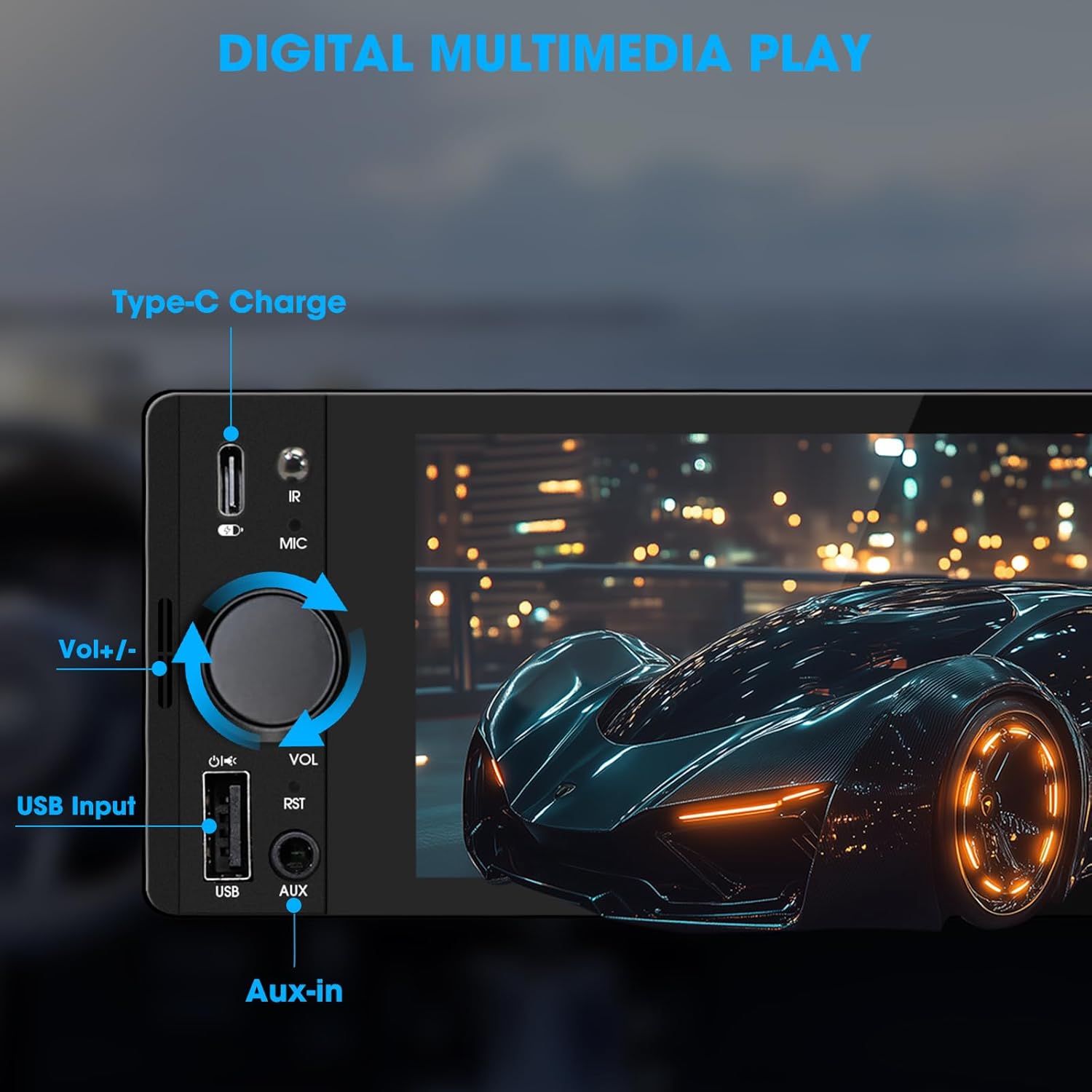
Image: Close-up of the radio's front panel, highlighting the Type-C charging port, IR receiver, microphone, volume knob, USB input, and AUX-in port.
- 6.5-inch IPS Touchscreen: Main display for all functions and interfaces.
- Volume Knob (VOL): Rotiți pentru a regla volumul. Apăsați pentru a dezactiva/activa sunetul.
- Intrare USB: For media playback, CarPlay/Android Auto connection, and phone mirroring.
- Intrare AUX: 3.5mm audio input for external audio devices.
- Port de încărcare tip C: Provides 2.1A quick charging for compatible devices.
- Microphone (MIC): Microfon încorporat pentru apeluri hands-free și comenzi vocale.
- Receptor IR: For remote control operation.
- Reset Button (RST): Small button to reset the unit (requires a thin object like a paperclip).
4.2 Conexiuni la panoul din spate

Image: Diagram showing the rear connections of the radio, including the main wiring harness, RCA outputs, external microphone jack, and radio antenna input.
- Main Wiring Harness Connector: Connects to the vehicle's power, speaker, and control wires.
- RCA Audio Outputs (L-OUT, R-OUT): Pentru conectarea externă ampliificatori.
- RCA Video Outputs (V-OUT1, V-OUT2): For connecting external monitors (e.g., headrest monitors).
- Spateview Camera Input (CAMIN): RCA input for a rearview aparat de fotografiat.
- Mufă externă pentru microfon: For connecting an optional external microphone.
- Intrare antenă radio: Connects to the vehicle's AM/FM antenna.
5. Configurare și instalare
This section outlines the general steps for installing the SOUNDKITS Single Din Touchscreen Radio. Professional installation is recommended.
5.1 Lista de verificare înainte de instalare
- Asigurați-vă că bateria vehiculului este deconectată înainte de a începe instalarea.
- Confirm the vehicle has a standard single DIN slot.
- Gather necessary tools (wire strippers, crimpers, electrical tape, screwdriver).

Image: A visual comparison showing older car radios replaced by the modern SOUNDKITS Single Din Touchscreen Radio, demonstrating the aesthetic upgrade.
5.2 Conexiuni de cablare
Refer to the provided wiring harness diagram for specific connections. The harness uses universal ISO interface and wire color coding.
| Culoarea firului | Funcţie |
|---|---|
| Galben | 12V constant (baterie) |
| Roşu | Accessory 12V (Ignition) |
| Negru | Pământ (GND) |
| Albastru | Antenă/AmpPornire de la distanță a lifier-ului |
| Portocale | Illumination/Dimmer |
| Maro | Controlul volanului (SWC) |
| Verde/Alb | Difuzor spate stânga (+) |
| Verde/Negru | Difuzor spate stânga (-) |
| Violet / Alb | Difuzor spate dreapta (+) |
| Mov/Negru | Difuzor spate dreapta (-) |
| Alb / Alb | Difuzor față stânga (+) |
| Alb/Negru | Difuzor față stânga (-) |
| Gri/Alb | Difuzor față dreapta (+) |
| Gri/Negru | Difuzor față dreapta (-) |
| Reverse (often Pink/Brown) | Reverse Gear Signal (for rearview aparat foto) |
Nota: Always cross-reference with your vehicle's specific wiring diagram and the diagram provided with the product's harness. Incorrect wiring can cause damage.
5.3 Montarea unității
- Secure the mounting sleeve into the vehicle's single DIN dash opening.
- Connect all necessary wiring harnesses, antenna, and any external accessories (e.g., rearview camera, external microphone).
- Carefully slide the head unit into the mounting sleeve until it locks into place.
- Reconectați bateria vehiculului.
- Test all functions before reassembling the dashboard trim.
6. Instrucțiuni de utilizare
6.1 Operare de bază
- Pornire/Oprire: The unit powers on with the vehicle's ignition. Press and hold the volume knob to turn off/on the display.
- Controlul volumului: Rotate the volume knob clockwise to increase volume, counter-clockwise to decrease. Press the knob to mute/unmute.
- Interfață cu ecran tactil: Navigate menus and select options by tapping or swiping on the 6.5-inch IPS touchscreen.
6.2 Conectivitate Bluetooth

Image: The radio's display showing a successful Bluetooth 5.3 connection to a smartphone, with music playback information visible.
- Din meniul principal, selectați Bluetooth pictograma.
- On your smartphone, search for available Bluetooth devices and select "SOUNDKITS" (or similar device name).
- Confirmați codul de asociere pe ambele dispozitive, dacă vi se solicită.
- Once connected, you can make hands-free calls and stream audio.
6.3 Apple CarPlay și Android Auto
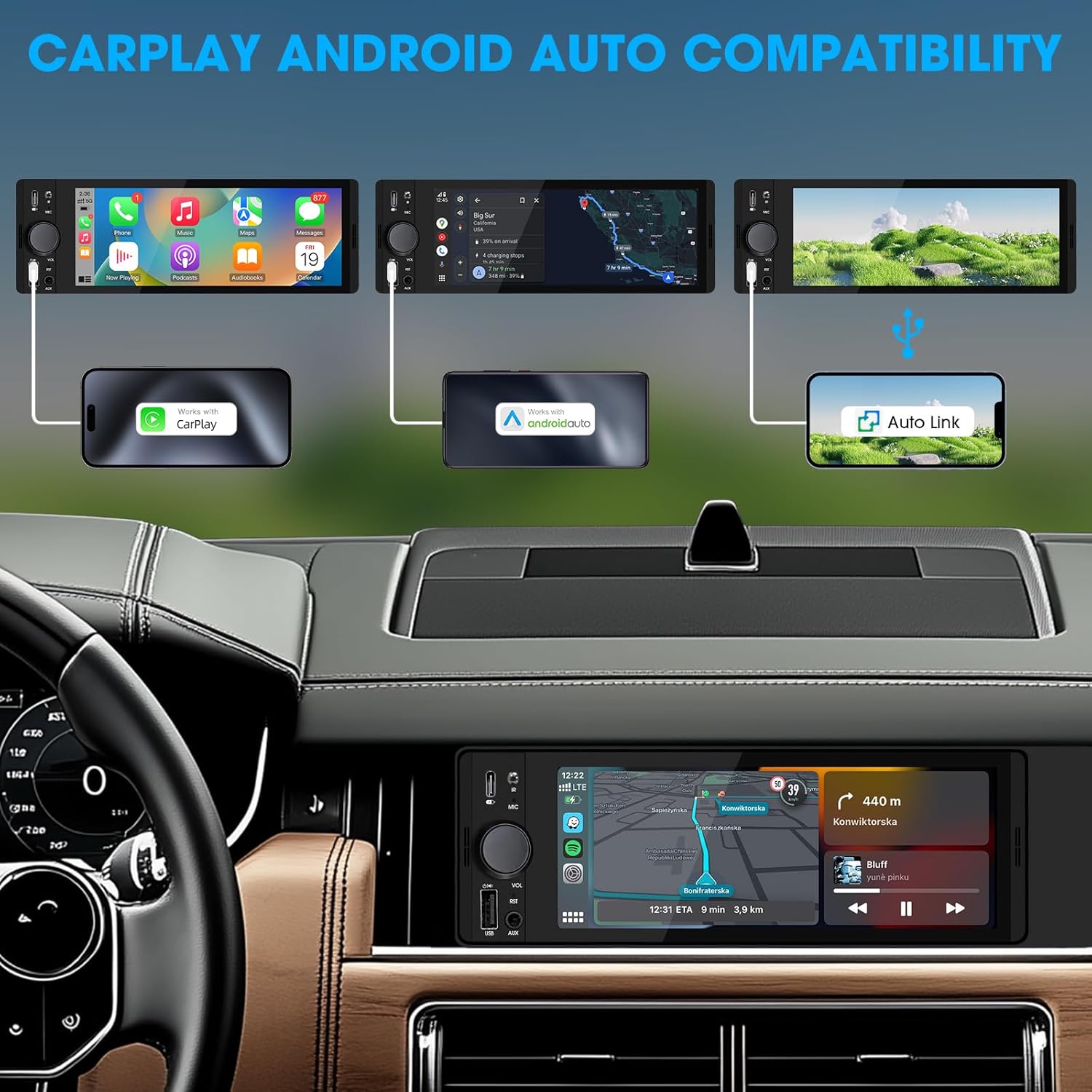
Image: An illustration demonstrating how to connect smartphones via USB for Apple CarPlay, Android Auto, and Auto Link functionality on the car stereo.
- Connect your iPhone (for CarPlay) or Android phone (for Android Auto) to the unit's USB port using a certified USB cable.
- The unit will automatically detect the connection and launch the respective interface.
- Follow any on-screen prompts on your phone or the unit to complete the setup.
- Access navigation, music, calls, and other compatible apps directly from the touchscreen.
6.4 USB Phone Mirroring
This feature allows you to display your smartphone's screen directly on the unit's display.
- Connect your smartphone to the unit's USB port.
- Select the "Phonelink" or "Mirrorlink" option from the main menu.
- Follow the on-screen instructions to establish the connection. This may require installing a specific app on your phone.
6.5 Radio (AM/FM)

Image: The radio interface displaying AM and FM frequency ranges and signal strength, indicating available stations.
- Din meniul principal, selectați Radio pictograma.
- Robinet AM or FM to switch bands.
- Utilizați Caută buttons to automatically search for stations.
- Tap and hold a preset number to save the current station.
6.6 Media Playback (USB, AUX)
- USB: Insert a USB drive into the USB port. The unit will automatically detect and play compatible audio/video files. Navigați files using the on-screen interface.
- AUX: Connect an external audio device to the 3.5mm AUX-in port using an audio cable. Select the AUX source from the main menu.
6.7 Control vocal

Image: A driver interacting with the car stereo using voice commands for Siri and Google Assistant, demonstrating hands-free operation.
When connected via CarPlay or Android Auto, you can activate your phone's voice assistant (Siri or Google Assistant) by pressing the voice control button on the unit (if available) or by using the voice command phrase (e.g., "Hey Siri" or "Ok Google").
6.8 Controlul volanului (SWC)
Image: The steering wheel control configuration screen on the radio, showing options to program various buttons for functions like volume, track skip, and mode.
If your vehicle supports steering wheel controls, connect the SWC wire during installation. Access the Control la volan settings in the unit's menu to program the buttons to control various functions (e.g., volume, track skip, mode).
6.9 Setări egalizator

Image: The audio equalizer settings interface, showing adjustable frequency bands and preset options, alongside a diagram of RCA audio and video outputs.
Accesați Setări de sunet or EQ menu to adjust audio parameters. The unit features a 10-band equalizer with preset options (e.g., Pop, Rock, Jazz) and custom settings to tailor the sound output to your preference.
6.10 Spateview Intrarea camerei
Conectați un spateview camera to the CAMIN RCA input. When the vehicle is shifted into reverse, the unit will automatically display the camera feed, enhancing parking safety.
7. Specificații
| Caracteristică | Detaliu |
|---|---|
| Numărul de model | Single Din Touchscreen Radio |
| Afişa | 6.5 Inch HD IPS Touch Screen (1024x600 resolution) |
| Conectivitate | Bluetooth 5.3, USB, Auxiliary, Type-C (charging) |
| Integrarea smartphone-ului | Apple CarPlay (Wired), Android Auto (Wired), Screen Mirroring |
| Ieșire audio | 300W Peak Power, 4-CH RCA Out, 10-band EQ |
| Tuner radio | AM (530-1710 kHz), FM (87.5-107.9 MHz) |
| Redare video | 1080p Video Playback, H.264, H.265/HEVC encoding |
| Metode de control | Touchscreen, IR Remote Control, Steering Wheel Control, Voice Control |
| Dimensiuni | 4.5 x 7.36 x 2.4 inci (Produs) |
| Greutate | 2.03 lire sterline |
| Alimentare electrică | 12V DC (împământare negativă) |
8. Depanare
Consultați această secțiune pentru probleme frecvente și soluțiile aferente.
8.1 Fara putere
- Verificați cablarea: Ensure the yellow (constant 12V), red (accessory 12V), and black (ground) wires are correctly connected and have proper voltage.
- Siguranță: Check the fuse on the unit's wiring harness and the vehicle's fuse box. Replace if blown.
- Baterie: Ensure the vehicle's battery is charged and connected.
8.2 Fără sunet
- Nivel de volum: Increase the volume. Check if the unit is muted.
- Cablajul difuzorului: Verify all speaker wires are correctly connected and not short-circuited.
- Selectarea sursei: Ensure the correct audio source (e.g., Radio, USB, Bluetooth, AUX) is selected.
- Ampmai în viață: Dacă un extern amplifier is used, ensure it is powered on and correctly wired.
8.3 CarPlay/Android Auto Not Connecting
- Cablu USB: Use a high-quality, certified USB data cable. Faulty cables can prevent connection.
- Port USB: Ensure the phone is connected to the correct USB port on the unit.
- Setările telefonului: Check your phone's settings to ensure CarPlay/Android Auto is enabled and allowed to connect to the unit.
- Actualizare software: Ensure your phone's operating system and any relevant apps (e.g., Android Auto app) are up to date.
8.4 Ecranul tactil nu răspunde
- Reset Unit: Use a thin object to press the RST button on the front panel to perform a soft reset.
- Ciclu de alimentare: Turn off the vehicle's ignition, wait a few minutes, then restart.
9. Întreținere
- Curățarea ecranului: Folosiți o lavetă moale, fără scame, pentru a șterge ușor ecranul tactil. Pentru petele persistente, ștergeți ușor.ampCurățați laveta cu apă sau cu un produs de curățare sigur pentru ecran. Evitați substanțele chimice dure.
- Curatenie generala: Use a dry, soft cloth to wipe the unit's body. Do not use abrasive cleaners or solvents.
- Actualizări firmware: Verificați periodic producătorul webpentru orice actualizări de firmware disponibile, pentru a asigura performanță și compatibilitate optime.
10. Garanție și asistență
SOUNDKITS provides the following support and warranty information:
- Garantie: The product comes with a 12-month responsibility for all products.
- Free Replacement/Refund: A 90-day free replacement or refund policy is available.
- Technical Guidance & Support: Lifetime technical guidance and support are provided.
- Serviciu clienți: Fast response within 24 hours for inquiries.
For further assistance, please contact SOUNDKITS customer support through the platform where the product was purchased or visit the official SOUNDKITS store page.
You can typically find contact information by navigating to the seller's profile on the purchase platform and selecting "Ask a question."

Image: A graphic detailing SOUNDKITS' customer service commitments: 24-hour fast response, 90-day free replacement or refund, 12-month product responsibility, and lifetime technical guidance & support.


