1. Introducere
Mulțumesc pentru achizițieasing the AKAI 50 Inch 4K Ultra HD Smart QLED TV, Model AL50GQU-SFWS. This manual provides essential information for the safe and efficient operation of your new television. Please read it thoroughly before using the product and retain it for future reference.
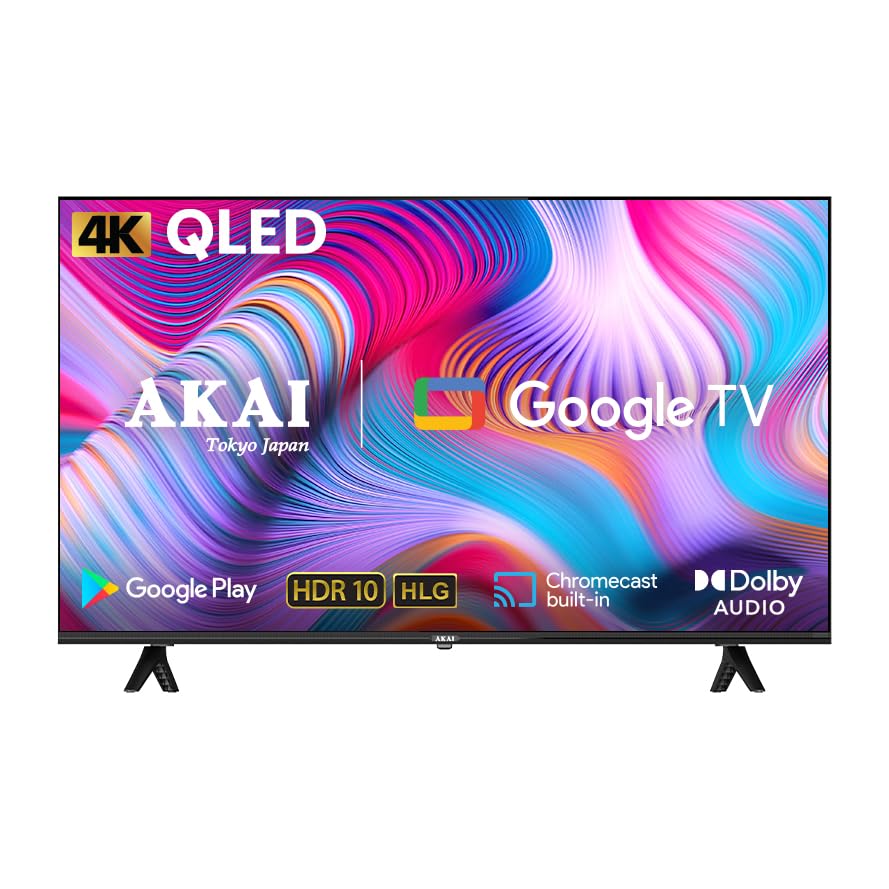
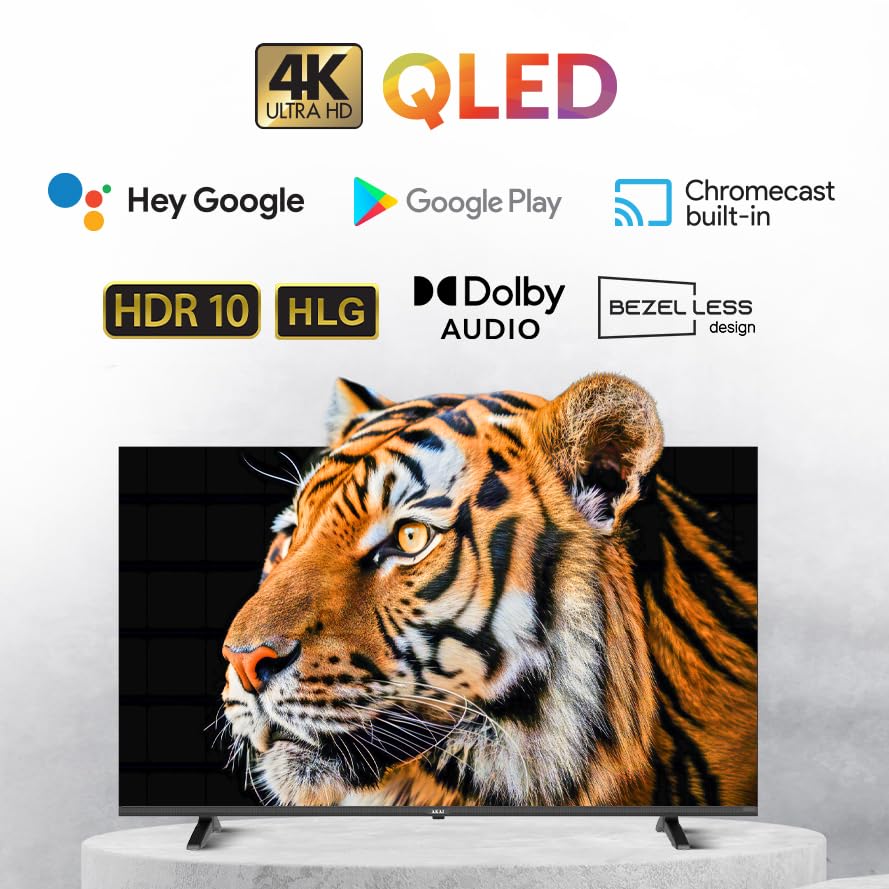
This QLED TV features a 4K Ultra HD display, Google TV operating system, Atmos Sound, 60Hz refresh rate with MEMC technology, HDR 10 support, and a bezelless design, offering an immersive viewexperiență.
2. Conținutul pachetului
Înainte de a continua configurarea, verificați dacă toate articolele enumerate mai jos sunt incluse în pachet:
- AKAI 50 Inch 4K Ultra HD Smart QLED TV
- Telecomanda
- Cablu de alimentare
- Wall Mount Bracket (if included in your specific package)
- Suporturi de masă
- Manual de utilizare (acest document)
- Baterii pentru telecomandă (pot fi incluse)
3. Configurare
3.1. Despachetarea și plasarea
- Carefully remove the TV from its packaging. It is recommended that two people handle the TV to prevent damage.
- Place the TV on a stable, flat surface or prepare for wall mounting. Ensure adequate ventilation around the TV.
3.2. Attaching the Stands (Table Mount)
If you intend to place the TV on a table or cabinet, follow these steps:
- Lay the TV face down on a soft, clean cloth to protect the screen.
- Align the table stands with the screw holes on the bottom of the TV.
- Fixați suporturile folosind șuruburile furnizate. Nu strângeți prea tare.
- Ridicați cu grijă televizorul în poziție verticală.
3.3. Montare pe perete
If you plan to wall mount your TV, it is strongly recommended to use a professional installer to ensure proper and safe installation. Refer to the wall mount bracket's instructions for specific details.
3.4. Conectarea dispozitivelor
Televizorul dumneavoastră oferă diverse opțiuni de conectivitate:
- Porturi HDMI (x3): Conectați playere Blu-ray, console de jocuri, set-top box-uri etc.
- Port USB (x1): Conectați dispozitive de stocare USB pentru redarea media.
- Port Ethernet: Pentru conexiune la internet prin cablu.
- Wifi: Pentru conexiunea la internet fără fir.
- Bluetooth: Pentru conectarea accesoriilor wireless, cum ar fi căști sau soundbar-uri.
Ensure all connections are secure before powering on the TV.
3.5. Pornirea inițială și configurarea Google TV
- Conectați cablul de alimentare la televizor și apoi la o priză.
- Apăsați butonul de pornire de pe telecomandă sau de pe televizor.
- Follow the on-screen instructions to complete the initial setup of Google TV, including language selection, network connection (Wi-Fi or Ethernet), Google account sign-in, and channel scanning.
4. Utilizarea televizorului
4.1. Funcții de control de la distanță
The provided remote control allows you to navigate the TV's interface and control various functions. Familiarize yourself with the buttons:
- Buton de alimentare: Pornește/oprește televizorul.
- Tastatură de navigare (Sus/Jos/Stânga/Dreapta/OK): Pentru navigarea și selecția meniurilor.
- Butonul Înapoi: Revine la ecranul anterior.
- Buton Acasă: Accesează ecranul principal Google TV.
- Volum sus/jos: Reglează nivelul volumului.
- Canal sus/jos: Schimbă canalele TV.
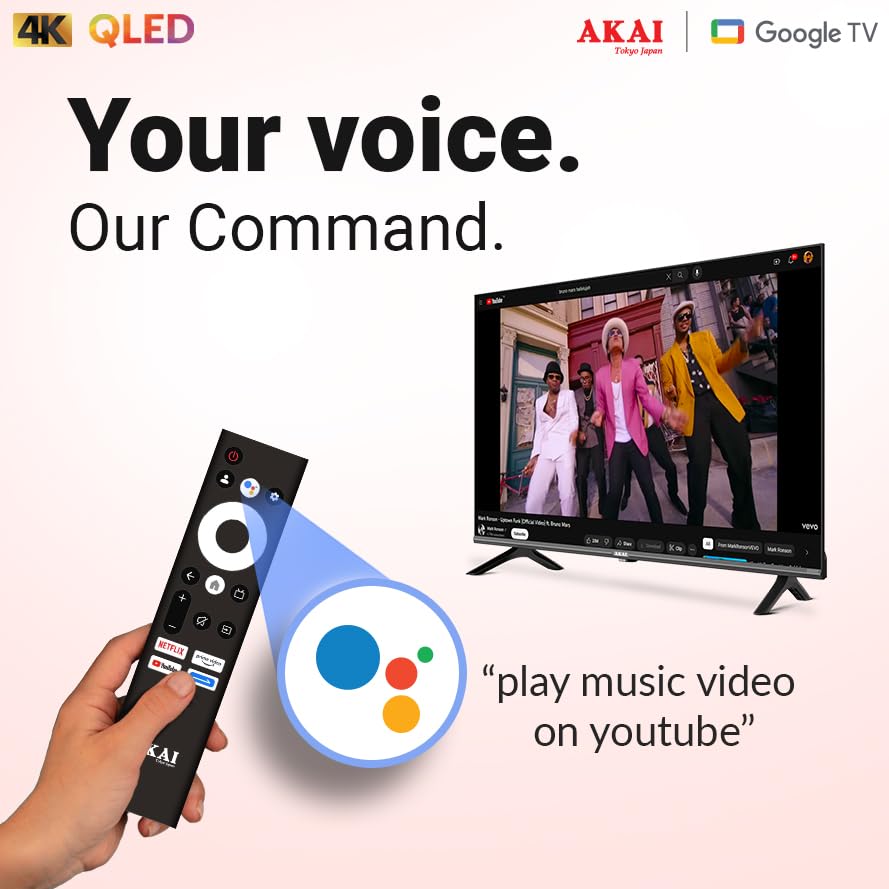
- Butonul Asistent Google: Activează controlul vocal.
- Butoane de comandă rapidă pentru aplicații: Acces direct la servicii de streaming populare.
4.2. Interfața Google TV
Google TV organizes your entertainment from various apps and subscriptions into a single, personalized interface. You can:
- Browse movies and TV shows from your streaming services.
- Discover new content based on your viewobiceiuri.
- Access the Google Play Store to download additional apps.
- Use Google Assistant for voice commands to search for content, control smart home devices, and more.
4.3. Caracteristici și tehnologii cheie
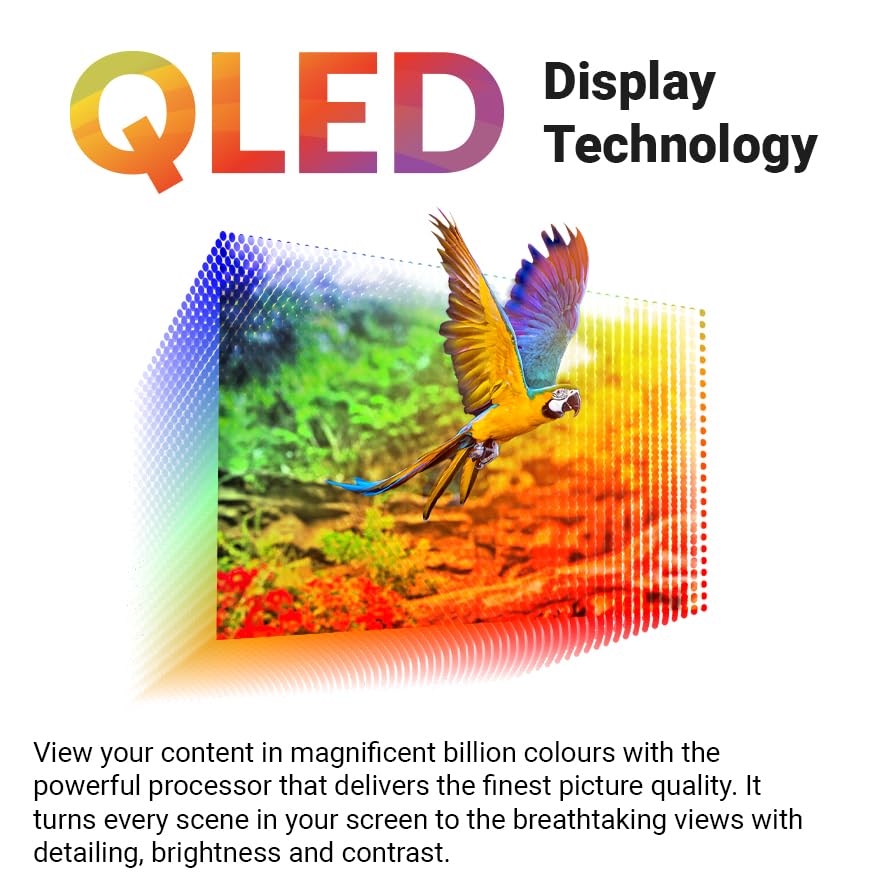
- 4K Ultra HD QLED Display: Experience stunning visuals with 3840 x 2160 resolution and vibrant colors enhanced by Quantum Dot technology.
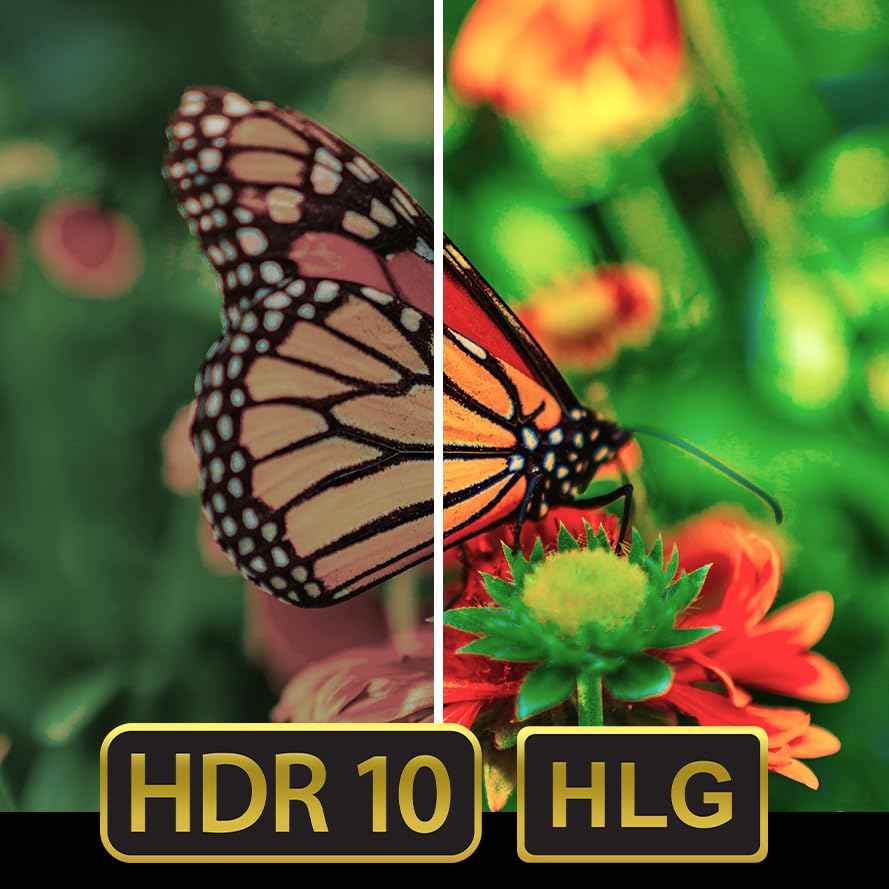
- HDR 10: Enjoy enhanced contrast, deeper blacks, and brighter whites for a more dynamic picture.
- 60Hz Refresh Rate with MEMC: Motion Estimation, Motion Compensation (MEMC) technology ensures smooth, fluid motion, reducing blur in fast-paced scenes.
- Sunet Atmos: Oferă un sunet captivant, multidimensional, care se mișcă în jurul tău.
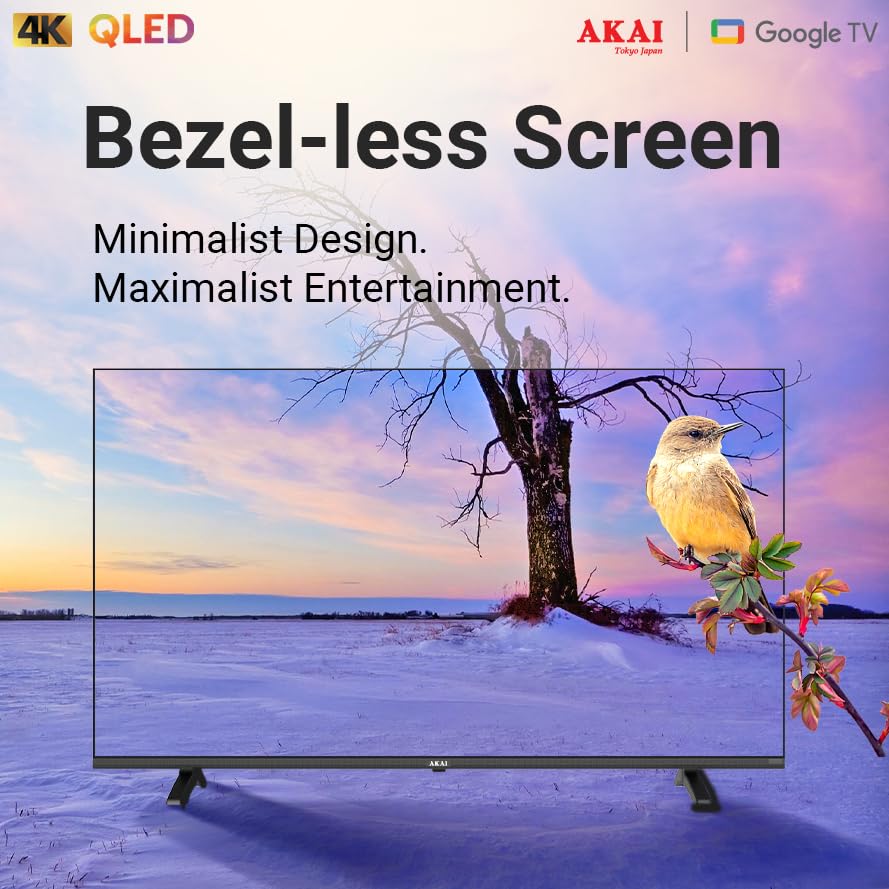
- Bezelless Design: Maximizes screen space for an expansive viewexperiență.
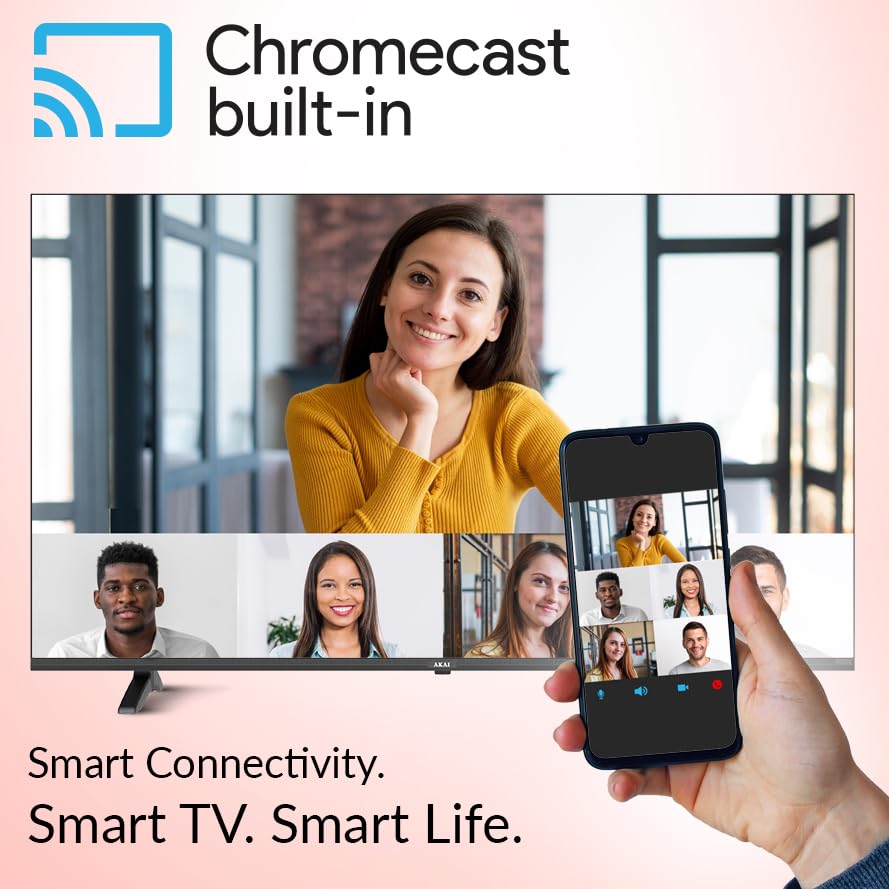
- Chromecast încorporat: Transmiteți conținut de pe smartphone-ul, tableta sau computerul compatibil direct pe televizor.


5. Întreținere
5.1. Curățarea televizorului
- Deconectați întotdeauna televizorul înainte de curățare.
- Folosiți o lavetă moale, uscată și fără scame pentru a șterge ușor ecranul și carcasa.
- Pentru pete persistente, frecați ușorampClătiți laveta cu apă sau cu o soluție de curățare a ecranului blândă, neabrazivă. Nu pulverizați niciodată soluția de curățare direct pe ecran.
- Avoid using harsh chemicals, abrasive pads, or solvents as they can damage the TV's surface.
5.2. Actualizări software
Your Google TV may receive automatic software updates. Ensure your TV is connected to the internet to receive the latest features and security patches. You can also manually check for updates in the TV's settings menu.
6. Depanare
Dacă întâmpinați probleme cu televizorul, consultați următoarele probleme și soluții frecvente:
| Problemă | Soluție posibilă |
|---|---|
| Fără putere | Check if the power cable is securely connected to both the TV and the power outlet. Ensure the power outlet is working. |
| Nu există imagine, dar există sunet | Verificați dacă este selectată sursa de intrare corectă. Verificați conexiunile prin cablu (HDMI etc.). Încercați să reporniți televizorul. |
| Nu există sunet, dar imaginea este prezentă | Check the volume level and ensure the TV is not muted. Verify audio cable connections. If using external audio, check its settings. |
| Telecomanda nu funcționează | Replace the batteries. Ensure there are no obstructions between the remote and the TV's IR sensor. Re-pair the remote if it's a Bluetooth remote. |
| Nu se poate conecta la Wi-Fi | Asigurați-vă că routerul Wi-Fi este pornit și funcționează. Introduceți din nou parola Wi-Fi. Încercați să reporniți atât televizorul, cât și routerul. |
If the issue persists after trying these solutions, please contact AKAI customer support for further assistance.
7. Specificații
| Caracteristică | Detaliu |
|---|---|
| Marca | AKAI |
| Model | AL50GQU-SFWS |
| Dimensiunea ecranului | 50 inch (126 cm) |
| Tehnologia de afișare | QLED |
| Rezoluţie | 3840 x 2160 (4K Ultra HD) |
| Rata de reîmprospătare | 60 Hz (with MEMC Technology) |
| Sistem de operare | Google TV |
| Caracteristici speciale | Atmos Sound, HDR 10, Bezelless Design, Chromecast Built-in, Google Assistant |
| RAM | 2 GB |
| ROM | 16 GB |
| Porturi HDMI | 3 |
| Porturi USB | 1 |
| Conectivitate | Wi-Fi, Bluetooth, Ethernet |
| Mod ieșire audio | Stereo (5.1 Speaker Surround Sound Channel Configuration) |
| Viewunghiul ing | 178 de grade |
| Raportul de contrast al imaginii | 5000:1 |
| Sursa de alimentare | Electric cu fir |
| Wattage | 130.00 W |
| Dimensiunile produsului (Lxlxh) | 111.2 x 64.8 x 9.2 cm (fără suport) |
| Greutatea articolului | 9.1 kg |
8. Garanție și asistență
Your AKAI 50 Inch 4K Ultra HD Smart QLED TV is covered by a manufacturer's warranty. Please refer to the warranty card included in your package for specific terms and conditions, including the warranty period and coverage details.
For technical support, service requests, or any questions not covered in this manual, please contact AKAI customer service. Contact details can typically be found on the AKAI official webla fața locului sau în documentația garanției.
Producător: Hometech Digital Limited, SCO 363-364, Sector 35B, Chandigarh


