1. Introducere
This manual provides detailed instructions for the AULA F75 75% Wireless Mechanical Keyboard and the AULA SC580 Wireless Gaming Mouse. Please read this manual carefully before using the product to ensure proper operation and to maximize your user experience.

Image 1.1: The AULA F75 Wireless Mechanical Keyboard and SC580 Wireless Gaming Mouse Combo.
2. Ce se află în cutie
- Tastatură mecanică fără fir AULA F75
- Mouse pentru jocuri fără fir AULA SC580
- Cablu USB-C (pentru încărcare și conexiune prin cablu)
- Receptor USB de 2.4 GHz
- Extractor pentru chei
- Comutator Extractor
- Spare Switches (as gift)
- Manual de utilizare
3. Keyboard Features (AULA F75)
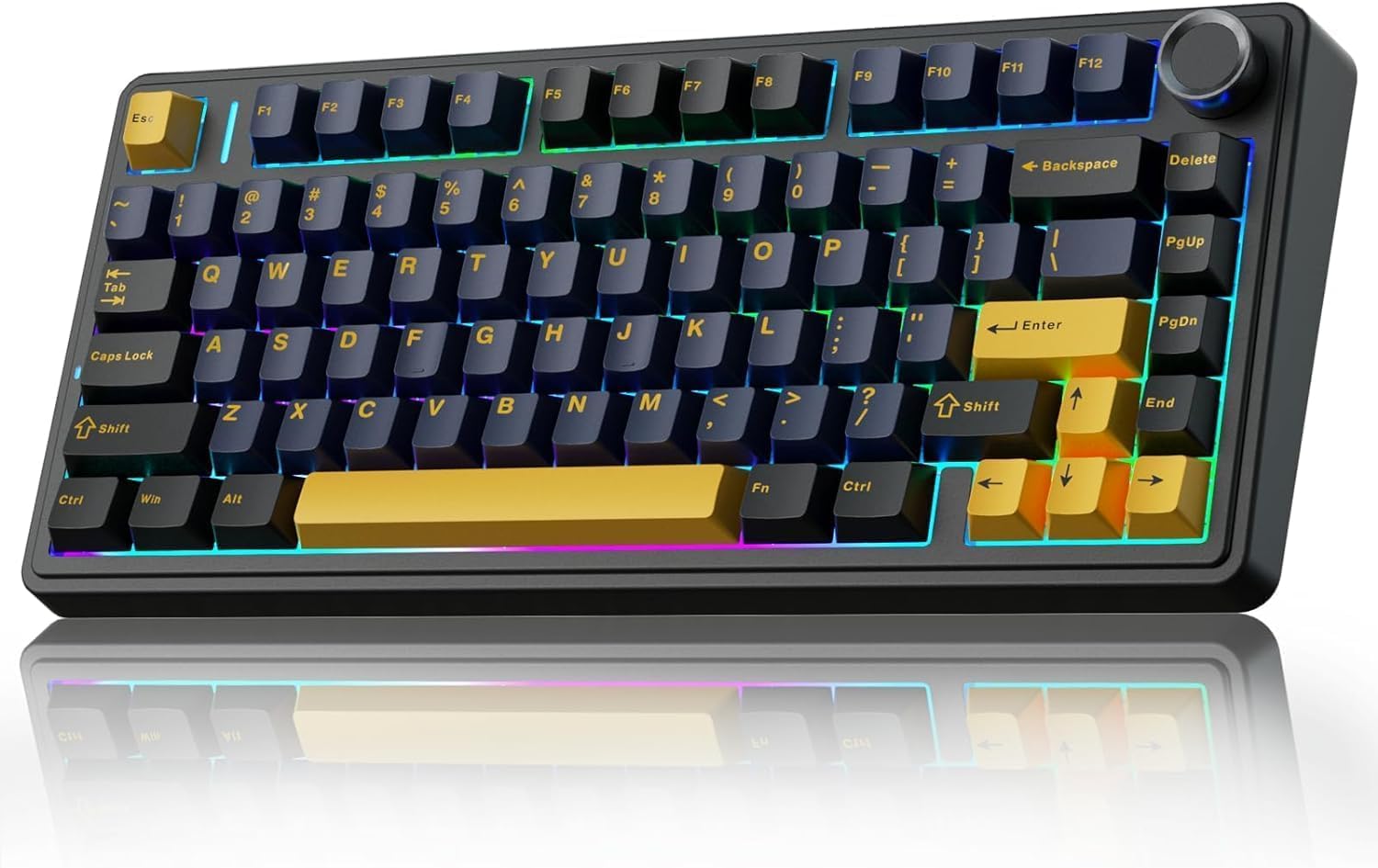
Image 3.1: The AULA F75 Wireless Mechanical Keyboard.
3.1 Tri-mode Connection
- Bluetooth 5.0: Se conectează la până la trei dispozitive simultan.
- Wireless 2.4 GHz: Utilizes a dedicated USB receiver for low-latency connection.
- USB cu fir: Direct connection via USB-C cable for charging and data.
The F75 keyboard is compatible with PC, laptops, tablets, mobile phones, PS, and XBOX. It features a 4000mAh battery for extended wireless use.

Image 3.2: The compact 75% layout of the AULA F75 keyboard, highlighting its BT5.0/3.0, 2.4GHz, and Type-C connection options.
3.2 Design cu înlocuire la cald
- Supports 3-pin or 5-pin mechanical switches.
- Allows for easy switch replacement without soldering.
- Equipped with pre-lubricated stabilizers and LEOBOG Graywood V3 switches for a smooth typing experience.

Image 3.3: The hot-swappable feature of the AULA F75 keyboard, showing included tools and spare switches.
3.3 Gasket Structure & PCB Single Key Slotting
- Gasket structure enhances resilience and stability, providing a softer, more elastic feel.
- Five layers of sound-dampening material (silicone pad, sound-absorbing cotton, IXPE shaft bottom pad, PET voice actor pad, PO base cotton) reduce cavity noise.
- PCB single key slotting further optimizes the typing sound and feel.

Image 3.4: Diagram illustrating the advanced gasket structural design and five layers of sound dampening in the AULA F75 keyboard.
4. Mouse Features (AULA SC580)

Imaginea 4.1: Sus view of the AULA SC580 Wireless Gaming Mouse.
4.1 Tri-mode Connection & Compatibility
- Wireless 2.4 GHz: For stable, low-latency connection.
- Bluetooth 5.0 (x2): Connects to two Bluetooth devices.
- USB-C cu fir: Pentru conectare directă și încărcare.
- Can save up to 4 devices and switch quickly via the bottom switch button.
- Compatible with Windows 7/8/10/XP/Vista, Mac OS, Linux, and Android systems.

Image 4.2: The AULA SC580 mouse demonstrating its tri-mode connectivity across various devices.
4.2 Adjustable DPI Levels & High Polling Rate
- 6 niveluri DPI reglabile: 800/1600/2400/3200/6400/10,000 DPI.
- DPI can be adjusted via the DPI button on the mouse or custom software.
- Rată de interogare de 1000 Hz: Ensures low-latency and responsive performance.

Image 4.3: The AULA SC580 mouse highlighting its 6 adjustable DPI levels up to 10,000.

Imaginea 4.4: Pesteview of AULA SC580 mouse features including tri-mode connection, DPI, custom macro, battery life, polling rate, weight, and ergonomic design.
5. Instrucțiuni de configurare
5.1 Keyboard Setup (AULA F75)
- Pornire: Localizați comutatorul de alimentare de pe tastatură și glisați-l în poziția „ON”.
- Selectarea modului: Use the side button or shortcut keys (refer to keyboard specific function keys) to select your desired connection mode: 2.4GHz, Bluetooth, or Wired.
5.1.1 Conectare prin rețeaua wireless de 2.4 GHz
- Ensure the keyboard is in 2.4GHz mode.
- Conectați receptorul USB de 2.4 GHz la un port USB disponibil de pe computer.
- The keyboard should automatically connect. If not, press and hold the designated 2.4GHz pairing key (refer to keyboard manual for specific key combination) until the indicator light flashes, then release.
5.1.2 Conectarea prin Bluetooth
- Ensure the keyboard is in Bluetooth mode.
- Press and hold one of the Bluetooth pairing keys (e.g., Fn + 1, Fn + 2, or Fn + 3) until the indicator light flashes rapidly, indicating pairing mode.
- On your device (PC, tablet, phone), go to Bluetooth settings and search for new devices.
- Select "AULA F75" from the list of available devices to pair.
5.1.3 Conectare prin USB-C cu fir
- Connect one end of the USB-C cable to the keyboard's USB-C port.
- Conectați celălalt capăt al cablului USB-C la un port USB disponibil de pe computer.
- Tastatura va trece automat în modul cu fir și va începe încărcarea.
5.2 Mouse Setup (AULA SC580)
- Pornire: Localizați comutatorul de alimentare din partea inferioară a mouse-ului și glisați-l în poziția „ON”.
- Selectarea modului: Use the switch button on the bottom of the mouse to select your desired connection mode: 2.4GHz, Bluetooth 1, Bluetooth 2, or Wired.
5.2.1 Conectare prin rețeaua wireless de 2.4 GHz
- Ensure the mouse is in 2.4GHz mode.
- Plug the 2.4GHz USB receiver (usually stored in the mouse's bottom compartment) into an available USB port on your computer.
- Mouse-ul ar trebui să se conecteze automat.
5.2.2 Conectarea prin Bluetooth
- Ensure the mouse is in Bluetooth 1 or Bluetooth 2 mode.
- Press and hold the pairing button (refer to mouse manual for specific button) until the indicator light flashes rapidly.
- Pe dispozitiv, accesați setările Bluetooth și căutați dispozitive noi.
- Select "AULA SC580" from the list of available devices to pair.
5.2.3 Conectare prin USB-C cu fir
- Connect one end of the USB-C cable to the mouse's USB-C port.
- Conectați celălalt capăt al cablului USB-C la un port USB disponibil de pe computer.
- Mouse-ul va trece automat în modul cu fir și va începe încărcarea.
6. Instrucțiuni de utilizare
6.1 Keyboard Operation (AULA F75)
- Comutarea modului: Use the dedicated switch or Fn key combinations to cycle between 2.4GHz, Bluetooth (BT1, BT2, BT3), and Wired modes.
- Buton de volum: Rotate the metal knob in the top right corner to adjust system volume. Press the knob to mute/unmute.
- Function Keys (Fn Combinations): The F75 keyboard features various Fn key combinations for media control, backlight adjustment, and other functions. Refer to the keycap legends for specific commands (e.g., Fn + F1-F12 for media, Fn + arrow keys for backlight).
- Controlul luminii de fundal: Adjust RGB lighting effects, brightness, and speed using designated Fn key combinations.
- Comutatoare cu schimbare la cald: To replace a switch, gently pull off the keycap using the keycap puller. Then, use the switch puller to carefully remove the switch. Align the pins of the new switch with the holes on the PCB and press firmly until it clicks into place. Replace the keycap.
6.2 Mouse Operation (AULA SC580)
- Ajustare DPI: Press the DPI button (usually located behind the scroll wheel) to cycle through the 6 available DPI levels (800/1600/2400/3200/6400/10,000). The indicator lights will change to reflect the current DPI setting.
- Comutarea modului: Use the switch on the bottom of the mouse to select between 2.4GHz, Bluetooth 1, Bluetooth 2, and Wired modes.
- Macrocomenzi personalizate: Utilize the official AULA software (downloadable from the AULA website) to program custom macros and button assignments for enhanced gaming and productivity.
7. Întreținere
- curatenie: Use a soft, dry cloth to wipe down the keyboard and mouse. For deeper cleaning, use a can of compressed air to remove dust and debris from between keycaps. For the keyboard, keycaps can be removed with the included keycap puller for thorough cleaning.
- Îngrijirea bateriei: To prolong battery life, avoid fully discharging the devices frequently. Charge them when the battery indicator is low. If storing for an extended period, charge to about 50% and power off.
- Depozitare: Depozitați dispozitivele într-un loc răcoros și uscat, ferit de lumina directă a soarelui și de temperaturi extreme.
8. Depanare
- Dispozitivul nu se conectează:
- Ensure the device is powered on and in the correct connection mode (2.4GHz, BT, Wired).
- Pentru 2.4 GHz, asigurați-vă că receptorul USB este conectat corect.
- For Bluetooth, ensure Bluetooth is enabled on your host device and the device is in pairing mode. Try re-pairing.
- For wired, ensure the USB-C cable is properly connected to both the device and the computer.
- Check battery levels and charge if necessary.
- Întârzieri sau deconectări:
- Move the 2.4GHz receiver closer to the device or use a USB extension cable.
- Reduceți interferențele de la alte dispozitive wireless.
- Asigurați-vă că dispozitivul este complet încărcat.
- Keys or Mouse Buttons Not Responding:
- Restart the device and your computer.
- For keyboard, if a specific key is not working, try hot-swapping the switch with a spare one.
- Ensure no debris is lodged under the keycap or button.
- Lumina de fundal nu funcționează:
- Ensure the backlight is not turned off via Fn key combinations.
- Verificați nivelul bateriei; o baterie descărcată ar putea dezactiva iluminarea de fundal.
9. Specificații
9.1 AULA F75 Keyboard Specifications
| Caracteristică | Detaliu |
|---|---|
| Marca | AULA |
| Model | F75 |
| Conectivitate | Bluetooth 5.0, fără fir la 2.4 GHz, USB-C cu fir |
| Tip tastatură | 75% Mechanical |
| Comutatoare | LEOBOG Graywood V3 (Hot-Swappable 3/5-pin) |
| Structura | Garnitură montată |
| Capacitatea bateriei | 4000mAh |
| Iluminare din spate | RGB |
| Material | Plastic |
9.2 AULA SC580 Mouse Specifications
| Caracteristică | Detaliu |
|---|---|
| Marca | AULA |
| Model | SC580 |
| Conectivitate | Bluetooth 5.0 (x2), 2.4GHz Wireless, USB-C Wired |
| Niveluri DPI | 800/1600/2400/3200/6400/10,000 |
| Rata de sondare | 1000 Hz |
| Dispozitive compatibile | PC, Laptop, Mac, Android |
10. Garanție și asistență
AULA products are designed for reliability and performance. For warranty information, technical support, or further assistance, please visit the official AULA brand store or contact AULA customer service through their official channels.
Puteți găsi mai multe informații și resurse de asistență la AULA Brand Store.


