1. Introducere
This user manual provides detailed instructions for the Baseus 17-in-1 Docking Station (Model: B0D78WFLST). This versatile docking station is designed to expand the connectivity of your laptop or compatible device, offering multiple ports for display, data transfer, networking, and power delivery. Please read this manual thoroughly before using the product to ensure proper operation and to maximize its capabilities.
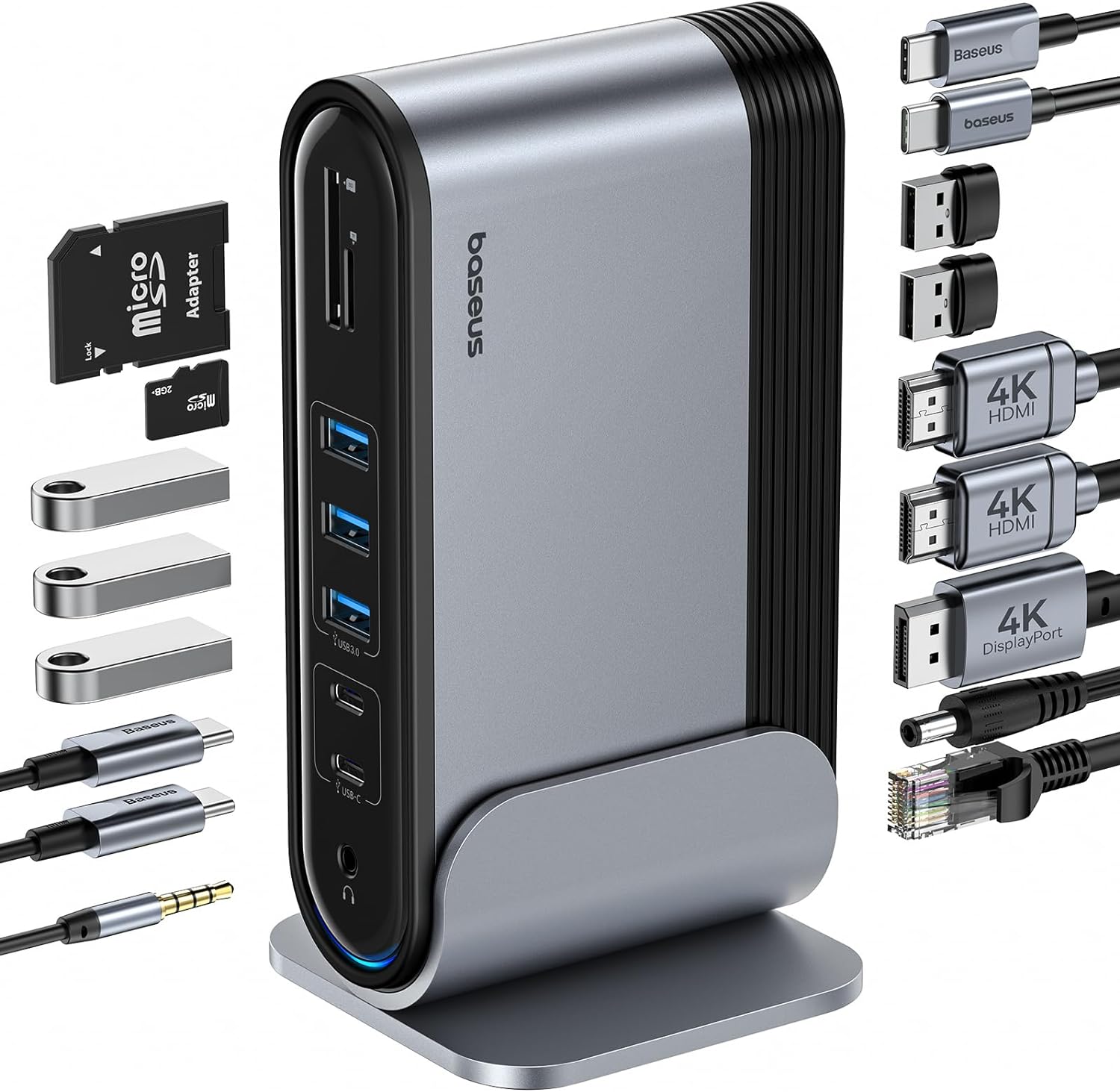
Figure 1: Baseus 17-in-1 Docking Station and included accessories.
2. Caracteristici cheie
The Baseus 17-in-1 Docking Station offers comprehensive connectivity solutions:
- 17-in-1 Port Expansion: Integrates a wide array of ports for diverse connectivity needs.
- Triple Monitor Support: Connect up to three external monitors for enhanced productivity.
- Afișaj de înaltă rezoluție: Supports 4K@60Hz resolution for single and dual displays, and 1080P@60Hz for triple displays on Windows systems.
- Transfer rapid de date: Features USB 3.0 ports with 5Gbps transfer speeds and USB 2.0 ports for peripherals.
- Putere de livrare 100W: Provides up to 85W power output to charge your laptop (100W input required).
- Gigabit-Ethernet: Ensures stable and high-speed wired network connection up to 1Gbps.
- Cititor de carduri SD / TF: Convenient access to memory cards with speeds up to 104 MB/s.
- Conectivitate audio: Integrated 3.5mm audio jack for headphones or speakers.
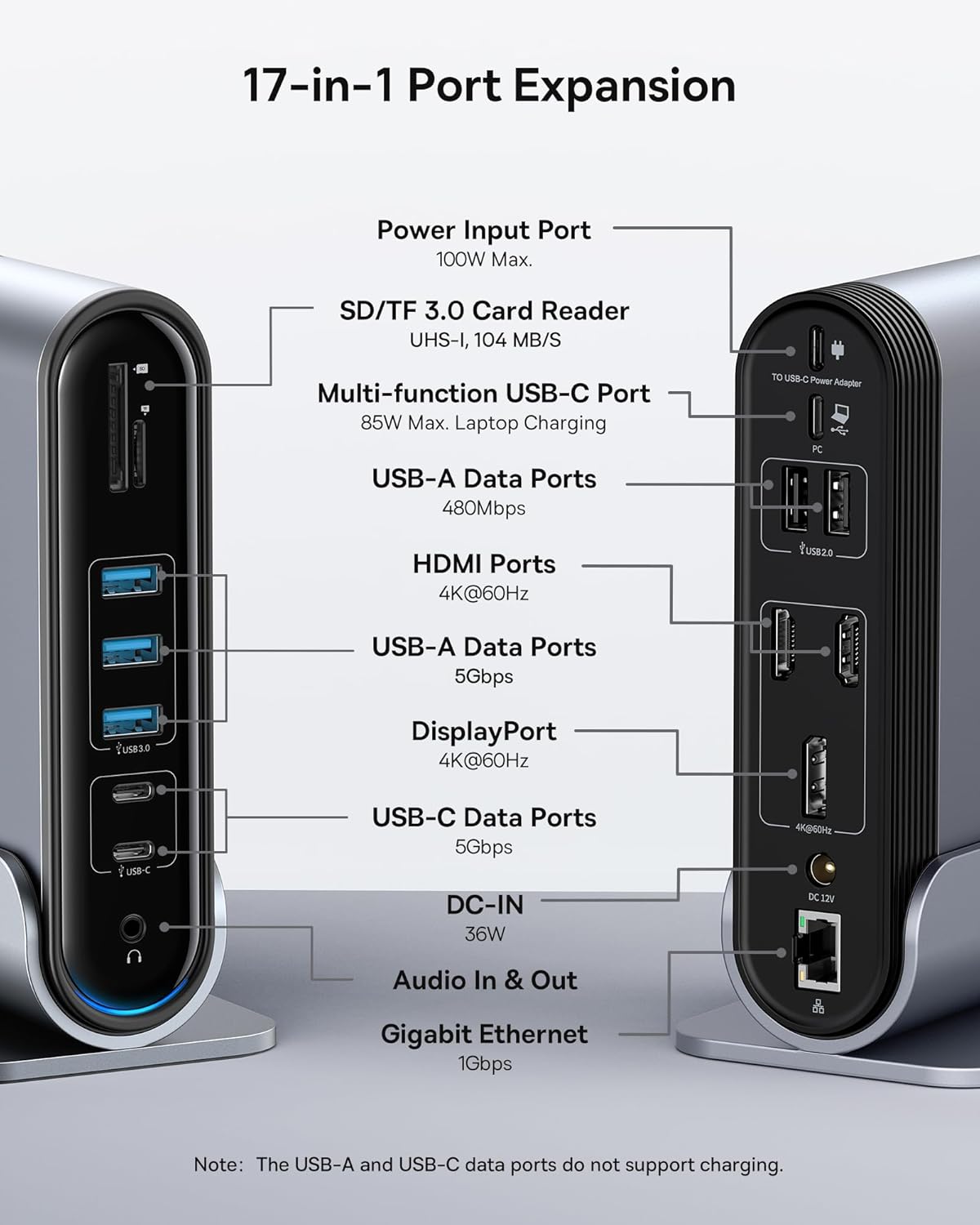
Figure 2: Detailed port layout and specifications of the docking station.
3. Conținutul pachetului
Vă rugăm să verificați dacă toate articolele sunt prezente în colet:
- Stație de andocare cu ecran triplu Baseus UnionJoy cu 17 porturi
- Dock Stand
- Adaptor de alimentare
- Cablu USB-C la USB-C
- US Adapter Plug
- Adaptor de priză UE
- UK Adapter Plug
- Manual de utilizare

Figure 3: What's included in the box.
4. Instrucțiuni de configurare
Urmați acești pași pentru a configura stația de andocare Baseus 17-în-1:
- Conectare alimentare:
Connect the provided power adapter to the DC-IN port (36W) on the docking station. Use the appropriate regional adapter plug (US, EU, or UK) for your power outlet. For laptop charging, ensure a 100W PD charger (not included) is connected to the Power Input Port (100W Max.) on the docking station.

Figure 4: Power connection for the docking station and laptop charging.
- Conectare la dispozitivul gazdă:
Use the included USB-C to USB-C cable to connect the docking station's Multi-function USB-C Port (85W Max. Laptop Charging) to your laptop or compatible host device.
- Conectați monitoare:
Connect your external monitors to the HDMI Ports (4K@60Hz) and/or DisplayPort (4K@60Hz) on the docking station using appropriate cables. Refer to the "Operating Instructions" section for display mode configurations.
- Conectați periferice:
Connect your USB devices (keyboard, mouse, external drives, etc.) to the available USB-A Data Ports (5Gbps or 480Mbps) and USB-C Data Ports (5Gbps). Insert SD or TF cards into the respective card reader slots.
- Conectare rețea (opțional):
For a wired network connection, connect an Ethernet cable from your router/modem to the Gigabit Ethernet port (1Gbps) on the docking station.
- Conectare audio (opțional):
Connect headphones or speakers to the 3.5mm Audio In & Out jack.
5. Instrucțiuni de utilizare
5.1 Moduri de afișare
The docking station supports various display configurations depending on your operating system and the number of connected monitors.
Pentru sistemele Windows:
- Mirror Mode (A+A+A): Displays the same content on all connected monitors and the laptop screen. Supports 1080P@60Hz.
- Extend Mode (A+B+C): Extends your desktop across multiple monitors, allowing different content on each screen. Supports 1080P@60Hz for triple display.
Pentru sistemele macOS:
- Mirror Mode (A+A+A): Displays the same content on all connected monitors and the laptop screen. Supports 4K@60Hz.
- Extend Mode (A+B+B): Extends your desktop across external monitors, but macOS typically mirrors content across multiple external displays when using a single MST hub. Supports 4K@60Hz.
- Note: macOS does not support triple extended display (A+B+C) through a single MST hub.

Figure 5: Display mode configurations for Windows and macOS.

Figure 6: Detailed resolution capabilities for various display configurations and DP versions.
5.2 Transfer de date
The docking station provides high-speed data transfer capabilities:
- USB 3.0 (5 Gbps): Ideal for external hard drives, SSDs, and other high-bandwidth devices.
- USB 2.0 (480 Mbps): Suitable for keyboards, mice, printers, and other standard peripherals.
- Cititor de carduri SD / TF: Quickly transfer photos and videos from memory cards.

Figure 7: Illustrating super-fast data transfer via the docking station.
5.3 Furnizare de energie
The docking station supports Power Delivery (PD) to charge your laptop:
- Connect a 100W PD charger (not included) to the dedicated Power Input Port on the docking station.
- The docking station will then provide up to 85W of power to your connected laptop via the USB-C host connection.
Note: The USB-A and USB-C data ports on the front of the docking station do not support charging.
6. Întreținere și îngrijire
Pentru a asigura longevitatea și performanța optimă a stației de andocare, urmați aceste instrucțiuni:
- Mențineți dispozitivul curat ștergându-l cu o lavetă moale și uscată. Evitați utilizarea de produse de curățare abrazive sau solvenți.
- Do not expose the docking station to water, moisture, or extreme temperatures.
- Evitați scăderea sau supunerea dispozitivului la impacturi puternice.
- Asigurați o ventilație adecvată în jurul stației de andocare pentru a preveni supraîncălzirea.
- Disconnect all cables when the device is not in use for extended periods.
7. Depanare
If you encounter issues with your Baseus 17-in-1 Docking Station, refer to the following common problems and solutions:
7.1 No Display Output / Flickering Screen
- Verificați conexiunile prin cablu: Ensure all HDMI/DisplayPort cables are securely connected to both the docking station and the monitors.
- Verify Host Connection: Confirm the USB-C cable connecting the docking station to your laptop is firmly plugged in.
- Alimentare electrică: Make sure the docking station is receiving adequate power from its power adapter.
- Setări de afișare: Check your computer's display settings (e.g., Windows Display Settings, macOS System Preferences > Displays) to ensure the external monitors are detected and configured correctly (Extend, Mirror).
- Actualizări ale driverului: Ensure your laptop's graphics drivers and USB-C drivers are up to date.
- Compatibilitate rezoluție: Verify that the selected resolution and refresh rate are supported by your monitors and the docking station. Refer to the "Multiple Display Modes" table in Section 5.1.
- macOS Triple Display: Remember that macOS does not support triple extended display (A+B+C) through a single MST hub.
7.2 USB Devices Not Working
- Reconnect Device: Unplug and re-plug the USB device from the docking station.
- Încercați un port diferit: Test the USB device in another USB port on the docking station or directly on your laptop to isolate the issue.
- Alimentare electrică: Ensure the docking station has sufficient power, especially for power-hungry USB devices.
- Probleme cu driverul: Check if the USB device requires specific drivers and ensure they are installed on your computer.
7.3 Laptop Not Charging
- 100W PD Charger: Confirm you are using a 100W Power Delivery charger connected to the dedicated Power Input Port on the docking station. The docking station itself does not generate power for your laptop.
- Cablu USB-C: Ensure the USB-C cable connecting the docking station to your laptop supports power delivery.
- Compatibilitate laptop: Verificați dacă laptopul dvs. acceptă încărcarea prin portul USB-C.
7.4 Ethernet Connection Issues
- Verificare cablu: Ensure the Ethernet cable is securely connected to both the docking station and your router/modem.
- Setări de rețea: Check your computer's network settings to ensure the Ethernet adapter is enabled and configured correctly.
- Router/Modem: Verify your router/modem is functioning properly.
8. Specificații
| Caracteristică | Caietul de sarcini |
|---|---|
| Model | B0D78WFLST |
| Marca | Baseus |
| Total porturi | 17 |
| Porturi HDMI | 2 (4K la 60Hz) |
| DisplayPort | 1 (4K la 60Hz) |
| Porturi de date USB-A | 7 (3x 5Gbps, 4x 480Mbps) |
| Porturi de date USB-C | 2 (5Gbps) |
| Furnizare de energie (intrare) | 100W Max (via dedicated PD port) |
| Power Output (to Laptop) | 85W Max (via Multi-function USB-C Port) |
| Port Ethernet | 1 (1Gbps Gigabit Ethernet) |
| Cititor de carduri | SD/TF (UHS-I, 104 MB/s) |
| Jack audio | 3.5mm Audio In & Out |
| Dispozitive compatibile | Dell, HP, Mac, Lenovo, Steam Deck, etc. |
| Dimensiuni | 9.29 x 8.27 x 2.28 inci |
| Greutatea articolului | 1.9 lire sterline |
9. Garanție și asistență
Pentru informații despre garanție și asistență tehnică, vă rugăm să consultați site-ul oficial Baseus. website or contact Baseus customer service directly. Keep your purchase receipt as proof of purchase for warranty claims.
Baseus Oficial Website: www.baseus.com
Pentru asistență suplimentară, puteți contacta vânzătorul și prin intermediul platformei de unde ați achiziționat produsul.


