1. Introducere
Welcome to the Ninkear A15 Laptop user manual. This guide provides essential information for setting up, operating, maintaining, and troubleshooting your new Ninkear A15 laptop. Please read this manual thoroughly to ensure proper use and to maximize the performance and longevity of your device.
The Ninkear A15 is a high-performance laptop featuring an AMD Ryzen 5 5500U Hexa-core Processor, 16GB RAM, and a 512GB PCIe SSD, designed for a variety of computing tasks from daily productivity to graphic design and entertainment.
2. Ce se află în cutie
Upon opening your Ninkear A15 Laptop package, please verify that all the following items are included:
- A15 laptop x 1
- Mouse-ul x 1
- Mouse Pad x 1
- Încărcător x 1
3. Produs terminatview
The Ninkear A15 laptop is engineered for efficiency and user comfort. Below are key features and components:
3.1 Caracteristici cheie
- Procesor puternic: Equipped with an AMD Ryzen 5 5500U processor, AMD Radeon graphics, 6 cores and 12 threads, with a frequency up to 4.0Ghz, suitable for various applications.
- Afișaj captivant: Features a 15.6-inch FHD IPS display with 1920x1080 resolution, offering a 90.3% screen-to-body ratio and a 180-degree viewing angle for clear and natural picture quality.
- Durată de viață extinsă a bateriei: A 4350mAh battery provides up to 6 hours of daily use, making it ideal for mobile work. It supports full-function Type-C charging.
- AmpStocare și memorie: Comes with 16GB DDR4 RAM (3200Mhz) and a 512GB PCIe SSD, ensuring fast performance for professional software and multitasking.
- Design ușor de utilizat: Includes a full digital backlit keyboard with three adjustable monochrome backlight levels (FN+F9) and a 0.5-second fingerprint unlocking feature for enhanced security and convenience.
3.2 Suprapunere vizualăview

Faţă view of the Ninkear A15 Laptop, showcasindesignul și afișajul său elegant.

Un pesteview of the Ninkear A15 Laptop highlighting key specifications like 15.6" IPS FHD display, AMD Ryzen 5 5500U processor, 16GB DDR4 RAM, 512GB PCIe SSD, 4350mAh battery, backlit keyboard, and Type-C full function port.

Detaliat view of the AMD Ryzen 5 5500U processor, emphasizing its 6 cores, 12 threads, 7nm process, and 4.0GHz max turbo frequency.
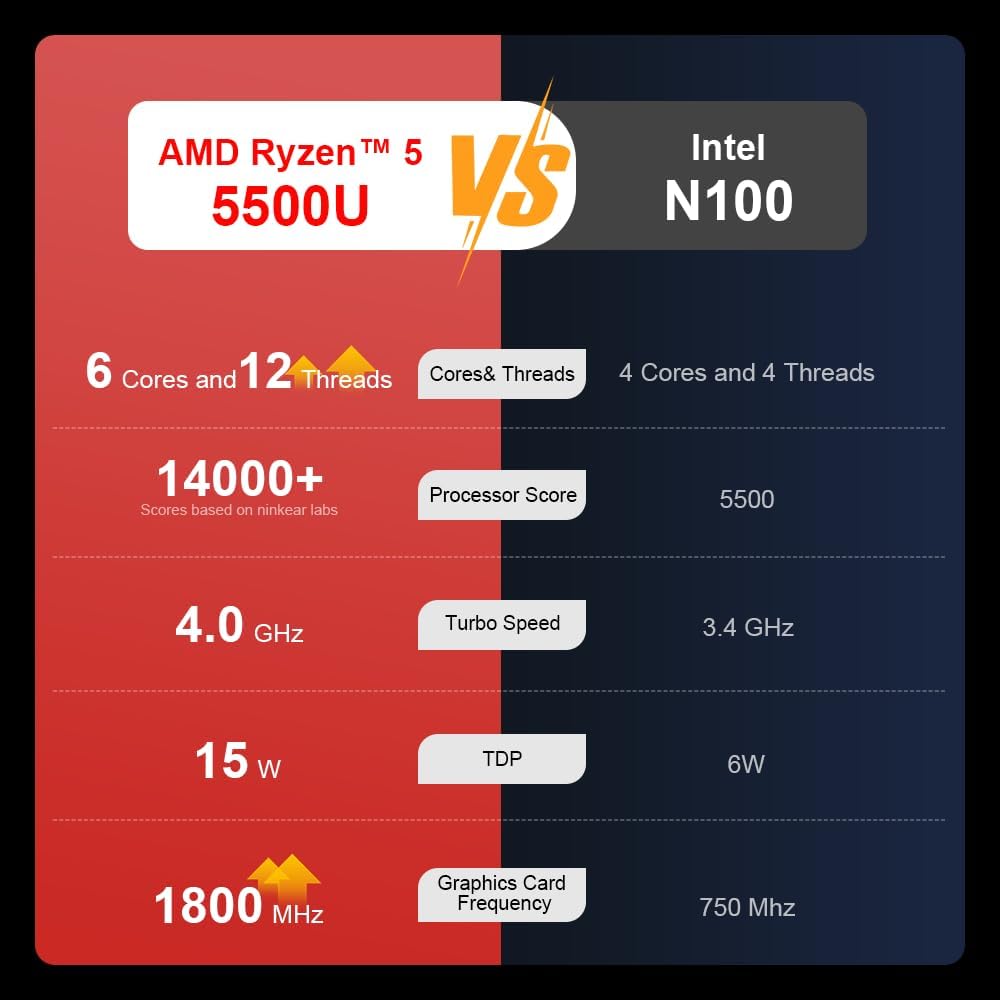
A comparison chart illustrating the performance differences between the AMD Ryzen 5 5500U and Intel N100 processors, including core/thread count, processor score, turbo speed, TDP, and graphics card frequency.

Image showing the 512GB M.2 PCIe SSD and highlighting the 3200MHz DDR4 running frequency, indicating a 20% speed improvement over 2666MHz DDR4.

The 15.6-inch IPS FHD screen of the A15, designed to deliver vibrant and accurate colors while reducing eye strain during long work hours.

Illustration of the A15 laptop's suitability for various 'recreational office' tasks, including graphic design (Ae, Ps, Ai) and gaming/entertainment.

Information about the laptop's 50.5WH high-capacity lithium-ion battery, providing up to 8 hours of local video playback and 72 hours of standby time.

A visual guide to the rich interfaces of the Ninkear A15 Laptop, including USB 3.0, USB 2.0, Headphone Jack, Charging Port, HDMI, and full-function Type-C ports.
3.3 Video produs
Prezentare video oficială a produsuluiasing the Ninkear A15 Laptop's features, including its design, display, backlit keyboard, and various ports. This video provides a dynamic overview of the laptop's capabilities and physical attributes.
4. Configurare
Follow these steps to set up your Ninkear A15 Laptop for the first time:
- Despachetați laptopul: Scoateți cu grijă laptopul și toate accesoriile din ambalaj.
- Conectare alimentare: Plug the charger into the laptop's charging port (DC-in or Type-C) and then into a power outlet.
- Pornire inițială: Open the laptop lid and press the power button (integrated with fingerprint sensor). The laptop will power on and begin the initial Windows 11 setup process.
- Configurarea Windows 11: Follow the on-screen instructions to complete the Windows 11 setup, including selecting your region, language, connecting to Wi-Fi, and creating a user account.
- Configurare amprentă digitală: During or after Windows setup, you can configure the fingerprint reader for quick and secure login.
5. Instrucțiuni de utilizare
This section covers basic operation of your Ninkear A15 Laptop.
5.1 Pornire/Oprire și Repaus
- Pornire: Apăsați butonul de pornire.
- Oprire: Faceți clic pe butonul Start din Windows, apoi selectați Alimentare > Oprire.
- Modul de somn: Închideți capacul sau faceți clic pe butonul Start, apoi selectați Alimentare > Repaus.
5.2 Tastatură și touchpad
- Tastatură iluminată din spate: Presa Fn + F9 to cycle through the three levels of monochrome backlight brightness or turn it off.
- Touchpad: Use the integrated touchpad for cursor control and gestures. Refer to Windows settings for touchpad customization.
- Tastatură numerică: The laptop features a full digital numeric keypad for convenient data entry.
5.3 Conectarea perifericelor
Folosește diversele porturi pentru dispozitive externe:
- Porturi USB: Connect USB devices like external hard drives, mice, or keyboards to the USB 2.0 or USB 3.0 ports.
- HDMI: Connect to external monitors or projectors using the HDMI port.
- Tip C: The full-function Type-C port supports data transfer, video output, and power delivery.
- Mufa audio: Conectați căștile sau difuzoarele externe la mufa audio de 3.5 mm.
5.4 Setări de afișare
Adjust display settings via Windows Settings > System > Display to optimize resolution, scaling, and multiple monitor setups.
6. Întreținere
Proper maintenance ensures the longevity and optimal performance of your Ninkear A15 Laptop.
- curatenie: Folosiți o lavetă moale, fără scame, pentru a curăța ecranul și carcasa. Pentru petele persistente, ștergeți ușor.ampClătiți laveta cu apă sau cu un detergent de ecran. Evitați substanțele chimice dure.
- Actualizări de software: Regularly update Windows and device drivers to ensure system stability, security, and performance.
- Îngrijirea bateriei: Pentru a prelungi durata de viață a bateriei, evitați descărcarea completă frecventă a acesteia. Depozitați laptopul într-un loc răcoros și uscat atunci când nu îl utilizați pentru perioade lungi de timp.
- Ventilare: Asigurați-vă că orificiile de ventilație ale laptopului nu sunt obstrucționate pentru a preveni supraîncălzirea. Folosiți laptopul pe o suprafață dură și plană.
- Backup de date: Faceți în mod regulat copii de rezervă ale datelor importante pe o unitate externă sau în cloud pentru a preveni pierderea acestora.
7. Depanare
This section addresses common issues you might encounter with your Ninkear A15 Laptop.
| Problemă | Cauza posibila | Soluţie |
|---|---|---|
| Laptopul nu pornește | Problemă cu bateria descărcată sau cu adaptorul de alimentare | Ensure the charger is properly connected and the power outlet is working. Allow the laptop to charge for at least 30 minutes before attempting to power on again. |
| Ecranul este gol sau negru | Display driver issue, external display connected, or sleep mode | Press any key or move the mouse to wake from sleep. Disconnect any external monitors. Try pressing Fn + F7 (or the key with a display icon) to switch display modes. If still blank, force shut down by holding the power button for 10 seconds, then restart. |
| Wi-Fi nu se conectează | Wi-Fi adapter off, incorrect password, or router issue | Check if Wi-Fi is enabled in Windows settings. Verify the Wi-Fi password. Restart your router and modem. Update Wi-Fi drivers if necessary. |
| Iluminarea de fundal a tastaturii nu funcționează | Backlight turned off or low brightness setting | Presa Fn + F9 repeatedly to adjust brightness or turn on the backlight. |
| Performanță lentă | Too many programs running, low disk space, or outdated drivers | Close unnecessary applications. Free up disk space. Run Windows Update and update drivers. Consider running a virus scan. |
8. Specificații
Detailed technical specifications for the Ninkear A15 Laptop:
| Caracteristică | Caietul de sarcini |
|---|---|
| Marca | Ninkear |
| Numele modelului | A15 |
| Dimensiunea ecranului | 15.6 inchi |
| Rezoluția ecranului | 1920 x 1080 pixeli (FHD IPS) |
| Procesor | AMD Ryzen 5 5500U (2.1 GHz, 6 Cores, 12 Threads) |
| RAM | 16 GB DDR4 (3200 MHz) |
| Hard Drive | SSD PCIe de 512 GB |
| Placa grafica | Grafică integrată AMD Radeon |
| Sistem de operare | Windows 11 |
| Culoare | Argint |
| Greutatea articolului | 5 lire sterline |
| Dimensiunile produsului | 14 x 9 x 0.15 inci |
| Porturi USB 3.0 | 2 |
| Durata medie a bateriei | Up to 6-8 hours (daily use) |
| Caracteristici speciale | Backlit Keyboard, Numeric Keypad, Fingerprint Unlock, Full-function Type-C |
9. Garanție și asistență
Ninkear provides a standard warranty for the A15 Laptop. Please refer to the warranty card included in your product packaging for specific terms and conditions, including warranty duration and coverage details.
For technical support, troubleshooting assistance, or warranty claims, please contact Ninkear customer service through the official website or the contact information provided with your purchase. Ensure you have your product model (A15) and purchase details ready when contacting support.
You can also visit the official Ninkear store on Amazon for additional product information and support resources: Ninkear Amazon Store


