Introducere
The PeriPage P40 is a sleek, portable mini thermal printer designed for mobile and wireless printing. It utilizes Bluetooth connectivity and requires no ink, making it suitable for printing documents, photos, and even tattoo stencils directly from your Android or iOS device. This manual provides comprehensive instructions for setting up, operating, and maintaining your P40 printer.

Image: The PeriPage P40 Mini Thermal Printer, a compact white device.
Informații de siguranță
- Do not disassemble, repair, or modify the printer.
- Nu expuneți imprimanta la apă, umiditate și lumina directă a soarelui.
- Folosiți doar cablul de încărcare și adaptorul de alimentare specificate.
- Evitați să atingeți capul de imprimare imediat după imprimare, deoarece acesta poate fi fierbinte.
- Store the printer and thermal paper in a cool, dry place.
- A nu se lăsa la îndemâna copiilor.
Conținutul pachetului
Vă rugăm să verificați conținutul pachetului la despachetare:
- PeriPage P40 Mini Thermal Printer
- Thermal Paper Roll (Included Components: Paper)
- Cablu de încărcare USB de tip C
- Manual de utilizare (acest document)
Produs terminatview
Familiarize yourself with the various parts of your PeriPage P40 printer.

Imagine: Detaliată view of the PeriPage P40 printer showing the Power Button with Indicator Light, Cover-open Button, Type-C Interface for charging/connection, and the internal mechanism for easy paper replacement.
- Power Button / Indicator Light: Used to turn the printer on/off and indicates status.
- Cover-open Button: Eliberează capacul superior pentru încărcarea hârtiei.
- Interfață de tip C: For charging the printer and connecting to a computer (if applicable, though primarily Bluetooth).
- Paper Exit Slot: Where printed paper emerges.
- Compartiment pentru hârtie: Holds the thermal paper.
Înființat
1. Încărcarea imprimantei
Before first use, fully charge the printer. Connect the provided USB Type-C cable to the printer's Type-C interface and the other end to a USB power adapter (not included) or a computer's USB port. The indicator light will show charging status (e.g., red while charging, green when fully charged).
The printer features a 2600mAh battery, offering approximately 3 hours of continuous printing or up to 90 days of standby time on a full charge, capable of printing around 360 papers.
Image: Information graphic detailing the PeriPage P40's battery performance: 90 days standby, 2600mAh battery, 3 hours continuous print, and 360 papers print per full charge.
2. Installing Thermal Paper
The PeriPage P40 supports two types of thermal paper: folding paper and inner roll paper.

Image: Illustration showing the two supported paper types for the PeriPage P40: Folding Paper for automatic paging and multiple paper printing, and Inner Roll Paper for portability, free space, and customized paper length.
- Press the Cover-open Button to open the printer's top cover.
- Insert the thermal paper into the paper compartment, ensuring the printing side faces the print head. For roll paper, ensure it unwinds from the bottom. For folding paper, align it correctly.
- Pull a small amount of paper out of the paper exit slot.
- Închideți ferm capacul superior până când se fixează în poziție cu un clic.
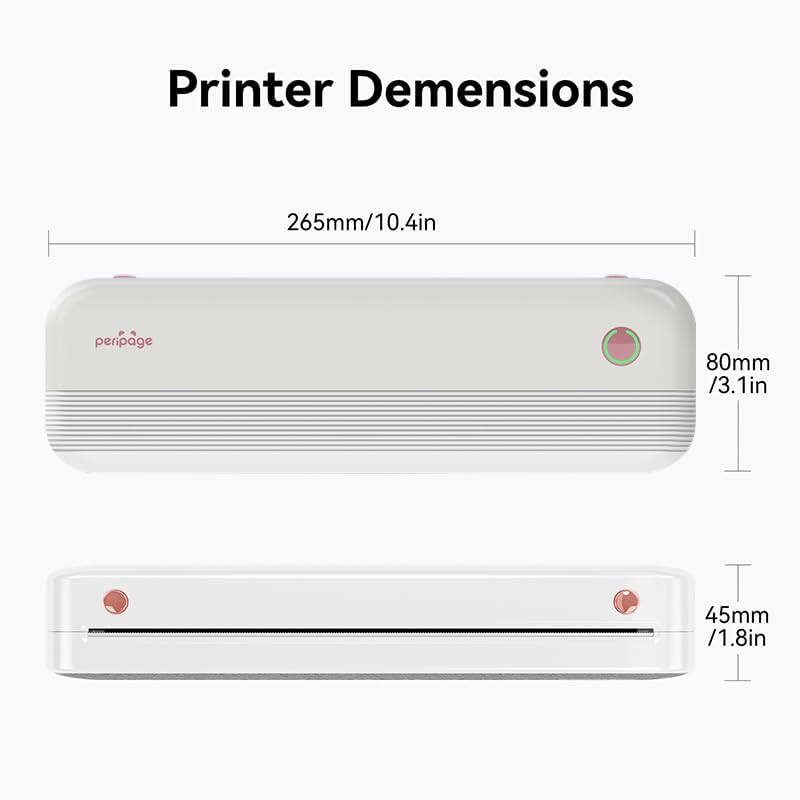
Image: The PeriPage P40 printer actively printing a document, with paper emerging from the front slot.
3. Descărcare aplicație și conexiune Bluetooth
The PeriPage P40 printer operates via the dedicated "PeriPage" mobile application.
- Caută "PeriPage" in your device's APP store (Google Play Store for Android, Apple App Store for iOS) and download the official application. Alternatively, scan the QR code provided in the physical instruction manual to download the app.
- Ensure your printer is turned on and fully charged.
- Activați Bluetooth pe dispozitivul dvs. mobil.
- Open the "PeriPage" app. The app will guide you through connecting to your printer via Bluetooth. Select "P40" from the list of available devices.
- Once connected, the indicator light on the printer may change color or status to confirm the connection.
Instrucțiuni de operare
Pornirea/Oprirea
- Pentru a porni: Press and hold the Power Button until the indicator light illuminates.
- A opri: Press and hold the Power Button until the indicator light turns off.
Printing from the App
Once your printer is connected to the PeriPage app:
- Deschide aplicația PeriPage pe smartphone.
- Select the type of content you wish to print (e.g., document, photo, web page, note).
- Adjust print settings such as density, size, and orientation within the app as needed.
- Confirm your selection and tap the print icon. The printer will begin printing.
Întreţinere
- Curățarea capului de imprimare: If print quality degrades, gently wipe the print head with a cotton swab lightly dampîmbibat cu alcool izopropilic. Asigurați-vă că imprimanta este oprită și răcită înainte de curățare. Lăsați-o să se usuce complet înainte de utilizare.
- Curățarea exteriorului: Use a soft, dry cloth to wipe the printer's exterior. Do not use abrasive cleaners or solvents.
- Depozitare: When not in use for extended periods, turn off the printer and store it in a cool, dry place away from direct sunlight and extreme temperatures. Remove any paper if storing for very long durations to prevent dust accumulation.
Depanare
| Problemă | Cauza posibila | Soluţie |
|---|---|---|
| Imprimanta nu pornește. | Baterie descărcată sau fără încărcare. | Connect the printer to a power source and charge it fully. |
| Nu se poate conecta prin Bluetooth. | Bluetooth is off on device; printer not in pairing mode; app issue. | Ensure Bluetooth is enabled on your phone. Restart the printer and the app. Try pairing again within the PeriPage app. |
| Poor print quality / Blank prints. | Incorrect paper loading; low battery; dirty print head; non-thermal paper. | Ensure thermal paper is loaded correctly with the print side facing up. Charge the printer. Clean the print head. Use only thermal paper. |
| Blocaj de hârtie. | Improper paper loading; foreign object. | Turn off the printer. Open the cover and carefully remove any jammed paper. Ensure paper is loaded straight. |
Specificații

Image: Diagram illustrating the dimensions of the PeriPage P40 printer: 265mm/10.4in (length), 80mm/3.1in (width), and 45mm/1.8in (height).
| Caracteristică | Detaliu |
|---|---|
| Numele modelului | PeriPage-P40 |
| Tehnologia de imprimare | Termic |
| Tehnologia de conectivitate | Bluetooth |
| Dispozitive compatibile | Smartphone-uri (Android, iOS) |
| Rezoluţie | 300 x 300 dpi (Max Black and White Print Resolution, Max Color Print Resolution) |
| Dimensiune maximă a suportului media | 210mm (8.26"x11.69" Sheet Size) |
| Media de imprimare | Thermal Paper (Folding Paper, Inner Roll Paper) |
| Capacitate maximă de intrare a foii | 10 |
| Ieșire imprimantă | Monocrom |
| Baterie | 2600mAh (approx. 3 hours continuous print, 90 days standby) |
| Dimensiunile produsului | 265 mm x 80 mm x 45 mm (aprox. 2.5 mm x 11 mm x 4.1 mm) |
| Greutatea articolului | 2.18 lire sterline |
| Culoare | Alb |
Garanție și suport
For warranty information and technical support, please refer to the warranty card included with your product or visit the official PeriPage webPăstrați bonul fiscal ca dovadă a achiziției pentru reclamații în garanție.
For further assistance, you may contact PeriPage customer service through the contact information provided on their official website or within the PeriPage mobile application.


