1. Introducere
Thank you for choosing the SDTNOVA PTZ Conference Camera SNC-10XUHP2. This manual provides essential information for the proper installation, operation, and maintenance of your camera. Please read this manual thoroughly before using the product to ensure optimal performance and to prevent damage.
The SDTNOVA SNC-10XUHP2 is a high-definition PTZ (Pan-Tilt-Zoom) camera designed for professional video conferencing, live streaming, and business meetings. It features 10X optical zoom, FHD 1080P 60FPS video output, and multiple connectivity options including USB3.0, HDMI, and IP.
2. Informații de siguranță
- Alimentare electrică: Use only the provided power adapter. Ensure the power voltage este în intervalul specificat.
- Mediu: Do not expose the camera to rain, moisture, or extreme temperatures. Avoid placing it in direct sunlight or near heat sources.
- Manipulare: Manevrați camera cu grijă. Evitați să o scăpați sau să o supuneți la vibrații puternice.
- curatenie: Deconectați alimentarea înainte de curățare. Folosiți o cârpă moale și uscată. Nu utilizați substanțe chimice dure sau produse de curățare abrazive.
- dezasamblarea: Nu încercați să dezasamblați sau să modificați camera. Apelați la personal calificat pentru orice service.
3. Conținutul pachetului
Verificați dacă toate articolele sunt prezente în colet:
- SDTNOVA PTZ Conference Camera SNC-10XUHP2
- Adaptor de alimentare
- Telecomanda (baterii nu sunt incluse)
- Cablu USB
- Manual de utilizare
4. Produs terminatview
The SDTNOVA SNC-10XUHP2 camera features a robust design with various input/output ports for versatile connectivity.

Figura 4.1: Față view of the SDTNOVA PTZ Conference Camera.
4.1 Conexiuni la panoul din spate

Figura 4.2: Detaliat view of the camera's rear panel with various ports and a connection diagram illustrating typical setups with a TV/monitor, PC/laptop, and joystick controller.
- CARD TF: Micro SD card slot for local video recording.
- HDMI: High-Definition Multimedia Interface output for video display.
- LINE IN: Intrare audio.
- NET: RJ45 Ethernet port for IP control and streaming.
- USB 3.0: High-speed USB connection for video output to a computer.
- USB 2.0: Standard USB connection.
- RS422/RS232: Serial ports for external control (e.g., joystick controller).
- DC 12 V: Port de intrare pentru alimentare.
4.2 Funcții de control de la distanță

Figure 4.3: Layout of the remote control for the SDTNOVA PTZ Conference Camera, showing buttons for power, camera selection, preset positions, zoom, focus, pan-tilt control, and AI human tracking activation.
- Putere: Pornește/oprește camera.
- Camera Select (1-4): Selects the camera if multiple units are connected.
- Preset Position Setting (0-9): Saves and recalls camera positions.
- Zoom +/-: Adjusts the optical zoom level.
- Focus +/- / Auto / Manual: Adjusts focus manually or sets to auto-focus.
- Pan-Tilt Control (Arrows): Moves the camera horizontally (Pan) and vertically (Tilt).
- SET PRESET / CLEAR PRESET: Saves or deletes a preset position.
- BLC ON/OFF / MENU: Backlight compensation on/off, or access camera menu.
- F3: Open AI Human Tracking: Activates the AI human tracking feature.
- F4: Close AI Human Tracking: Deactivates the AI human tracking feature.
5. Configurare
5.1 Instalare fizică
- Place the camera on a stable, level surface or mount it securely using appropriate mounting hardware (not included).
- Ensure adequate ventilation around the camera.
5.2 Conectarea camerei
- Conexiune de alimentare: Connect the provided power adapter to the DC 12V port on the camera and then plug it into a power outlet.
- Video Output (USB): Connect the USB3.0 cable from the camera to a USB 3.0 port on your computer. The camera should be recognized automatically as a video device.
- Ieșire video (HDMI): Connect an HDMI cable from the camera's HDMI port to an HDMI input on a display monitor or video switcher.
- Conexiune la rețea (opțională): For IP control and streaming, connect an Ethernet cable from the NET port to your network router or switch.
- Intrare audio (opțională): Connect an external audio source to the LINE IN port if needed.
- Conexiune de control (opțional): For external control, connect an RS232 or RS422 cable to a compatible joystick controller or control system.
6. Instrucțiuni de utilizare
6.1 Controlul de bază al camerei

Figure 6.1: Illustration of the camera's pan (±175°) and tilt (-30° to +90°) ranges, along with its 10X optical zoom capability (focal length f=5.7-57mm, HFOV: 55°-5.5°), and 1920*1080@60fps video resolution.
- Pornire: Press the 'Power' button on the remote control.
- Pan/Tilt: Use the arrow buttons on the remote to adjust the camera's horizontal (Pan: ±175°) and vertical (Tilt: -30° to +90°) position.
- Zoom: Use the 'Zoom +/-' buttons to adjust the 10X optical zoom.
- Focus: Use 'Focus +/-' for manual adjustment or press 'AUTO' for automatic focus.
6.2 Poziții presetate
- Setarea unei presetări: Adjust the camera to the desired position (Pan, Tilt, Zoom, Focus). Press 'SET PRESET' followed by a number (0-9) to save the position.
- Reapelarea unei presetări: Press the corresponding number (0-9) on the remote control.
- Clearing a Preset: Press 'CLEAR PRESET' followed by the number of the preset you wish to delete.
6.3 Urmărirea umană prin inteligență artificială
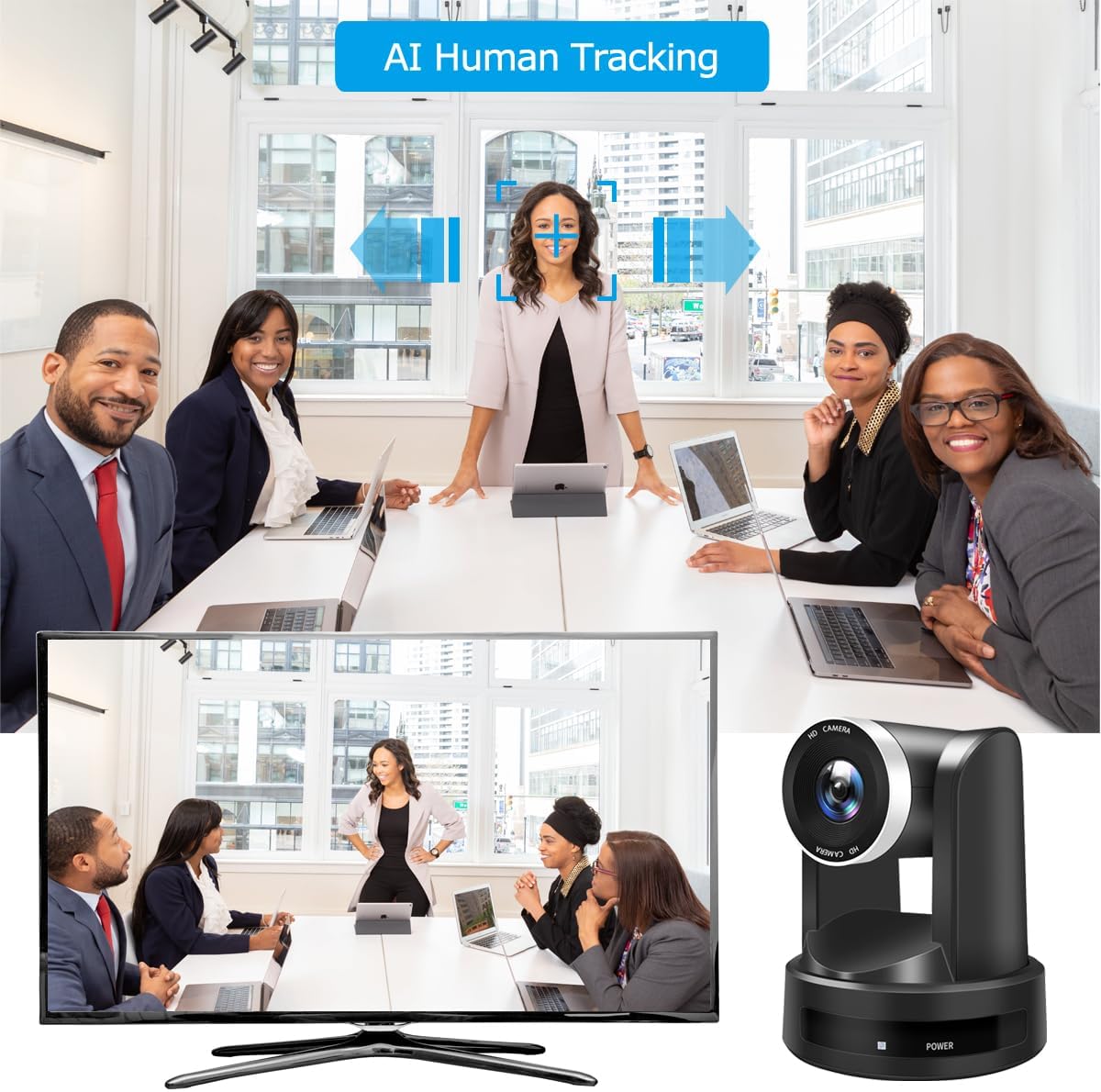
Figure 6.2: The AI Human Tracking feature in action, demonstrating the camera's ability to automatically follow a presenter or speaker within a meeting room setting, ensuring they remain centered in the frame.
- Activa: Press the 'F3' button on the remote control to enable AI Human Tracking. The camera will automatically detect and follow a person in the frame.
- Dezactivați: Press the 'F4' button to disable AI Human Tracking.
6.4 Using with Software (e.g., Zoom, OBS)
When connected via USB3.0, the camera will appear as a standard webcam in most video conferencing and streaming applications. Select 'SDTNOVA PTZ Camera' as your video input source within the software settings.

Figura 6.3: Examples of the SDTNOVA PTZ camera's versatile applications, including video conferences, college lectures, church live streaming, and online learning environments.
6.5 Înregistrare pe card TF
Insert a Micro SD card into the TF CARD slot. The camera supports local recording to the card. Refer to the on-screen menu (accessed via the remote) for recording options and playback.
7. Întreținere
- Curățarea lentilei: Use a soft, lint-free cloth specifically designed for optical lenses. Do not use abrasive materials.
- Curățarea corpului: Ștergeți corpul camerei cu o cârpă moale și uscată. Pentru murdăria persistentă, ștergeți ușoramp se poate folosi o cârpă, urmată de una uscată.
- Depozitare: When not in use for extended periods, store the camera in a cool, dry place, away from dust and direct sunlight.
8. Depanare
| Problemă | Cauza posibila | Soluţie |
|---|---|---|
| Fără putere | Adaptorul de alimentare nu este conectat sau este defect. | Check power connections. Ensure the power outlet is functional. |
| Fără ieșire video | Incorrect cable connection; incorrect input selected on display; driver issue. | Verify USB/HDMI cable connections. Select the correct input source on your monitor/computer. Reinstall USB drivers if necessary. |
| Telecomanda nu funcționează | Batteries are dead or incorrectly inserted; obstruction between remote and camera. | Replace batteries. Ensure line of sight to the camera's IR receiver. |
| Camera shakes randomly, especially when zoomed in | Potential motor instability or environmental vibration. | Ensure the camera is on a stable surface. Avoid placing it where vibrations are common. If the issue persists, contact customer support. |
| AI Tracking not working | Feature not activated; poor lighting conditions; subject too far or obscured. | Press F3 on the remote to activate. Ensure adequate lighting and clear view a subiectului. |
9. Specificații

Figura 9.1: Prim-plan view of the camera lens, highlighting the 1/2.8" CMOS sensor with 2.07MP and 10X optical zoom capabilities, designed to meet various meeting needs.
| Caracteristică | Detaliu |
|---|---|
| Numărul de model | SNC-10XUHP2 |
| Tehnologia senzorului foto | CMOS (1/2.8" CMOS, 2.07MP Sensor) |
| Rezoluție captură video | 1080p (FHD 1080P 60FPS) |
| Zoom optic | 10X |
| Distanța focală | f=5.7-57mm |
| Câmp orizontal de View (HFOV) | 55°-5.5° |
| Diafragma maximă | 1.6 f |
| Pan Range | ±175° |
| Interval de înclinare | -30° până la +90° |
| Tehnologia de conectivitate | USB3.0, HDMI, IP (Ethernet), RS232, RS422 |
| Tip memorie flash | Micro SD (for TF Card slot) |
| Format de captură video | MP4 |
| Caracteristici speciale | AI Human Auto Tracking, Remote Control |
| Culoare | Negru |
| Dimensiuni pachet | 28.09 x 25.4 x 24.99 cm |
| Greutatea articolului | 2.43 kg |
10. Garanție și asistență
SDTNOVA products are designed for reliability and performance. For warranty information, technical support, or service inquiries, please refer to the contact information provided with your purchase or visit the official SDTNOVA website. Please have your model number (SNC-10XUHP2) and purchase details ready when contacting support.


