Introducere
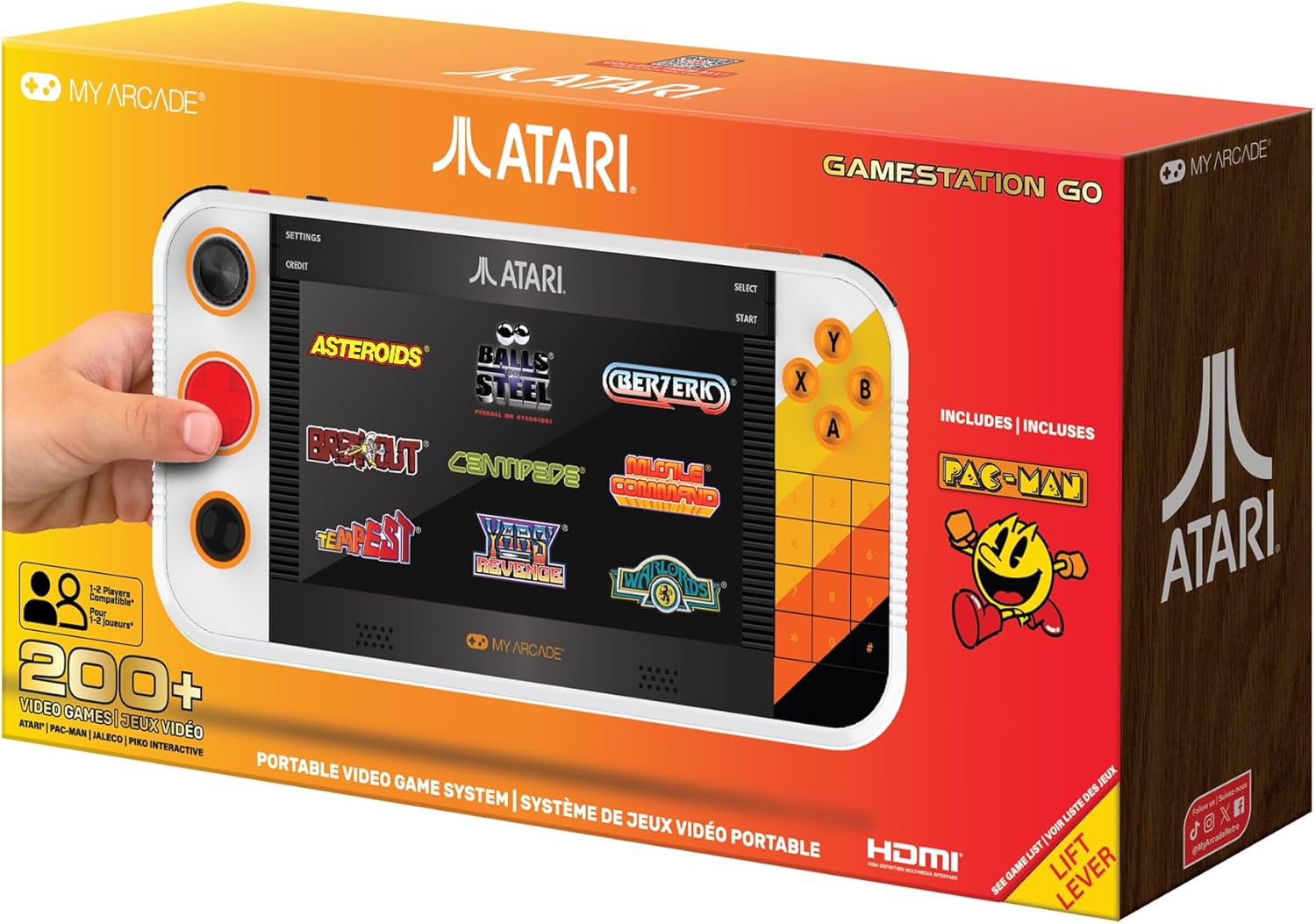
Welcome to the My Arcade Atari Gamestation Go user manual. This portable video game system offers a vast collection of over 200 classic Atari and licensed retro games, providing an immersive gaming experience on its 7-inch full-color display. Designed for both portability and home use, the Gamestation Go features a rechargeable battery, Wi-Fi connectivity for updates, and HDMI output for connecting to a television. Its intuitive controls, including a paddle, d-pad, trak-ball, and numeric keypad, are enhanced by SmartGlow technology, which illuminates the relevant controls for each game.
Informații de siguranță
- Nu este potrivit pentru copiii sub 3 ani. Small parts may present a choking hazard.
- Always use the provided AC adapter and charge cable for charging.
- Evitați expunerea dispozitivului la temperaturi extreme, lumina directă a soarelui sau umiditate.
- Nu încercați să dezasamblați sau să modificați dispozitivul. Acest lucru poate anula garanția și poate provoca daune.
- Take regular breaks during gameplay to prevent eye strain and fatigue.
Conținutul pachetului
Asigurați-vă că toate articolele sunt prezente în colet:
- My Arcade Atari Gamestation Go Console
- Cablu HDMI
- Adaptor AC
- Charge Cable (USB)
- Ghidul utilizatorului (acest document)
Înființat
1. Încărcarea dispozitivului
Before first use, fully charge your Gamestation Go. Connect the provided charge cable to the device's charging port and the AC adapter. Plug the AC adapter into a standard wall outlet. The charging indicator light will show the charging status. A full charge typically takes several hours.
2. Pornire/Oprire
To power on the device, press and hold the Power button located on the side/top of the console until the screen illuminates. To power off, press and hold the Power button again until the shutdown prompt appears, then confirm.
3. Wi-Fi Connection (Optional for Updates)
The Gamestation Go includes built-in Wi-Fi for easy software updates. To connect to Wi-Fi, navigate to the "Settings" menu on the device. Select "Wi-Fi" and choose your network from the list. Enter your Wi-Fi password if prompted. Ensure a stable internet connection for successful updates.
4. Connecting to a Television via HDMI
For a larger display experience, connect your Gamestation Go to a TV using the included HDMI cable. Insert one end of the HDMI cable into the HDMI output port on the Gamestation Go and the other end into an available HDMI input port on your television. Select the corresponding HDMI input on your TV using its remote control. The device's display will automatically switch to the TV output.

Image: The My Arcade Atari Gamestation Go connected to a television via an HDMI cable, displaying gameplay on the larger screen.
Instrucțiuni de operare
1. Controale asupraview
The Gamestation Go features a comprehensive set of controls designed to replicate the authentic feel of classic games:
- Integrated Paddle: For games requiring precise rotational input.
- D-pad: Standard directional control for many games.
- Trak-Ball: For games that originally used a trackball for movement.
- Tastatură numerică: Essential for certain Atari 5200 and other titles.
- Bare de protecție: Additional input buttons.
- Classic Gamepad Buttons (A, B, X, Y): For action and menu selections.
SmartGlow Technology: This feature illuminates only the controls relevant to the game currently being played, simplifying the user experience and ensuring you use the correct inputs.

Imagine: Un prim-plan view of the My Arcade Atari Gamestation Go, highlighting the various control inputs including the paddle, D-pad, and action buttons.
2. Navigating Menus
Use the D-Pad or Trak-Ball to navigate through the main menu and game selection screens. The A button typically confirms selections, while the B button acts as a back or cancel function. The "Settings" and "Credit" options are accessible from the top bar of the main menu.
3. Jocuri
From the game selection menu, highlight your desired game and press the A button to start. Follow any on-screen prompts. The SmartGlow feature will guide you to the appropriate controls for that specific game.
4. Game Save Options
The Gamestation Go supports game save options for many titles. Consult the in-game menu or the device's system menu for specific instructions on how to save and load game progress.
Preloaded Game List
The My Arcade Atari Gamestation Go comes preloaded with over 200 classic games across various Atari platforms and other licensed titles. Below is a detailed list:
Atari 2600 Titles:
- 3-D Tic-Tac-Toe
- Aventură
- Adventure II
- Air-Sea Battle
- Aquaventure
- asteroizi
- Atari Video Cube
- Matematică de bază
- Baschet
- Berzerk
- Bowling
- Izbucni
- Canyon Bomber
- Centiped
- Championship Soccer
- Circus Atari
- Luptă
- Combat Two
- Crystal Castles
- Dark Chambers
- Demons to Diamonds
- Desert Falcon
- Dodge 'Em
- Double Dunk
- Flag Capture
- Fotbal
- Frog Pond
- Golf
- Gravitar
- Călău
- Haunted House
- Home Run
- Human Cannonball
- Indy 500
- Maze Craze
- Miriapod
- Miniature Golf
- Missile Command
- MotoRodeo
- Night Driver
- Off the Wall
- Quadrun
- Radar Lock
- RealSports Baseball
- RealSports Basketball
- RealSports Boxing
- RealSports Football
- RealSports Soccer
- RealSports Tennis
- RealSports Volleyball
- Saboteur
- Save Mary!
- Secret Quest
- Sky Diver
- Slot Racers
- Solaris
- Războiul Spațial
- Sprint Master
- Excursie cu obstacole
- Stunt Cycle
- Submarine Commander
- Super Baseball
- Super Breakout
- Super Football
- Surround
- Swordquest: Earthworld
- Swordquest: Fireworld
- Swordquest: Waterworld
- Video Checkers
- Video Olympics
- Video Pinball
- Căpetenii războiului
- Yars' Revenge
Atari 5200 Titles:
- Centiped
- Meebzork
- Miriapod
- Missile Command
- RealSports Baseball
- RealSports Basketball
- RealSports Soccer
- RealSports Tennis
Atari 7800 Titles:
- asteroizi
- BasketBrawl
- Centiped
- Dark Chambers
- Desert Falcon
- Fatal Run
- Food Fight
- MotorPsycho
- Ninja Golf
- RealSports Baseball
- Scrapyard Dog
Atari Arcade Titles:
- Agent X
- asteroizi
- Asteroizi Deluxe
- Atari Baseball
- Atari Football
- Atari Soccer
- Baschet
- Berzerk
- Văduva Neagră
- Canyon Bomber
- Centiped
- Norul 9
- Crystal Castles
- Dominos
- Drag Race
- Food Fight
- Frenezie
- Gravitar
- I Robot
- Eliberator
- Aterizare lunară
- Haos major
- Miriapod
- Missile Command
- Monte Carlo
- Night Driver
- Pool Shark
- Red Baron
- Fugar
- Skydiver
- Sky Raider
- Space Duel
- Super Breakout
- Super Bug
- Furtună
- Căpetenii războiului
Atari Recharged Series:
- Asteroids: Recharged
- Berzerk: Recharged
- Breakout: Recharged
- Centipede: Recharged
- Missile Command: Recharged
M-Network Titles:
- Air Raiders
- International Soccer
- Sea Battle
- Space Attack
- Super Challenge Baseball
- Super Challenge Football
Balls of Steel:
- 7 Pinball tables
Additionally, the system includes PAC-MAN and other licensed games from Jaleco & PIKO Interactive.
Întreţinere
1. Curățarea dispozitivului
To clean the exterior of your Gamestation Go, use a soft, dry, lint-free cloth. For stubborn marks, slightly dampen the cloth with water. Avoid using harsh chemicals, abrasive cleaners, or solvents, as these can damage the finish and internal components. Do not spray liquids directly onto the device.
2. Îngrijirea bateriei
The Gamestation Go is powered by a built-in Lithium Ion battery. To maximize battery life:
- Evitați descărcarea completă frecventă a bateriei.
- Depozitați dispozitivul într-un loc răcoros și uscat atunci când nu îl utilizați pentru perioade lungi de timp.
- If storing for a long time, charge the battery to about 50% every few months.
- Nu expuneți bateria la căldură sau frig extrem.
Depanare
| Problemă | Cauză/Soluție posibilă |
|---|---|
| Dispozitivul nu pornește. | Battery may be depleted. Connect the device to the AC adapter and charge for at least 30 minutes before attempting to power on again. |
| Ecranul este gol sau înghețat. | Perform a soft reset by holding the Power button for 10-15 seconds until the device powers off. Then, power on normally. If the issue persists, ensure the device is charged. |
| No display on TV via HDMI. |
|
| Games are slow or skipping frames. | Ensure the device's software is up to date via Wi-Fi. If the issue persists, try restarting the device. |
| Controls are unresponsive or inaccurate. |
|
| Nu se poate conecta la Wi-Fi. |
|
Specificații
| Numărul de model | DGUNL-7065 |
| Marca | Arcadea mea |
| Afişa | 7-inch Full Color Display |
| Preloaded Games | Over 200+ (Atari 2600, 5200, 7800, Arcade, Recharged, M-Network, Balls of Steel, Pac-Man, Jaleco, PIKO Interactive) |
| Conectivitate | HDMI Output, Built-in Wi-Fi |
| Baterie | 1 Lithium Ion battery (included), Rechargeable |
| Controale | Integrated Paddle, D-Pad, Trak-Ball, Numeric Keypad, Bumpers, A/B/X/Y Buttons, SmartGlow Technology |
| Dimensiunile produsului | 1 x 1 x 1 inci |
| Greutatea articolului | 3.74 lire sterline |
| Varsta Recomandata | 14 ani în sus |
| Limbă | English (User Guide supports multiple languages) |
Informații despre garanție
Specific warranty details for the My Arcade Atari Gamestation Go are not provided within this manual. For information regarding warranty coverage, terms, and conditions, please refer to the warranty card included with your product or visit the official My Arcade webPăstrați dovada achiziției pentru reclamații în garanție.
Asistență pentru clienți
If you encounter any issues not covered in the troubleshooting section or require further assistance, please contact My Arcade customer support. You can typically find contact information, including phone numbers, email addresses, or support portals, on the official My Arcade website-ul sau pe ambalajul produsului.
Pentru mai multe informații, vizitați My Arcade Store on Amazon.


