Introducere
The Logitech Signature M550 Wireless Mouse is designed for enhanced productivity and comfort. Featuring an adaptive SmartWheel for precise and fast scrolling, SilentTouch technology for quiet clicks, and versatile connectivity options, this mouse is compatible with multiple operating systems and devices. This manual will guide you through its setup, operation, and maintenance.
Înființat
1. Instalați bateria
The Logitech Signature M550 mouse requires one AA battery, which is included. To install the battery:
- Localizați compartimentul bateriei pe partea inferioară a mouse-ului.
- Glisați capacul.
- Introduceți bateria AA, asigurându-vă că polaritatea este corectă (+/-).
- Înlocuiți capacul compartimentului bateriei.

Imagine: Partea inferioară view of the Logitech Signature M550 mouse, highlighting the battery compartment, on/off switch, and the Logi Bolt USB receiver storage slot.
2. Conectați-vă mouse-ul
The Signature M550 offers two connection methods: Bluetooth Low Energy or the Logi Bolt USB receiver.
Utilizarea receptorului USB Logi Bolt:
- Remove the Logi Bolt USB receiver from the battery compartment.
- Plug the Logi Bolt USB receiver into an available USB-A port on your computer.
- Turn on the mouse using the on/off switch on the bottom. The mouse should connect automatically.
Using Bluetooth Low Energy:
- Turn on the mouse using the on/off switch on the bottom.
- Press and hold the Easy-Switch button on the bottom of the mouse until the LED light starts blinking rapidly. This indicates pairing mode.
- On your device (computer, tablet, etc.), open Bluetooth settings and search for available devices.
- Select "Logi M550" from the list to complete the pairing process.
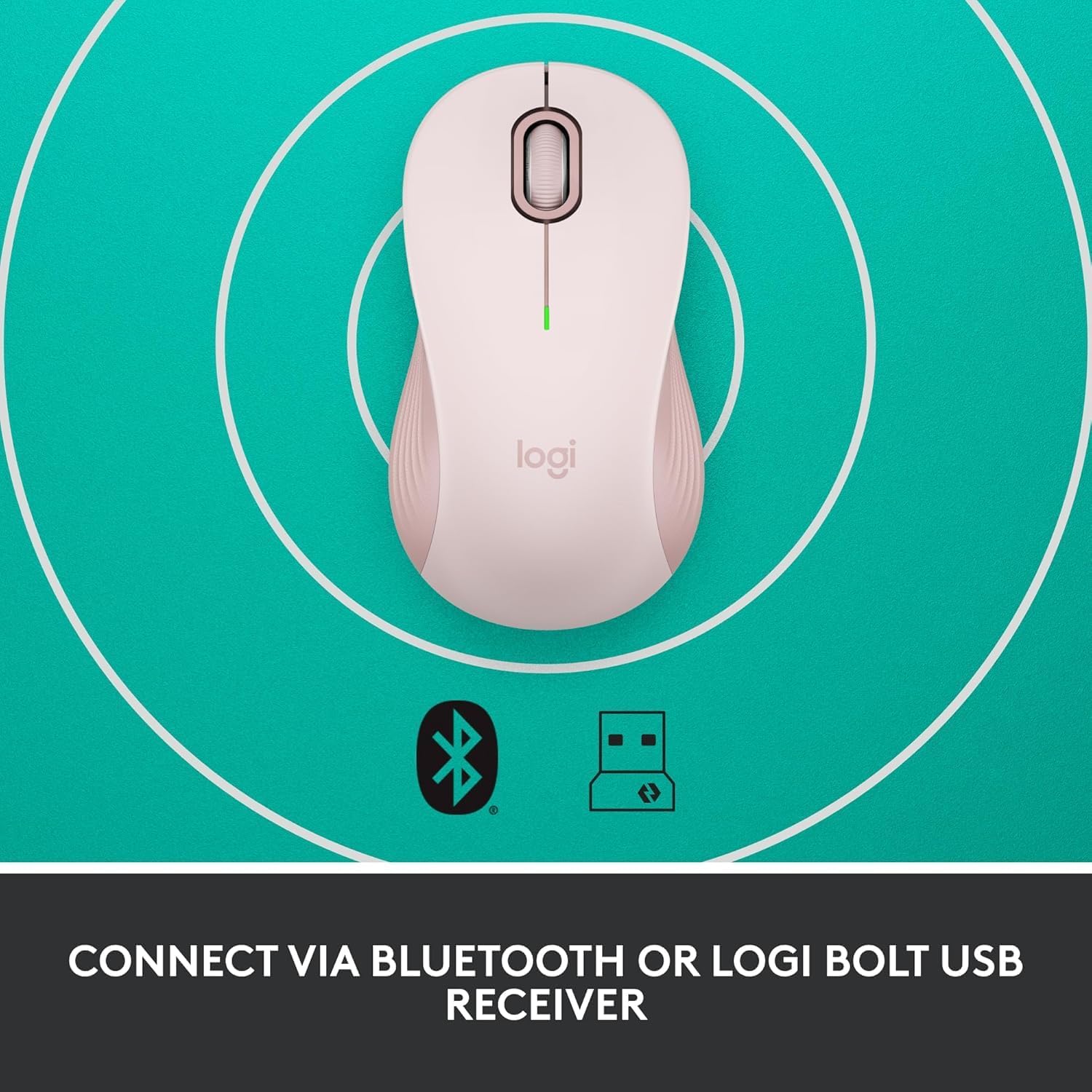
Image: The Logitech Signature M550 mouse on a teal background with icons for Bluetooth and the Logi Bolt USB receiver, illustrating its dual connectivity options.
Video: A demonstration of installing the battery and connecting the Logitech Signature M550 Wireless Mouse via Bluetooth or USB receiver.
Video: A user demonstrating the easy setup process of the Logitech Signature M550, including battery insertion and connectivity.
Instrucțiuni de operare
Derulare SmartWheel
The Signature M550 features an adaptive SmartWheel that allows for two modes of scrolling:
- Precizie linie cu linie: For detailed navigation in documents and spreadsheets.
- Rotiri gratuite super-rapide: Apăsați rotița pentru derulare rapidă prin opțiuni lungi web pagini sau documente.

Image: A close-up of the Logitech Signature M550 mouse, highlighting the SmartWheel for precision and speed scrolling.
Video: A demonstration of the Logitech Signature M550's SmartWheel functionality, showcasing both precise and super-fast scrolling modes.
Clicuri silențioase cu tehnologia SilentTouch
Experience a quieter workspace with Logitech's SilentTouch technology, reducing click noise by 90% compared to traditional mice. This allows for focused work without distractions.

Image: A woman using the Logitech Signature M550 mouse at a desk, illustrating the benefit of 90% less clicking noise for a focused work environment.
Multi-Device and OS Compatibility
The Signature M550 offers seamless compatibility across various platforms:
- Windows (including Windows 11)
- macOS
- Linux
- Sistemul de operare Chrome
- iPadOS
- Android
Image: The Logitech Signature M550 mouse displayed with a message confirming its full compatibility with Windows 11.
Întreţinere
Înlocuirea bateriei
The mouse operates on a single AA battery with an average life of 24 months. When the battery is low, the LED indicator on the mouse will blink. To replace the battery, follow the steps outlined in the 'Install Battery' section.
Curatenie
Pentru a menține performanțe optime, curățați mouse-ul în mod regulat cu o cârpă moale și uscată. Evitați utilizarea substanțelor chimice dure sau a materialelor abrazive.
Depanare
Probleme de conectare
- Mouse-ul nu răspunde: Ensure the mouse is turned on and the battery is correctly installed or replaced.
- Eroare de asociere Bluetooth: Make sure your device's Bluetooth is enabled and the mouse is in pairing mode (blinking LED). Try restarting both the mouse and your device.
- USB receiver not detected: Ensure the Logi Bolt USB receiver is securely plugged into a working USB-A port. Try a different USB port.
- Interferență: Mutați mouse-ul mai aproape de dispozitiv și departe de alte dispozitive wireless care ar putea cauza interferențe.
Specificații
| Marca | Logitech |
| Serie | M550 |
| Numărul de model al articolului | 910-006593 |
| Tehnologia de conectivitate | Bluetooth, USB |
| Tehnologia de detectare a mișcării | Optic |
| Caracteristici speciale | Lightweight, Portable, Soundless, Wireless |
| Sursa de alimentare | Alimentat cu baterie |
| Bateriile necesare | 1 baterie AA (inclusa) |
| Durata medie a bateriei | 24 luni |
| Greutatea articolului | 3.44 uncii |
| Dimensiuni pachet | 5.55 x 3.54 x 1.73 inci |
| Platformă hardware | Linux, Mac, PC |
| Sisteme de operare acceptate | Windows, macOS, Linux, Chrome OS, iPadOS, Android |
Informații despre garanție
For detailed warranty information regarding your Logitech Signature M550 Wireless Mouse, please refer to the official Logitech website or the warranty card included with your product. Logitech typically offers a limited hardware warranty for its products.
Sprijin
If you encounter any issues or have questions about your Logitech Signature M550 Wireless Mouse, please visit the official Logitech support website pentru întrebări frecvente, ghiduri de depanare și informații de contact pentru serviciul clienți.


