Introducere
Thank you for choosing the MINIX Portable Monitor. This 16-inch Full HD 1200P IPS touch screen display is designed for enhanced productivity and entertainment on the go. Its ultra-slim design and versatile connectivity make it an ideal companion for laptops, PCs, gaming consoles, and mobile devices. This manual provides essential information for setting up, operating, maintaining, and troubleshooting your new portable monitor.
Informații de siguranță
- Do not expose the monitor to rain or moisture to prevent fire or electric shock hazards.
- Evitați plasarea monitorului în lumina directă a soarelui sau în apropierea surselor de căldură.
- Use only the power adapter and cables provided or recommended by MINIX.
- Nu încercați să dezasamblați sau să reparați monitorul singur. Apelați la personal calificat pentru orice service.
- Țineți monitorul departe de câmpuri magnetice puternice.
- Clean the screen with a soft, lint-free cloth. Do not use liquid cleaners or aerosol sprays directly on the screen.
Ce este în cutie
Verificați dacă toate articolele sunt prezente în colet:
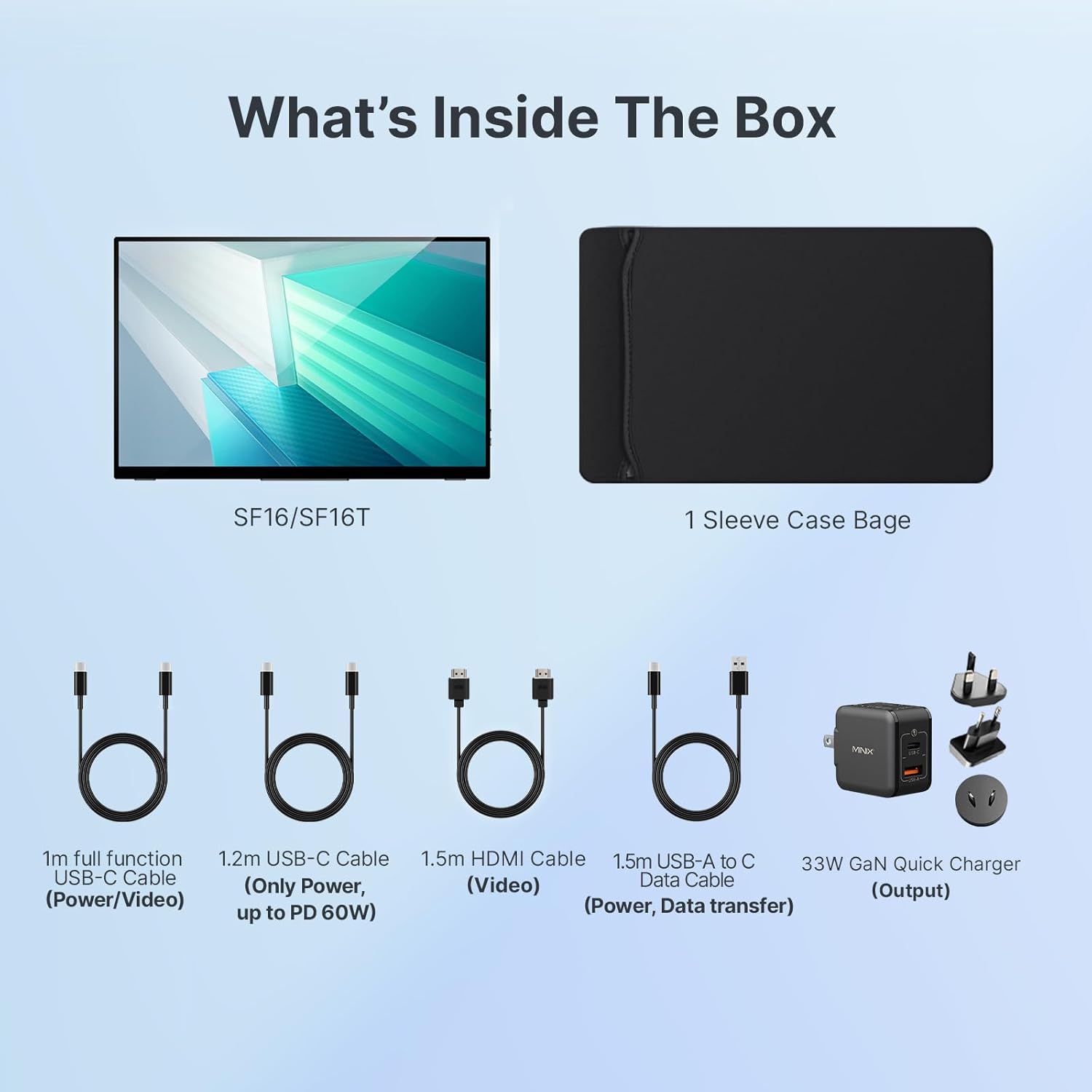
Figura 1: Conținutul pachetului
- MINIX Portable Monitor (SF16/SF16T)
- Geanta cu maneci
- 1m Full Function USB-C to USB-C Cable (Power/Video)
- 1.2m USB-C to USB-C Cable (Power, up to PD 60W)
- 1.5m HDMI to HDMI Cable (Video)
- 1.5m USB-A to C Data Cable (Power, Support Touch for SF16T)
- 33W GaN Quick Charger (Output)
Produs terminatview
Familiarize yourself with the ports and controls on your MINIX Portable Monitor.

Figura 2: Porturi și controale de monitorizare
- Port USB 2.0: Connects to a keyboard or mouse.
- Buton de alimentare: Pornește/oprește monitorul.
- Brightness/Up Key: Adjusts screen brightness or navigates menu up.
- Volume/Down Key: Adjusts volume or navigates menu down.
- Standard HDMI Port: Connects to devices via HDMI for video input.
- Mufă audio de 3.5 mm: Pentru conectarea căștilor sau a difuzoarelor externe.
- Type-C (Full Function) Ports: Two full-featured USB-C ports for power, video, and touch data transfer.

Figure 3: Ultra-Slim Design
Înființat
Conexiune inițială
The MINIX Portable Monitor offers flexible connectivity options. Ensure your device supports USB 3.1 Type C DP Alt-Mode for full functionality via a single USB-C cable.
- Alimentare electrică: Connect the provided 33W GaN Quick Charger to one of the monitor's USB-C ports (or use a power bank with sufficient output).
- Video & Data Connection:
- USB-C (Single Cable Solution): If your laptop or device has a full-featured USB-C port (supporting DisplayPort Alternate Mode and Power Delivery), connect it to one of the monitor's full-function USB-C ports using the 1m full function USB-C cable. This single cable can provide power, video, and touch functionality.
- HDMI + USB-C (for Power/Touch): If your device only has an HDMI output, connect the monitor via the HDMI port using the 1.5m HDMI cable for video. Then, connect a USB-C port on the monitor to a USB-A or USB-C port on your device using the 1.5m USB-A to C data cable for power and touch functionality (if applicable).
- Pornire: Press the Power Button on the monitor to turn it on.

Figura 4: Diagrama de conectivitate
Using the Built-in Stand
The monitor features a built-in kickstand for easy adjustment of viewing angles. Simply extend the stand from the back of the monitor and adjust it to your desired angle between -10° and -35°.
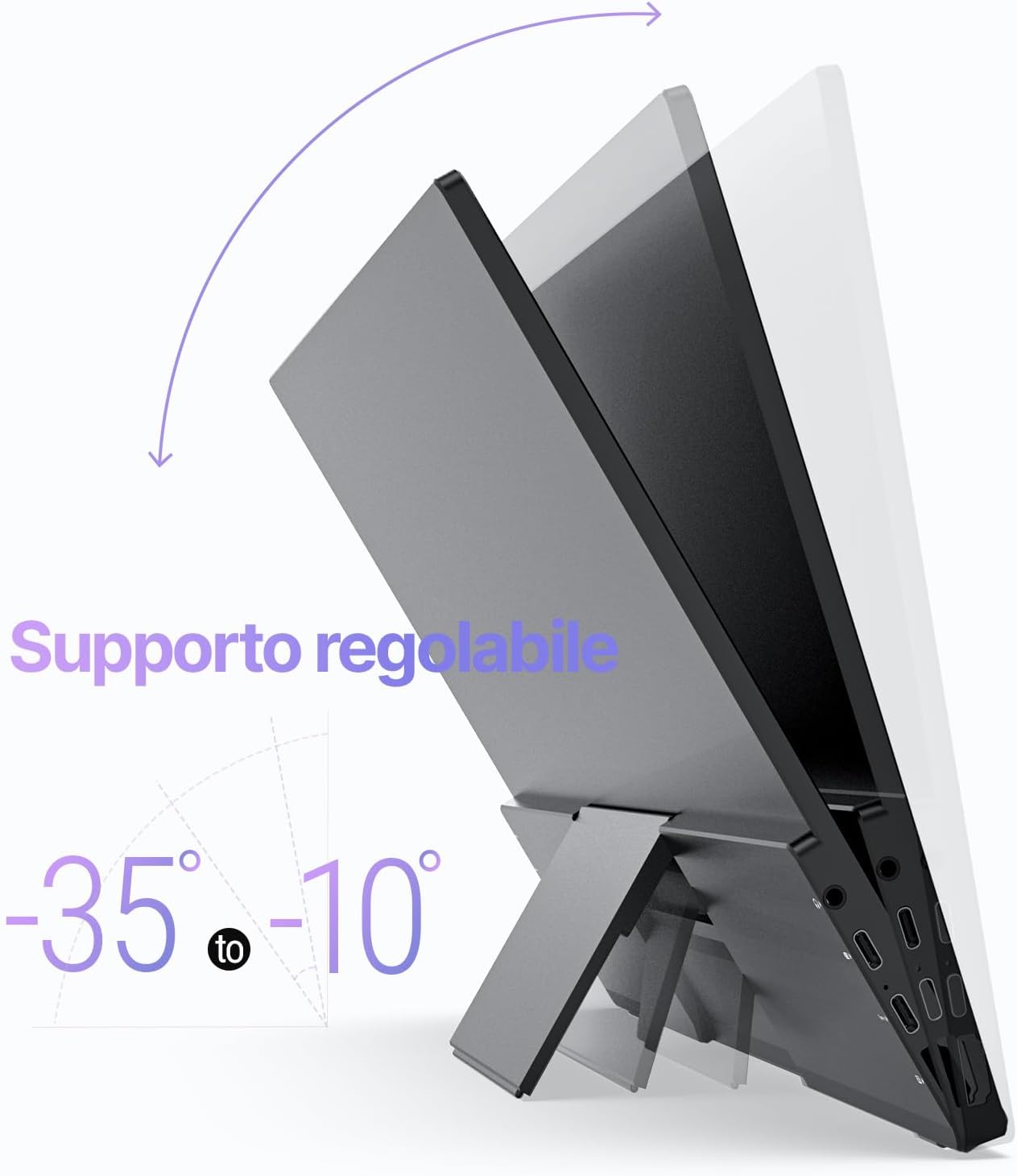
Figure 5: Adjustable Stand
Funcționează
Setări de afișare
Use the Brightness/Up and Volume/Down keys on the side of the monitor to access and navigate the On-Screen Display (OSD) menu. Here you can adjust various settings such as brightness, contrast, color temperature, and input source.
Touch Screen Functionality (SF16T Model)
The SF16T model supports ten-point multi-touch and gesture controls across various operating systems including macOS, Windows 10/11, Android, and Linux. Ensure the USB-C connection is properly established for touch functionality.

Figure 6: Multi-Touch Support
Demonstrație video
Watch this official video from MINIX Technology Limited for a visual guide on setting up and using your portable monitor, highlighting its key features like the built-in stand, multi-touch support, and USB-C connectivity.
Video 1: MINIX 16" Portable Touch Monitor Overview
Întreţinere
- Curățarea ecranului: Ștergeți ușor ecranul cu o lavetă moale, uscată și fără scame. Pentru petele persistente, ștergeți ușor ecranul.ampen the cloth with water or a screen-specific cleaning solution (apply to cloth, not directly to screen).
- Curățarea C-uluiasing: Use a soft, dry cloth to wipe the exterior casing. Evitați utilizarea de produse de curățare sau solvenți abrazivi.
- Depozitare: When not in use, store the monitor in its provided sleeve case to protect it from dust and scratches. Keep it in a cool, dry place.
- Manipulare: Manevrați întotdeauna monitorul de margini. Evitați să aplicați presiune pe ecran.
Depanare
| Problemă | Cauza posibila | Soluţie |
|---|---|---|
| Fără afișaj/mesaj „Fără semnal” | Sursă de intrare selectată incorect; Conexiune slăbită a cablului; Putere insuficientă; Dispozitivul nu emite semnal. |
|
| Touch screen not responding (SF16T) | USB-C data cable not connected or not full-featured; Driver issue; OS incompatibility. |
|
| Ecran pâlpâitor | Cable issue; Interference; Refresh rate mismatch. |
|
| No audio from monitor speakers | Volume too low; Audio output not set to monitor; Cable issue. |
|
Specificații
| Caracteristică | Detaliu |
|---|---|
| Numărul de model | SF16 |
| Dimensiunea ecranului | 16 inchi |
| Rezoluţie | 1920 x 1200 pixeli (FHD 1200P) |
| Raportul de aspect | 16:10 |
| Tip panou | IPS |
| Luminozitate | 300 Candela (Nits) |
| Touch screen | Yes (SF16T model, 10-point touch) |
| Conectivitate | 2x Full-featured USB-C, 1x Standard HDMI, 1x USB 2.0, 1x 3.5mm Audio Jack |
| Dimensiuni (L x l x H) | 4.84 x 15.59 x 10.79 inci |
| Greutatea articolului | 4.16 lire sterline |
| Suprafața ecranului | Lucios |
| Caracteristici pentru îngrijirea ochilor | Flicker Free, Blue Light Filter |
Garanție și suport
MINIX Technology Limited provides a limited warranty for this product. Please refer to the warranty card included in your package for specific terms and conditions. For technical support, troubleshooting assistance, or warranty claims, please contact MINIX customer service through their official website-ul sau comerciantul de unde ați achiziționat produsul.
You can visit the official MINIX Store on Amazon for more information and support: MINIX Store


