1. Introducere
Thank you for choosing the Cherry KW 7100 Mini Multi-Device Compact Keyboard. This manual provides essential information for setting up, operating, and maintaining your new keyboard. Designed for versatility and portability, this keyboard offers seamless connectivity across multiple devices.
2. Ce se află în cutie
- Cherry KW 7100 Mini Multi-Device Compact Keyboard
- USB-C to USB-A Charging/Connection Cable
- 2x baterii AAA
- 2.4 GHz Wireless Nano Receiver (stored magnetically in the keyboard)
- Husă de transport
- Manual de instructiuni

Figura 1: De sus în jos view of the Cherry KW 7100 Mini Keyboard.
3. Configurare
3.1. Instalarea bateriei
- Localizați compartimentul bateriei pe partea inferioară a tastaturii.
- Deschideți capacul compartimentului bateriei.
- Introduceți cele două baterii AAA, asigurându-vă că polaritatea este corectă (+/-).
- Închideți bine capacul compartimentului bateriei.
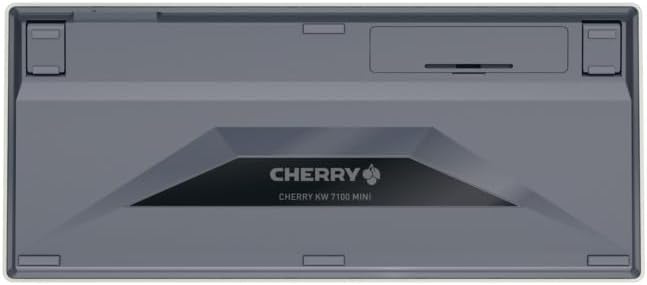
Figure 2: Underside of the keyboard with the battery compartment.
3.2. Conectarea tastaturii
The Cherry KW 7100 Mini supports three connection methods: Bluetooth, 2.4 GHz Wireless, and Wired USB-C.
3.2.1. Conexiune Bluetooth (până la 3 dispozitive)
- Porniți tastatura folosind comutatorul de alimentare situat în lateral.
- Press and hold one of the Bluetooth channel keys (F1, F2, or F3) for 3-5 seconds until the corresponding LED indicator blinks rapidly. This indicates pairing mode.
- On your device (laptop, smartphone, tablet), navigate to Bluetooth settings and search for available devices.
- Select "Cherry KW 7100" from the list to pair. The LED will stop blinking and remain solid for a few seconds upon successful connection.
- Repeat for up to two additional devices using the other Bluetooth channel keys (F1, F2, or F3).
3.2.2. Conexiune wireless de 2.4 GHz
- Locate the 2.4 GHz wireless nano receiver, typically stored magnetically in a slot on the underside of the keyboard.
- Insert the nano receiver into an available USB-A port on your computer.
- Turn on the keyboard using the power switch. The keyboard should automatically connect to the receiver.
3.2.3. Conexiune USB-C cu fir
- Connect one end of the provided USB-C cable to the USB-C port on the keyboard.
- Conectați celălalt capăt al cablului USB-C la un port USB-A disponibil de pe computer.
- The keyboard will function as a wired keyboard.
Video 1: Demonstrating the setup and typing experience of the Cherry KW 7100 Mini Keyboard.
4. Utilizarea tastaturii
4.1. Comutarea între dispozitivele conectate
To switch between paired Bluetooth devices, simply press the corresponding Bluetooth channel key (F1, F2, or F3) that your device is paired to. The keyboard will automatically connect to the selected device.
4.2. Function Keys (FN)
The keyboard features a dedicated FN key, typically located near the right Shift key. This key, in combination with other keys, activates secondary functions such as media controls, screen brightness, and other system commands. Refer to the keycap legends for specific FN key combinations.
4.3. Indicatoare LED
LED indicators on the keyboard provide information about its status:
- Bluetooth Channel LEDs (F1, F2, F3): Indicate the currently active Bluetooth connection or pairing mode.
- LED-ul Caps Lock: Se aprinde când Caps Lock este activă.
- Led Stare baterie: Indică nivelul scăzut al bateriei.
4.4. Picioare reglabile
The keyboard is equipped with stable, fold-out feet on the underside. These allow you to adjust the typing angle for improved ergonomics and comfort.
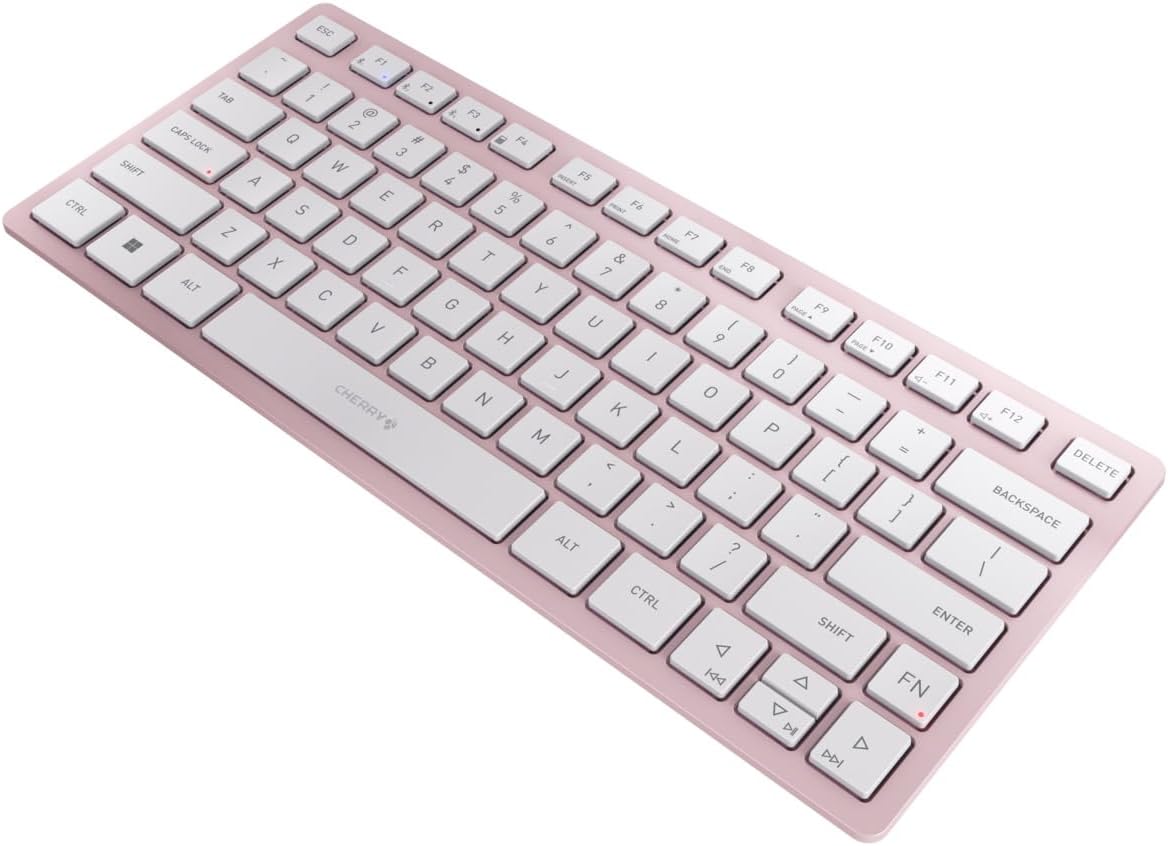
Figura 3: Înclinat view of the keyboard, highlighting its slim profile.

Figura 4: lateral view showing the adjustable feet extended for an ergonomic typing angle.
5. Întreținere
5.1. Curatenie
To clean your keyboard, gently wipe the keycaps and surface with a soft, lint-free cloth. For stubborn dirt, slightly dampClătiți laveta cu apă sau cu o soluție de curățare blândă, neabrazivă. Evitați umiditatea excesivă și nu pulverizați produse de curățare direct pe tastatură.
5.2. Depozitare
When not in use, especially during travel, store the keyboard in its included carrying case to protect it from dust, scratches, and minor impacts.

Figure 5: The keyboard stored in its protective carrying case.
6. Depanare
6.1. Tastatura nu se conectează
- Asigurați-vă că tastatura este pornită.
- Verificați bateriile și înlocuiți-le dacă este necesar.
- For Bluetooth, ensure the correct channel (F1, F2, or F3) is selected and the keyboard is in pairing mode (blinking LED).
- For 2.4 GHz wireless, ensure the nano receiver is securely plugged into a USB-A port.
- Try connecting via the USB-C cable to rule out wireless issues.
- Reporniți dispozitivul și încercați din nou asocierea.
6.2. Tastele nu răspund
- Check the connection as described above.
- Asigurați-vă că nu există resturi blocate sub taste.
- If using a wired connection, try a different USB port or cable.
6.3. Durată scurtă de viață a bateriei
- Asigurați-vă că folosiți baterii AAA noi, de înaltă calitate.
- Turn off the keyboard when not in use to conserve battery power.
7. Specificații
| Caracteristică | Caietul de sarcini |
|---|---|
| Numele modelului | KW 7100 |
| Numărul de model al articolului | JK-7100US-19 |
| Marca | Cireașă |
| Tehnologia de conectivitate | Bluetooth 5.1 (3 channels), 2.4 GHz Wireless, USB-C Wired |
| Dispozitive compatibile | Laptop, Smartphone, Tabletă |
| Descrierea tastaturii | Compact, Multi-Device |
| Mecanism cheie | Mecanism foarfecă CHERRY SX |
| Sursa de alimentare | 2x baterii AAA |
| Criptare | AES-128 |
| Dimensiunile produsului | 11.6 x 5.1 x 0.6 inci |
| Greutatea articolului | 1.4 lire sterline |
| Material | Metal, plastic |
| Culoare | Floare de cireș |
8. Garanție și asistență
This product is covered by Cherry's standard manufacturer warranty. For detailed warranty information, technical support, or service inquiries, please visit the official Cherry website-ul lor sau contactați direct serviciul de asistență pentru clienți.
Producător: Cireașă
Website: www.cherry.de


