1. Introducere
This manual provides comprehensive instructions for the iClever MD179 Multi-Device Wireless Mouse. It covers setup, operation, maintenance, and troubleshooting to ensure optimal performance and a seamless user experience. Please read this manual thoroughly before using the product.
2. Conținutul pachetului
Verificați dacă toate articolele sunt prezente în colet:
- iClever MD179 Wireless Mouse
- USB 2.4GHz Receiver (stored inside the mouse)
- Cablu de încărcare USB-C
- Manual de utilizare (acest document)
3. Produs terminatview
Familiarizați-vă cu componentele și comenzile mouse-ului:

Figura 1: iClever MD179 Mouse Button Layout
- Buton clic dreapta: Standard right-click functionality.
- Butonul stânga pentru clic: Standard left-click functionality.
- Scroll Wheel / Middle Click Button: For scrolling and middle-click actions.
- Buton înainte: Navighează înainte în web browsere sau file explorers (Windows only).
- Butonul Înapoi: Navighează înapoi în web browsere sau file explorers (Windows only).
- Buton comutare DPI: Ajustează sensibilitatea cursorului (DPI).
- Comutator pornire / oprire: Located on the bottom of the mouse to turn it on or off.
- 2.4GHz / Bluetooth 1 / Bluetooth 2 Channel Indicator: Displays the active connection mode.
4. Configurare
4.1 Încărcarea mouse-ului
Before initial use, fully charge the mouse.
- Connect the provided USB-C cable to the charging port on the front of the mouse and to a USB power source (e.g., computer USB port, USB wall adapter).
- Indicatorul luminos de încărcare se va aprinde în timpul încărcării și se va stinge când bateria este complet încărcată.
- A full charge typically provides up to 2 months of use, depending on usage.
- The mouse can be used wirelessly while it is charging.
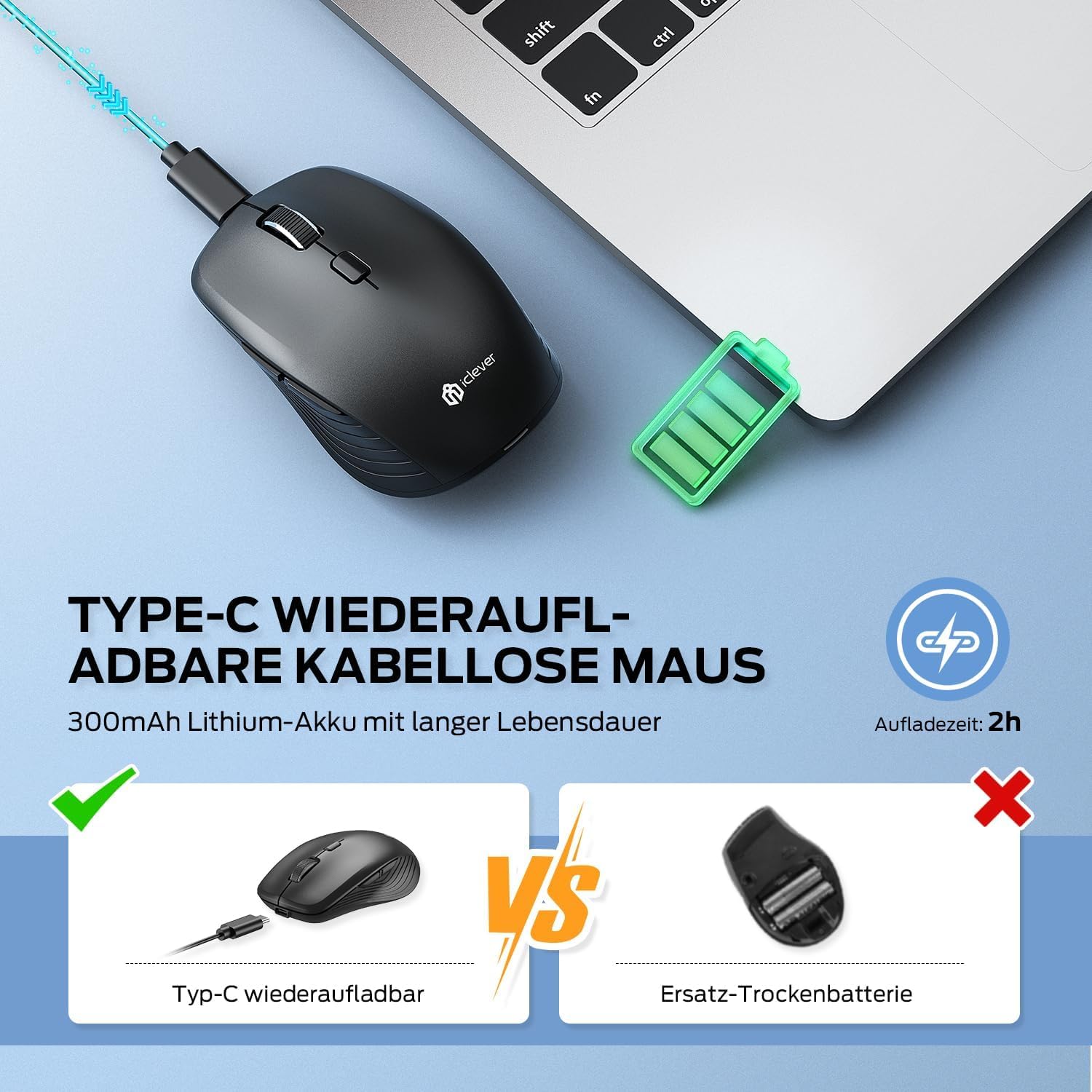
Figura 2: USB-C Rechargeable Feature
4.2 Conectare prin rețeaua wireless de 2.4 GHz
For a stable and quick connection:
- Locate the USB 2.4GHz receiver. It is stored in a compartment under the magnetic top cover of the mouse. Gently lift the top cover to access it.
- Introduceți receptorul USB într-un port USB disponibil de pe computer.
- Porniți mouse-ul folosind comutatorul ON/OFF din partea de jos.
- Switch the connection mode to 2.4GHz (refer to the channel indicator on the bottom).
- Mouse-ul ar trebui să se conecteze automat.

Figura 3: Opțiuni de conectare
4.3 Connecting via Bluetooth (BT1 / BT2)
The mouse supports two Bluetooth connections:
- Porniți mouse-ul folosind comutatorul ON/OFF din partea de jos.
- Switch the connection mode to either Bluetooth 1 (BT1) or Bluetooth 2 (BT2) using the channel switch button on the bottom. The indicator light will confirm the selected channel.
- Apăsați și țineți apăsat butonul de comutare a canalului timp de 3-5 secunde, până când indicatorul luminos clipește rapid. Aceasta indică faptul că mouse-ul este în modul de asociere.
- On your device (PC, Mac, laptop, tablet), go to Bluetooth settings.
- Caută "iClever MD179" or a similar name in the list of available devices and select it to pair.
- Repeat these steps for a second Bluetooth device using the other Bluetooth channel (BT2).

Figura 4: Conectivitate cu mai multe dispozitive
4.4 Comutarea între dispozitive
Pentru a comuta între dispozitivele conectate:
- Use the channel switch button on the bottom of the mouse to cycle between the 2.4GHz, Bluetooth 1, and Bluetooth 2 connections.
- The indicator light will confirm the currently active channel.
5. Instrucțiuni de utilizare

Figura 5: Mouse in Use with Multiple Devices
5.1 Ajustare DPI
Adjust the cursor sensitivity to match your preference or task:
- Press the DPI switch button (button 6 in Product Overview) to cycle through the available DPI settings: 800, 1200, 1600, and 2400 DPI.
- The indicator light may flash briefly to confirm the DPI change.
- Higher DPI settings result in faster cursor movement across the screen.
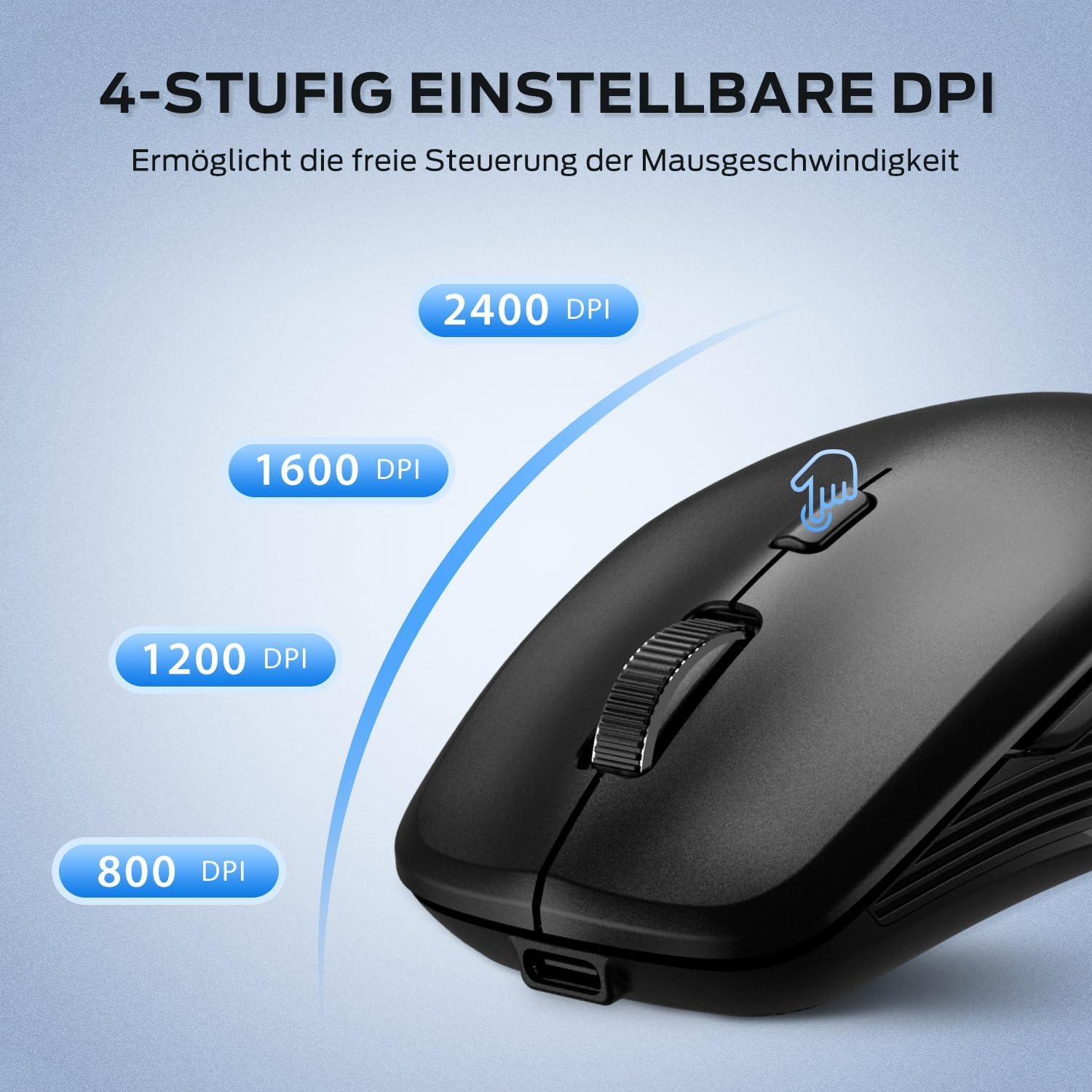
Figura 6: Setări DPI reglabile
5.2 Funcția de clic silențios
The iClever MD179 mouse is designed with silent left and right click buttons to minimize noise, making it ideal for quiet environments such as libraries, offices, or late-night use at home.
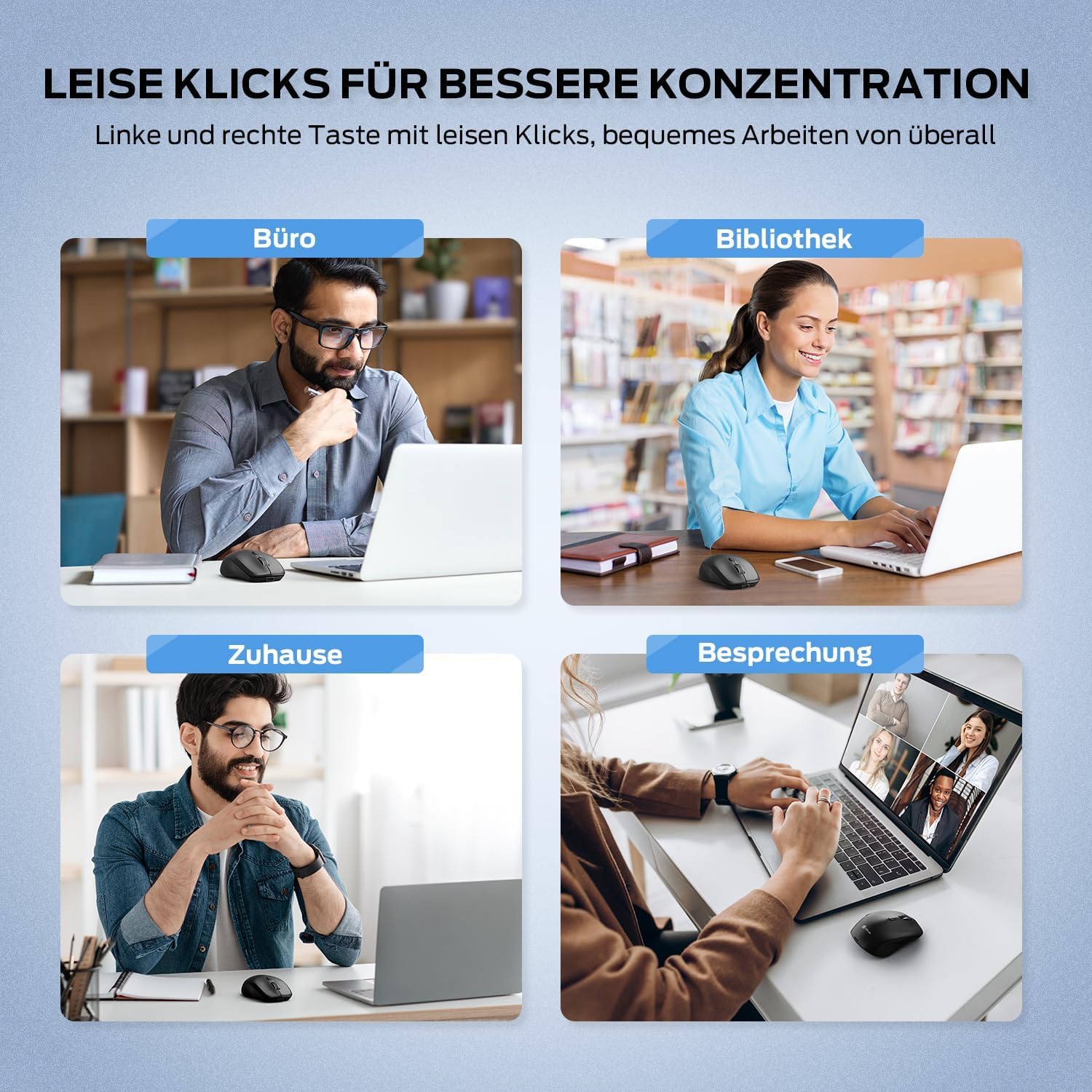
Figura 7: Silent Click Benefits
5.3 Side Buttons (Forward/Back)
The forward and back buttons (buttons 4 and 5 in Product Overview) provide convenient navigation in web browsere și file explorers. Please note that these buttons are primarily functional on Windows operating systems. Their functionality may vary or require specific software configuration on macOS or other operating systems.
5.4 Gestionarea energiei
The mouse incorporates features to optimize battery life:
- Modul de repaus automat: The mouse will enter an automatic sleep mode after a period of inactivity to conserve power. Move the mouse or click any button to wake it up.
- Comutator PORNIT / OPRIT: For extended periods of non-use, it is recommended to turn off the mouse completely using the ON/OFF switch (button 7 in Product Overview) located on the bottom.
6. Întreținere
6.1 Curățare
To keep your mouse in optimal condition:
- Ștergeți ușor suprafața mouse-ului cu o lavetă moale și ușor tamponată.amp pânză.
- Evitați utilizarea substanțelor chimice dure, a agenților de curățare abrazivi sau a solvenților, deoarece aceștia pot deteriora suprafața.
- Asigurați-vă că nu pătrunde lichid în componentele interne ale mouse-ului.
- Periodically clean the optical sensor on the bottom of the mouse with a dry cotton swab to ensure accurate tracking.
6.2 Îngrijirea bateriei
Proper battery care extends the lifespan of your mouse:
- Charge the mouse regularly and avoid letting the battery fully deplete frequently.
- If storing the mouse for an extended period, charge it to approximately 50% and turn it off using the power switch.
- Avoid exposing the mouse to extreme temperatures, which can affect battery performance.

Figura 8: Stocare receptor USB
7. Depanare
If you encounter issues with your iClever MD179 mouse, refer to the following common solutions:
- Mouse-ul nu răspunde:
- Ensure the mouse is powered on using the ON/OFF switch.
- Verificați nivelul bateriei și încărcați mouse-ul dacă este necesar.
- For 2.4GHz connection: Verify the USB receiver is securely plugged into a working USB port and the mouse is set to 2.4GHz mode. Try a different USB port.
- For Bluetooth connection: Ensure Bluetooth is enabled on your device, the mouse is in the correct Bluetooth mode (BT1/BT2), and it is paired correctly. Try removing the mouse from your device's Bluetooth list and re-pairing it.
- Reporniți computerul sau dispozitivul.
- Mișcarea cursorului este neregulată sau lentă:
- Curățați senzorul optic din partea inferioară a mouse-ului.
- Asigurați-vă că utilizați mouse-ul pe o suprafață adecvată (nereflectorizantă, netransparentă).
- Adjust the DPI setting to a higher value using the DPI switch button if the cursor is too slow.
- Cannot switch between devices:
- Ensure the channel switch button on the bottom of the mouse is pressed firmly.
- Verify that each device is correctly connected to its respective channel (2.4GHz, BT1, BT2).
8. Specificații
| Caracteristică | Descriere |
|---|---|
| Marca | iClever |
| Model | MD179 Bluetooth Mouse |
| Dimensiunile produsului | 10.1 x 6.1 x 3.4 cm |
| Greutatea articolului | 70 de grame |
| Compatibilitatea sistemelor de operare | Windows, macOS, ChromeOS |
| Platformă hardware | Linux, Mac, PC |
| Dispozitive compatibile | PC, tableta |
| Caracteristici speciale | Wireless, Silent Click, Multi-Device Connectivity |
| Sursa de alimentare | Alimentat cu baterie (reîncărcabilă prin USB-C) |
| Tehnologia de conectivitate | Bluetooth, 2.4 GHz Wireless |
| Tehnologia senzorului de mișcare | Optic |
| Orientarea mâinii | Ambidextru |
| Setări DPI | 800 / 1200 / 1600 / 2400 DPI |
| Capacitatea bateriei | Litiu de 300 mAh |
9. Garanție și asistență
iClever products are designed for reliability and performance. For detailed warranty information, technical support, or service inquiries, please visit the official iClever website-ul lor sau contactați direct serviciul de asistență pentru clienți. Păstrați bonul fiscal pentru reclamații în garanție.


