Introducere
This manual provides comprehensive instructions for the setup, operation, and maintenance of the Unitech MS852 Rugged 2D Imager Barcode Scanner. The MS852 is designed for efficient and reliable barcode scanning in various environments, including retail, hospitality, and general purpose applications. Its intuitive design and robust construction ensure ease of use and long-term durability.
Caracteristici cheie
- Design ușor: Weighs only 147g without the cable, ensuring comfortable extended use.
- Suport versatil pentru coduri de bare: Capable of scanning most 1D and 2D barcodes, including those on mobile screens, and even damaged or poorly printed codes.
- Durable Trigger: Features a long lifecycle trigger designed for up to 10,000,000 activations, ensuring continuous productivity.
- Comutare automată a modului: Automatically switches between trigger mode and presentation mode when used with its stand, enhancing user experience.
- Ultra-Rugged Construction: IP42 rated for protection against dust and moisture, and tested to withstand 2.1-meter drops to concrete.
Înființat
1. Inspecția inițială
Upon unpacking, inspect the scanner and all accessories for any signs of damage. Ensure all components listed in the packaging are present.

Figura 1: Față-dreapta view of the Unitech MS852 Barcode Scanner.
2. Conectarea scanerului
The MS852 scanner is a plug-and-play device. Connect the USB cable from the scanner to an available USB port on your computer or point-of-sale system. No additional driver installation is typically required.
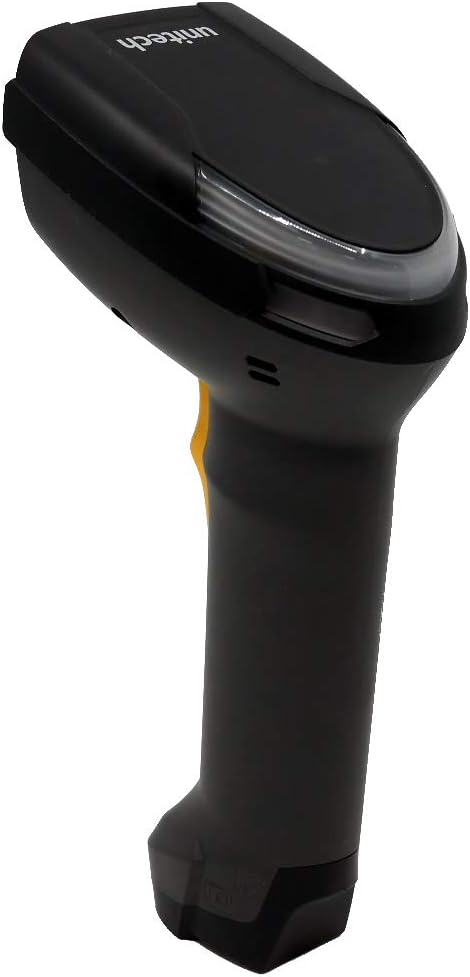
Figura 2: lateral view of the Unitech MS852 Barcode Scanner, showing its ergonomic design.
3. Using the Scanner Stand (Optional)
If your package includes a scanner stand, assemble it according to the instructions provided with the stand. Placing the scanner in the stand will automatically switch it to presentation mode, allowing for hands-free scanning.
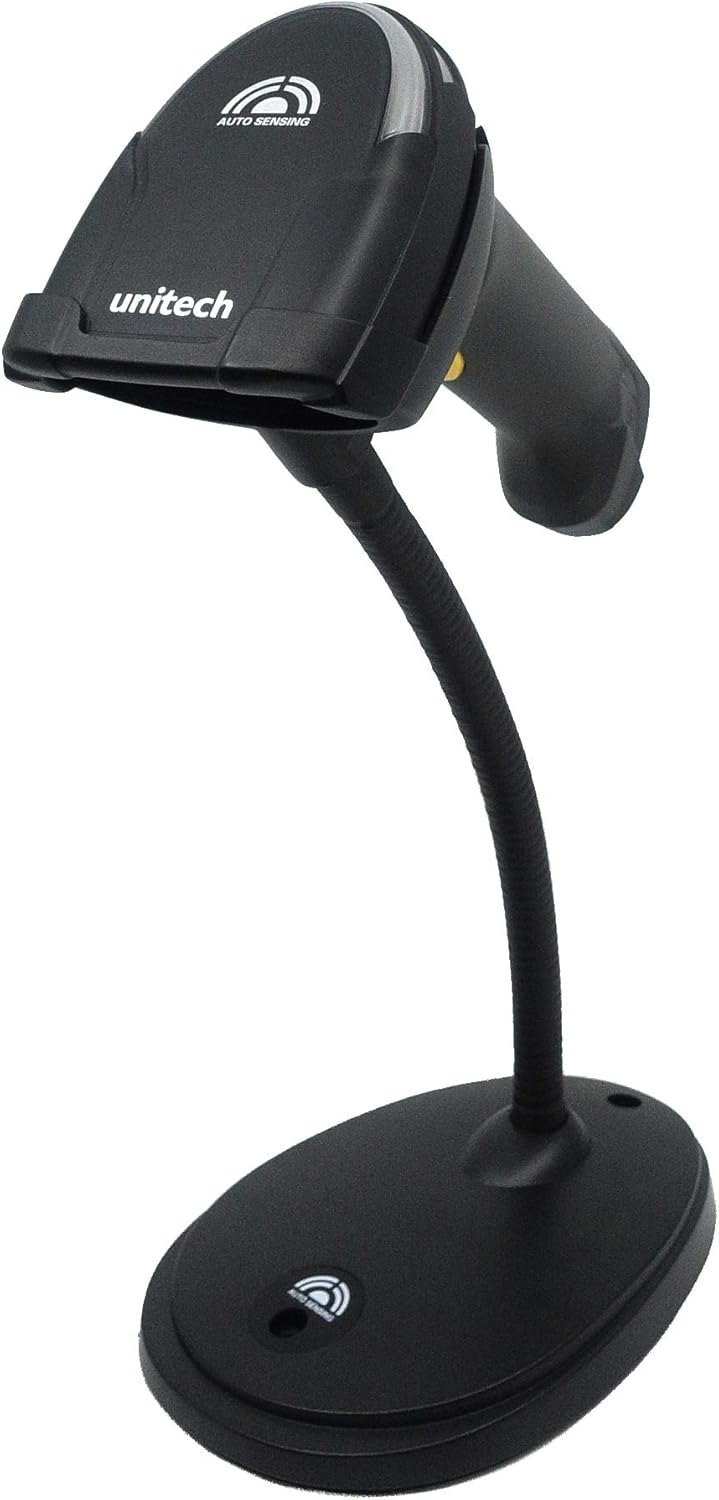
Figure 3: The Unitech MS852 Barcode Scanner mounted on its flexible stand, ready for presentation mode.

Figure 4: Illustration of the Unitech MS852 Barcode Scanner's versatile mounting options, including wall mount and desktop stand configurations.
Instrucțiuni de operare
1. Scanare de bază
To scan a barcode, point the scanner's window at the barcode and press the trigger button. A successful scan will be indicated by an audible beep and a visual LED indicator.
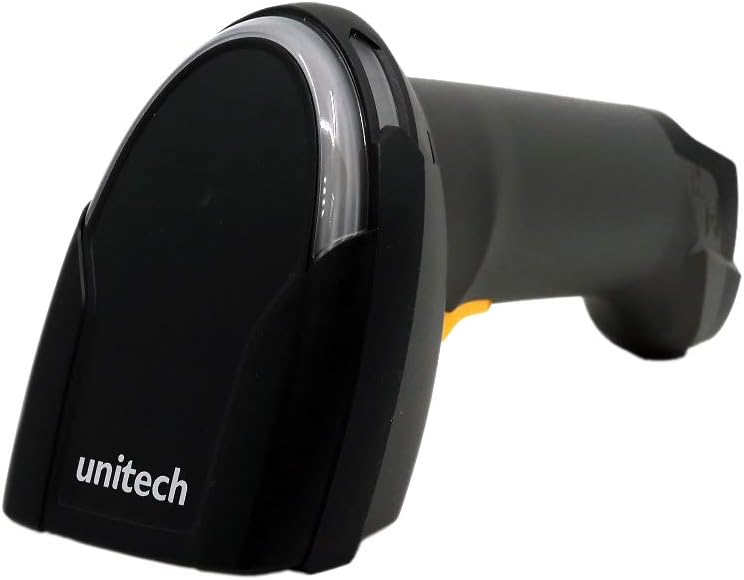
Figura 5: Față view of the Unitech MS852 Barcode Scanner, highlighting the scan window.
2. Moduri de scanare
- Mod declanșator: The scanner activates the scan engine only when the trigger button is pressed. This is ideal for targeted scanning.
- Modul de prezentare: When placed in its stand, the scanner automatically detects objects in its field of view and scans them without requiring a trigger press. This mode is suitable for high-volume, hands-free scanning.
3. Feedback Indicators
- beeper: A loud beeper provides audible confirmation of successful scans.
- Indicator LED: A bright LED indicator provides visual confirmation of successful scans, especially useful in noisy environments.
Întreţinere
1. Curatenie
To maintain optimal performance, regularly clean the scanner's window and exterior. Use a soft, lint-free cloth lightly dampened with water or a mild, non-abrasive cleaning solution. Do not use harsh chemicals or abrasive materials.
2. Depozitare
Store the scanner in a cool, dry place away from direct sunlight and extreme temperatures. When not in use for extended periods, disconnect it from the power source.
Depanare
| Problemă | Cauza posibila | Soluţie |
|---|---|---|
| Scanner not responding | Loose USB connection; Incorrect USB port; Computer issue. | Ensure USB cable is securely connected. Try a different USB port. Restart the computer. |
| Cannot scan barcodes | Barcode damaged/poorly printed; Incorrect symbology enabled; Scanner window dirty; Insufficient lighting. | Try scanning a known good barcode. Refer to the programming guide for symbology settings. Clean the scanner window. Ensure adequate lighting. |
| No beep/LED feedback | Feedback settings disabled; Hardware malfunction. | Check scanner programming guide for feedback settings. If issue persists, contact support. |
Specificații
| Caracteristică | Detaliu |
|---|---|
| Numărul de model | MS852-AUCB00-SG |
| Dimensiunile produsului | 3.4 x 2.8 x 6.9 inci |
| Greutatea articolului | 10.6 uncii (aprox. 300 g) |
| Tehnologia de conectivitate | Cablu USB (cu fir) |
| Sursa de alimentare | Electric cu fir, cablu USB |
| Dispozitive compatibile | Laptop, Smartphone, Tablet, iPhone (via USB OTG if supported) |
| Specificație de drop | 2.1 meters to concrete |
| Evaluare IP | IP42 (Protecție împotriva obiectelor solide >1 mm și stropilor de apă) |
| Trigger Lifecycle | Până la 10,000,000 ori |
| Producător | Unitech |
Informații despre garanție
Unitech products are manufactured to the highest quality standards. For specific warranty terms and conditions applicable to your MS852 scanner, please refer to the warranty card included with your product or visit the official Unitech webPăstrați dovada achiziției pentru reclamații în garanție.
Sprijin
For technical assistance, product inquiries, or service requests, please contact Unitech customer support. Contact information can typically be found on the Unitech official website-ul sau în documentația furnizată împreună cu produsul.
Resurse online: Visit the Unitech website for FAQs, driver downloads, and additional product information.


