Introducere
The Google Nest Wifi Pro 6E system provides super fast, reliable Wi-Fi 6E coverage designed for your entire home. This mesh Wi-Fi system is engineered to deliver consistent performance and eliminate dead spots, ensuring a seamless internet experience across all your devices.

Image: Three Google Nest Wifi Pro units, showcasing their compact and sleek design in Snow color. These units work together to form a mesh Wi-Fi network.
Caracteristici cheie:
- Up to 2x faster than Wi-Fi 6 for super fast speeds and reliable connection.
- Scalable coverage: One router provides up to 2200 sq ft, customizable for larger homes with multiple units.
- Utilizes advanced Wi-Fi 6E technology for optimal performance.
- Automatic network performance adjustments and prioritization of high-bandwidth activities like video calls.
- Built-in technology ensures strong and consistent connection even at the edge of your network.
- Self-monitoring and self-diagnosis capabilities for common network issues.
- Tri-band support (2.4 GHz, 5 GHz, and 6 GHz) for efficient device management.
- Enhanced security features including secure booting and software updates.
- Easy network management via the Google Home app, including device monitoring and guest network creation.
Ce este în cutie
Your Google Nest Wifi Pro package includes the following components:
- Wifi router/extender units (quantity depends on pack size)
- 22W power adapter (one per unit)
- 6.5 ft Ethernet cable (for all packs)
- Quick start guide and safety and warranty guide (not shown)

Image: A visual representation of the Google Nest Wifi Pro package contents, including the router unit, power adapter, and Ethernet cable.
Ghid de instalare
Setting up your Google Nest Wifi Pro system is designed to be simple and intuitive through the Google Home app. Follow these steps for a quick setup:
- Descărcați aplicația Google Home: Ensure you have the latest version of the Google Home app installed on your smartphone or tablet.
- Conectați routerul principal: Plug one of your Nest Wifi Pro units into power and connect it to your modem using the provided Ethernet cable. This unit will serve as your primary router.
- Open the Google Home App: Follow the on-screen instructions in the app to detect and configure your primary Nest Wifi Pro unit.
- Add Additional Units (Mesh Setup): If you have multiple units, the app will guide you through adding them to create a mesh Wi-Fi network for whole-home coverage. Place additional units strategically to maximize coverage.
- Personalizați setările: Use the app to set up your Wi-Fi network name (SSID) and password.
- Test Your Connection: The Google Home app allows you to run a speed test to verify your network performance.

Image: A user interacting with the Google Home app on a smartphone, demonstrating the simple setup process for the Nest Wifi Pro system.

Image: A close-up of the Google Home app interface, illustrating how users can view connected devices and manage network settings.
Operating Your Nest Wifi Pro
The Google Nest Wifi Pro system is designed for intelligent and efficient operation, providing a robust and secure network for your home.
Managementul rețelei:
- Automatic Optimization: The system automatically adjusts network performance to keep things running smoothly, prioritizing high-bandwidth activities like video calls and ensuring quick website loading.
- Prioritizarea dispozitivului: Through the Google Home app, you can prioritize specific devices for a set period, ensuring critical activities receive optimal bandwidth.
- Rețea de oaspeți: Easily create a separate guest network with a unique password, allowing visitors internet access without sharing your main network credentials.
- Monitorizarea dispozitivelor: View all devices connected to your Wi-Fi network and easily pause access for unknown or unwanted devices directly from the app.

Image: A user engaged in work, highlighting the seamless and efficient network performance provided by the Nest Wifi Pro system.
Security and Parental Controls:
- Automatic Security Updates: Nest Wifi Pro receives regular software updates to protect against unauthorized software and potential router hacks, ensuring your network remains secure.
- Control parental: Manage internet access for specific devices, set schedules, and block inappropriate content to ensure a safe online environment for your family.

Image: A family enjoying their devices, emphasizing the peace of mind offered by the security and parental control features of the Nest Wifi Pro.
Întreţinere
The Google Nest Wifi Pro is designed for minimal user maintenance, thanks to its intelligent self-management capabilities.
- Actualizări automate de software: Your Nest Wifi Pro units will automatically download and install necessary software updates to ensure optimal performance, security, and access to new features. Ensure your devices are connected to the internet for these updates to occur.
- Autodiagnostic: The system continuously monitors itself and diagnoses network issues, often resolving common problems without user intervention.
- curatenie: To maintain optimal performance and appearance, gently wipe the exterior of the units with a soft, dry cloth. Avoid using abrasive cleaners or solvents.
- Plasare: Ensure units are placed in open areas, away from large metal objects or other electronics that could interfere with the Wi-Fi signal.
Depanare
While Nest Wifi Pro is designed for reliability, here are some common troubleshooting tips if you encounter network issues:
- Fără conexiune internet:
- Verificați dacă modemul funcționează corect.
- Ensure all cables are securely connected to your Nest Wifi Pro primary unit and modem.
- Restart your modem and then your Nest Wifi Pro primary unit.
- Slow Speeds or Weak Signal:
- Verify the placement of your Nest Wifi Pro units. Ensure they are not too far apart and are centrally located.
- Check for physical obstructions like thick walls or large appliances that might block the signal.
- Run a speed test from the Google Home app to diagnose performance.
- Consider adding more Nest Wifi Pro units for larger homes or areas with weak signals.

Image: A diagram illustrating how many Nest Wifi Pro routers are recommended for different home sizes to ensure optimal Wi-Fi coverage.
- Dispozitivul nu se conectează:
- Ensure the device's Wi-Fi is turned on and it's attempting to connect to the correct network.
- Încercați să reporniți dispozitivul.
- In the Google Home app, check if the device has been paused or blocked.
- Probleme de conectare la aplicație:
- Ensure your phone has an active internet connection (cellular data or another Wi-Fi network).
- Restart the Google Home app or reinstall it if issues persist.
For more detailed troubleshooting or persistent issues, refer to the official Google Nest support website or contact Google support.
Specificatii tehnice
| Caracteristică | Detaliu |
|---|---|
| Dimensiunile produsului | 5.16 x 4.65 x 3.35 inci |
| Greutatea articolului | 6.23 lire sterline |
| Numărul de model | G6ZUC |
| Marca | |
| Numele modelului | Nest Wifi Pro |
| Caracteristici speciale | Access Point Mode, Guest Mode, Internet Security, LED Indicator, Parental Control, WPS |
| Clasa de bandă de frecvență | Tri-Band (2.4 GHz, 5 GHz, 6 GHz) |
| Comunicare wireless standard | 802.11ax (Wi-Fi 6E) |
| Dispozitive compatibile | Works with current devices (laptops, phones, etc.) and next-generation devices. |
| Utilizări recomandate | Jocuri, acasă |
| Prima disponibilă | 4 octombrie 2022 |
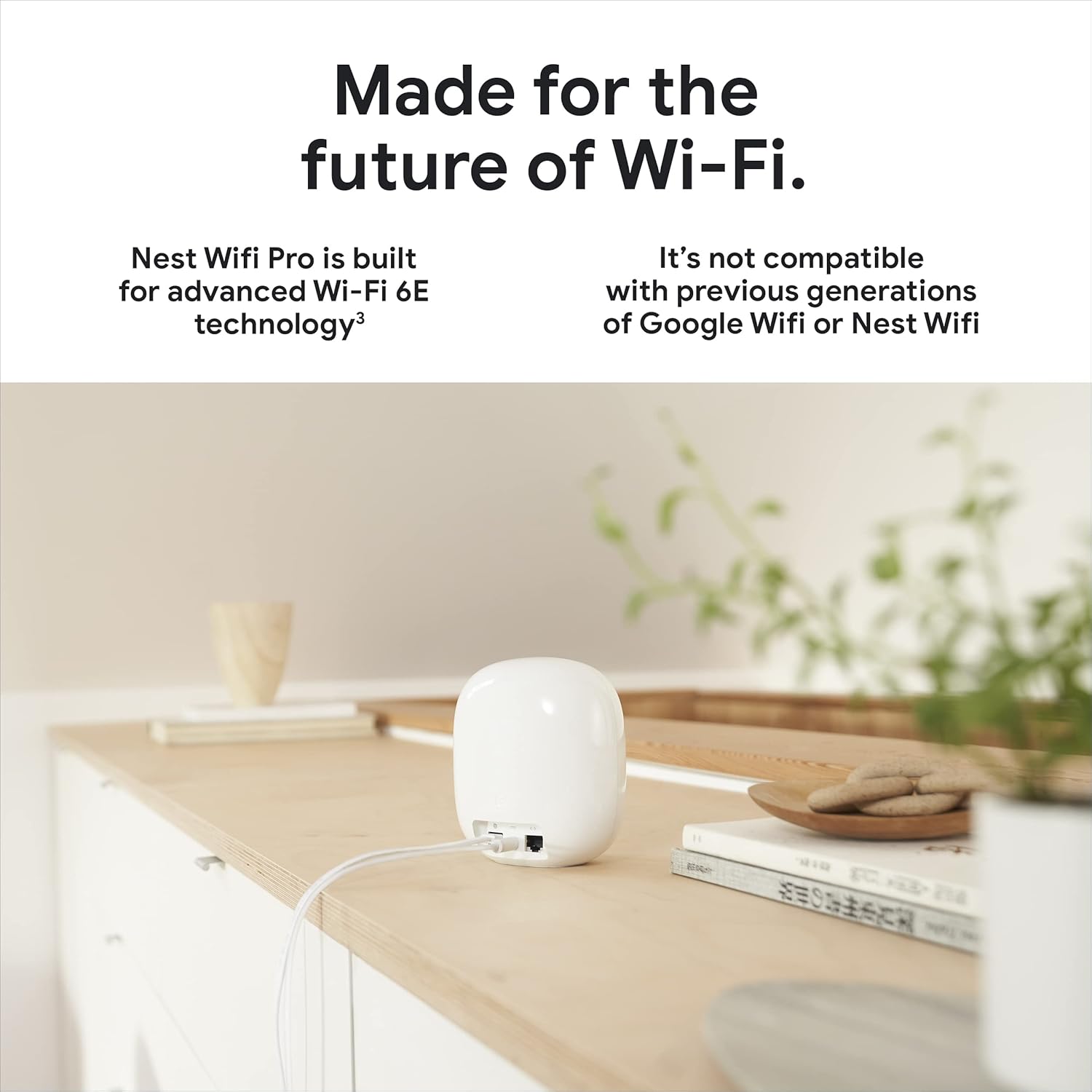
Imagine: Spate view of a Nest Wifi Pro unit, highlighting its Ethernet ports for input and output, and the power connection.
Garanție și suport
For detailed warranty information and customer support, please refer to the official documentation included with your product or visit the Google Nest support website. Google offers protection plans for extended coverage.
- Planuri de protecție: Sunt disponibile pentru achiziționare Planul opțional de protecție pe 4 ani și planurile Complete Protect.
- Resurse online: Access FAQs, troubleshooting guides, and community forums on the Google support website-ul.
- Contactați asistența: For direct assistance, contact Google customer service through their official channels.


