1. Introducere
This manual provides essential information for setting up, operating, maintaining, and troubleshooting your Alienware X17 R2 Gaming Laptop. Please read this guide thoroughly to ensure optimal performance and longevity of your device.
The Alienware X17 R2 is designed for high-performance gaming and demanding tasks, featuring advanced cooling technologies, powerful processors, and dedicated graphics.
2. Produs terminatview
The Alienware X17 R2 is engineered to deliver an immersive gaming experience in a thin 17-inch form factor. Key features include:
- Powerful Intel CPUs: Experience high-performance action across all your favorite games with 12th Gen Intel Core processors.
- Next-Gen GPUs: Game unrestrained with NVIDIA GeForce RTX 3070Ti graphics, Dynamic Boost 2.0, and Deep Learning Super Sampling technology.
- Patented Quad Cooling: An industry-first design uses four intelligently controlled and programmable fans to dissipate heat.
- Timp de redare extins: Improve battery life with Advanced Optimus technology from NVIDIA—now available on all display options.
- Legend 2.0 Industrial Design: A fresh evolution in design with a high-endurance finish and customizable AlienFX lighting.

Figura 2.1: Față view of the Alienware X17 R2 Gaming Laptop displaying a game.
3. Configurare
3.1 Despachetare și inspecție inițială
- Scoateți cu grijă laptopul și toate accesoriile din ambalaj.
- Verificați dacă sunt prezente toate articolele enumerate în secțiunea „Ce se află în cutie”.
- Inspect the laptop for any physical damage. If damage is found, contact your retailer immediately.
3.2 Conectarea puterii
- Connect the power adapter to the charging port located at the rear of the laptop.
- Conectați cablul de alimentare la o priză de perete.
- The power indicator light will illuminate, indicating the laptop is receiving power.
3.3 Prima pornire și configurarea sistemului de operare
- Press the Alienware head power button to turn on the laptop.
- Urmați instrucțiunile de pe ecran pentru a finaliza procesul de configurare Windows 11 Home. Aceasta include selectarea regiunii, conectarea la o rețea Wi-Fi și crearea unui cont de utilizator.
- Allow the system to download and install any necessary updates.
4. Utilizarea laptopului
4.1 Tastatură și touchpad
The Alienware X17 R2 features a backlit keyboard and a responsive touchpad. The AlienFX lighting allows for customizable colors and effects across the keyboard and other zones.

Figura 4.1: Detaliat view of the backlit keyboard and touchpad.
4.2 Afișaj și grafică
Enjoy stunning visuals on the 17.3-inch FHD display with a 480Hz refresh rate and 3ms response time. The NVIDIA GeForce RTX 3070Ti graphics card ensures smooth gameplay and high-fidelity rendering. The laptop supports Dolby Vision for optimized color profiles.
4.3 Audio
Experience immersive 3D sound via Dolby Atmos, designed to deliver audio as studios intended.
4.4 Porturi și conectivitate
The laptop offers a variety of ports for peripherals and external displays:

Figura 4.2: Spate view illustrating the various connectivity ports.
- Porturi USB: 3.0 3 ports for connecting various USB devices.
- Porturi USB-C: For versatile connectivity, including Thunderbolt 4.
- HDMI2.1: Supports up to 4K/120Hz output for external displays.
- Ethernet: Killer E3100 RJ45 Ethernet for stable wired network connections.
- Fără fir: Killer Wi-Fi 6 (802.11ax) and Bluetooth for wireless connectivity.
5. Întreținere
5.1 Curățare
- Folosiți o lavetă moale, fără scame, pentru a curăța ecranul și suprafețele exterioare.
- Evitați utilizarea substanțelor chimice dure sau a materialelor abrazive.
- Regularly clean the cooling vents to prevent dust buildup, which can affect performance.
5.2 Actualizări de software
Ensure your operating system and drivers are kept up-to-date. Windows Update will handle OS updates, and Alienware Command Center can assist with driver and firmware updates.
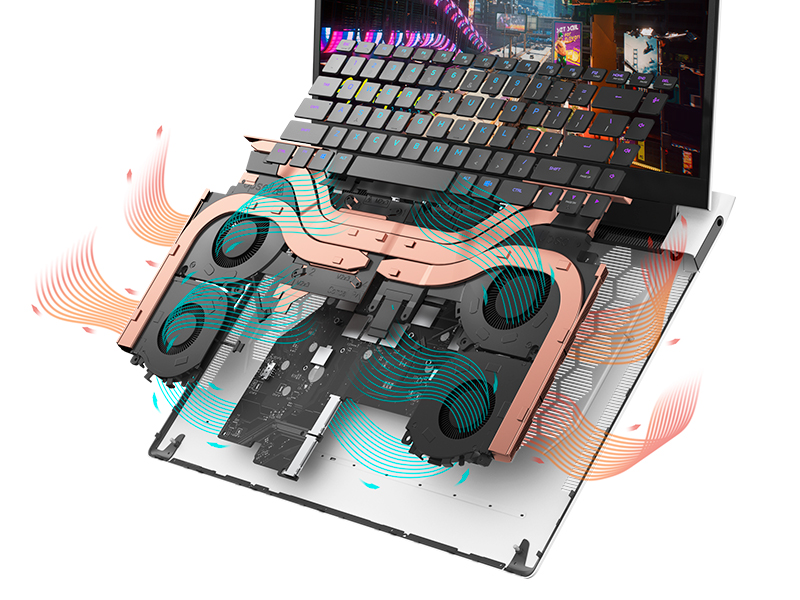
Figure 5.1: Alienware Command Center for system management.
6. Depanare
If you encounter issues with your Alienware X17 R2, consider the following basic troubleshooting steps:
- Fără putere: Ensure the power adapter is securely connected to both the laptop and a working power outlet. Check the power indicator light.
- Probleme de afișare: If the screen is black, try connecting an external monitor to verify if the issue is with the laptop's display or the graphics card. Update graphics drivers.
- Supraîncălzire: Ensure cooling vents are clear of obstructions. Use Alienware Command Center to monitor temperatures and adjust fan profiles.
- Încetinire a performanței: Închideți aplicațiile inutile. Verificați dacă există procese în fundal care consumă mult CPU sau RAM. Asigurați suficient spațiu liber pe SSD.
- Probleme de software: Restart the laptop. If issues persist, consider performing a system restore or reinstalling the problematic software.
7. Specificații
| Caracteristică | Caietul de sarcini |
|---|---|
| Dimensiunea ecranului | 17.3 inchi |
| Rezoluția ecranului | 1920 x 1080 pixeli (FHD) |
| Procesor | Intel Core i9-12900H (3.8 GHz, 14 Cores) |
| RAM | 16 GB DDR5 (4800 MHz) |
| Hard Drive | 1 TB SSD (Solid State) |
| Coprocesor grafic | NVIDIA GeForce RTX 3070 Ti (8 GB GDDR6) |
| Sistem de operare | Windows 11 Home |
| Tip fără fir | 802.11ax (Killer Wi-Fi 6), Bluetooth |
| Porturi USB 3.0 | 3 |
| Greutatea articolului | 6.82 lire sterline |
| Dimensiunile produsului | 11.79 x 15.72 x 0.58 inci |
8. Ce se află în cutie
- Laptop pentru jocuri Alienware X17 R2
- Adaptor de alimentare
- Cablu de alimentare
- Documentare
9. Videoclipuri oficiale ale produselor
Alienware X17 R2 Gaming Laptop Overview
Videoclip 9.1: Un oficial terminatview of the Alienware X17 R2 Gaming Laptop, highlighting its design, cooling, and performance features.
About Alienware X17 R2 Gaming Laptop
Video 9.2: A detailed look at the Alienware X17 R2 Gaming Laptop, showcasing its features and design elements.
10. Garanție și asistență
Your Alienware X17 R2 Gaming Laptop comes with a standard manufacturer's warranty. For detailed warranty information, please refer to the documentation included with your product or visit the official Alienware support website-ul.
For technical support, driver downloads, and service requests, please visit the Alienware support portal. You can also find FAQs and community forums for additional assistance.


