1. Introducere
This manual provides essential information for the setup, operation, and maintenance of your JLab Go Cam USB HD Webcam. The Go Cam is designed to deliver high-definition video and clear audio for various communication needs, including video conferencing, live streaming, and online meetings.
Caracteristicile cheie includ:
- Full 1080p video resolution at 30 frames per second (FPS).
- 2.1 Megapixel sensor for clear image capture.
- Built-in omni-directional microphone for natural sound.
- Optimized for various lighting conditions.
- Plug-and-play compatibility with PC, Mac, and Chromebook devices.
2. Noțiuni introductive
2.1 Despachetarea cutiei
Verificați dacă următoarele articole sunt incluse în pachetul dumneavoastră:
- Cameră video JLab GoCam USB HD Webcam
- Ghid de pornire rapidă
2.2 Cerințe de sistem
The JLab Go Cam is compatible with the following operating systems:
- Windows (PC)
- macOS (Mac)
- Chrome OS (Chromebook)
No additional software or drivers are typically required for basic functionality.
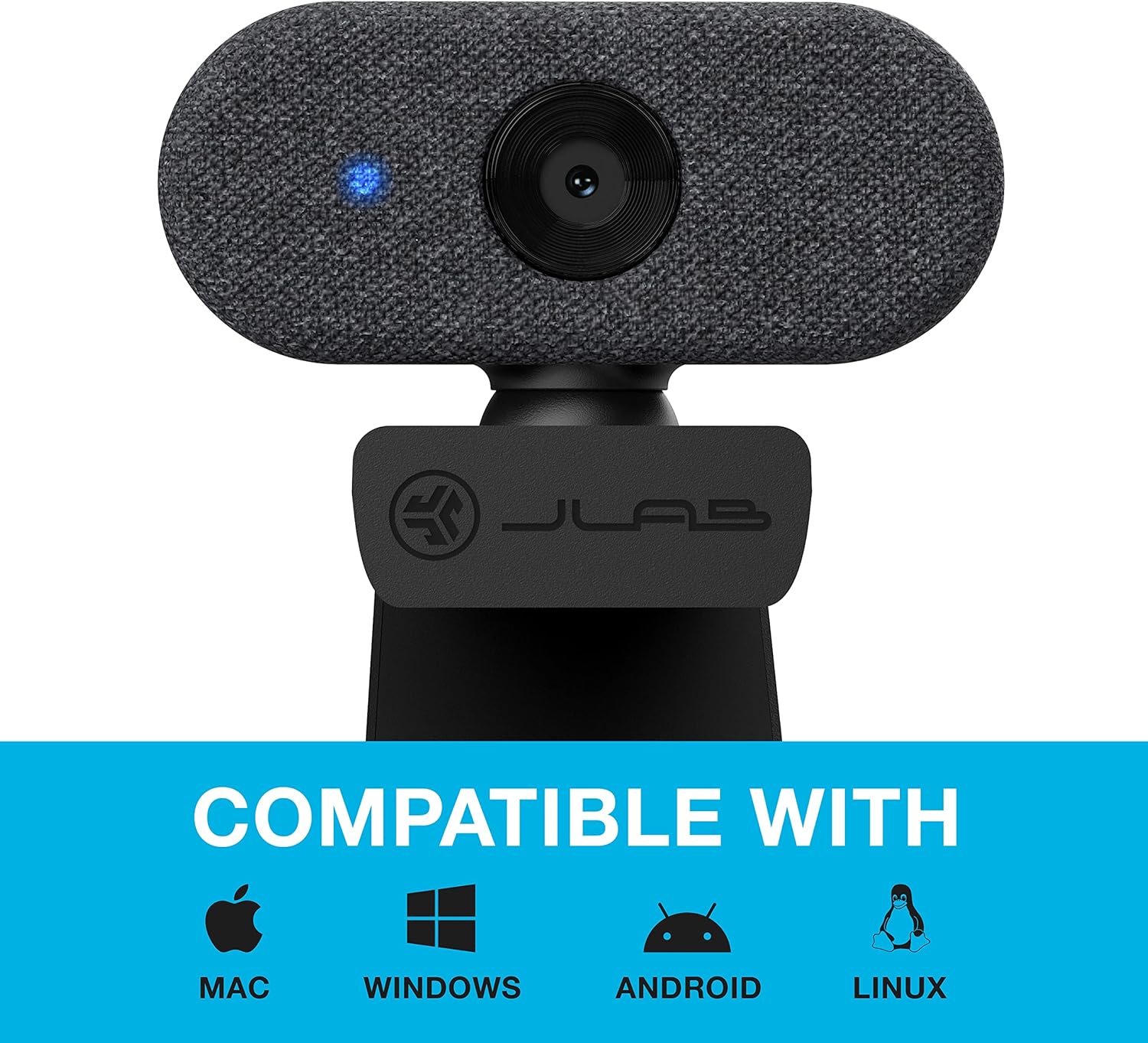
Image: The JLab Go Cam is compatible with Mac, Windows, Android, and Linux operating systems.
2.3 Configurarea fizică
The JLab Go Cam features a versatile clip-on design for easy mounting.
- Mounting on a Monitor/Laptop: Deschideți webcam's integrated clip and place it securely on top of your monitor or laptop screen. Adjust the angle to ensure the webCamera este stabilă și este orientată spre tine.
- Plasare pe desktop: Clema poate servi și ca suport pentru așezarea webcam on a flat surface, such as a desk.

Image: The JLab Go Cam webcam showing its adjustable clip for mounting.
3. Funcționare
3.1 Conectarea Webcam
The JLab Go Cam is a plug-and-play device. Simply connect the integrated USB cable from the webcam to an available USB port on your computer. The operating system should automatically detect and install the necessary drivers.
3.2 Utilizarea cu aplicații
Odată conectat, webcam can be selected as your video and audio input device in most video conferencing, streaming, and recording applications (e.g., Zoom, Google Meet, Microsoft Teams, Skype, OBS Studio).
- Open your preferred application.
- Navigate to the application's settings or preferences, typically found under 'Audio & Video' or 'Devices'.
- Select 'JLab Go Cam' as your camera device.
- Select 'JLab Go Cam' or a similar entry as your microphone device.
- A blue indicator light on the webcam will illuminate when the camera is active and in use.
3.3 Calitatea video și audio
The Go Cam provides 1080p Full HD video at 30 frames per second, ensuring clear and detailed visuals. The built-in omni-directional microphone captures sound from all directions, making conversations sound natural.

Image: The JLab Go Cam provides high-definition video for clear communication.

Image: The omni-directional microphone ensures clear audio capture.
3.4 Performanță în condiții de lumină slabă
The webcam is designed to perform effectively in various lighting conditions, including low-light environments, to maintain image clarity.

Image: The JLab Go Cam adapts to different lighting conditions.
4. Întreținere
To ensure the longevity and optimal performance of your JLab Go Cam, follow these simple maintenance guidelines:
- Curățarea lentilei: Gently wipe the camera lens with a soft, lint-free cloth. Avoid abrasive materials or harsh cleaning chemicals.
- Curățarea corpului: Utilizați un d. uscat sau ușoramp cârpă pentru a curăța webcam's exterior.
- Depozitare: Când nu este utilizat, păstrați fișierul webcam in a clean, dry place away from extreme temperatures.
- Îngrijirea cablului: Evitați îndoirea sau răsucirea excesivă a cablului USB pentru a preveni deteriorarea.
5. Depanare
If you encounter issues with your JLab Go Cam, refer to the following troubleshooting steps:
5.1 Webcam Not Detected or No Image/Sound
- Verificați conexiunea USB: Asigurați webcam's USB cable is securely plugged into a functioning USB port on your computer. Try a different USB port.
- Reporniți computerul: Uneori, o simplă repornire poate rezolva problemele de detectare.
- Verify Application Settings: Confirm that 'JLab Go Cam' is selected as both the video and audio input device within your video conferencing or recording application's settings.
- Verificați Manager dispozitive (Windows) / Informații sistem (Mac): Verificați că webcam is recognized by your operating system.
5.2 Poor Image Quality (Dark, Pixelated, or Unclear)
- Conditii de iluminare: Ensure adequate lighting in your environment. Position yourself facing a light source rather than having a bright light behind you.
- Curățați lentila: Curățați ușor weblentila camerei cu o lavetă moale, fără scame.
- Application Resolution: Check if your application's video settings are configured for 1080p resolution.
- No Dedicated Software: Please note that the JLab Go Cam does not come with proprietary software for advanced image adjustments (e.g., brightness, contrast, white balance). Adjustments may need to be made through your operating system's camera settings or the specific application you are using.
5.3 Calitate audio slabă
- Selectarea microfonului: Ensure 'JLab Go Cam' is selected as the microphone input in your application's audio settings.
- Volumul microfonului: Check the microphone input level in your computer's sound settings and within the application.
- Zgomot de mediu: Minimize background noise for clearer audio.
5.4 Blue Indicator Light
The blue light on the front of the webcam indicates that the camera is actively in use by an application.
6. Specificații
| Marca | JLab |
| Numărul de model | WGOCAMRBLK124 |
| Rezoluție captură video | 1080p (Full HD) |
| Cadre pe secundă (FPS) | 30 FPS |
| Megapixeli | 2.1 Megapixeli |
| Tip microfon | Omnidirecțional |
| Tehnologia de conectivitate | USB |
| Caracteristica specială | Performanță în lumină slabă |
| Greutatea articolului | 4.2 uncii |
| Dimensiunile produsului | 1.9 x 2.75 x 1.9 inci |
7. Garanție și asistență
7.1 Informații despre garanție
The JLab Go Cam USB HD Webcamera vine cu o JLab Two-Year Warranty. Please refer to the official JLab webconsultați site-ul sau documentația de achiziție pentru termenii și condițiile complete de garanție.
7.2 Asistență pentru clienți
Pentru asistență suplimentară, asistență tehnică sau reclamații în garanție, vă rugăm să vizitați pagina oficială de asistență JLab. website-ul web sau contactați departamentul de asistență pentru clienți. Informațiile de contact pot fi găsite de obicei pe JLab website sau în Ghidul de pornire rapidă inclus împreună cu produsul.


