Introducere
This manual provides comprehensive instructions for the setup, operation, and maintenance of your Wings Crosshair 100 Wired Optical Gaming Mouse. Designed for optimal gaming performance, this mouse offers comfort, precision, and customizable features to enhance your computing and gaming experience.
Caracteristici cheie
- Ușor și confortabil: The Wings Crosshair 100 features an ambidextrous, comfortable design for ultra-smooth movement during extended use.
- Până la 3400 DPI: Experience precise control with adjustable DPI settings up to 3400 and a 125 Hz polling rate.
- 6 Button Functionality: Customize your gaming experience with 6 programmable buttons, offering default configurations straight out of the box.
- Compatibilitate largă: Compatible with Windows XP/Vista/7/8/8.1/10/11 and Mac OS.
- Premium Build: Features multicolor LED lights, an ergonomic design, a golden-plated USB connector, and a durable braided cable.
Produs terminatview

Image: The Wings Crosshair 100 Wired Optical Gaming Mouse, showcasing its ergonomic design and LED lighting.

Image: The ergonomic design of the Wings Crosshair 100 mouse, providing a comfortable grip for extended use.
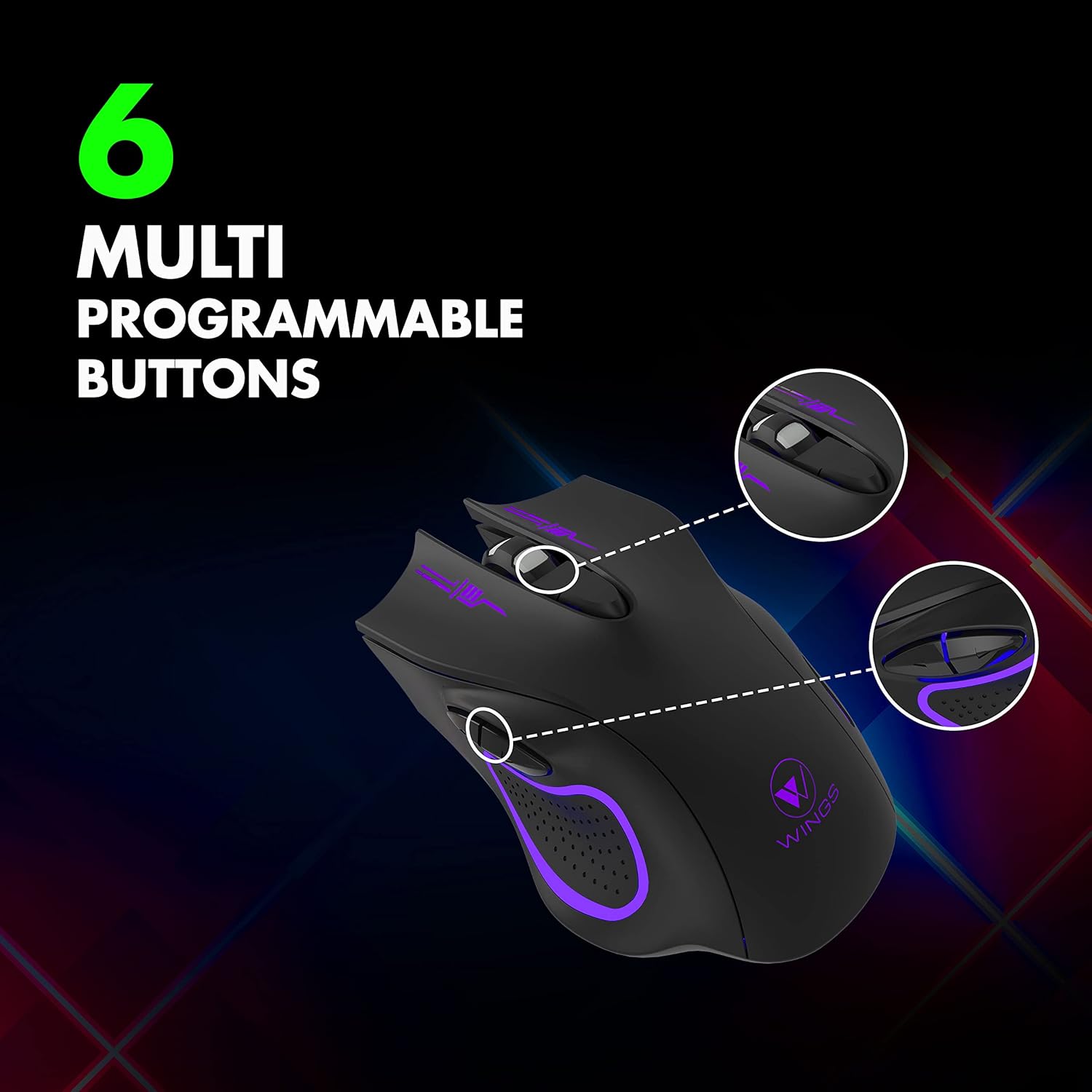
Image: Illustration of the 6 multi-programmable buttons on the Wings Crosshair 100 mouse.
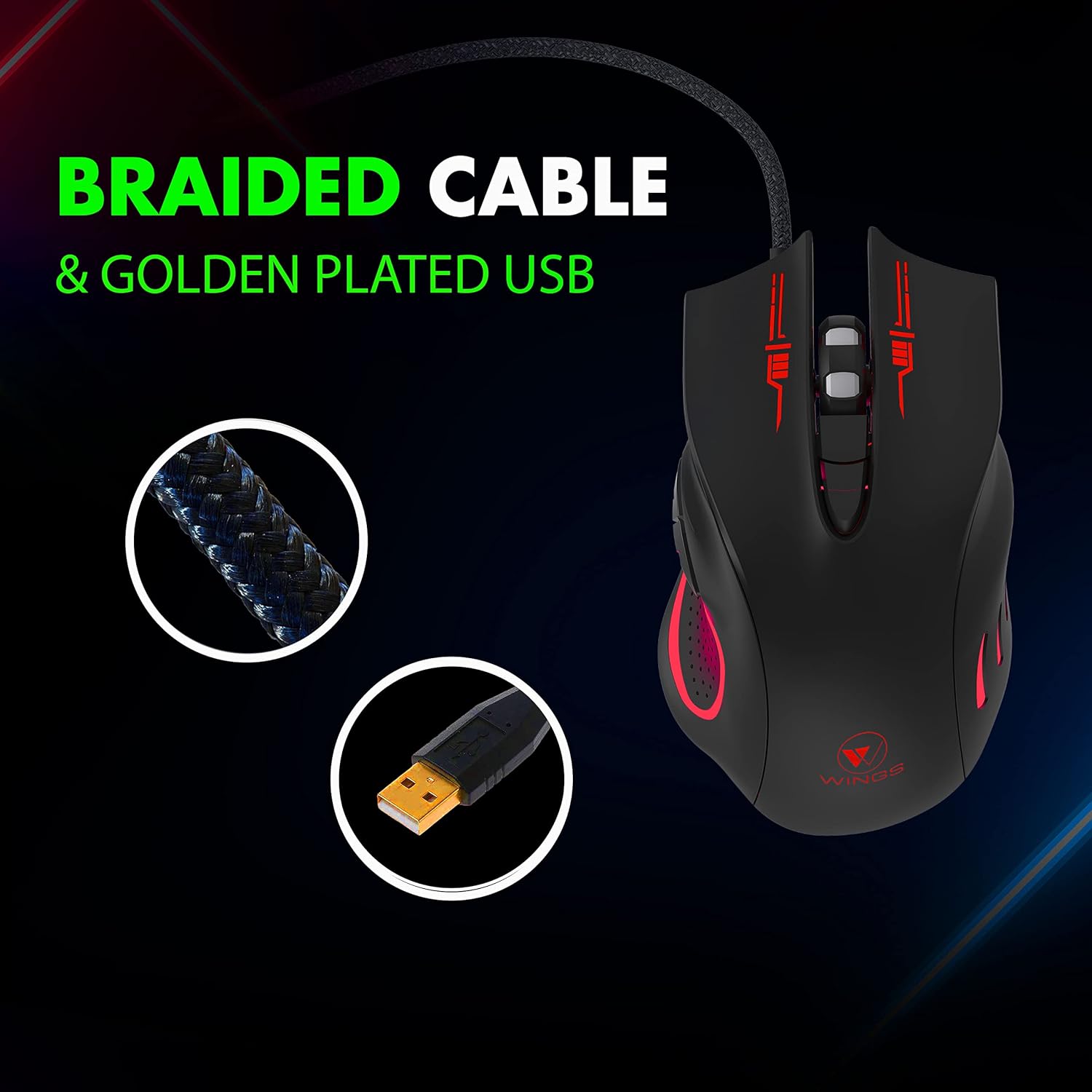
Image: Close-up of the durable braided cable and golden-plated USB connector of the Wings Crosshair 100 mouse.

Image: Demonstrating the adjustable DPI feature of the Wings Crosshair 100 mouse, with DPI levels of 1000, 1600, 2400, and 3200.

Image: The vibrant RGB LED lighting of the Wings Crosshair 100 mouse.

Image: A collage highlighting key features: compatibility with various OS, hyperfast scroll wheel, light and comfortable design, and ultra-smooth movement.
Înființat
- Conectați mouse-ul: Insert the USB connector of the Wings Crosshair 100 mouse into an available USB 3.0 port on your computer.
- Instalare driver: The mouse is plug-and-play. Your operating system (Windows XP/Vista/7/8/8.1/10/11, Mac OS) will automatically detect and install the necessary drivers. No additional software installation is typically required for basic functionality.
- Utilizare inițială: Odată ce driverele sunt instalate, mouse-ul este gata de utilizare imediată.
Instrucțiuni de operare
Ajustare DPI
The Wings Crosshair 100 features an adjustable DPI (Dots Per Inch) setting, allowing you to change cursor sensitivity on the fly.
To adjust DPI, press the dedicated DPI button located on the top of the mouse, usually behind the scroll wheel. Each press cycles through predefined DPI levels: 1000, 1600, 2400, and 3200.
6 Funcționalitatea butoanelor
This mouse is equipped with 6 buttons for enhanced control:
- Butonul stânga pentru clic: Clic principal standard.
- Buton clic dreapta: Clic secundar standard.
- Scroll Wheel Button: Clickable scroll wheel for middle-click functions.
- Butonul DPI: Parcurge ciclic setările DPI.
- Buton înainte: (Side button) Default function for navigating forward in web browsere sau file exploratori.
- Buton înapoi: (Side button) Default function for navigating backward in web browsere sau file exploratori.
While default configurations are set, some operating systems or third-party software may allow for customization of these buttons.
Întreţinere
- curatenie: Folosiți o cârpă moale și uscată pentru a șterge suprafața mouse-ului. Pentru murdăria persistentă, ștergeți ușor.ampClătiți cârpa cu apă. Evitați substanțele chimice dure sau materialele abrazive.
- Îngrijirea senzorului: Păstrați senzorul optic din partea inferioară a mouse-ului curat și fără praf sau resturi pentru a asigura o urmărire precisă.
- Organizare de cabluri: Evitați îndoiturile bruște sau tragerea excesivă a cablului împletit pentru a preveni deteriorarea.
Depanare
| Problemă | Soluţie |
|---|---|
| Mouse-ul nu răspunde. | Ensure the USB cable is securely plugged into the computer. Try a different USB port. Restart your computer. |
| Mișcarea cursorului este neregulată sau sacadată. | Clean the optical sensor on the bottom of the mouse. Ensure you are using the mouse on a clean, non-reflective surface. |
| Luminile LED nu funcționează. | Check the USB connection. If the mouse is otherwise functional, this might indicate a minor LED issue that does not affect performance. |
| DPI button not changing sensitivity. | Ensure the mouse is properly connected. Some applications or games may override mouse sensitivity settings. |
Specificații
| Caracteristică | Detaliu |
|---|---|
| Marca | Aripi |
| Model | WL-CROSSHAIR100-BLK |
| Conectivitate | Cu fir (USB) |
| Tehnologia de detectare a mișcării | Optic |
| Niveluri DPI | Up to 3400 (1000, 1600, 2400, 3200) |
| Rata de sondare | 125 Hz |
| Butoane | 6 (programabile) |
| Tip cablu | Impletit |
| Conector USB | Golden plated |
| Iluminat | Multicolor LED (RGB) |
| Proiecta | Ambidextrous, Ergonomic |
| Compatibilitate | Windows XP/Vista/7/8/8.1/10/11, Mac OS, Linux |
| Dimensiunile produsului | 12 x 7 x 0.1 cm |
| Greutatea articolului | 150 g |
Videoclipuri oficiale despre produse
Video: O prezentare video oficială a produsuluiasing the features and design of the Wings Crosshair 100 Wired Optical Gaming Mouse.
Video: A brand film from Wings, featuring their products and brand ambassador.
Garanție și suport
The Wings Crosshair 100 Wired Optical Gaming Mouse comes with a 1-year warranty. For warranty claims, technical support, or further assistance, please refer to the contact information provided on the product packaging or the official Wings website-ul.
For more information, you can visit the official Wings website-ul sau contactați serviciul de asistență pentru clienți.


