1. Introducere
This manual provides detailed instructions for the installation, operation, and maintenance of your PANTUM P3018DW Wireless Duplex Laser Printer. Please read this manual thoroughly before using the printer to ensure proper and safe operation. Keep this manual for future reference.
2. Informații de siguranță
Respectați întotdeauna măsurile de siguranță de bază atunci când utilizați acest produs pentru a reduce riscul de incendiu, electrocutare și vătămare corporală.
- Do not place the printer on an unstable cart, stand, or table.
- Do not block or cover the slots and openings in the printer.
- Use only the type of power source indicated on the printer's label.
- Unplug the printer from the wall outlet before cleaning.
- Nu încercați să reparați imprimanta singur. Apelați la personal de service calificat pentru toate lucrările de service.
3. Conținutul pachetului
Verificați dacă toate articolele sunt incluse în pachet:
- PANTUM P3018DW Laser Printer
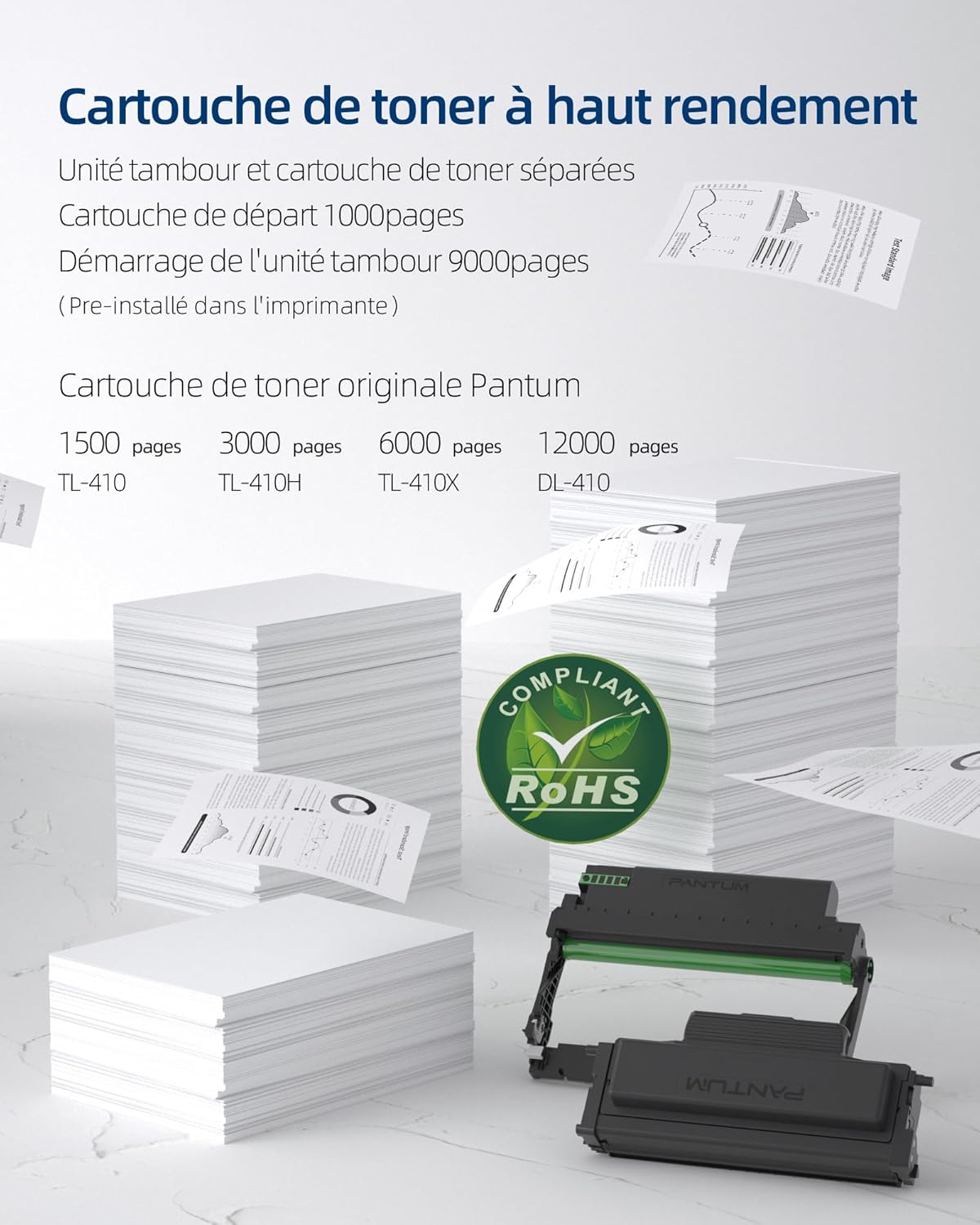
- Starter Toner Cartridge (1000 pages yield)
- Starter Drum Unit (9000 pages yield)
- Cablu USB
- Cablu de alimentare
- Manual de utilizare (acest document)
4. Produs terminatview
The PANTUM P3018DW is a monochrome laser printer designed for efficient printing with automatic duplex capability and wireless connectivity.


5. Configurare
5.1 Despachetarea
- Scoateți imprimanta din ambalaj.
- Îndepărtați toate benzile de protecție și materialele de ambalare de pe exteriorul și interiorul imprimantei.
5.2 Toner Cartridge and Drum Unit Installation
The PANTUM P3018DW uses a separate toner cartridge and drum unit system.
- Deschideți capacul frontal al imprimantei.
- Carefully insert the drum unit into the printer until it clicks into place.
- Unpack the toner cartridge and gently shake it horizontally several times.
- Insert the toner cartridge into the drum unit until it locks securely.
- Închideți capacul frontal.
5.3 Conexiune la alimentare
- Conectați cablul de alimentare la imprimantă și apoi la o priză electrică cu împământare.
- Apăsați butonul de pornire pentru a porni imprimanta.
5.4 Instalarea driverului
The PANTUM P3018DW features a one-step driver installation process.
- Conectați imprimanta la computer folosind cablul USB furnizat.
- The operating system should automatically detect the printer and initiate driver installation. Follow the on-screen prompts.
- Alternatively, download the latest drivers from the official PANTUM website-ul.
5.5 Configurare Wi-Fi
The printer supports easy Wi-Fi configuration for convenient wireless printing.

- Asigurați-vă că imprimanta este pornită.
- Access the printer's control panel or use the PANTUM mobile application for Wi-Fi setup.
- Follow the instructions to connect the printer to your wireless network.
- For Wi-Fi Direct printing, connect your device directly to the printer's Wi-Fi hotspot (SSID and password typically found on a label or the printer's display).
6. Instrucțiuni de utilizare
6.1 Încărcarea hârtiei
- Deschideți tava de hârtie.
- Ajustați ghidajele pentru hârtie la dimensiunea hârtiei pe care o încărcați.
- Load paper into the tray, ensuring it is flat and not exceeding the maximum fill line. The maximum sheet capacity is 250 sheets.
- Închideți tava pentru hârtie.
6.2 Imprimare
The PANTUM P3018DW offers fast monochrome printing at up to 30 pages per minute (A4) or 32 pages per minute (Letter), with a first print out time of less than 7.8 seconds.

Standard Printing
- From your computer or mobile device, open the document you wish to print.
- Selectați „Imprimare” din meniul aplicației.
- Choose the PANTUM P3018DW from the list of available printers.
- Ajustați setările de imprimare după cum este necesar (de exemplu, numărul de copii, dimensiunea hârtiei).
- Faceți clic pe „Imprimare”.
Imprimare duplex automată
The printer supports automatic two-sided printing.

- When printing, select the 'Print on both sides' or 'Duplex Printing' option in your printer settings.
- The printer will automatically flip the paper to print on both sides.
Mobile Printing (PANTUM APP)
Print directly from your smartphone or tablet using the PANTUM APP.


- Download and install the PANTUM APP from your device's app store.
- Ensure your mobile device is connected to the same Wi-Fi network as the printer, or directly to the printer's Wi-Fi hotspot.
- Open the PANTUM APP and select the document or image you wish to print.
- Follow the app's instructions to send the print job to the printer.
7. Întreținere
7.1 Replacing Toner Cartridge and Drum Unit
When the toner is low or the drum unit reaches its end of life, the printer will indicate a replacement is needed. Refer to section 5.2 for installation steps.
Compatible Toner Cartridges:
- TL-410 (1,500 pages)
- TL-410H (3,000 pages)
- TL-410X (6,000 pages)
Compatible Drum Unit:
- DL-410 (12,000 pages)
7.2 Curăţarea imprimantei
Curățarea regulată ajută la menținerea calității imprimării și prelungește durata de viață a imprimantei.
- Opriți imprimanta și deconectați-o de la priză.
- Utilizați o cârpă moale, fără scame dampclătite cu apă pentru a șterge exteriorul imprimantei.
- Nu utilizați agenți de curățare abrazivi sau solvenți.
- For internal cleaning, consult the detailed cleaning instructions on the PANTUM website-ul sau contactați asistența.
8. Depanare
This section provides solutions to common printer issues.
8.1 Imprimanta nu răspunde
- Ensure the printer is powered on and properly connected to the power outlet.
- Check the USB cable connection to the computer or verify Wi-Fi connectivity.
- Reporniți imprimanta și computerul/dispozitivul mobil.
- Check the printer's control panel for any error messages.
8.2 Calitate slabă a imprimării
- Verificați nivelul cartușului de toner și înlocuiți-l dacă este scăzut.
- Ensure the drum unit is properly installed and not damaged.
- Clean the printer's internal components as per maintenance guidelines.
- Use recommended paper types and ensure they are not damp sau curled.
8.3 Blocaje de hârtie
- Opriți imprimanta și deconectați-o.
- Carefully open all covers and remove any jammed paper, pulling in the direction of the paper path.
- Ensure paper is loaded correctly in the tray and not overfilled.
- Folosiți hârtie care îndeplinește specificațiile imprimantei.
9. Specificații
| Caracteristică | Caietul de sarcini |
|---|---|
| Numele modelului | P3018DW |
| Tehnologie de imprimare | Laser |
| Ieșire imprimată | Monocrom |
| Viteză maximă de imprimare (monocrom) | 30 PPM (A4) / 32 PPM (Letter) |
| Prima imprimare | < 7.8 de secunde |
| Rezoluție maximă de imprimare | 1200 dpi |
| Imprimare duplex | Automat |
| Conectivitate | USB, Wi-Fi |
| Dispozitive compatibile | Laptop, PC, Smartphone, Tabletă |
| Sisteme de operare compatibile | Android, Chrome OS (and others via driver) |
| Dimensiune maximă media | 8.5 x 11 inches (A4) |
| Dimensiunea foii | A4 |
| Capacitate maximă de coli | 250 de coli |
| Dimensiuni (D x W x H) | 40.8 cm x 43.3 cm x 29.5 cm |
| Greutatea articolului | 6.8 kilograme |
| Caracteristici speciale | Automatic Duplexing, Automatic Sleep Mode, Two-line LCD Control Panel, NFC Touch Print, Silent Printing, Ethernet Network, Optional High-Capacity Cartridges, Low Paper Jam Design |
10. Garanție și asistență
10.1 Informații despre garanție
The PANTUM P3018DW printer comes with a standard one-year warranty against manufacturing defects from the date of purchase. Please retain your proof of purchase for warranty claims.
10.2 Asistență pentru clienți
For technical assistance, troubleshooting, or warranty inquiries, please visit the official PANTUM website or contact PANTUM Online Customer Service. Support resources, including driver downloads and FAQs, are available online.


