1. Introducere
This manual provides comprehensive instructions for the Vidami Blue Hands Free YouTube Video Looper, a foot pedal controller designed to enhance the learning and practice experience for musicians. It allows for hands-free control of video playback, page turning, and DAW functions, enabling users to focus on their instrument or task without interruption.
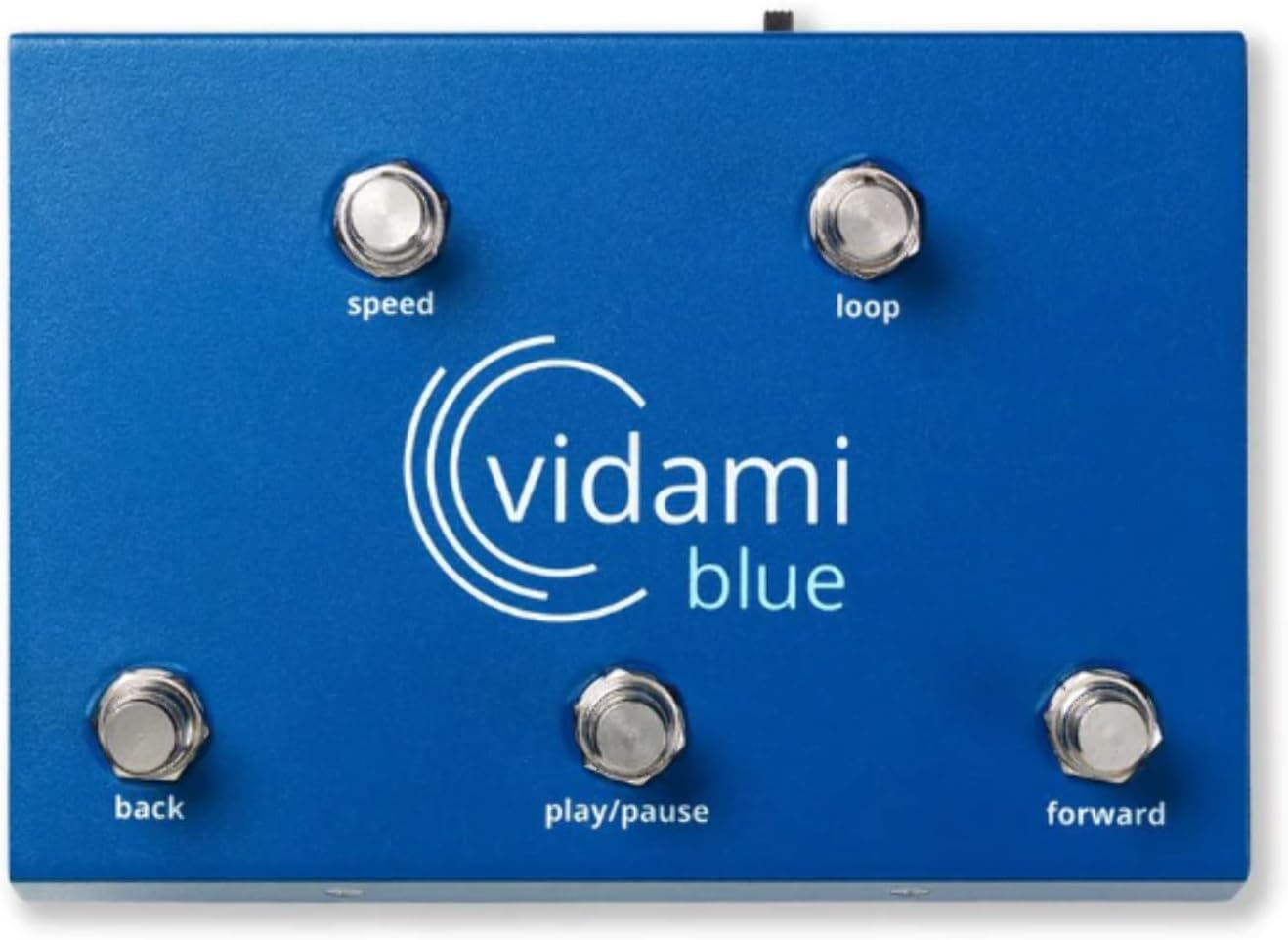
Image 1.1: The Vidami Blue foot pedal, showcasing its five control buttons and the Vidami logo.
2. Ghid de instalare
2.1 Despachetare și inspecție inițială
Upon receiving your Vidami Blue, carefully remove all components from the packaging. Verify that the device is free from any visible damage. The package should contain the Vidami Blue foot pedal and a charging cable.
2.2 Încărcarea dispozitivului
Before first use, ensure the Vidami Blue is fully charged. Connect the provided charging cable to the device and a suitable USB power source. The device's indicator light will show charging status (refer to specifications for light behavior).
2.3 Conectarea prin Bluetooth
The Vidami Blue connects wirelessly via Bluetooth. Follow these steps to pair your device:
- Turn on the Vidami Blue pedal using the power switch.
- On your computer (PC/Mac) or mobile device (iPad/iPhone/Chromebook), navigate to the Bluetooth settings.
- Caută available devices and select "Vidami Blue" from the list.
- Confirm the pairing. The device's indicator light will confirm a successful connection.
Note: For iPad/iPhone compatibility, use the Safari browser only. The Vidami Blue is not compatible with the YouTube app on mobile devices.
2.4 Installing the Browser Extension
To enable full functionality for video control, you must install the Vidami browser extension for Google Chrome (PC/Mac/Chromebook) or Safari (iPad/iPhone). Visit the official Vidami website or your browser's extension store to download and install the appropriate extension. After installation, ensure the extension is enabled in your browser settings.

Image 2.1: A user practicing guitar with the Vidami Blue pedal, demonstrating its hands-free operation with a tablet.
3. Funcționare
The Vidami Blue features five foot switches, each assigned a specific function to provide hands-free control over various applications.

Imaginea 3.1: Detaliată view of the Vidami Blue pedal, illustrating the function of each foot switch.
3.1 Video Control (YouTube.com)
When using YouTube.com in a compatible browser with the Vidami extension enabled, the foot switches provide the following controls:
- Viteză: Adjusts video playback speed. Cycle through various speeds (e.g., 100%, 75%, 50%, 35%, 20%). Custom speed presets can also be configured.
- Buclă: Creates and controls video loops. Press once to set the start point, press again to set the end point and activate the loop. Press a third time to exit the loop.
- Spate: Rewinds the video by a small, configurable increment.
- Redare/Pauză: Toggles video playback between play and pause.
- Redirecţiona: Fast-forwards the video by a small, configurable increment.
Important: The Vidami Blue is designed for use with YouTube.com via a web browser and is not compatible with the YouTube mobile application.
3.2 Page Turning and App Control
The Vidami Blue can also function as a page turner for digital sheet music applications and tab websites. It is compatible with popular apps such as OnSong and forScore, allowing you to scroll through tabs, lyrics, or sheet music hands-free. Specific button assignments for page turning may vary by application and can often be configured within the app's settings.
3.3 DAW Controller Functionality
For music production and recording, the Vidami Blue can integrate with Digital Audio Workstations (DAWs) including GarageBand, Logic Pro, Reaper, Pro Tools, Studio One, Cubase, and Ableton Live. This functionality allows you to control actions such as recording, looping, adding tracks, and setting markers using the foot pedal. Refer to your specific DAW's MIDI or controller setup instructions for configuration details.
3.4 Custom Speed Presets
The Vidami Control Center, accessible via your browser extension, allows you to create and manage custom speed settings. You can define unlimited custom speed presets ranging from 10% to 400% playback speed, enabling precise control over your learning pace.
4. Întreținere
4.1 Curățare
To clean your Vidami Blue, use a soft, dry cloth. For stubborn dirt, a slightly damp Se poate folosi o lavetă cu săpun delicat, asigurându-vă că nu pătrunde lichid în dispozitiv. Evitați substanțele de curățare abrazive sau solvenții.
4.2 Depozitare
Store the device in a cool, dry place away from direct sunlight and extreme temperatures. When not in use for extended periods, ensure the device is turned off to preserve battery life.
4.3 Îngrijirea bateriei
The Vidami Blue contains a rechargeable internal battery. To maximize battery lifespan, avoid fully discharging the battery frequently. Recharge the device when the low battery indicator appears. The internal battery is not user-replaceable.
5. Depanare
If you encounter issues with your Vidami Blue, refer to the following common problems and solutions:
- Dispozitivul nu se conectează prin Bluetooth:
- Asigurați-vă că dispozitivul este pornit și încărcat complet.
- Verify Bluetooth is enabled on your host device (PC, Mac, iPad/iPhone).
- Try unpairing and re-pairing the device in your Bluetooth settings.
- Restart both the Vidami Blue and your host device.
- Foot switches not responding in browser:
- Confirm the Vidami browser extension is installed and enabled.
- Ensure you are on YouTube.com (or another supported website) and not the YouTube app.
- Check for any browser updates or extension conflicts.
- Try reinstalling the browser extension.
- Battery not charging or device not holding charge:
- Ensure the charging cable is securely connected to both the device and the power source.
- Încercați un alt port USB sau adaptor de alimentare.
- If the issue persists, contact customer support as the internal battery is not user-replaceable.
- No input keyboard on iPhone after Bluetooth connection:
- This is a known iOS limitation when an external Bluetooth keyboard-like device is connected. Disconnect the Vidami Blue when typing is required, or use an external keyboard.
6. Specificații
| Caracteristică | Detaliu |
|---|---|
| Numărul de model | 860005446827 |
| Greutatea articolului | 2.05 lire sterline |
| Dimensiuni pachet | 8.86 x 6.54 x 4.25 inci |
| Culoare | Albastru |
| Dispozitive compatibile | iOS, Mac, PC |
| Interfață hardware | Bluetooth |
| Sursa de alimentare | Alimentat cu baterie |
| Voltage | 9 volți |
| Ampepoca | 300 Miliamps |
| Compatibilitatea sistemelor de operare | Compatibil cu mai multe sisteme de operare |
7. Garanție și asistență
7.1 Garanția produsului
For detailed information regarding the product warranty, please refer to the official Vidami website or the warranty card included with your purchase. Warranty terms typically cover manufacturing defects under normal use conditions.
7.2 Asistență pentru clienți
If you require further assistance, have questions not covered in this manual, or need technical support, please contact Vidami customer service. Contact information can usually be found on the official Vidami website or through your purchase platform (e.g., Amazon seller "Vidami USA").
Online resources, including FAQs and additional setup guides, may also be available on the Vidami website-ul.


