Introducere
This manual provides detailed instructions for the setup, operation, and maintenance of your Pantum M6550NW/M6552NW Monochrome Multifunction Laser Printer. Please read this manual thoroughly before using the printer to ensure proper and safe operation.

Imagine: față view of the Pantum M6550NW/M6552NW Monochrome Multifunction Laser Printer.
Produs terminatview
The Pantum M6550NW/M6552NW is a versatile monochrome laser printer designed for efficient printing, copying, and scanning. It features wireless and Ethernet networking capabilities, a compact design, and an intuitive LCD control panel.
Caracteristici cheie
- Print, Copy, Scan functionality
- USB, Network, and Wireless connectivity
- 20,000-page monthly duty cycle
- 150 sheets input tray capacity
- Up to 23 letter pages per minute print speed
- Alimentator automat de documente (ADF)
- LCD Control Panel for easy operation
- One-step driver installation
- Suport mobil pentru imprimare

Image: Diagram showing key components of the printer, including the All-in-One Toner Cartridge slot, Paper Input Tray, Auto Document Feeder, LCD Control Panel, and highlighting its small footprint and networking capabilities.
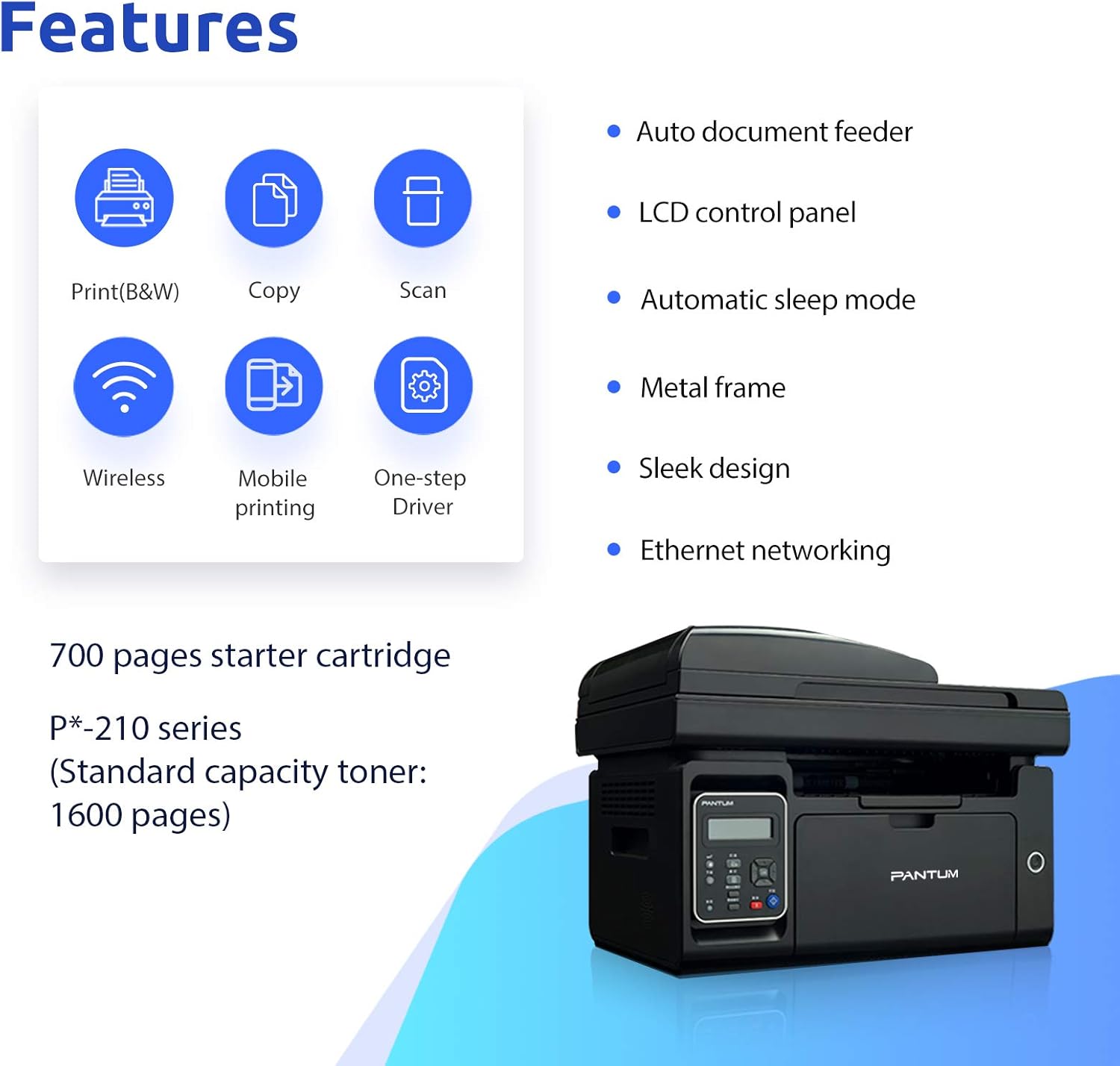
Image: Visual representation of the printer's core features: Print (B&W), Copy, Scan, Wireless, Mobile printing, and One-step Driver installation. Also notes the 700-page starter cartridge and P*-210 series standard capacity toner (1600 pages).
Înființat
Follow these steps for the initial setup of your printer.
1. Despachetarea și verificarea componentelor
Carefully remove the printer from its packaging. Verify that all included components are present:
- Pantum M6550NW/M6552NW Printer
- Cablu de alimentare
- Cablu de interfață USB
- Cartuș de toner de pornire
- Ghid de instalare rapidă
- CD-ROM (for drivers and software)

Image: Contents typically found in the printer box, including the printer, power cord, USB cable, starter cartridge, quick setup guide, and CD-ROM.
2. Instalarea cartușului de toner
Before first use, install the toner cartridge. Refer to the quick setup guide for specific instructions, but generally, this involves:
- Deschideți capacul frontal al imprimantei.
- Carefully unpackage the toner cartridge.
- Remove any protective seals or tapes from the cartridge.
- Introduceți cartuşul în fanta desemnată până când se fixează cu un clic.
- Închideți capacul frontal.

Image: Step-by-step visual guide for installing the toner cartridge: 1) Take out the cartridge, 2) Remove the seal, 3) Install the cartridge.
3. Conexiune la alimentare
Conectați cablul de alimentare la imprimantă și apoi la o priză electrică cu împământare.
4. Instalarea driverelor și conectivitate
Install the printer drivers from the included CD-ROM or download the latest drivers from the official Pantum website. You can connect the printer via USB, Wi-Fi, or wired network.
- Conexiune USB: Conectați imprimanta la computer folosind cablul USB furnizat.
- Conexiune Wi-Fi: Follow the on-screen instructions on the printer's LCD panel or use the setup wizard on your computer to connect to your wireless network. The printer supports Wi-Fi Hotspot direct connection.
- Conexiune la rețea prin cablu: Conectați un cablu Ethernet de la imprimantă la routerul sau switch-ul de rețea.

Image: Illustrations demonstrating the three easy driver installation and connection methods: USB, Wi-Fi, and wired network.
Instrucțiuni de operare
Utilizarea panoului de control LCD
The LCD control panel allows you to navigate printer functions, view status, and configure settings. Use the arrow keys and OK button to make selections.

Imagine: Prim-plan view of the printer's LCD control panel, showing buttons for navigation, status, copy functions, and start/cancel.
Imprimare
Pentru a imprima un document:
- Asigurați-vă că imprimanta este pornită și conectată la dispozitiv.
- Încărcați hârtie în tava de alimentare.
- De pe computer sau de pe dispozitivul mobil, deschideți documentul pe care doriți să îl imprimați.
- Selectați opțiunea de imprimare (de obicei File > Imprimare).
- Choose the Pantum M6550NW/M6552NW from the list of available printers.
- Ajustați setările de imprimare (de exemplu, numărul de copii, dimensiunea hârtiei, calitatea) după cum este necesar.
- Faceți clic pe „Imprimare”.
For mobile printing, download the Pantum app. It supports direct printing from your smartphone or tablet via Wi-Fi.

Image: Screenshot of the Pantum mobile application interface, demonstrating its capabilities for printing documents (Word, PDF, PPT, Excel, TXT) and scanning, highlighting easy wireless and mobile printing.
Copierea
Pentru a face o copie:
- Așezați documentul cu fața în jos pe geamul scanerului sau cu fața în sus în alimentatorul automat de documente (ADF).
- Pe panoul de control, selectați funcția „Copiere”.
- Adjust settings such as number of copies, copy quality, or enlargement/reduction if available.
- Apăsați butonul „Start” pentru a începe copierea.
Scanare
Pentru a scana un document:
- Așezați documentul cu fața în jos pe geamul scanerului sau cu fața în sus în ADF.
- From your computer, open the scanning software (usually installed with the printer drivers) or use the Pantum app on your mobile device.
- Select the "Scan" function.
- Alegeți setările de scanare, cum ar fi rezoluția, modul de culoare și folderul de destinație.
- Click "Scan" to start the process.
Întreţinere
Întreținerea regulată asigură performanțe optime și prelungește durata de viață a imprimantei dumneavoastră.
Curățarea imprimantei
- Ștergeți exteriorul imprimantei cu o lavetă moale șiamp, cârpă fără scame.
- Periodically clean the scanner glass with a glass cleaner applied to a cloth (not directly to the glass).
- Nu utilizați agenți de curățare abrazivi sau solvenți.
Înlocuire cartuş de toner
When the toner is low or empty, the printer's LCD panel will display a message. Replace the cartridge as follows:
- Asigurați-vă că imprimanta este pornită.
- Deschideți capacul frontal.
- Scoateți cu grijă cartușul de toner vechi.
- Unpack the new Pantum P*-210 series toner cartridge and remove all protective materials.
- Introduceți ferm noul cartuș până când se blochează în poziție.
- Închideți capacul frontal.
Eliminați cartușele de toner uzate conform reglementărilor locale.
Depanare
Această secțiune abordează problemele frecvente pe care le-ați putea întâmpina.
Imprimanta nu răspunde
- Verificați dacă imprimanta este pornită și dacă cablul de alimentare este conectat corect.
- Verify the USB cable is properly connected to both the printer and the computer, or that the Wi-Fi/Ethernet connection is active.
- Reporniți atât imprimanta, cât și computerul/dispozitivul.
- Ensure the correct printer driver is installed and selected as the default printer.
Calitate slabă a imprimării
- Check the toner level and replace the cartridge if it's low.
- Asigurați-vă că utilizați hârtie adecvată pentru imprimarea laser.
- Clean the printer's internal components as per the maintenance section if streaks or smudges appear.
Connectivity Issues (Wi-Fi/Network)
- Asigurați-vă că imprimanta se află în raza de acțiune a routerului wireless.
- Verificați dacă parola Wi-Fi introdusă este corectă.
- Reporniți routerul și imprimanta.
- Check your network settings on both the printer and your computer.
- If using a wired connection, ensure the Ethernet cable is securely plugged in.
Specificații
| Caracteristică | Detaliu |
|---|---|
| Model | M6550NW/M6552NW |
| Funcții | Imprimare, copiere, scanare |
| Tehnologia de imprimare | Laser (Monocrom) |
| Viteză maximă de imprimare (monocrom) | 23 ppm (Scrisoare) |
| Rezoluție maximă de imprimare | 1200 x 1200 DPI |
| Tip scaner | Cearșaf |
| Rezoluția scanerului | 1200 x 1200 DPI |
| Conectivitate | USB 2.0, Wi-Fi, Ethernet |
| Capacitatea tavii de intrare | 150 de coli |
| Dispozitive compatibile | Smartphone-uri (Android, iOS) |
| Dimensiunile produsului | 16.42 x 12.01 x 11.85 cm |
| Greutatea articolului | 9.02 kg |
| Componente incluse | USB cable, Starter Toner Cartridge |
Garanție și suport
For warranty information and technical support, please refer to the documentation included with your printer or visit the official PANTUM webPăstrați bonul fiscal ca dovadă a achiziției pentru reclamații în garanție.


