1. Introducere
The Xiaomi Mesh System AX3000 (Pack of 2) is designed to provide comprehensive Wi-Fi 6 coverage for complex home layouts, extending up to 370 m². This system comes pre-configured from the factory, ensuring a straightforward setup process and immediate readiness for use.
2. Informații de siguranță
- Asigurați-vă că dispozitivul este plasat într-o zonă bine ventilată pentru a preveni supraîncălzirea.
- Folosiți doar adaptorul de alimentare original furnizat împreună cu dispozitivul.
- Păstrați dispozitivul departe de apă, foc și temperaturi ridicate.
- Nu încercați să dezasamblați sau să reparați dispozitivul singur. Contactați personalul de service calificat pentru asistență.
- Avoid placing the device near strong electromagnetic fields.
3. Conținutul pachetului
Verificați dacă toate articolele sunt prezente în colet:
- 2 x Xiaomi Mesh System AX3000 Base Units
- 2 x adaptoare de alimentare
- 1 x cablu Ethernet
- 1 x Ghid de utilizare
4. Produs terminatview
4.1. Aspectul dispozitivului
The Xiaomi Mesh System AX3000 units feature a sleek, minimalist design. Each unit is equipped with status indicators and essential ports for connectivity.

Faţă view of the two Xiaomi Mesh System AX3000 units included in the pack.
4.2. Porturi și indicatori
Each unit includes multiple Ethernet ports, a power input, and a reset button. The front panel features an LED indicator to show the device's status.
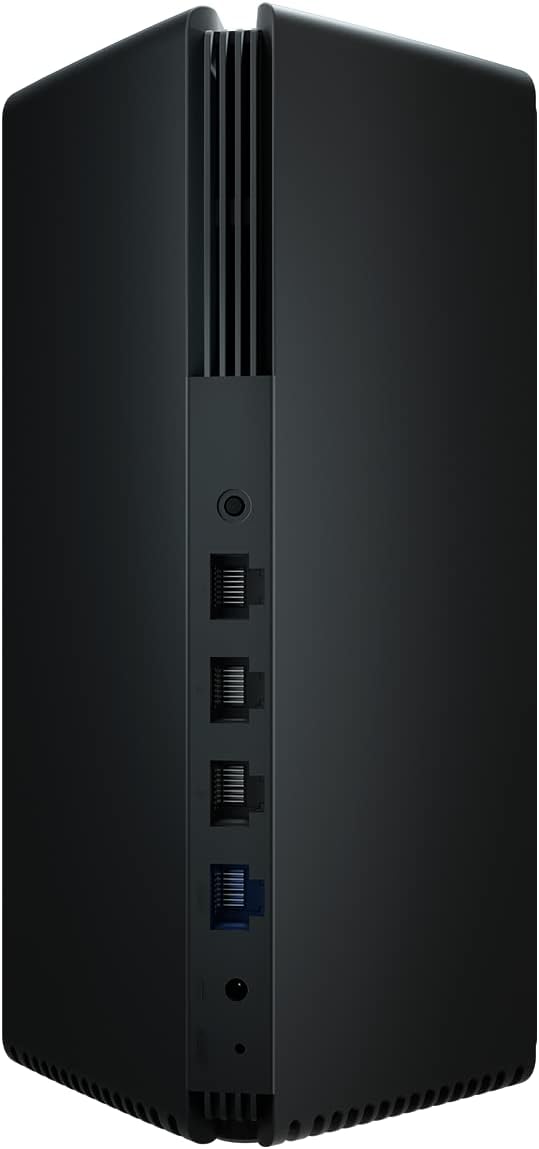
Detail of the rear panel of a Xiaomi Mesh System AX3000 unit, highlighting the Ethernet ports, power connector, and reset button.
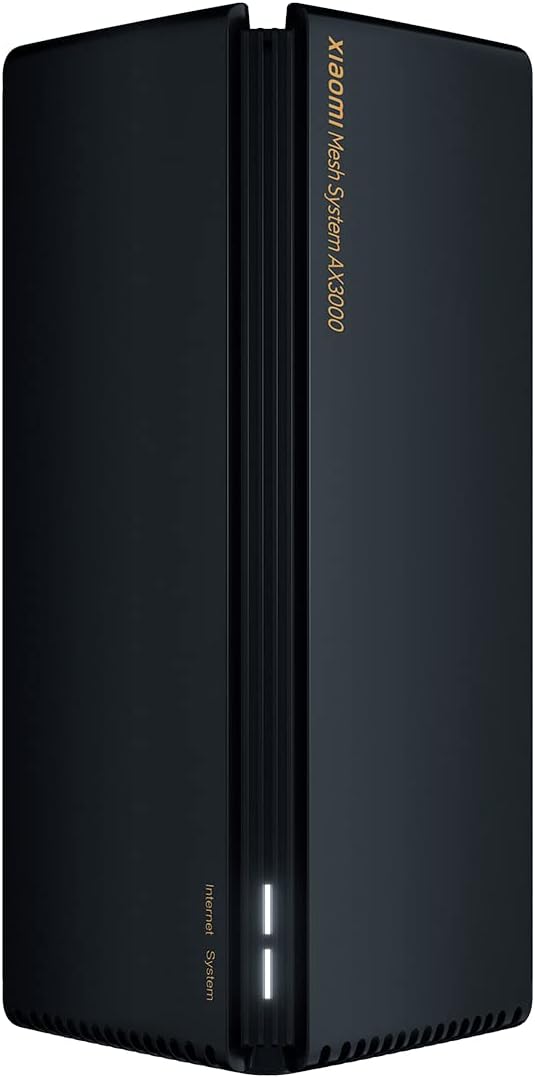
A single Xiaomi Mesh System AX3000 unit, showcasing its sleek design and front status indicator.
5. Instrucțiuni de configurare
5.1. Initial Setup (Main Unit)
- Conectați unitatea principală: Connect one of the Mesh System units to your internet modem or router using the provided Ethernet cable. Plug one end into the WAN port (usually blue) of the Mesh unit and the other end into a LAN port on your modem/router.
- Pornire: Connect the power adapter to the main Mesh unit and plug it into a power outlet. Wait for the unit to power on and the indicator light to turn solid white (or blue, depending on the model, indicating a stable connection).
- Descărcați aplicația: Download the Xiaomi Home or Mi Home app from your smartphone's app store.
- Configurare prin aplicație: Open the app, create an account if you don't have one, and follow the on-screen instructions to add your new Mesh System. The app will guide you through setting up your Wi-Fi network name (SSID) and password.
5.2. Mesh Network Setup (Secondary Unit)
- Plasare: Place the second Mesh unit in an area where you need extended Wi-Fi coverage, ideally within range of the main unit. Avoid obstructions like thick walls or large metal objects.
- Pornire: Connect the power adapter to the secondary Mesh unit and plug it into a power outlet.
- Împerecherea automată: The secondary unit will automatically detect and pair with the main unit. The indicator light will change to reflect a successful mesh connection (e.g., solid white/blue). This process typically takes a few minutes.
- Verificați conexiunea: Use the Xiaomi Home/Mi Home app to verify that both units are connected and functioning correctly within the mesh network.

The Xiaomi Home/Mi Home application interface on a smartphone, used for managing the Mesh System AX3000 network and connected devices.
6. Instrucțiuni de utilizare
6.1. Conectarea dispozitivelor
Once your Mesh System is set up, devices can connect to the Wi-Fi network using the SSID and password you configured. The mesh system ensures seamless roaming between units, providing a consistent signal throughout your coverage area.
6.2. Network Management via App
The Xiaomi Home/Mi Home app allows you to:
- View dispozitivele conectate și utilizarea rețelei de către acestea.
- Change Wi-Fi settings (SSID, password, security type).
- Efectuați actualizări de firmware.
- Configurați controale parentale sau rețele pentru oaspeți.
- Monitorizați starea rețelei și depanați problemele.
6.3. Caracteristici avansate
- OFDMA Transmission: This technology enables high-efficiency data transmission, allowing the system to process data streams from multiple devices simultaneously, improving overall network performance.
- Timpul țintă de trezire (TWT): TWT allows devices to negotiate when and how often they will wake up to send or receive data. This reduces power consumption for connected devices, especially IoT devices, by keeping them in standby mode until a transmission signal is received.
7. Întreținere
- Actualizări firmware: Regularly check for and install firmware updates via the Xiaomi Home/Mi Home app to ensure optimal performance, security, and access to new features.
- curatenie: Gently wipe the exterior of the units with a soft, dry cloth. Do not use liquid cleaners or abrasive materials. Ensure ventilation slots are free from dust.
- Plasare optimă: Periodic review the placement of your mesh units to ensure they are in central locations, away from major obstructions, and not too close to other electronic devices that might cause interference.
8. Depanare
8.1. Probleme comune și soluții
- Fără conexiune internet:
- Check if your modem/router is working correctly.
- Ensure the Ethernet cable between the main Mesh unit and your modem is securely connected.
- Restart both your modem/router and the Mesh System units.
- Semnal Wi-Fi slab:
- Relocate the secondary Mesh unit closer to the main unit or to a more central location.
- Ensure there are no major physical obstructions (e.g., concrete walls, large appliances) between the units.
- Verificați dacă există surse de interferență (de exemplu, cuptoare cu microunde, telefoane fără fir).
- Nu se poate conecta la Wi-Fi:
- Verify that you are using the correct Wi-Fi network name (SSID) and password.
- Restart your device (smartphone, laptop, etc.).
- Try connecting to a different Wi-Fi network to rule out device-specific issues.
8.2. Resetare din fabrică
If you encounter persistent issues, you may need to perform a factory reset. Locate the reset button on the rear of the unit (often a small pinhole). With the unit powered on, use a paperclip to press and hold the reset button for approximately 5-10 seconds until the indicator light changes, then release. The unit will restart with factory default settings, requiring re-configuration.
9. Specificații
| Caracteristică | Caietul de sarcini |
|---|---|
| Marca | XIAOMI |
| Numele modelului | XIAOMI Mesh System AX3000 (2-pack) |
| Numărul de model al articolului | 33592 |
| Comunicare wireless standard | 802.11ac, 802.11ax, 802.11n (Wi-Fi 6) |
| Clasa de bandă de frecvență | Bandă dublă |
| Tehnologia de conectivitate | Ethernet, Wi-Fi |
| Caracteristica specială | WPS (Configurare protejată prin Wi-Fi) |
| Dispozitive compatibile | Compatible with any type of internet box or router |
| Utilizări recomandate | Acasă |
| Componente incluse | 2x Xiaomi Mesh System AX3000 Base, Power Adapter, Ethernet Cable, User Guide |
| Producător | XIAOMI |
10. Garanție și asistență
10.1. Garanția producătorului
Acest produs este acoperit de a Garanție de 24 luni de la producător de la data achiziției. Vă rugăm să păstrați dovada achiziției pentru reclamațiile în garanție.
10.2. Actualizări software
Software updates for this device are guaranteed until 13 aprilie 2030. Ensure your device is connected to the internet and check the Xiaomi Home/Mi Home app regularly for available updates.
10.3. Asistență pentru clienți
For technical assistance, troubleshooting beyond this manual, or warranty inquiries, please visit the official Xiaomi support website or contact their customer service. Refer to the packaging or official website pentru date de contact specifice din regiunea dvs.


