1. Introducere
Thank you for choosing the seenda Bluetooth Keyboard ISJ-DJC04-2. This manual provides detailed instructions for setting up, operating, and maintaining your keyboard. Please read this manual thoroughly before use to ensure optimal performance and longevity of your device.
Caracteristici cheie:
- Conectivitate cu mai multe dispozitive: Connects to up to 3 devices simultaneously via Bluetooth.
- Iluminare de fundal RGB: Features 7 LED backlight colors and 3 adjustable brightness levels for comfortable typing in various lighting conditions.
- Universal Compatibilitate: Supports Windows, Mac OS, Android, and iPad OS.
- Comfortable and Quiet Typing: Ergonomic design with scissor-switch keys for a precise and silent typing experience.
- Baterie reîncărcabilă: Built-in 1500mAh lithium battery, rechargeable via Type-C port.
2. Configurare
2.1 Conținutul pachetului
- seenda Bluetooth Keyboard ISJ-DJC04-2
- Cablu de încărcare USB-C
- Manual de utilizare
2.2 Încărcare inițială
Before first use, fully charge the keyboard. Connect the provided USB-C cable to the keyboard's charging port and the other end to a USB power source (e.g., computer, USB wall adapter). The charging indicator light will show the charging status.
2.3 Pornire/Oprire
Locate the power switch on the keyboard. Slide it to the 'ON' position to power on the keyboard. Slide it to the 'OFF' position to power off.
2.4 Împerecherea cu dispozitive
The keyboard supports connecting to three different devices. Follow these steps to pair your keyboard:
- Porniți tastatura.
- Țineți apăsat butonul Fn și una dintre tastele canalului Bluetooth (BT1, BT2, sau BT3) timp de 3-5 secunde, până când indicatorul luminos corespunzător clipește rapid. Aceasta indică faptul că tastatura este în modul de asociere.
- Pe dispozitivul dvs. (computer, tabletă, smartphone), activați Bluetooth și căutați dispozitivele disponibile.
- Select "seenda Keyboard" or a similar name from the list of found devices.
- If prompted, enter the pairing code displayed on your screen using the keyboard and press Intră.
- Once paired, the indicator light will stop flashing and remain solid for a few seconds before turning off. The keyboard is now connected.
Repeat these steps for up to two additional devices using the other Bluetooth channel keys (BT2, BT3).
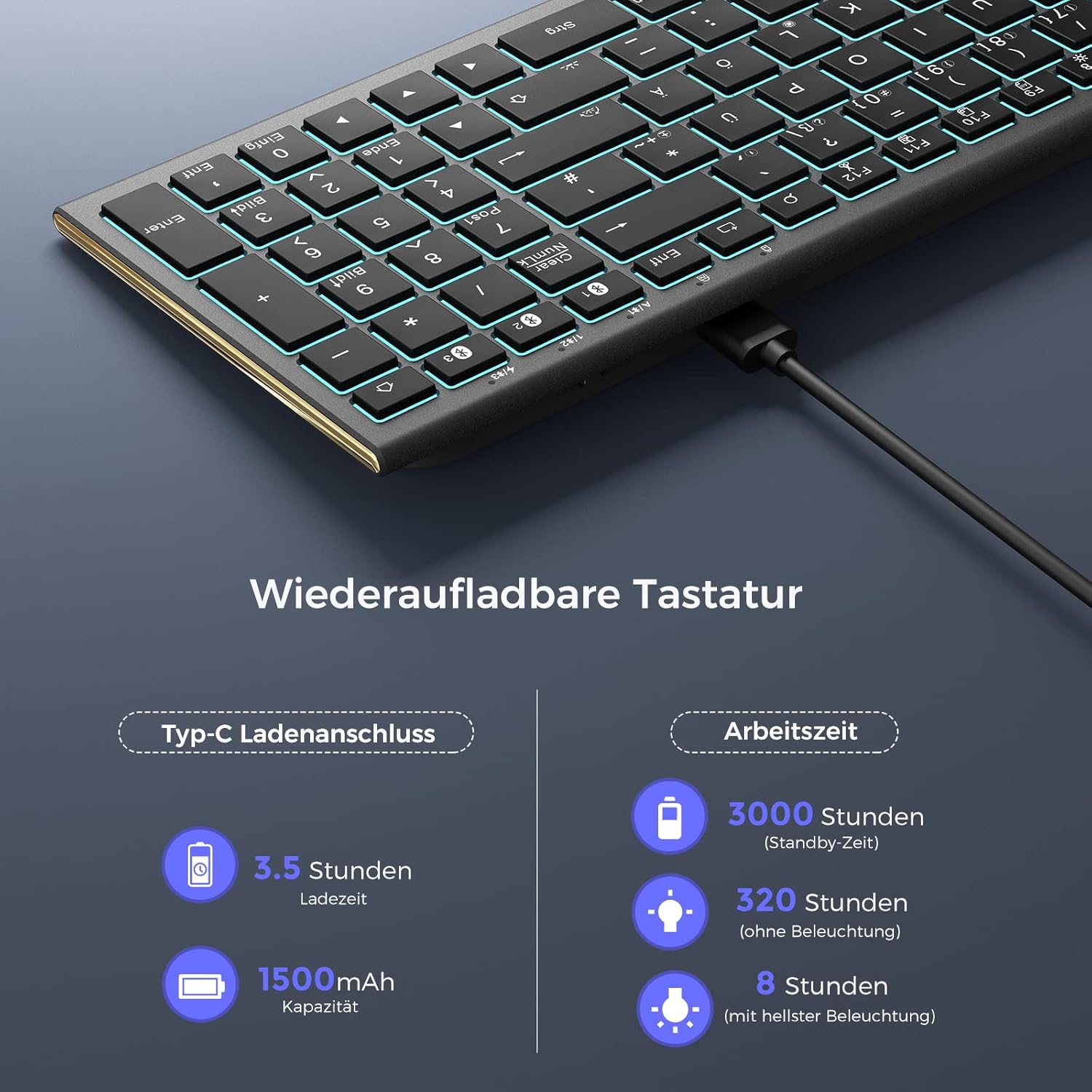
Image: Bluetooth connection diagram, illustrating how the keyboard connects to three separate devices (laptop, desktop, tablet) using distinct Bluetooth channels.
3. Instrucțiuni de utilizare
3.1 Comutarea între dispozitivele conectate
To switch between your paired devices, simply press the Fn tasta împreună cu tasta canalului Bluetooth corespunzător (BT1, BT2, sau BT3) that your desired device is paired to. The keyboard will automatically connect to the selected device.

Image: Multi-device switching, demonstrating the use of Fn + BT1/BT2/BT3 keys to seamlessly transition between three connected Bluetooth devices.
3.2 Control iluminare de fundal
The keyboard features 7 different backlight colors and 3 brightness levels.
- Activare/dezactivare iluminare de fundal: Presa Fn + Light Bulb icon key pentru a activa sau dezactiva iluminarea de fundal.
- Reglați luminozitatea: Presa Fn + Light Bulb icon key repeatedly to cycle through 3 brightness levels.
- Schimbați culoarea iluminării de fundal: Presa Fn + RGB icon key to cycle through the 7 available backlight colors.

Image: Backlight controls, showing the specific key combinations (Fn + Light Bulb icon, Fn + RGB icon) for adjusting backlight brightness and cycling through colors.
3.3 Multimedia and Shortcut Keys
The keyboard includes dedicated function keys that can be used as multimedia controls or system shortcuts when combined with the Fn key. The specific functions may vary slightly depending on your operating system (Windows, Mac OS, Android, iPad OS).
| Combinație de taste | Funcţie |
|---|---|
| Fn + F1 | Mut |
| Fn + F2 | Reducerea volumului |
| Fn + F3 | Creșterea volumului |
| Fn + F4 | Piesa anterioară |
| Fn + F5 | Redare/Pauză |
| Fn + F6 | Următoarea piesă |
| Fn + F7 | Scăderea luminozității |
| Fn + F8 | Luminozitate crescută |
| Fn + F9 | Selectați Toate |
| Fn + F10 | Copie |
| Fn + F11 | Pastă |
| Fn + F12 | Tăiați |
| Fn + Search icon | Caută |
| Fn + Screenshot icon | Captură de ecran |
| Fn + Ștergere | Şterge |

Image: Multimedia and shortcut keys, detailing the functions of the F-keys when used with the Fn modifier key.
4. Întreținere
4.1 Încărcarea tastaturii
When the battery is low, the low battery indicator light on the keyboard will flash. Connect the keyboard to a power source using the USB-C cable to recharge. A full charge takes approximately 3.5 hours.
- Capacitate baterie: 1500mAh
- Timp de încărcare: Aproximativ 3.5 ore
- Timp de așteptare: Până la 3000 ore
- Working Time (without backlight): Până la 320 ore
- Working Time (with brightest backlight): Până la 8 ore

Image: Rechargeable keyboard, highlighting the Type-C charging port and providing details on charging time and battery life under different usage conditions.
4.2 Curățare
Pentru a curăța tastatura, opriți-o și deconectați-o de la orice dispozitiv. Folosiți o lavetă moale, fără scame, ușor umedă.ampened with water or a mild cleaning solution. Avoid excessive moisture and do not spray cleaners directly onto the keyboard. For dust and debris between keys, use compressed air.
5. Depanare
If you encounter issues with your keyboard, please refer to the following common problems and solutions:
- Tastatura nu se conectează:
- Asigurați-vă că tastatura este pornită și complet încărcată.
- Asigurați-vă că Bluetooth este activat pe dispozitiv.
- Asigurați-vă că tastatura este în modul de asociere (indicatorul luminos clipește).
- Try unpairing and re-pairing the keyboard on your device.
- Ensure the correct Bluetooth channel (BT1, BT2, or BT3) is selected for your device.
- Tastele nu răspund:
- Check the battery level and charge the keyboard if necessary.
- Asigurați-vă că tastatura este conectată corect la dispozitiv.
- Reporniți dispozitivul și tastatura.
- Lumina de fundal nu funcționează:
- Asigurați-vă că iluminarea de fundal este activată folosind Fn + Light Bulb icon key.
- Check the battery level; low battery might disable backlighting.
- Intrare cu întârziere sau întârziere:
- Ensure there are no strong interferences (e.g., other wireless devices) nearby.
- Mutați tastatura mai aproape de dispozitiv.
- Asigurați-vă că driverele Bluetooth ale dispozitivului dvs. sunt actualizate.
6. Specificații
| Caracteristică | Detaliu |
|---|---|
| Marca | seenda |
| Model | ISJ-DJC04-2 |
| Tehnologia de conectivitate | Bluetooth (Version 5.1 and higher) |
| wireless Range | Până la 10 metri |
| Dispozitive compatibile | Computer, Laptop, Smartphone, Tablet |
| Sisteme de operare | Windows, Mac OS, Android, iPad OS |
| Descrierea tastaturii | Multifuncțional |
| Caracteristici speciale | Ergonomic, Shortcut and multimedia keys, Rechargeable, Backlit (RGB) |
| Culori iluminare de fundal | 7 culori RGB |
| Niveluri de luminozitate | 3 nivele |
| Sursa de alimentare | Battery Powered (Lithium metal) |
| Capacitatea bateriei | 1500mAh |
| Port de încărcare | Tip-C |
| Tip comutator | Comutator cu foarfece |
| Aspectul tastaturii | QWERTZ |
| Utilizare recomandată | Birou |
7. Garanție și asistență
Pentru informații despre garanție și asistență pentru clienți, vă rugăm să consultați documentația furnizată odată cu achiziția sau să contactați direct distribuitorul/producătorul. Păstrați dovada achiziției pentru reclamații în garanție.


