Rapoo Multi-Device Silent Wireless Mouse User Manual
Model: M300G
Produs terminatview
This manual provides detailed instructions for the Rapoo Multi-Device Silent Wireless Mouse. This mouse is designed for versatile use across multiple devices, offering silent clicks, adjustable DPI, and an ergonomic design for comfortable, extended use.
Caracteristicile cheie includ:
- Multi-device connectivity (USB receiver or Bluetooth) for up to 3 devices.
- Silent click design for a quiet working environment.
- 4 adjustable DPI levels (600/1000/1300/1600) for precise control.
- Ergonomic design for right-hand comfort.
- High precision optical engine for use on various surfaces.
- Extended battery life with low-power technology.
Video demonstrativ de produs
Video: An official product video demonstrating the features and usage of the Rapoo Multi-Device Bluetooth Mouse, including its silent clicks and multi-mode connectivity.
Ghid de instalare
1. Conținutul pachetului
Asigurați-vă că toate articolele sunt prezente în colet:
- Rapoo Multi-Device Silent Wireless Mouse
- USB Receiver (usually stored inside the mouse)
- Manual de utilizare
2. Instalarea bateriei
The mouse uses one AA battery (not included). Open the battery compartment on the bottom of the mouse and insert the battery, ensuring correct polarity.
3. Conectarea mouse-ului
The Rapoo Multi-Device Mouse supports three connection modes: Bluetooth 3.0, Bluetooth 4.0, and 2.4G Wireless (via USB receiver). You can switch between these modes using the button on the bottom of the mouse.
3.1. Conexiune wireless 2.4G (receptor USB)
- Locate the USB receiver, typically stored in a slot on the bottom of the mouse.
- Conectați receptorul USB la un port USB disponibil de pe computer.
- Porniți mouse-ul folosind comutatorul de alimentare din partea de jos.
- The mouse should automatically connect. No driver installation is usually required.

Image: The Rapoo mouse connected to a laptop via its 2.4G USB receiver, illustrating the wireless connection.
3.2. Bluetooth Connection (Bluetooth 3.0 / Bluetooth 4.0)
- Turn on the mouse power switch.
- Press the Bluetooth connection switch button on the bottom of the mouse to select either Bluetooth 1 or Bluetooth 2 channel. The corresponding indicator light (blue or green) will flash slowly.
- Long press the Bluetooth button for more than 3 seconds to start pairing. The indicator light will flash rapidly.
- On your device (laptop, tablet, or smartphone), go to Bluetooth settings and search for new devices.
- Select "RAPOO BT3.0 Mouse" or "RAPOO BleMouse" (Bluetooth 4.0) from the list of available devices to pair.
- Odată conectat, indicatorul luminos va înceta să clipească.

Image: A diagram illustrating the steps to connect the Rapoo mouse via Bluetooth 3.0 or 4.0, showing the pairing process with indicator lights.
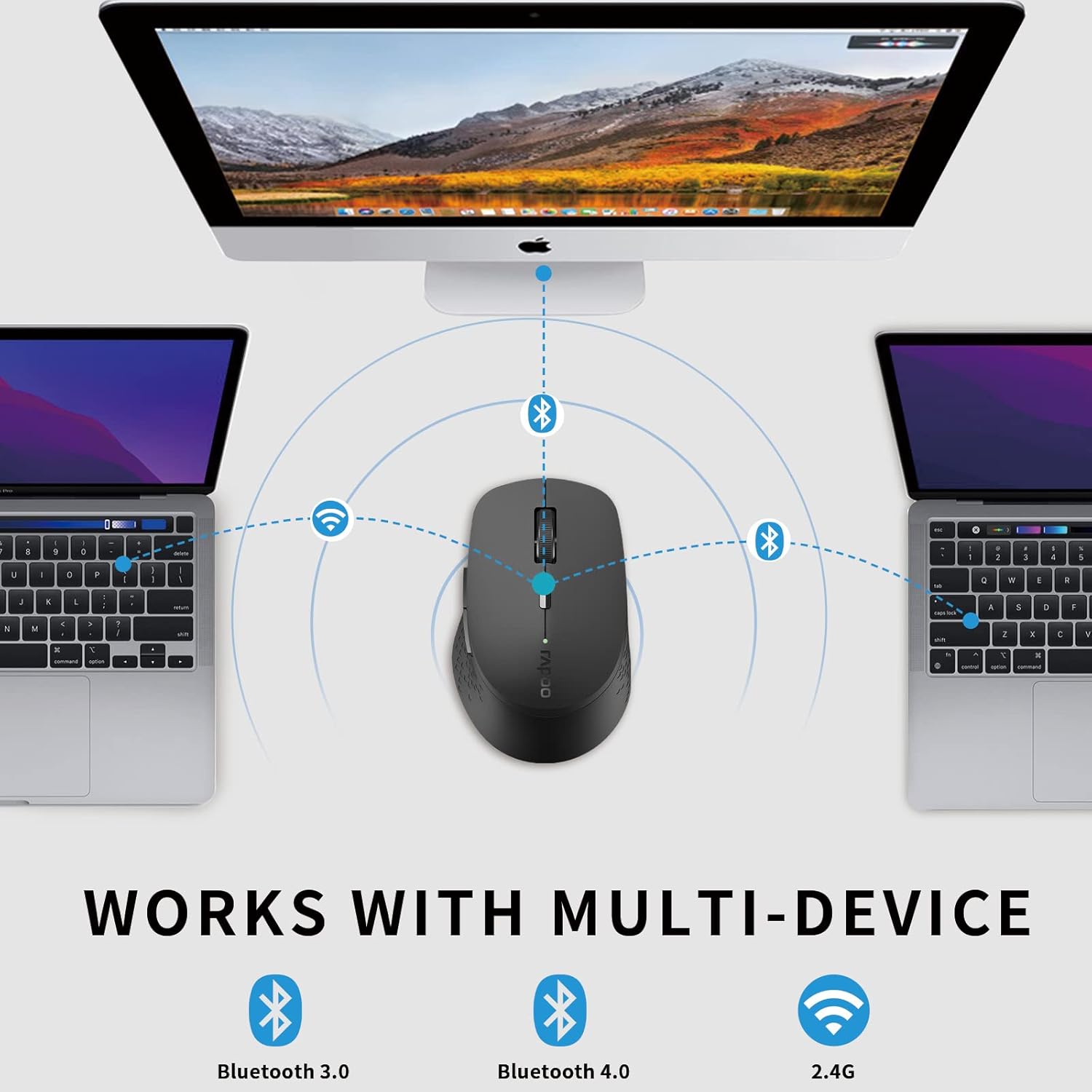
Image: An illustration demonstrating the multi-device capability of the Rapoo mouse, connecting to two laptops via Bluetooth and a desktop via 2.4G wireless.
Instrucțiuni de operare
1. Funcții butoane

Image: A labeled diagram showing the functions of each button on the Rapoo mouse, including left/right click, scroll wheel, DPI switch, multi-device indicator, and forward/backward buttons.
- Butonul stânga pentru clic: Selecție și activare standard.
- Buton clic dreapta: Deschide meniurile contextuale.
- Rotiță de defilare: Derulează prin documente și web pagini. Poate fi apăsat și pentru funcționalitatea clicului din mijloc.
- Buton comutare DPI: Cycles through DPI settings (600/1000/1300/1600).
- Multi-device Conversion Indicator: Shows the currently active device channel.
- Buton înainte: Navighează înainte în web browsere sau file exploratori.
- Buton înapoi: Navighează înapoi în web browsere sau file exploratori.
2. Comutarea între dispozitive
To switch between connected devices (up to 3), short press the Bluetooth connection switch button on the bottom of the mouse. The indicator light will change to reflect the active channel (Bluetooth 1, Bluetooth 2, or 2.4G wireless).
3. Reglarea DPI-ului (sensibilității)
Press the DPI switch button located behind the scroll wheel to cycle through the four available DPI settings: 600, 1000, 1300, and 1600. Choose the sensitivity that best suits your task and screen resolution.

Image: A visual representation of the adjustable DPI settings (600, 1000, 1300, 1600) for the Rapoo mouse, indicating how cursor sensitivity can be changed.
4. Funcția de clic silențios
The mouse features a silent click design, reducing click noise by 90%. This allows for a quiet working environment, ideal for offices, libraries, or late-night use.

Image: The Rapoo mouse highlighting its noiseless and durable click feature, with a sleeping baby in the background to emphasize the quiet operation.
5. Design ergonomic
The mouse is ergonomically designed for right-hand users, with a flat radian that fits the curve of the hand, reducing fatigue during prolonged use.

Imagine: O imagine de sus în jos view of the black Rapoo Bluetooth mouse, showcasindatorită formei sale ergonomice.
Întreţinere
1. Curatenie
Pentru a curăța mouse-ul, folosiți o lavetă moale și uscată. Pentru murdăria persistentă, ștergeți ușor.ampClătiți laveta cu apă sau o soluție de curățare delicată. Evitați utilizarea substanțelor chimice dure sau a materialelor abrazive.
2. Înlocuirea bateriei
When the mouse's performance degrades or the low battery indicator (if present) activates, replace the AA battery. Ensure the power switch is off before replacing the battery.

Image: The Rapoo mouse illustrating its low power consumption, indicating an extended battery life of up to 12 months.
3. Depozitare
When not in use for extended periods, turn off the mouse to conserve battery life. Store the USB receiver inside the mouse's dedicated slot to prevent loss.
Depanare
| Problemă | Cauza posibila | Soluţie |
|---|---|---|
| Șoarecele nu răspunde | Low battery; Power switch off; USB receiver disconnected; Bluetooth not paired. | Replace battery; Turn on power switch; Re-insert USB receiver; Re-pair Bluetooth. |
| Mișcarea cursorului întârziată sau neregulată | Interference; Dirty optical sensor; Mouse used on unsuitable surface. | Move closer to receiver/device; Clean optical sensor; Use on a flat, non-reflective surface or mouse pad. |
| Nu se poate comuta între dispozitive | Incorrect button press; Device not properly paired. | Ensure short press of the multi-device switch button; Verify all devices are paired correctly. |
| Asocierea Bluetooth eșuează | Mouse not in pairing mode; Device Bluetooth off; Interference. | Long press Bluetooth button for 3 seconds; Enable Bluetooth on device; Move away from other wireless devices. |
Specificații
- Marca: Rapoo
- Model: M300G
- Tehnologie de conectivitate: Bluetooth (3.0/4.0), 2.4G Wireless (USB)
- Tehnologia de detectare a mișcării: Optic
- DPI: 600/1000/1300/1600 adjustable
- Clic silențios: Yes (90% noise reduction)
- Design ergonomic: Right-hand specific
- Durata de viață a bateriei: Up to 9-12 months (depending on usage)
- Dimensiuni produs: 3.94 x 2.76 x 1.57 inci (aproximativ 10.0 x 7.0 x 4.0 cm)
- Greutatea articolului: 3.84 uncii (aproximativ 108.87 grame)
- Culoare: Negru
- Producător: RAPOO
- Primele disponibile: 15 aprilie 2021

Image: The underside of the Rapoo mouse, detailing its dimensions (10.39 cm / 4.09 in length, 6.54 cm / 2.57 in width), weight (83.2g), power switch, Bluetooth connection switch, and invisible optical sensor.
Garanție și suport
Rapoo provides a one-year warranty for this product. In case of any issues, please contact Rapoo customer support for assistance. The product also comes with a hassle-free 30-day return and refund or replacement policy.
For further support, visit the official Rapoo website-ul sau contactați canalele lor de asistență pentru clienți.


