1. Introducere
This manual provides detailed instructions for the setup, operation, and maintenance of your MOES Smart Temperature Humidity Monitor with IR Remote Control. This device integrates temperature and humidity sensing with universal infrared remote control capabilities, allowing you to monitor your environment and control various IR-enabled appliances via a smartphone application or voice commands.
2. Produs terminatview
The MOES Smart Temperature Humidity Monitor is a compact device designed to provide real-time environmental data and smart control. It features an LCD display for immediate readings and connects to your home Wi-Fi network for remote access and automation.

Image 2.1: MOES Smart Temperature Humidity Monitor displaying temperature and humidity, alongside a smartphone showing the companion app interface.
Caracteristici cheie:
- Monitorizare în timp real: Displays current temperature and humidity on an LCD screen.
- Telecomanda IR: Controls various infrared appliances such as TVs, air conditioners, and fans.
- Conectivitate Wi-Fi: Connects to 2.4GHz Wi-Fi for remote access via the Tuya Smart or Smart Life app.
- Automatizare inteligentă: Create rules to automatically control IR devices based on temperature and humidity changes.
- Control vocal: Compatibil cu Amazon Alexa și Google Assistant pentru operare hands-free.
- Comutator de unitate de temperatură: Comutați cu ușurință între grade Celsius și Fahrenheit.
3. Specificații
Detailed technical specifications for the MOES Smart Temperature Humidity Monitor.

Image 3.1: Product dimensions and component labels for the MOES Smart Temperature Humidity Monitor.
| Caracteristică | Caietul de sarcini |
|---|---|
| Numele produsului | Telecomanda inteligenta IR |
| Numărul de model | WR-TY-THR-BK-MS |
| Dimensiuni | 65 mm x 65 mm x 17 mm (2.56 x 2.56 x 0.67 inchi) |
| Greutatea articolului | 3.2 uncii |
| Intrare de putere | DC 5V/1A (Micro USB, adapter not included) |
| Indicator LED | Albastru |
| Precizia temperaturii | ±1°C |
| Gama de măsurare a temperaturii | 0°C – 60°C |
| Umiditatea de lucru | ±5% RH |
| Frecvența infraroșu | 38KHz |
| Distanța IR | <10m |
| Conexiune | 2.4GHz Wi-Fi |
| Dispozitive compatibile | Air Conditioner, Humidifier, Fan, TV, Set-top Box, Projector, etc. |
| Caracteristici speciale | Voice Search, App Control, Automation |
4. Configurare
4.1 Ce se află în cutie
- MOES Smart Temperature Humidity Monitor
- Cablu Micro USB
- Manual de utilizare (acest document)
4.2 Configurarea fizică
- Conexiune de alimentare: Connect the provided Micro USB cable to the Micro USB port on the device and plug the other end into a 5V/1A USB power adapter (not included). The device will power on and the LCD display will activate.
- Plasare: Place the monitor in a central location within the room where you intend to measure temperature and humidity and control IR devices. Ensure there are no obstructions between the monitor and the IR-controlled appliances. The IR distance is typically up to 10 meters.
4.3 Instalarea și asocierea aplicației
The MOES Smart Temperature Humidity Monitor works with the Tuya Smart or Smart Life app.
- Descărcați aplicația: Caută "Tuya Smart" or "Smart Life" in your smartphone's app store (iOS App Store or Google Play Store) and download it.
- Înregistrare/Autentificare: Deschide aplicația și creează un cont nou sau conectează-te dacă ai deja unul.
- Adăugați dispozitiv:
- Asigurați-vă că smartphone-ul este conectat la o rețea Wi-Fi de 2.4 GHz.
- În aplicație, atinge pictograma „+” din colțul din dreapta sus pentru a adăuga un dispozitiv.
- Select "Sensor" or "Universal Remote Control" from the device list, or use the auto-scan feature.
- Intrați în modul de asociere: On the MOES monitor, press and hold the "Reset Button" (located at the back, often labeled 'C/F Switch' or 'Reset') for 5-7 seconds until the Wi-Fi icon on the LCD display starts blinking rapidly.
- Follow the on-screen instructions in the app to connect the device to your Wi-Fi network. This usually involves confirming the blinking indicator and entering your Wi-Fi password.
- Once successfully paired, the Wi-Fi icon on the monitor will stop blinking and remain solid.
5. Instrucțiuni de utilizare
5.1 Display LCD pesteview
The LCD display provides essential information at a glance:

Imaginea 5.1: Detaliată view al afișajului LCD și al indicatorilor acestuia.
- Afișare temperatură: Shows the current temperature (in °C or °F).
- Afișaj umiditate: Shows the current relative humidity (%).
- Semnal Wi-Fi: Indică starea conexiunii Wi-Fi.
- Ora și data: Afișează ora și data curente.
- Week/AM/PM: Shows the day of the week and AM/PM indicator.
5.2 Comutarea unităților de temperatură (°C/°F)
To switch between Celsius and Fahrenheit, briefly press the "Reset Button" on the back of the device. The unit on the LCD display will change accordingly. This can also be adjusted within the Tuya Smart/Smart Life app.

Image 5.2: Switching temperature units via the Smart Life app.
5.3 IR Remote Control Functionality
The device can learn and emit IR signals to control various home appliances.
- Adding IR Devices:
- In the Tuya Smart/Smart Life app, navigate to your MOES monitor device.
- Look for an option like "IR Remote Control" or "Add Remote".
- Select the type of appliance you want to control (e.g., TV, Air Conditioner, Fan, Set-top Box).
- Follow the app's instructions to either select from a pre-programmed library of remote codes or use the "DIY" (Do It Yourself) function to learn commands from your original remote control.
- For DIY learning, point your original remote at the MOES monitor and press the desired button when prompted by the app.
- Dispozitive de control: Once an IR device is added, you can control it directly from the app interface, even when you are away from home.
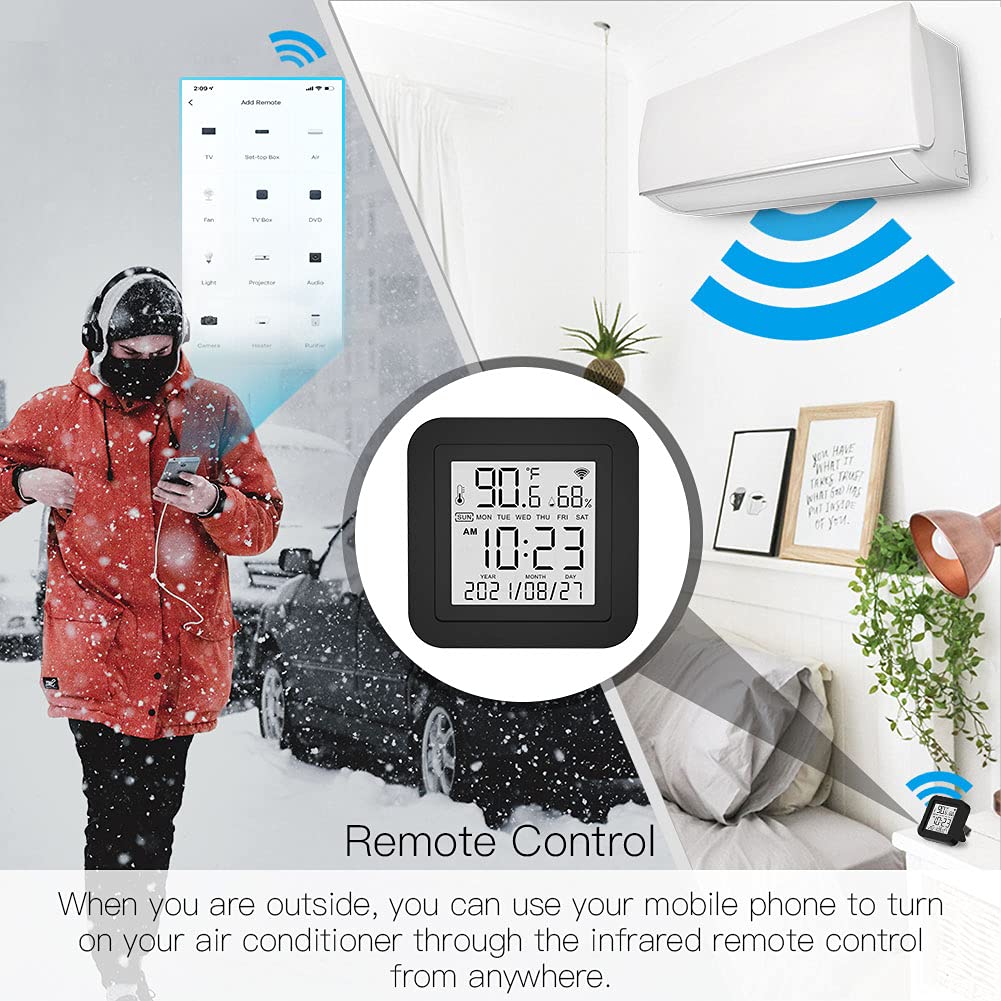
Image 5.3: Remote control functionality via the smartphone app.
5.4 Automatizare inteligentă
Leverage the temperature and humidity data to create automated routines for your IR-controlled devices.
- Access Automation: In the Tuya Smart/Smart Life app, go to the "Smart" or "Automation" section.
- Create a Scene/Automation:
- Select "When device status changes" or "Schedule" as the condition.
- Choose your MOES monitor and set a condition based on temperature or humidity (e.g., "Temperature rises above 26°C" or "Humidity drops below 50%").
- For the task, select "Run the device" and choose the IR-controlled appliance (e.g., Air Conditioner, Humidifier). Set the desired action (e.g., "Turn On", "Set Temperature to 24°C").

Imaginea 5.4: Example of temperature-based automation for an air conditioner.

Imaginea 5.5: Example of humidity-based automation for a humidifier.
5.5 Control vocal
The MOES Smart Temperature Humidity Monitor is compatible with Amazon Alexa and Google Assistant.
- Conturi de legătură: În aplicația Alexa sau Google Home, activează abilitatea/serviciul „Tuya Smart” sau „Smart Life” și conectează-ți contul.
- Descoperiți dispozitive: Once linked, ask your voice assistant to discover new devices. Your MOES monitor and any configured IR devices will appear.
- Comenzi vocale: You can now use voice commands to control your IR appliances. Examples:
- „Alexa, pornește televizorul.”
- „Hei Google, setează aerul condiționat la 22 de grade.”
- „Alexa, oprește ventilatorul.”

Image 5.6: Voice control integration with Amazon Alexa and Google Assistant.
6. Întreținere
- curatenie: Use a soft, dry cloth to clean the device. Do not use liquid cleaners or sprays, as they may damage the internal components.
- Plasare: Avoid placing the device in direct sunlight, near heat sources, or in areas with high humidity to ensure accurate readings and optimal performance.
- Actualizări firmware: The device's firmware may be updated periodically via the Tuya Smart/Smart Life app. Ensure your app is up-to-date and follow any prompts for device firmware updates.
7. Depanare
| Problemă | Soluție posibilă |
|---|---|
| Dispozitivul nu pornește | Ensure the Micro USB cable is securely connected and the power adapter is working. Try a different USB port or adapter. |
| Nu se poate conecta la Wi-Fi |
|
| IR remote control not working |
|
| Citiri inexacte ale temperaturii/umidității |
|
| Comanda vocală nu răspunde |
|
| Device unresponsive / needs reset | Press and hold the "Reset Button" on the back of the device for approximately 10 seconds until the device restarts or enters pairing mode. You may need to re-pair it with the app. |
8. Garanție și asistență
Produsele MOES sunt concepute pentru fiabilitate și performanță. Pentru informații despre garanție, asistență tehnică sau asistență suplimentară, vă rugăm să consultați site-ul oficial MOES. website-ul lor web sau contactați direct serviciul lor de asistență pentru clienți. Păstrați bonul fiscal ca dovadă a achiziției pentru reclamațiile în garanție.
Resurse online:
- Vizitați Magazinul MOES pe Amazon pentru actualizări de produse și accesorii aferente.


