1. Introducere
The Milestone MPT-II is a compact and portable 58mm thermal printer designed for various business applications, including retail, restaurants, and mobile logistics. It offers high-speed, clear printing and features Bluetooth connectivity for seamless integration with Android and iOS devices. Its lightweight design and long-lasting battery make it ideal for on-the-go printing needs.

2. Caracteristici cheie
- Imprimare Bluetooth: Supports Android and iOS devices for wireless printing.
- Portabilitate: Light and compact design allows for printing anywhere, anytime.
- Low Operating Cost: Direct thermal printing eliminates the need for ink ribbons or cartridges, requiring only thermal paper.
- Durată lungă de viață a bateriei: Built-in 7.4V/2500mAh rechargeable lithium battery provides up to 4 hours of continuous printing.
- Versatile Interface: Equipped with both USB and Bluetooth connectivity.
- ESC/POS Compatible: Supports standard ESC/POS print commands for broad software compatibility.

3. Configurare inițială
3.1 Despachetare și conținut
Carefully unpack the printer and verify all components are present:
- 1 x Milestone MPT-II Thermal Printer
- 1 x cablu USB
- 1 x Adaptor USB
- 1 x rolă de hârtie
- 1 x Manual de utilizare (acest document)
3.2 Încărcarea imprimantei
- Connect the USB cable to the printer's charging port.
- Plug the USB adaptor into a standard power outlet.
- The charging indicator light will illuminate. Charge the printer fully before first use (approximately 2.5-3 hours for continuous printing).
3.3 Încărcarea hârtiei termice
- Open the paper compartment cover by gently pushing the latch.
- Insert the thermal paper roll with the printing side facing outwards (as shown in Figure 2). Ensure the roll is seated correctly.
- Trageți o bucată mică de hârtie dincolo de marginea tăietoare.
- Închideți ferm capacul compartimentului pentru hârtie până când se fixează în poziție cu un clic.
4. Instrucțiuni de utilizare
4.1 Pornire/Oprire
- Pentru a porni: Apăsați și țineți apăsat butonul de alimentare până când se aprinde indicatorul luminos.
- Pentru a opri: Apăsați și țineți apăsat butonul de alimentare până când indicatorul luminos se stinge.
4.2 Conexiune Bluetooth
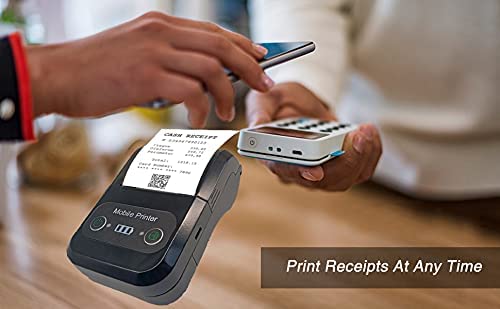
The MPT-II printer supports Bluetooth connectivity for mobile devices.
- Ensure the printer is powered on and within range of your mobile device.
- On your mobile device (Android/iOS), go to Bluetooth settings and turn Bluetooth on.
- Caută available devices. The printer will appear as "MPT-II".
- Select "MPT-II" to pair. If prompted for a password, enter 1234 or 0000.
- Once paired, the printer is ready for use with compatible applications.
4.3 Utilizarea cu aplicații
For mobile printing, you will need a compatible application. Milestone recommends downloading RAWBT Printer App or MYXPrint App from the Google Play Store. For iOS, search for compatible thermal printer apps in the App Store.
- Open your chosen printing application.
- Navigate to the printer settings within the app.
- Select the "MPT-II" printer from the list of available Bluetooth devices.
- You can now send print commands from the application.

4.4 USB Connection (for PC)
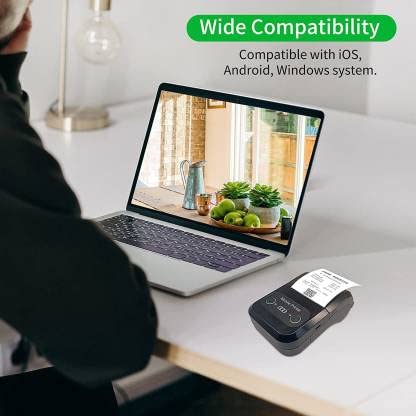
The printer can also be connected to a PC via USB. You may need to install a printer driver, which is typically available from the manufacturer's website or included on a CD with the product (if applicable).
5. Întreținere
5.1 Curăţarea imprimantei
To ensure optimal performance and print quality, regularly clean the printer:
- Cap de imprimare: Folosiți un bețișor de bumbac ușorampȘtergeți ușor capul de imprimare termică cu alcool izopropilic. Lăsați-l să se usuce complet înainte de utilizare.
- Calea hârtiei: Use a soft, dry cloth or a small brush to remove any paper dust or debris from the paper path.
- Exterior: Ștergeți exteriorul imprimantei cu o lavetă moale șiamp pânză. Evitați utilizarea substanțelor chimice dure sau a agenților de curățare abrazivi.
5.2 Îngrijirea bateriei
- Încărcați complet bateria înainte de prima utilizare.
- Evitați descărcarea completă și frecventă a bateriei.
- If storing the printer for an extended period, charge it to about 50% and recharge every few months to prevent battery degradation.
6. Depanare
| Problemă | Cauza posibila | Soluţie |
|---|---|---|
| Imprimanta nu pornește. | Bateria este descărcată sau descărcată. | Charge the printer using the provided USB cable and adaptor. |
| Nu se poate conecta prin Bluetooth. | Bluetooth is off on device; incorrect pairing password; printer not discoverable. | Ensure Bluetooth is enabled on your device. Re-attempt pairing with password 1234 or 0000. Restart both printer and device. |
| No print output or blank paper. | Paper loaded incorrectly; out of paper; print head dirty. | Check paper orientation (printing side out). Replace paper roll if empty. Clean the thermal print head (refer to Maintenance section). |
| Calitate slabă a imprimării (esterite, linii). | Print head dirty; low battery; poor quality thermal paper. | Clean the print head. Charge the printer fully. Use high-quality thermal paper. |
| Printer beeps continuously. | Paper alarm (out of paper or paper jam); low battery reminder. | Check and replace paper roll or clear jam. Charge the printer. |
7. Specificatii tehnice
| Caracteristică | Caietul de sarcini |
|---|---|
| Metoda de imprimare | Imprimare pe linie termică |
| Lățimea de imprimare | Paper width 58mm, effective width 58mm |
| Densitatea imprimării | 576 punct/linie |
| Rezoluţie | 8 dots/mm, 203 DPI |
| Viteza de imprimare | 70mm/s (Max Print speed Monochrome: 50 ppm) |
| Printer Core Life | 50KM (25% print density or less than 100 million pulses) |
| Printable Content | English, numbers, symbols, characters, pictures, 1D/2D barcode, multi-languages |
| Interfață de comunicare de date | USB / Bluetooth |
| Alimentare electrică | Machine charging 9V-1.5A |
| Baterie | Built-in rechargeable 2600mAh lithium-ion battery (7.4V/2500mAh) |
| Continuous Printing Time | 2.5-3 ore |
| Set de instrucțiuni | Compatibil ESC/POS |
| Tăierea hârtiei | Manually tear |
| Compatibilitatea sistemelor de operare | Android, iOS, Windows |
| Dimensiunile produsului | 15A x 12L x 6Î centimetri |
| Greutatea articolului | 310 grame |
| Componente incluse | 1 x Thermal Printer, 1 x USB Cable, 1 x USB Adaptor, 1 x Paper Roll, 1 x User Manual |
8. Garanție și asistență
This product comes with a 10-day warranty as per the purchase terms. For any technical assistance, troubleshooting beyond this manual, or warranty claims, please contact your retailer or the manufacturer's customer support. Refer to your purchase documentation for specific contact details.
Producător: Piatra de hotar
Importator: SB RETAILS, SECTOR 28, PRADHIKARAN, PUNE-44, +918888881631


