1. Introducere
This manual provides comprehensive instructions for the installation, operation, and maintenance of your TP-Link Archer C5 AC1200 Dual-Band Gigabit Wireless Wi-Fi Router. The Archer C5 is designed to provide seamless Wi-Fi coverage with its dual-band capabilities, offering speeds up to 750Mbps on the 5GHz band and up to 300Mbps on the 2.4GHz band. It features four external antennas for stable wireless connections and full Gigabit ports for high-speed wired connections.
Please read this manual carefully before using the device to ensure proper setup and optimal performance.
2. Conținutul pachetului
Verificați dacă pachetul dvs. conține următoarele articole:
- Routerul TP-Link Archer C5
- Power Adapter (DC Adapter)
- Cablu Ethernet (RJ45)
- Quick Installation Guide (may be a separate document)
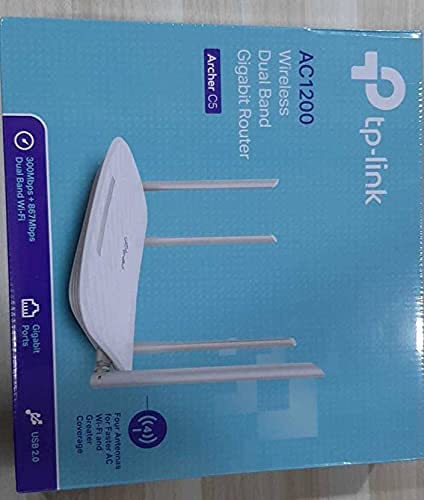
3. Produs terminatview
3.1 Panoul frontal

The front panel features LED indicators that provide information about the router's status, including power, internet connectivity, Wi-Fi status for both 2.4GHz and 5GHz bands, and LAN port activity.
3.2 Panoul din spate

The rear panel includes all physical connection ports and buttons:
- Putere de intrare: Se conectează la adaptorul de alimentare furnizat.
- Buton de alimentare: Pornește sau oprește routerul.
- Port USB: Pentru conectarea dispozitivelor de stocare USB pentru partajare files în rețea.
- Port WAN (Albastru): Connects to your modem for internet access. This is a Gigabit port.
- Porturi LAN (galben): Four Gigabit Ethernet ports for connecting wired devices such as computers, gaming consoles, or smart TVs.
- Buton de resetare: Folosit pentru a restaura routerul la setările implicite din fabrică.
- Buton WPS/Wi-Fi: Apăsați pentru a activa WPS (Wi-Fi Protected Setup) pentru o conexiune ușoară sau apăsați și mențineți apăsat pentru a activa/dezactiva Wi-Fi.
4. Ghid de instalare
Follow these steps to set up your TP-Link Archer C5 router:
- Opriți modemul: Deconectați alimentarea de la modemul existent.
- Conectați routerul:
- Connect one end of the provided Ethernet cable to the WAN port (blue) on your Archer C5 router.
- Conectați celălalt capăt al cablului Ethernet la portul Ethernet al modemului.
- Pornirea dispozitivelor:
- Conectați adaptorul de alimentare la intrarea de alimentare a routerului și introduceți-l într-o priză.
- Power on your modem, then wait for it to fully boot up (usually indicated by stable LED lights).
- Power on the Archer C5 router. Wait for the LED indicators to stabilize, particularly the Internet LED.
- Conectați-vă la rețeaua Wi-Fi a routerului:
- Localizați numele rețelei Wi-Fi (SSID) și parola imprimate pe eticheta din partea inferioară a routerului.
- On your computer or mobile device, select the router's Wi-Fi network and enter the password to connect.
- Accesați Web Interfata de management:
- Deschide a web browser (de exemplu, Chrome, Firefox) și tastați
http://tplinkwifi.netor192.168.0.1în bara de adrese. - Log in using the default username and password (usually
adminfor both, or as specified on the router label). - Follow the Quick Setup wizard to configure your internet connection and personalize your Wi-Fi network name and password.
- Deschide a web browser (de exemplu, Chrome, Firefox) și tastați
- Optional: Use the TP-Link Tether App: Download the TP-Link Tether app from your mobile device's app store for easy setup and management.
5. Instrucțiuni de utilizare
Once your router is set up, you can manage its functions through the web management interface or the TP-Link Tether app.
Wi-Fi 5.1 cu bandă dublă
The Archer C5 operates on two Wi-Fi bands:
- Banda de 2.4 GHz: Provides wider coverage and better penetration through walls, suitable for general internet use and older devices.
- Banda de 5 GHz: Offers faster speeds and less interference, ideal for bandwidth-intensive activities like online gaming and HD video streaming.
You can configure separate SSIDs (network names) and passwords for each band or use a single SSID with Band Steering enabled (if available in your firmware) to allow the router to automatically assign devices to the best band.
5.2 Managementul rețelei
Prin intermediul web interfață, puteți:
- Schimbați setările Wi-Fi (SSID, parolă, tip de securitate).
- Set up a Guest Network for visitors.
- Configure parental controls to manage internet access for children.
- Prioritize devices or applications using Quality of Service (QoS).
- Gestionați dispozitivele conectate.
- Access advanced settings like port forwarding, VPN server, and dynamic DNS.
6. Întreținere
Întreținerea regulată ajută la asigurarea longevității și a performanței optime a routerului.
- Actualizări firmware: Verificați periodic oferta oficială TP-Link website pentru actualizări de firmware. Actualizarea firmware-ului poate îmbunătăți performanța, poate adăuga noi funcții și poate remedia vulnerabilități de securitate.
- Plasament fizic: Place the router in a central location, away from obstructions and devices that emit electromagnetic interference (e.g., microwaves, cordless phones). Elevating the router can also improve signal distribution.
- curatenie: Keep the router clean and free from dust. Ensure ventilation holes are not blocked to prevent overheating.
- Repornire: If you experience slow speeds or connectivity issues, try rebooting the router by unplugging its power adapter for 10 seconds and then plugging it back in.
7. Depanare
Această secțiune abordează problemele frecvente pe care le puteți întâmpina cu routerul Archer C5.
7.1 Fără acces la internet
- Verificați conexiunile prin cablu: Ensure the Ethernet cable from your modem is securely connected to the router's blue WAN port.
- Stare modem: Verificați dacă modemul funcționează corect și are o conexiune activă la internet.
- LED-uri ale routerului: Check the Internet LED on the router. If it's off or red, there might be an issue with your internet service provider (ISP) or modem connection.
- Reporniți dispozitivele: Power cycle your modem and then your router.
- Clonează adresa MAC: Some ISPs require MAC address cloning. Access the router's web interface and check WAN settings for this option.
7.2 Wi-Fi Signal Drops or is Weak
- Plasarea routerului: Move the router to a central location, away from obstacles and interference sources.
- Orientarea antenei: Reglați cele patru antene externe pentru o recepție optimă a semnalului.
- Interferență de canal: În router web interface, try changing the Wi-Fi channel for both 2.4GHz and 5GHz bands to a less congested one.
- Actualizarea firmware-ului: Asigurați-vă că firmware-ul routerului este actualizat.
7.3 Forgot Router Login Password
Dacă uitați parola pentru web management interface, you will need to reset the router to its factory default settings. Locate the Reset button on the rear panel, press and hold it for about 10 seconds until the LEDs flash, then release. The router will reboot with default settings (usually admin for username and password).
8. Specificații
| Caracteristică | Detaliu |
|---|---|
| Marca | TP-Link |
| Numele modelului | ArcherC5 |
| standard wireless | IEEE 802.11ac/n/a 5 GHz, IEEE 802.11n/b/g 2.4 GHz |
| Viteza Wi-Fi | AC1200 (867 Mbps pe 5 GHz, 300 Mbps pe 2.4 GHz) |
| Clasa de bandă de frecvență | Dual-Band (2.4 GHz și 5 GHz) |
| Porturi Ethernet | 1 port WAN Gigabit, 4 porturi LAN Gigabit |
| Port USB | 1x port USB 2.0 |
| Antene | 4x antene externe |
| Protocol de securitate | WPA2-PSK |
| Sistem de operare | RouterOS (as per product data, typically TP-Link custom firmware) |
| Caracteristica specială | Acces de la distanță |
| Greutatea articolului | 710 g |
| Componente incluse | Router, DC Adapter, RJ45 Ethernet Cable |
9. Garanție și asistență
9.1 Informații despre garanție
The TP-Link Archer C5 router typically comes with a 1 ani garanție. Please refer to the warranty card included in your product packaging or visit the official TP-Link webpentru termenii și condițiile detaliate de garanție specifice regiunii dumneavoastră.
9.2 Suport tehnic
For technical assistance, firmware updates, or further information, please visit the official TP-Link support website. You can usually find FAQs, troubleshooting guides, and contact information for customer support there.
TP-Link Oficial Website: www.tp-link.com


