1. Introducere
Mulțumesc pentru achizițieasing the Rapoo N300 Optical Wired Gaming Mouse. This manual provides detailed instructions for setting up, operating, and maintaining your new mouse. Please read this manual thoroughly before use to ensure optimal performance and longevity of the product.
2. Produs terminatview
2.1 Caracteristici cheie
- Urmărire optică de înaltă precizie: Equipped with a 2000 DPI tracking engine for accurate and responsive cursor control.
- 6 Butoane: Includes left, right, scroll wheel, DPI switch, and two side buttons for enhanced functionality.
- 2D Anti-Slip Scroll Wheel: Provides precise scrolling and tactile feedback.
- Design ambidextru: Ergonomically designed for comfortable use by both left and right-handed users.
- Conectivitate USB prin cablu: Ensures a stable and lag-free connection.
2.2 Conținutul pachetului
- Rapoo N300 Optical Wired Gaming Mouse
- Manual de utilizare (acest document)
2.3 Diagrama produsului

Figura 1: Top view of the Rapoo N300 mouse, showing the left and right click buttons, scroll wheel, and DPI switch button. The Rapoo logo is visible at the base.

Figura 2: Latura view of the Rapoo N300 mouse, highlighting the two side buttons and the textured grip area for improved handling.
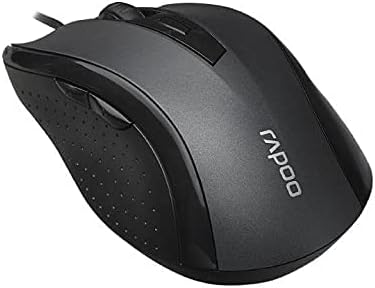
Figura 3: Înclinat view of the Rapoo N300 mouse, showcasing its ergonomic contour and the placement of the scroll wheel and side buttons.

Figura 4: Fund view of the Rapoo N300 mouse, displaying the optical sensor, product model number (N300), interface type (USB), and regulatory compliance markings.
3. Instrucțiuni de configurare
- Conectați mouse-ul: Locate an available USB port on your computer (desktop or laptop). Insert the USB connector of the Rapoo N300 mouse firmly into the USB port.
- Instalare driver: The Rapoo N300 mouse is a plug-and-play device. Your operating system (Windows XP, Windows 7, Linux, or newer versions) will automatically detect and install the necessary drivers. This process may take a few moments.
- Verificare: Once the drivers are installed, the mouse cursor should become responsive. Move the mouse to confirm functionality.
No additional software installation is typically required for basic functionality.
4. Instrucțiuni de utilizare
4.1 Funcții de bază
- Click stânga: Primary action, selection, opening items.
- Click dreapta: Deschide meniuri contextuale.
- Rotiță de defilare: Derulează documente și web pages vertically. Can also be pressed for middle-click functionality (application-dependent).
4.2 Ajustare DPI
The Rapoo N300 features a dedicated DPI switch button, usually located behind the scroll wheel. Press this button to cycle through different DPI (Dots Per Inch) sensitivity settings. Each press will change the cursor speed, allowing you to adjust it to your preference for various tasks, from precise editing to fast-paced gaming.
4.3 Butoane laterale
The two side buttons typically function as "Forward" and "Backward" in web browsere și file explorers. Their functionality may be customizable through operating system settings or third-party software, if available.
5. Întreținere
- curatenie: Folosiți o lavetă moale și uscată pentru a șterge suprafața mouse-ului. Pentru murdăria persistentă, ștergeți ușor.ampClătiți laveta cu apă sau o soluție de curățare delicată. Evitați utilizarea substanțelor chimice dure sau a materialelor abrazive.
- Senzor optic: Ensure the optical sensor on the bottom of the mouse remains clean and free of dust or debris for optimal tracking performance. Do not attempt to disassemble the mouse.
- Îngrijirea cablului: Evitați îndoirile bruște sau tragerea excesivă a cablului USB pentru a preveni deteriorarea.
6. Depanare
| Problemă | Soluție posibilă |
|---|---|
| Șoarecele nu răspunde |
|
| Mișcarea cursorului este neregulată sau sacadată |
|
| Butonul DPI nu schimbă sensibilitatea |
|
7. Specificații
| Caracteristică | Detaliu |
|---|---|
| Model | N300 |
| Tracking Engine | Optic |
| DPI | Până la 2000 DPI |
| Numărul de butoane | 6 (Left, Right, Scroll Wheel, DPI, Side Button 1, Side Button 2) |
| Rotiță de derulare | 2D Anti-Slip |
| Orientarea mâinii | Ambidextru |
| Tip de interfață | USB cu fir |
| Compatibilitatea sistemelor de operare | Windows XP, Windows 7, Linux, and newer versions |
| Culoare | Negru |
| Greutatea articolului | Aproximativ 100 g |
| Dimensiuni (pachet) | 15.4 x 8.4 x 4.2 cm |
8. Garanție și asistență
Rapoo products are designed for reliability and performance. For specific warranty information and support details, please refer to the warranty card included with your product or visit the official Rapoo webPăstrați bonul fiscal ca dovadă a achiziției pentru reclamații în garanție.
For technical assistance or further inquiries, please contact Rapoo customer support through their official channels.


