1. Introducere
This manual provides detailed instructions for the installation, operation, and maintenance of your FoMaKo NDI PTZ Camera KN20A Pro. This camera features AI auto-tracking, 20x optical zoom, and multiple output interfaces including HDMI, 3G-SDI, IP, NDI, and USB3.0. It is designed for professional video production and live streaming in various environments such as churches, educational institutions, and event venues.
2. Ce se află în cutie
Verificați dacă toate articolele sunt prezente în colet:
- FoMaKo AI Tracking NDI PTZ Camera (20x optical zoom)
- Telecomanda IR
- Suport de montare pe perete
- Suport de tavan
- Cablu USB
- Adaptor de alimentare (12V 2A)
- Manual de utilizare (acest document)

Image 2.1: FoMaKo NDI PTZ Camera KN20A Pro and its standard accessories.
3. Caracteristicile produsului de mai susview
- Certificare oficială NDI 6 și NDI HX3: Ensures stable and high-quality video transmission, even with limited bandwidth.
- Zoom optic 20x: Provides clear, detailed images from a distance.
- Urmărire automată avansată cu inteligență artificială (Gen 3): Offers customizable tracking modes, sensitivity, and target switching.
- Multiple Video Output Interfaces: Simultaneous 3G-SDI, HDMI, LAN/Ethernet, and USB3.0 for versatile connectivity.
- Suport Power over Ethernet (PoE): Simplifică instalarea prin furnizarea de energie și date printr-un singur cablu Ethernet.
- Codare video eficientă: Supports H.264/H.265 for fluent motion video under various bandwidth conditions.
- Performanță la lumină scăzută: High SNR CMOS combined with 2D & 3D noise reduction for clear images in challenging lighting.
- Precise Gear Transmission Structure: Ensures accurate preset positioning and enhanced durability compared to belt-driven systems.
- Metode multiple de control: Includes IR remote, dedicated PTZ controller, web interface, OBS/vMix PTZ plugins, and StreamDeck compatibility.

Image 3.1: Visual representation of the camera's core features.
4. Configurare
4.1 Instalare fizică
The FoMaKo NDI PTZ Camera supports three primary installation methods:
- Montare pe perete: Securely attach the camera to a vertical surface using the provided wall mount bracket.
- Montare trepied: Mount the camera on a standard tripod for portable or temporary setups.
- Montare pe tavan: Install the camera inverted on a ceiling using the provided ceiling bracket. The camera automatically adjusts its image and control orientation when mounted upside down.

Imaginea 4.1: Examples of camera installation methods.
4.2 Conexiuni
Connect the camera to your system using the appropriate ports on the rear panel:
- Ieșire 3G-SDI: For professional video transmission over coaxial cable.
- Ieșire HDMI: For direct connection to displays or video switchers.
- Ieșire USB3.0: For direct connection to a computer for live streaming or recording.
- Port LAN/Ethernet: For IP streaming (NDI, RTSP, RTMP, SRT), control (VISCA over IP), and PoE power.
- RS232/RS485: For serial control using a PTZ controller.
- Linie de intrare: Intrare audio de 3.5 mm.
- DC12V: Power input if not using PoE.
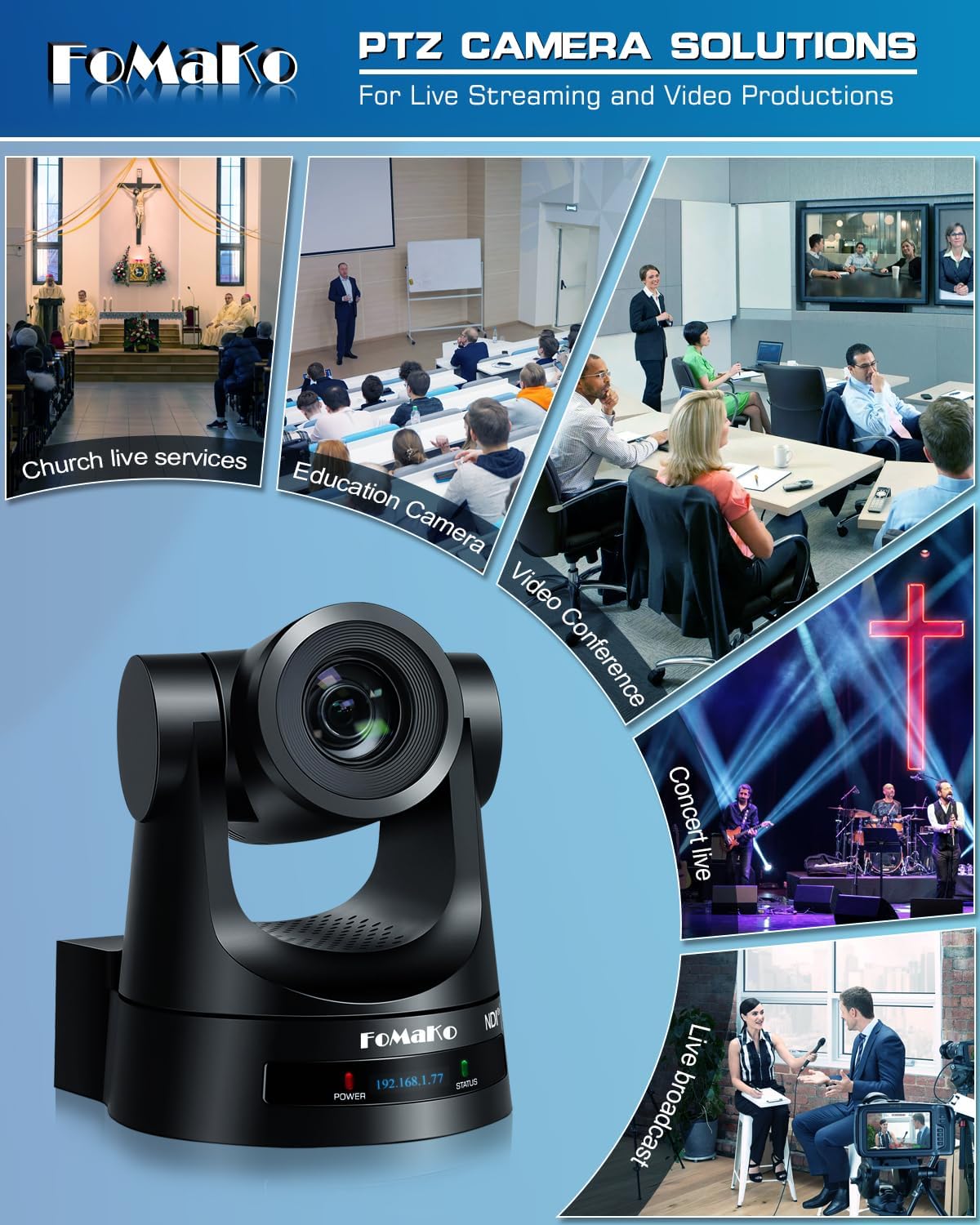
Image 4.2: Rear panel connections.
4.3 Configurarea rețelei
For IP-based control and streaming, configure the camera's network settings. This can typically be done via the camera's web interface or on-screen display (OSD) menu.
- DHCP: Enable DHCP for automatic IP address assignment or disable it to set a static IP.
- IP Address, Subnet Mask, Gateway: Manually configure these settings if DHCP is disabled.
Accesați camera web interfață prin introducerea adresei sale IP într-un web browser. The default IP address is often printed on the camera or can be found using an NDI discovery tool.

Image 4.3: Network settings interface.
5. Instrucțiuni de utilizare
5.1 Controale de bază
The camera can be controlled using the IR remote, a dedicated PTZ controller, or the web interfata.
- Panare/Înclinare/Zoom: Use the joystick on a PTZ controller or directional buttons on the IR remote/web interface to adjust the camera's view.
- Reglarea vitezei: Pan, tilt, and zoom speeds can be adjusted to achieve smooth camera movements. Preset speed is also adjustable.
- Focus: The camera features fast auto-focus. Manual focus adjustment is also available.
5.2 Urmărire automată prin inteligență artificială
The third-generation AI auto-tracking system allows the camera to automatically follow a designated subject.
- Activare: Press the F2 button on the IR remote control to activate automatic tracking.
- Comutare țintă: Press the F4 button on the IR remote to switch between detected tracking targets.
- Personalizare: Adjust tracking modes, sensitivity, figure size, AI-track speed, horizontal tracking only, character position, and lost target action via the camera's settings menu or web interfata.

Image 5.1: AI Tracking Gen 3 settings and capabilities.
5.3 Presetări
The camera supports up to 255 preset positions, allowing quick recall of specific camera angles and zoom levels. Ten presets can be accessed directly via the IR remote control.
- Setarea presetărilor: Poziționați camera în poziția dorită view, then use the remote or controller to save the preset. Refer to the detailed manual for specific steps.
- Reamintirea presetărilor: Use the preset buttons on the remote or controller to move the camera to a saved position.
6. Întreținere
To ensure optimal performance and longevity of your FoMaKo NDI PTZ Camera, follow these maintenance guidelines:
- curatenie: Folosiți o lavetă moale și uscată pentru a curăța corpul camerei. Pentru obiectiv, folosiți o lavetă și o soluție specială pentru curățarea obiectivelor. Evitați materialele abrazive sau substanțele chimice dure.
- Mediu: Folosiți și depozitați camera într-un mediu curat și uscat, ferit de temperaturi extreme, umiditate și lumina directă a soarelui.
- Actualizări firmware: Periodically check the FoMaKo website-ul pentru actualizări de firmware, pentru a vă asigura că camera dvs. are cele mai recente funcții și îmbunătățiri de performanță.
- Organizare de cabluri: Ensure all cables are securely connected and not under strain to prevent damage to ports or cables.
7. Depanare
Dacă întâmpinați probleme cu camera, consultați următorii pași comuni de depanare:
- Fără putere: Ensure the power adapter is correctly connected or that your PoE switch is providing power if using PoE. Check power indicators on the camera.
- Fără ieșire video: Verify all video cables (HDMI, SDI, USB, Ethernet) are securely connected. Check input selections on your display or switcher. Ensure the camera is powered on.
- Fără conexiune la rețea: Confirm Ethernet cable connection. Check network settings (IP address, subnet mask, gateway) in the camera's web interface. Ensure the camera and controlling device are on the same network segment.
- Controlul PTZ nu răspunde: Check remote control batteries. Ensure the camera is receiving IR signals or that the network/serial control connection is active. Verify the correct camera ID is selected on the controller.
- Auto-Tracking Issues: Ensure AI auto-tracking is enabled (F2 on remote). Check tracking sensitivity and other settings in the menu. Ensure the subject is clearly visible and within the camera's tracking range.
- Probleme de calitate a imaginii: Check lighting conditions. Ensure lens is clean. Adjust exposure and white balance settings if necessary.
For more detailed troubleshooting or issues not covered here, please refer to the full user manual PDF available online or contact FoMaKo customer support.
8. Specificații
| Caracteristică | Caietul de sarcini |
|---|---|
| Nume de marcă | FoMaKo |
| Numărul de model | KN20A |
| Greutatea articolului | 2.64 lire sterline |
| Dimensiunile produsului | 5.63 x 6.93 x 6.65 inci |
| Culoare | Negru |
| Caracteristici speciale | AI tracking NDI PTZ Camera |
| Zoom optic | 20x |
| Rezoluție captură video | 1080p |
| Moduri de fotografiere | Automat |
| Tip de control al expunerii | Automat |
| Conectivitate | 3G-SDI, HDMI, IP (NDI 6 & NDI HX3), USB3.0, RS232, RS485, PoE |
9. Garanție și asistență
FoMaKo is committed to providing excellent customer service and product reliability.
- Garantie: The product includes a 3-Year Limited Warranty.
- Garanția de rambursare a banilor: A 30-Day No-Questions-Asked Money-Back Guarantee is provided for risk-free purchase.
- Training online: Free online training is available to help users get started easily.
- Asistență de specialitate: 24/7 expert assistance is available, with responses typically within 24 hours. Please include your Order ID when contacting support.
- Asistență de la distanță: Remote assistance for setup can be provided if necessary.
- Suport tehnic pe viață: Enjoy lifetime customer technical support for your product.

Image 9.1: FoMaKo customer support and warranty information.


