1. Introducere
This manual provides essential information for setting up, operating, maintaining, and troubleshooting your Dell Latitude 5410 laptop. Please read this guide thoroughly to ensure optimal performance and longevity of your device.
The Dell Latitude 5410 is a 14-inch Full HD laptop designed for productivity, featuring an Intel Quad-Core i5-10310U processor, 16GB DDR4 RAM, and a 512GB SSD. It comes pre-installed with Windows 10 Pro.
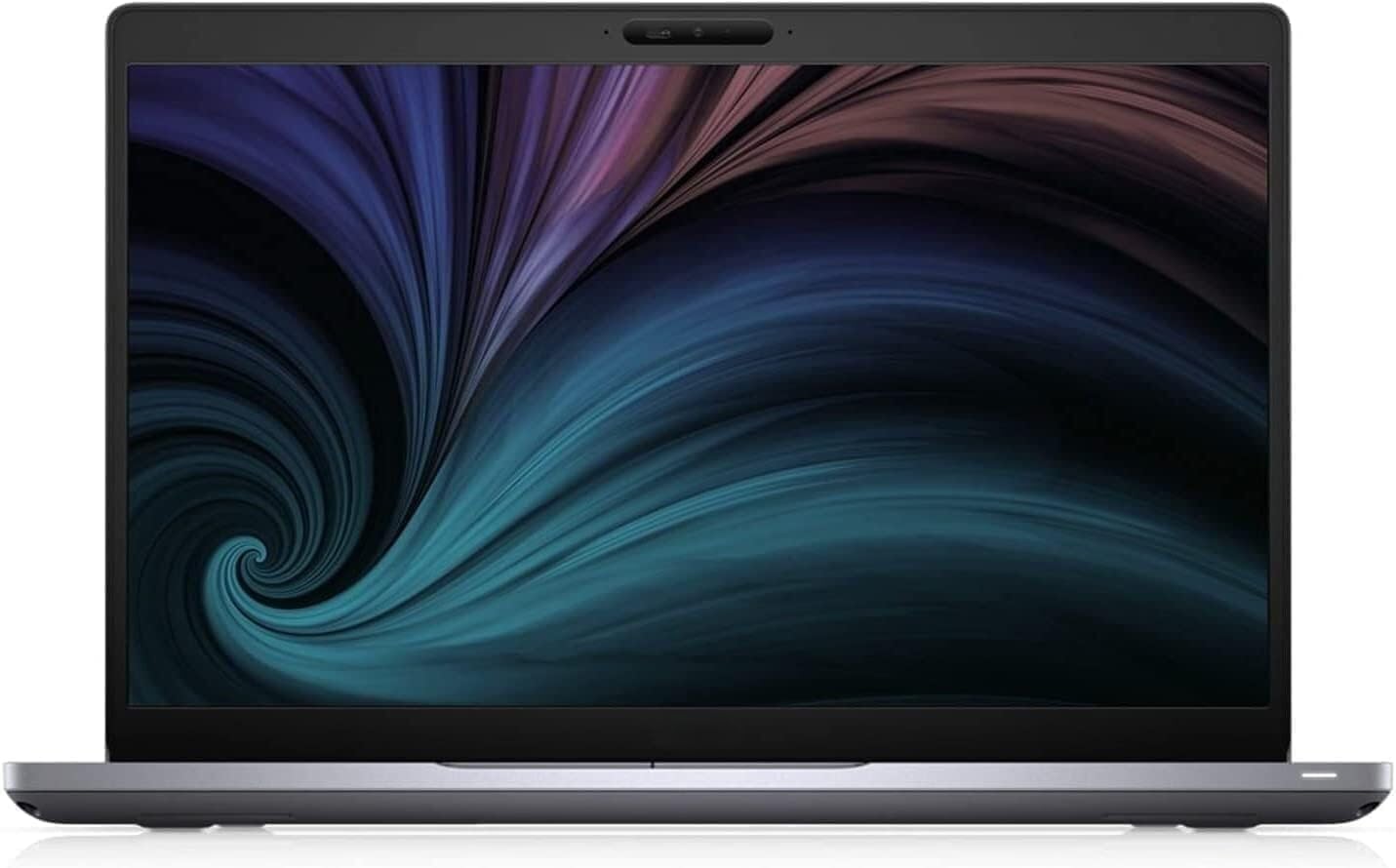
Figura 1.1: Față view of the Dell Latitude 5410 laptop, showcasinafișajul său.
2. Noțiuni introductive
2.1 Despachetarea și configurarea inițială
- Despachetați laptopul: Carefully remove the laptop and its accessories from the packaging. Ensure all components, including the laptop and charger, are present.
- Conectare alimentare: Plug the power adapter into the laptop's power port and then into a wall outlet. The battery may have a partial charge, but it is recommended to fully charge it before first use.
- Pornire: Open the laptop lid and press the power button, typically located on the top right of the keyboard deck.
- Configurarea inițială a Windows: Follow the on-screen instructions to complete the Windows 10 Pro setup. This includes selecting your region, language, creating a user account, and connecting to a Wi-Fi network.
2.2 Conectarea perifericelor
Your Dell Latitude 5410 supports various external devices. Refer to the 'Ports and Connectors' section for port identification.
- Dispozitive USB: Connect USB mice, keyboards, external hard drives, or flash drives to the available USB Type-A or USB Type-C ports.
- Afișaj extern: Folosește portul HDMI pentru a conecta un monitor extern sau un proiector.
- Cablu de rețea: For a wired internet connection, plug an Ethernet cable into the RJ-45 port.
3. Using Your Laptop
3.1 Tastatură și touchpad
The Dell Latitude 5410 features a backlit keyboard and a precision touchpad for navigation.

Figura 3.1: De sus în jos view of the Dell Latitude 5410 keyboard and touchpad.
- Tastatura: The keyboard includes standard alphanumeric keys, function keys (F1-F12), and special keys. Function keys often have secondary actions (e.g., volume, brightness) accessible by pressing the Fn tasta simultan.
- Tastatură iluminată din spate: To adjust keyboard backlight brightness, use the dedicated function key combination (often Fn + F10 or similar, check keyboard icons).
- Touchpad: The touchpad supports multi-touch gestures for scrolling, zooming, and other functions. Click the left or right buttons integrated into the touchpad for corresponding mouse clicks.
3.2 Porturi și conectori
The Dell Latitude 5410 offers a variety of ports for connectivity:

Figure 3.2: Right side of the Dell Latitude 5410, displaying various ports.
- USB Type-A Ports (3x): Pentru conectarea dispozitivelor USB standard.
- Port USB de tip C (1x): Supports data transfer and potentially power delivery or display output (check specific model capabilities).
- HDMI Port (1x): Pentru conectarea la afișaje externe.
- RJ-45 Ethernet Port (1x): Pentru conexiuni de rețea prin cablu.
- Smart Card Reader (1x): For security and authentication purposes.
- Mufa audio: Pentru căști sau seturi de căști.
- Cititor de carduri SD: Pentru citirea cardurilor de memorie.
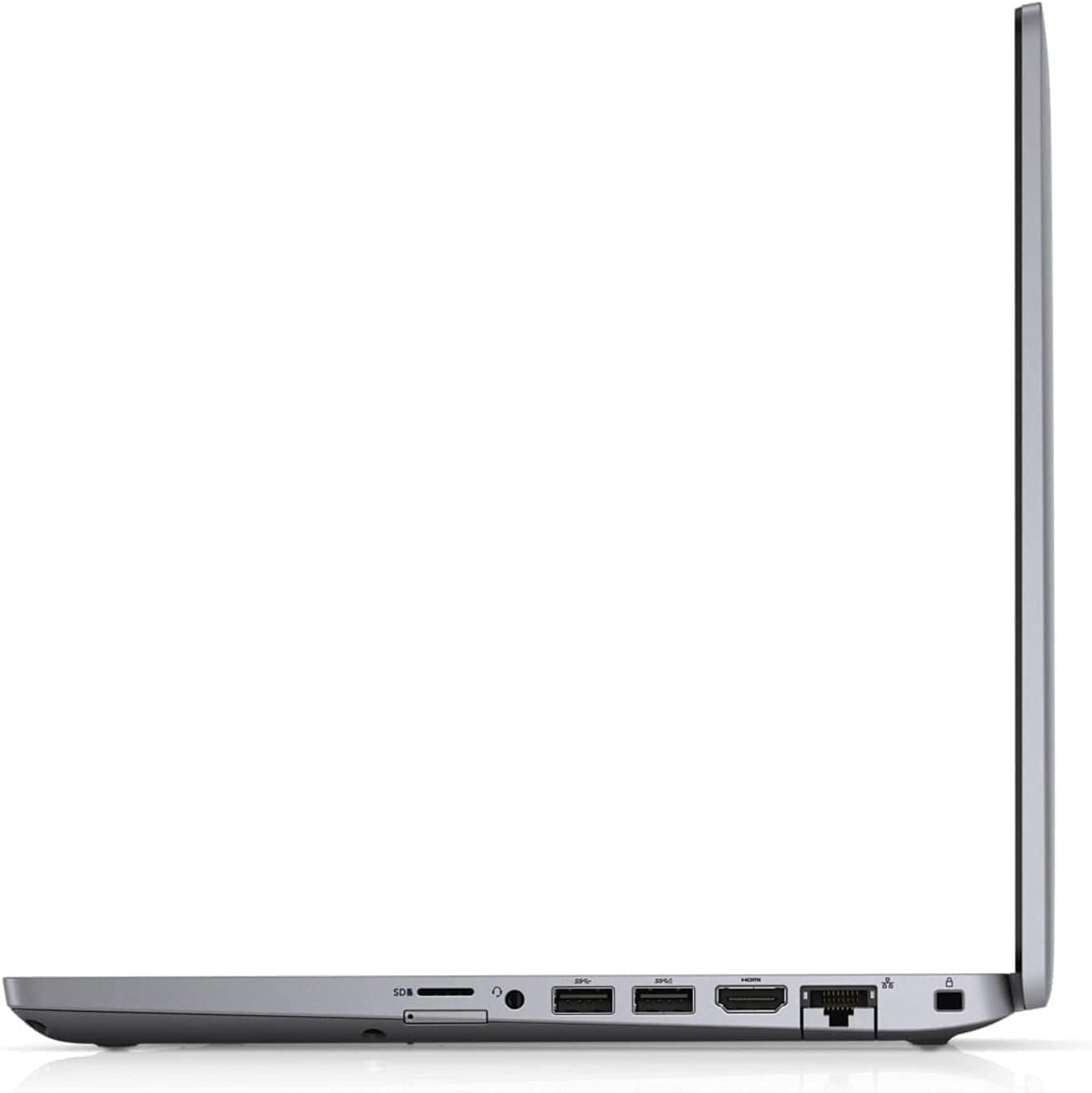
Figura 3.3: Pro lateralfile of the Dell Latitude 5410, illustrating its port layout and slim design.
3.3 Operating System Basics (Windows 10 Pro)
Your laptop comes with Windows 10 Pro. Familiarize yourself with basic operations:
- Meniul Start: Accesați aplicații, setări și opțiuni de alimentare.
- Bara de activități: Fixează aplicațiile utilizate frecvent și view programe deschise.
- Centru de acțiune: Accesați setările rapide și notificările.
- File Explorator: Gestionați-vă files și foldere.
4. Power Management and Battery
The Dell Latitude 5410 is equipped with a Lithium Ion battery. Proper power management extends battery life and ensures stable operation.
- Încărcare: Connect the AC adapter to charge the battery. The battery indicator light will show charging status.
- Durata de viață a bateriei: Average battery life is approximately 5 hours, depending on usage. To maximize battery life, adjust screen brightness, close unused applications, and utilize power-saving modes in Windows settings.
- Moduri de alimentare: Windows 10 Pro offers various power plans (e.g., Balanced, Power Saver, High Performance) that can be configured in the Control Panel or Settings app.
- Depozitare: If storing the laptop for an extended period, ensure the battery is charged to about 50% to prevent deep discharge.
5. Întreținere și îngrijire
Regular maintenance helps keep your laptop in good condition.
- curatenie: Folosiți o lavetă moale, fără scame, pentru a curăța ecranul și exteriorul. Pentru pete persistente,ampClătiți laveta cu apă sau cu un detergent de ecran. Evitați substanțele chimice dure.
- Ventilare: Ensure the ventilation openings are not blocked to prevent overheating. Use the laptop on a hard, flat surface.
- Actualizări de software: Regularly update Windows and device drivers to ensure security and optimal performance.
- Backup de date: Faceți periodic copii de rezervă ale datelor importante pe o unitate externă sau într-un spațiu de stocare în cloud.
- Protecție fizică: Transport the laptop in a padded case to protect it from impacts.
6. Depanare
Această secțiune abordează problemele frecvente pe care le-ați putea întâmpina.
- Laptopul nu pornește:
- Asigurați-vă că adaptorul de alimentare este conectat corect atât la laptop, cât și la o priză funcțională.
- Verificați dacă priza funcționează conectând un alt dispozitiv.
- Dacă bateria este complet descărcată, este posibil să dureze câteva minute de încărcare înainte ca laptopul să poată porni.
- Screen is Blank or Black:
- Check if the laptop is powered on (listen for fan noise or look for indicator lights).
- Reglați luminozitatea ecranului folosind tastele funcționale.
- Connect an external monitor to see if a display appears there. If so, the laptop's internal display may have an issue.
- Probleme de conectivitate Wi-Fi:
- Asigurați-vă că Wi-Fi este activat în setările Windows.
- Reporniți routerul și modemul.
- Actualizați driverele adaptorului de rețea wireless.
- Performanță lentă:
- Închideți aplicațiile inutile care rulează în fundal.
- Verificați dacă există programe malware sau viruși.
- Asigurați-vă că există suficient spațiu liber pe SSD.
- Update Windows and drivers.
7. Specificatii tehnice
Below are the detailed technical specifications for the Dell Latitude 5410 laptop:
| Caracteristică | Caietul de sarcini |
|---|---|
| Numele modelului | Latitudine 5410 |
| Procesor | Intel Quad-Core i5-10310U (Up to 4.4 GHz) |
| RAM | 16 GB DDR4 |
| Depozitare | SSD de 512 GB (NVMe) |
| Afişa | 14 inch FHD (1920 x 1080 pixels) |
| Coprocesor grafic | Grafică integrată Intel |
| Sistem de operare | Windows 10 Pro |
| Porturi | 3x USB Type-A, 1x USB Type-C, 1x HDMI, 1x RJ-45, 1x Smart Card Reader |
| Conectivitate wireless | Bluetooth |
| Caracteristici speciale | Backlit Keyboard, HD Audio, Memory Card Slot, Spill Resistant, TrackPoint |
| Durata medie a bateriei | 5 de ore |
| Greutatea articolului | 3.88 lire sterline |
| Dimensiunile produsului | 14 x 13 x 1 inci |
8. Garanție și asistență
This Dell Latitude 5410 laptop is a renewed product. Renewed products are professionally inspected and tested to work and look like new.
- Garanție reînnoită Amazon: If you are not satisfied with your purchase, renewed products are eligible for replacement or refund under the Amazon Renewed Guarantee. Please refer to the Amazon Renewed program terms for full details.
- Planuri de protecție: Optional protection plans may be available for purchase to extend coverage beyond the standard guarantee. Check your purchase details for information on any additional plans.
- Suport tehnic: For technical assistance, refer to Dell's official support website for drivers, manuals, and troubleshooting guides specific to the Latitude 5410 model.


