1. Introducere
This manual provides comprehensive instructions for the ZAGG Pro Keys Detachable Case and Wireless Keyboard. This product is designed to enhance the functionality and protection of your compatible iPad Air device, transforming it into a versatile workstation.

Image: ZAGG Pro Keys Detachable Case and Wireless Keyboard with iPad Air.
2. Compatibilitate
The ZAGG Pro Keys Detachable Case and Wireless Keyboard is compatible with the following Apple iPad Air models:
- iPad Air de 10.9 inchi (a patra generație)
- iPad Air de 10.9 inchi (a patra generație)
- iPad Air de 11 inchi (M2)
- iPad Air de 11 inchi (M3)

Image: Compatibility graphic for 10.9-inch iPad Air (Gen 4-5).
3. Conținutul pachetului
Your ZAGG Pro Keys package includes:
- ZAGG Pro Keys Detachable Case
- Tastatură fără fir
- Cablu de încărcare USB-C
- Ghid de pornire rapidă (nu este inclus în acest manual digital)
4. Instrucțiuni de configurare
4.1 Atașarea iPad-ului
- Carefully insert your iPad Air into the protective case. Ensure all edges are securely seated within the case's frame.
- The case features rubberized edges and corner bumpers for enhanced protection.

Image: Durable impact protection of the Pro Keys case.
4.2 Asociere Bluetooth
- Ensure the keyboard is charged. Connect the provided USB-C cable to the keyboard and a power source if needed.
- Turn on the keyboard using the power button, typically located on the side or top edge.
- Pe iPad-ul dvs., accesați Setări > Bluetooth.
- Toggle Bluetooth to the On poziţie.
- On the ZAGG Pro Keys keyboard, press and hold the Bluetooth pairing key (often marked with a Bluetooth symbol or a number like '1' or '2' for multi-device pairing) for a few seconds until the indicator light flashes.
- Your iPad should detect "ZAGG Pro Keys" in the "Other Devices" list. Tap on it to connect.
- Urmați orice instrucțiuni de pe ecran pentru a finaliza procesul de asociere.
The keyboard supports multi-device pairing, allowing you to connect to two devices simultaneously and switch between them using dedicated keys.
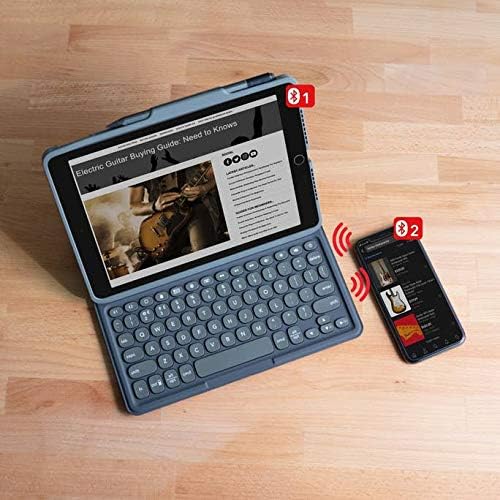
Image: Multi-device pairing functionality.
5. Instrucțiuni de utilizare
5.1 Utilizarea tastaturii
- Laptop-Style Keys: The keyboard features a Pro keyframe design with comfortably-spaced, low-profile keys for a precise typing experience.
- Taste iluminate din spate: The keys are backlit in 7 different colors. Use the dedicated backlight key (often a sun icon) to cycle through colors and adjust brightness levels.

Image: Backlit, laptop-style keys for typing in various lighting conditions.
5.2 Detachable Case and Adjustable Stand
- The keyboard and case are detachable, allowing for flexible use. You can remove the iPad in its protective case from the keyboard when not needed.
- The integrated adjustable stand allows you to set your iPad at various viewUnghiuri de înclinare pentru confort și productivitate optime.

Image: Detachable keyboard and case design.
5.3 Apple Pencil Holder
The case includes a dedicated holder for your Apple Pencil or other stylus, ensuring it is securely stored and readily accessible.

Image: Integrated Apple Pencil holder.
6. Întreținere
6.1 Încărcarea tastaturii
- Connect the provided USB-C charging cable to the keyboard's charging port and a compatible USB power adapter.
- A full charge can provide up to one year of battery life, depending on backlight usage.
- The keyboard features a sleep/wake function to conserve battery when not in use.

Image: Long-lasting battery feature of the keyboard.
6.2 Curățare
To clean your ZAGG Pro Keys case and keyboard, use a soft, damp cloth. Avoid harsh chemicals or abrasive materials that could damage the surfaces.
7. Depanare
| Problemă | Soluţie |
|---|---|
| Keyboard does not pair with iPad. |
|
| Keys are not responding or are duplicating characters. |
|
| Lumina de fundal nu funcționează. |
|
8. Specificații
- Număr de model: 103406884
- Marca: ZAGG
- Serie: Pro Keys
- Dispozitive compatibile: iPad Air 10.9-inch (Gen 4, Gen 5), iPad Air 11-inch (M2), iPad Air 11-inch (M3)
- Tehnologie de conectivitate: Bluetooth (fară fir)
- Descrierea tastaturii: iPad Air Keyboard and Case
- Caracteristica speciala: Backlit keys (RGB, 7 colors)
- Culoare: Negru
- Greutatea articolului: Aproximativ 1.48 lire sterline
- Dimensiuni produs: 9.98 x 7.73 x 0.89 inci (L x l x înălțime)
- Sursa de alimentare: Alimentat cu baterie (1 baterie cu litiu polimer inclusă)
- Durata de viață a bateriei: Up to 1 year between charges (varies with backlight usage)
- Protecție împotriva căderii: 6.6 de picioare (2 metri)
9. Garanție și asistență
For warranty information, product registration, or technical support, please visit the official ZAGG website-ul lor web sau contactați departamentul de asistență pentru clienți. Păstrați dovada achiziției pentru solicitările de garanție.
The product is designed with durable materials to provide 6.6ft (2m) drop protection for your device.


