1. Introducere
This manual provides detailed instructions for the installation, operation, and maintenance of your MoesGo Smart RF433 WiFi Wall Switch. This smart switch is designed for convenient control of your lighting, offering multiple control methods including touch, app, voice, and RF433 remote.
Caracteristici cheie:
- Nu este necesar fir neutru pentru instalare.
- Supports 2.4GHz WiFi connectivity for Smart Life/Tuya App control.
- Compatible with Alexa and Google Home for hands-free voice control.
- RF433 frequency support for remote control (remote not included).
- Programmable timing schedules and countdowns.
- Relay status memory and backlight preferences.

Image 1.1: MoesGo Smart RF433 WiFi Wall Switch, showcasing its sleek design and "No neutral" indicator.
2. Informații de siguranță
WARNING: Electrical installation should only be performed by a qualified electrician. Always turn off power at the circuit breaker before installation or maintenance.
- Ensure the power supply is disconnected before handling any wiring.
- This device is designed for 2.4GHz Wi-Fi networks only. It is not compatible with 5.0GHz Wi-Fi.
- A capacitor is required for proper operation and must be connected to both ends of the bulb.
- Only use with certified bulbs that have a rated power of 5W or higher.
- This switch is not designed for use as a 3-way switch.
- The capacitor may produce a faint humming sound during operation. This is normal.
3. Conținutul pachetului
Vă rugăm să verificați pachetul pentru următoarele articole:
- MoesGo Smart RF433 WiFi Wall Switch (1 unit)
- Capacitor (1 unit)
- Șuruburi de montare (2 unități)
- Manual de utilizare (Acest document)
4. Specificații
| Caracteristică | Detaliu |
|---|---|
| Marca | MoesGo |
| Numărul de model | WS-EU1-LB-N-MG |
| Mod de operare | ON-OFF |
| Tip de contact | În mod normal închis |
| Material | Sticlă |
| Tip de montare | Montare pe perete |
| Evaluarea internațională de protecție | IP65 |
| Culoare | Negru |
| Dimensiuni (pachet) | 11 x 10.2 x 5.1 cm |
| Greutate (pachet) | 193 de grame |

Image 4.1: Detailed dimensions of the MoesGo Smart Switch and a basic wiring diagram for single-wire installation with capacitor.
5. Instalare și configurare
5.1 Listă de verificare preinstalare
- Verificați dacă rețeaua Wi-Fi este de 2.4 GHz. Rețelele de 5 GHz nu sunt acceptate.
- Ensure the bulbs connected to the switch have a rated power of 5W or higher.
- Confirm you are not attempting to install this as a 3-way switch.
- Have the included capacitor ready.
5.2 Instrucțiuni de cablare
- Opriți alimentarea: Localizați întrerupătorul de circuit și opriți alimentarea cu energie a comutatorului pe care îl înlocuiți. Verificați dacă alimentarea este oprită folosind un volmetru.tage tester.
- Scoateți comutatorul vechi: Scoateți cu grijă întrerupătorul de perete existent din cutia de perete.
- Condensator de conectare: The included capacitor is essential for stable operation with no neutral wire. Connect the capacitor across the two terminals of the light bulb (in parallel with the load). This helps prevent flickering and ensures proper functionality.
- Conectați comutatorul inteligent:
- Connect the live wire (L) from your electrical box to the 'L IN' terminal on the MoesGo switch.
- Connect the load wire (L1) going to your light fixture to the 'L OUT' terminal on the MoesGo switch.
- Asigurați-vă că toate conexiunile sunt sigure.
- Montați comutatorul: Gently push the wired switch into the wall box and secure it with the provided screws. Attach the glass panel.
- Restabiliți puterea: Reporniți alimentarea la întrerupător.

Image 5.1: Visual guide highlighting critical installation requirements: 2.4GHz Wi-Fi, minimum 5W bulb power, not for 3-way use, and no neutral wire needed.

Image 5.2: Illustration showing the capacitor and its importance for the MoesGo Smart Switch, indicating it should be connected to the bulb.
5.3 App Pairing (Smart Life/Tuya)
- Descărcați aplicația: Descărcați aplicația „Smart Life” sau „Tuya Smart” din magazinul de aplicații al smartphone-ului dvs. (iOS sau Android).
- Înregistrare/Autentificare: Deschide aplicația și creează un cont nou sau conectează-te cu unul existent.
- Intrați în modul de asociere: On the MoesGo switch, press and hold the touch button for approximately 5-10 seconds until the indicator light starts blinking rapidly. This indicates it's in pairing mode.
- Adăugați dispozitiv: In the app, tap the "+" icon (usually in the top right corner) to add a device. Select "Switch (Wi-Fi)" or "Wall Switch".
- Confirmați clipirea: Confirmați că indicatorul luminos de pe comutator clipește rapid în aplicație.
- Introduceți detaliile Wi-Fi: Introduceți numele și parola rețelei Wi-Fi de 2.4 GHz.
- Conectare: The app will begin connecting to the switch. Once connected, the indicator light on the switch will stop blinking and remain solid.
- Redenumiți dispozitivul: You can rename the switch in the app for easier identification (e.g., "Living Room Light").
6. Funcționare
The MoesGo Smart Switch offers multiple ways to control your lighting:
6.1 Atingeți Control
Simply touch the designated area on the glass panel of the switch to turn the light ON or OFF. The touch control functions independently of app or voice commands.

Image 6.1: A hand touching the MoesGo Smart Switch, illustrating the touch control functionality.
6.2 Controlul aplicației (Smart Life/Tuya)
Once paired with the Smart Life or Tuya Smart app, you can control your switch from anywhere with an internet connection.
- Pornire/Oprire de la distanță: Tap the switch icon in the app to turn the light ON or OFF.
- Relay Status Settings: Access the switch settings in the app to configure the relay status after a power outage (ON/OFF/Remember last status). You can also adjust backlight preferences.
- Controlul partajării: Share control of the switch with family members or friends through the app, allowing multiple users to manage the device.
- Controlul grupului: Create groups within the app to control multiple smart switches simultaneously.

Image 6.2: Screenshot of the Smart Life/Tuya app interface showing options for setting relay status and backlight preferences for the MoesGo Smart Switch.
Control vocal 6.3 (Alexa și Google Home)
Integrate your MoesGo Smart Switch with Amazon Alexa or Google Home for convenient hands-free voice control.
- Conectare cont: In the Alexa or Google Home app, enable the "Smart Life" or "Tuya Smart" skill/service and link your account.
- Descoperiți dispozitive: Ask Alexa or Google Home to discover new devices.
- Comenzi vocale: Folosește comenzi precum:
- „Alexa, activează [Nume comutator]”
- „Hei Google, dezactivează [Nume comutator]”
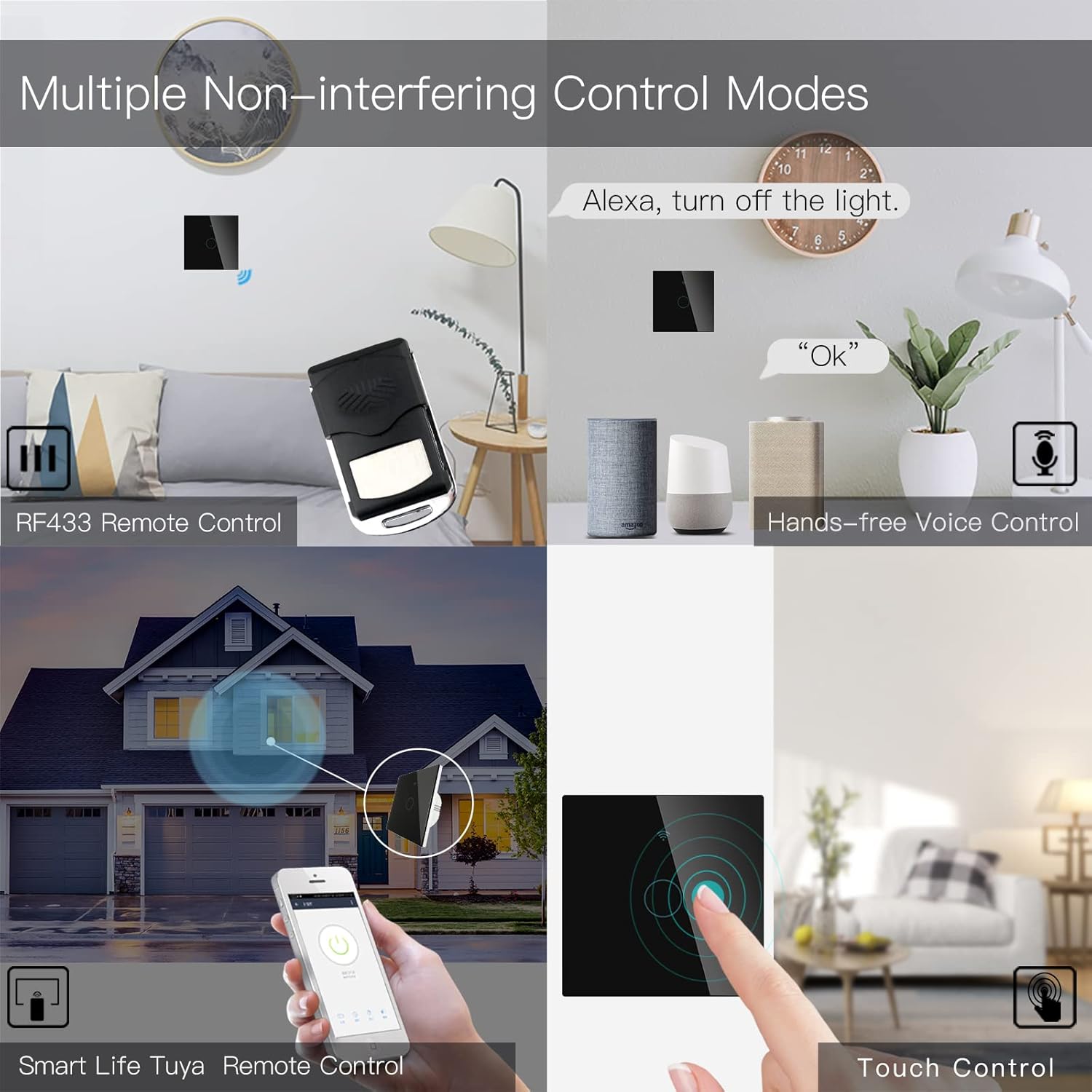
Image 6.3: Depiction of the MoesGo Smart Switch being controlled via voice commands using Amazon Alexa and Google Home devices.
6.4 RF433 Remote Control
The switch supports RF433 frequency for remote control. An RF433 remote (not included) with 1527 encoding can be paired with the switch.
- Enter RF Pairing Mode: In the Smart Life/Tuya app, navigate to the switch settings and find the "RF area" to enter pairing mode.
- Pereche de telecomandă: Press a button on your RF433 remote. Ensure a one-second delay between presses to avoid errors. The switch will confirm successful pairing.
6.5 Timing Schedules and Countdown
Utilize the Smart Life/Tuya app to set up automated schedules for your lights.
- Programe: Program specific times for the light to turn ON or OFF daily or on selected days of the week.
- Numărătoarea inversă: Set a countdown timer for the light to turn OFF after a specified duration (e.g., 1, 5, 30 minutes, 1 hour).

Imaginea 6.4: Un fostample of setting a timing schedule in the Smart Life/Tuya app, showing lights turning on at 7:00 AM and off at 10:00 PM.
7. Întreținere
To maintain your MoesGo Smart Switch:
- curatenie: Gently wipe the glass panel with a soft, dry cloth. Avoid abrasive cleaners or solvents.
- Actualizări firmware: Verificați periodic aplicația Smart Life/Tuya pentru actualizări de firmware disponibile, pentru a asigura performanță și securitate optime.
8. Depanare
- Comutatorul nu răspunde:
- Verificați dacă întrerupătorul de circuit este pornit.
- Ensure the wiring is correct and secure.
- Verify the capacitor is properly installed across the bulb terminals.
- Pâlpâire ușoară:
- This often indicates an issue with the capacitor installation or an incompatible bulb. Ensure the capacitor is correctly wired and the bulb meets the 5W minimum power requirement.
- Nu se poate conecta la Wi-Fi:
- Confirmă că rețeaua ta Wi-Fi este de 2.4 GHz.
- Ensure the switch is in pairing mode (rapidly blinking indicator light).
- Verificați corectitudinea parolei Wi-Fi.
- Move the switch closer to your Wi-Fi router during pairing.
- Faint Humming Sound:
- A faint humming sound from the capacitor is normal for no-neutral switches. If the sound is loud or concerning, recheck the capacitor installation and bulb compatibility.
- RF433 Remote Pairing Issues:
- Ensure the switch is in RF pairing mode via the app.
- Press remote buttons with a one-second delay between presses.
- Verify the remote uses 1527 encoding.
9. Garanție și asistență
For warranty information and technical support, please refer to the official MoesGo website-ul web sau contactați direct serviciul lor de asistență pentru clienți. Detaliile sunt de obicei furnizate pe ambalajul produsului sau în resursele online oficiale ale producătorului.


