1. Introducere
Welcome to the Surfans Kids Tablet T57 user manual. This guide provides detailed instructions on how to set up, operate, maintain, and troubleshoot your new 7-inch Android tablet. Designed specifically for children, this tablet features a durable kid-proof case, parental control functions, and pre-installed educational and entertainment applications.
2. Ce se află în cutie
Vă rugăm să verificați conținutul coletului pentru a vă asigura că toate articolele sunt prezente:
- 1x Surfans Kids Tablet
- 1x Tablet Stand
- 1x cablu USB
- 1x Kids Tablet User Manual (this document)
3. Produs terminatview și Caracteristici
The Surfans Kids Tablet T57 is built with a robust design and features tailored for young users. Below is an overview of its components and key functionalities.
3.1 Componentele tabletei
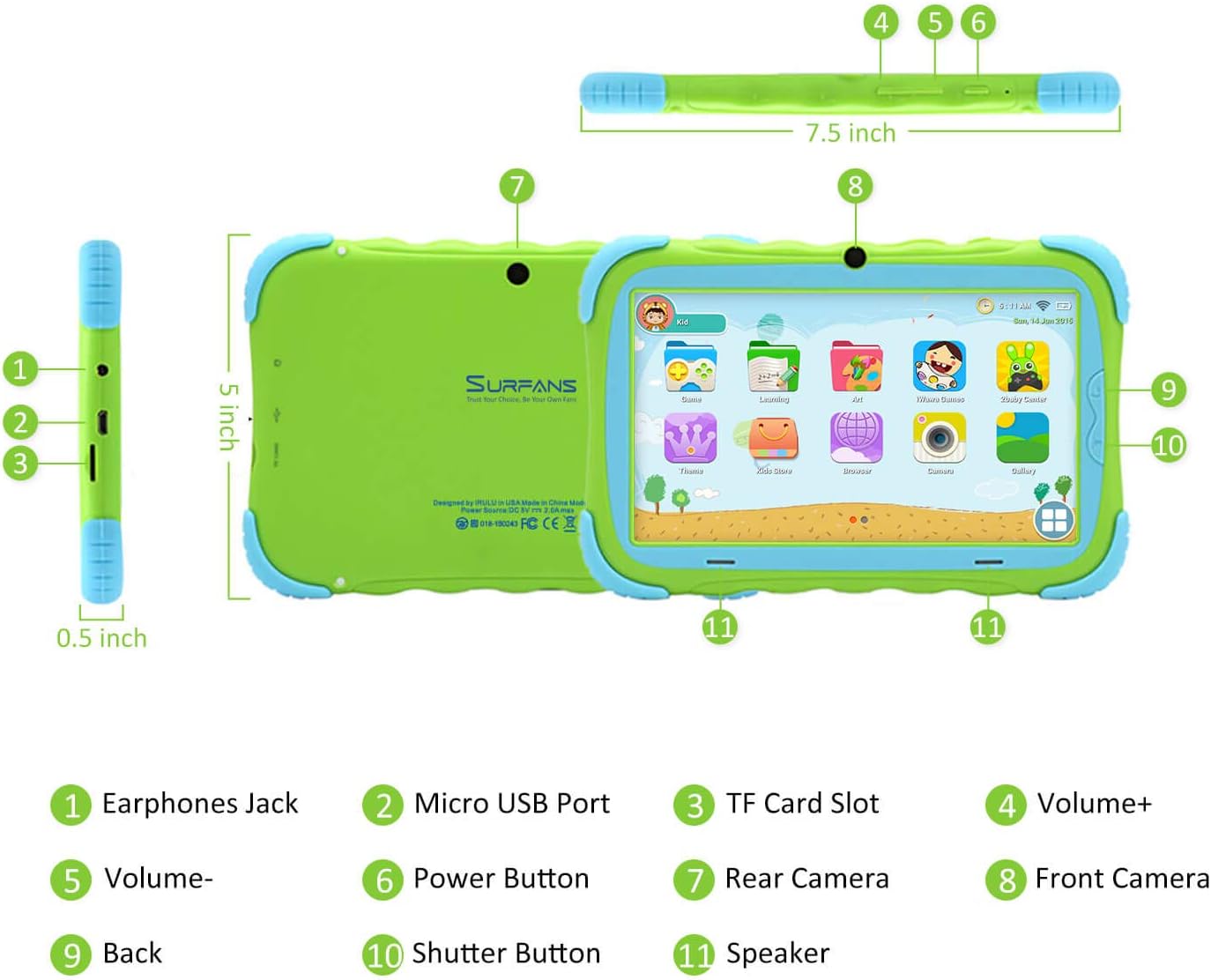
- Mufă pentru căști: Pentru conectarea căștilor sau a dispozitivelor audio externe.
- Port micro USB: Used for charging the tablet and connecting to a computer for data transfer.
- Slot pentru carduri TF: Pentru introducerea unui card Micro SD pentru extinderea capacității de stocare (până la 32 GB).
- Volum+: Increases the tablet's audio volume.
- Volum-: Decreases the tablet's audio volume.
- Buton de alimentare: Press and hold to turn the tablet on/off or restart. Press briefly to turn the screen on/off.
- Camera spate: The primary camera located on the back of the tablet.
- Camera frontală: The camera located on the front, typically used for video calls or selfies.
- Butonul Înapoi: Navigates back to the previous screen or closes the current application.
- Butonul de declanșare: Used to capture photos or start/stop video recording in the camera application.
- Vorbitor: Provides audio output from the tablet.
3.2 Caracteristici cheie
- Kid-Proof Design: Comes with a durable, lightweight, and skin-friendly case designed to protect against drops and bumps.
- 7-inch IPS HD Eye Protection Display: Provides clear visuals while minimizing eye strain.
- Sistem de operare Android 9.0: Runs on the latest Google Android 9.0 Pie operating system for smooth performance.
- Procesor cu patru nuclee: Ensures responsive performance for apps, games, and videos.
- 1 GB RAM și 16 GB ROM: Sufficient memory for basic operations and storage, expandable up to 32GB via Micro SD card.
- Parental Control Mode: Allows parents to manage content, set time limits, and configure user settings for a safe digital environment.
- Pre-installed Kids Apps: Includes a variety of educational and entertaining apps, with access to the Google Play Store for more content.
- Conectivitate Wi-Fi: Supports 802.11g for fast browsing, streaming, and video calls.
- Durată lungă de viață a bateriei: 3000mAh Li-ion Battery provides 3-5 hours of working time, or up to 8 hours of mixed use on a single charge.


4. Ghid de instalare
Follow these steps to set up your Surfans Kids Tablet for the first time.
4.1 Taxa inițială
Before first use, fully charge the tablet. Connect the included USB cable to the Micro USB Port (2) on the tablet and plug the other end into a compatible USB power adapter (not included) or a computer USB port. The charging indicator will show the charging status.
4.2 Pornire/Oprire
- Pentru a porni: Press and hold the Power Button (6) until the screen lights up.
- Pentru a opri: Press and hold the Power Button (6) until a power-off menu appears. Select "Power off" and confirm.
- Pentru a reporni: Press and hold the Power Button (6) until the power-off menu appears. Select "Restart" and confirm.
- Ecran Pornit/Oprit: Briefly press the Power Button (6) to turn the screen on or off without powering down the tablet.
4.3 Conexiune Wi-Fi
To access online content and download apps, connect your tablet to a Wi-Fi network:
- Din ecranul principal, glisați în jos de sus pentru a deschide panoul Setări rapide.
- Tap and hold the Wi-Fi icon to go to Wi-Fi settings.
- Activează Wi-Fi-ul dacă este dezactivat.
- Selectați rețeaua Wi-Fi dorită din listă.
- Introduceți parola de rețea dacă vi se solicită, apoi atingeți „Conectare”.
4.4 Setting Up Parental Control
The Parental Control mode is a key feature for managing your child's tablet usage. This allows you to filter website content, set time limits, and control app access.

Specific steps for setting up parental controls will be available within the tablet's pre-installed Kids app or settings menu. Look for an icon or section labeled "Parental Control" or "Kids Mode" to configure user profiles, allowed applications, and usage schedules.
5. Utilizarea tabletei
This section covers basic operations and how to use the tablet's features.
5.1 Navigare de bază
- Touch and Tap: To open apps, select items, or type.
- Beţivan: To scroll through screens, menus, or web pagini.
- Ciupire pentru zoom: Pentru a mări sau a micșora imaginile sau web pagini.
- Ecranul principal: Ecranul principal unde puteți accesa aplicații și widgeturi.
- Bara de navigare: Located at the bottom of the screen, typically includes Back, Home, and Recent Apps buttons.
5.2 Using Kids Mode and Apps
The tablet comes with a dedicated Kids Mode interface, providing a safe and engaging environment for children. This mode typically features a simplified layout and access to pre-approved content.

- Accessing Kids Mode: Usually, there's a specific app icon or a setting to switch to Kids Mode.
- Aplicații preinstalate: Explore the various educational games, books, music, and art learning applications.
- Magazin Google Play: For additional apps, exit Kids Mode (if applicable) and access the Google Play Store. Ensure parental supervision for downloads.


5.3 Media Playback and Camera
- Videos and Music: Use pre-installed media players or download others from the Play Store to enjoy videos and music.
- Camera: Open the Camera app to use the Front (8) or Rear (7) cameras. Tap the Shutter Button (10) to take photos or record videos.
5.4 Expandable Storage
To expand the tablet's storage, insert a Micro SD card (up to 32GB, not included) into the TF Card Slot (3). This allows for more space for photos, music, movies, and apps.
6. Întreținere
Întreținerea corespunzătoare asigură longevitatea și performanța optimă a tabletei tale.
- curatenie: Folosiți o lavetă moale, fără scame, pentru a curăța ecranul și corpul tabletei. Evitați substanțele de curățare abrazive sau solvenții.
- Îngrijirea bateriei:
- Evitați descărcarea completă frecventă a bateriei.
- Nu expuneți tableta la temperaturi extreme.
- Utilizați numai cablul USB furnizat pentru încărcare.
- Actualizări de software: Periodically check for system updates in the tablet's settings to ensure you have the latest features and security patches.
- Managementul stocării: Curățați regulat inutilul fileși dezinstalați aplicațiile neutilizate pentru a elibera spațiu de stocare și a menține performanța.
7. Depanare
If you encounter issues with your tablet, refer to the following common problems and solutions.
| Problemă | Soluție posibilă |
|---|---|
| Tableta nu pornește. | Ensure the battery is charged. Connect the charger and wait a few minutes before attempting to power on again. If unresponsive, press and hold the Power Button for 10-15 seconds to force a restart. |
| Probleme cu conexiunea Wi-Fi. | Verificați dacă Wi-Fi-ul este activat în setări. Reporniți routerul Wi-Fi. Uitați de rețea și reconectați-vă. Asigurați-vă că vă aflați în raza de acțiune a semnalului Wi-Fi. |
| Slow performance or apps crashing. | Close unused apps. Clear app caches. Free up storage space by deleting unnecessary files or uninstalling unused apps. Restart the tablet. |
| Ecranul nu răspunde. | Restart the tablet by holding the Power Button. Ensure the screen is clean and dry. |
| Cannot download apps from Google Play Store. | Check your Wi-Fi connection. Ensure sufficient storage space. Verify parental control settings are not blocking downloads. Clear cache and data for Google Play Store app. |
| Tablet not charging. | Check the USB cable and charger for damage. Try a different USB port or power adapter. Ensure the Micro USB Port is clean and free of debris. |
If the problem persists after trying these solutions, please contact Surfans customer support for further assistance.
8. Specificații
Detailed technical specifications for the Surfans Kids Tablet T57:
| Caracteristică | Detaliu |
|---|---|
| Numele modelului | T57 |
| Sistem de operare | Android 9 Pie |
| Dimensiunea ecranului | 7 inchi |
| Rezoluția ecranului | 1024x600 IPS HD |
| Procesor | 1.5 GHz Quad-core Cortex-X7 (ARM) |
| RAM | 1 GB |
| Stocare internă (ROM) | 16 GB |
| Stocare extensibilă | Suportă card Micro SD de până la 32 GB |
| Tip fără fir | 802.11g Wi-Fi |
| Camere de luat vederi | Front Camera, Rear Camera (2 MP) |
| Baterie | Baterie Li-ion de 3000 mAh |
| Durata medie a bateriei | 3-5 hours (working time), 8 hours (mixed use) |
| Dimensiuni (Lxlxh) | 7.5 x 5 x 0.5 inci |
| Greutatea articolului | 1.22 lire sterline |
| Culoare | Verde |
9. Garanție și asistență
For warranty information, technical support, or any inquiries regarding your Surfans Kids Tablet T57, please refer to the contact details provided on the product packaging or the official Surfans website. Surfans is committed to providing fast response and technical assistance for any issues encountered during use.


