1. Introducere
This manual provides essential information for the safe and efficient use of your Amazon Fire HD 10 tablet (2021 release). Please read it thoroughly before operating your device.
Caracteristici cheie
- Fast and Responsive: Powered by an octa-core processor and 3 GB RAM, offering 50% more RAM than the previous generation.
- Baterie de lunga durata: Up to 12 hours of battery life for reading, browsing, video, and music.
- Afișaj viu: 10.1-inch 1080p Full HD display, 10% brighter than the previous generation, with over 2 million pixels.
- AmpDepozitare: Available with 32 GB or 64 GB internal storage, expandable up to 1 TB with a microSD card (sold separately).
- Compatibilitate aplicație: Access to popular apps like Netflix, Facebook, Disney+, InstagRAM, TikTok și multe altele prin intermediul Appstore-ului Amazon.
- Instrumente de productivitate: Supports apps like Microsoft Office, OneNote, and Dropbox for enhanced productivity.
- Design durabil: Thinner and lighter than the previous generation, with a screen strengthened by aluminosilicate glass.
- Funcționalitate ecran împărțit: Allows two compatible apps to be open side-by-side for multitasking.
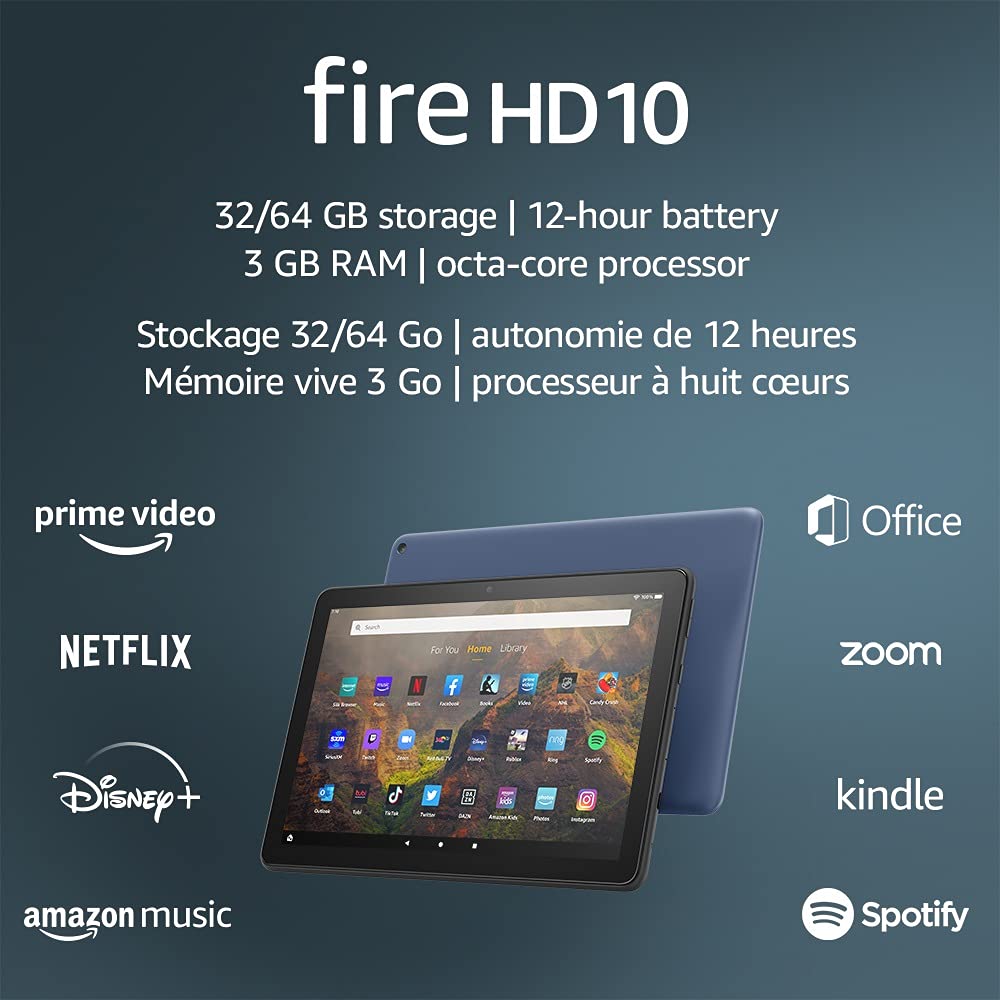
Image 1.1: The Amazon Fire HD 10 tablet highlighting its 32/64 GB storage, 12-hour battery, 3 GB RAM, and octa-core processor, alongside logos of supported applications such as Prime Video, Netflix, Disney+, Amazon Music, Office, Zoom, Kindle, and Spotify.
2. Configurare
2.1 Despachetare și încărcare inițială
Upon receiving your Fire HD 10 tablet, carefully remove all components from the packaging. Before first use, it is recommended to fully charge the device.
- Connect the provided USB-C (2.0) cable to the tablet's USB-C port.
- Plug the other end of the USB-C cable into the 9W power adapter.
- Conectați adaptorul de alimentare la o priză de perete.
- A full charge from 0% to 100% typically takes approximately 4 hours while the device is in standby mode.
2.2 Pornire/Oprire
- Pentru a porni: Press and hold the power button located on the side of the tablet until the Amazon logo appears on the screen.
- Pentru a opri: Press and hold the power button until a power options menu appears. Select 'Power Off'.
- Pentru a reporni: Din meniul de opțiuni de alimentare, selectați „Repornire”.
Conectivitate Wi-Fi 2.3
To access online content and services, connect your Fire HD 10 to a Wi-Fi network.
- From the Home screen, swipe down from the top to open the Quick Settings panel.
- Atinge pictograma Wi-Fi.
- Selectați rețeaua Wi-Fi dorită din lista de rețele disponibile.
- If prompted, enter the network password and tap 'Connect'.
- The tablet supports 2.4 GHz and 5.0 GHz networks. Ad-hoc (peer-to-peer) Wi-Fi networks are not supported.
2.4 Configurarea contului
During the initial setup process, you will be guided to register your Fire HD 10 to an Amazon account. This is necessary to download apps, access Amazon content, and utilize cloud services.
- Follow the on-screen prompts to sign in with an existing Amazon account or create a new one.
- Ensure your account details are accurate for full functionality.
3. Instrucțiuni de utilizare
3.1 Navigarea prin interfață
The Fire HD 10 tablet features a touch-sensitive display for interaction.
- Robinet: Pentru a selecta un element, deschideți o aplicație sau activați un buton.
- Beţivan: Pentru a derula prin pagini, liste sau a comuta între ecranele de pornire.
- Ciupire pentru zoom: Pentru a mări sau a micșora imaginile, web pages, or documents.
- Apasare prelungită: Pentru a accesa meniurile contextuale sau a muta pictogramele aplicațiilor.
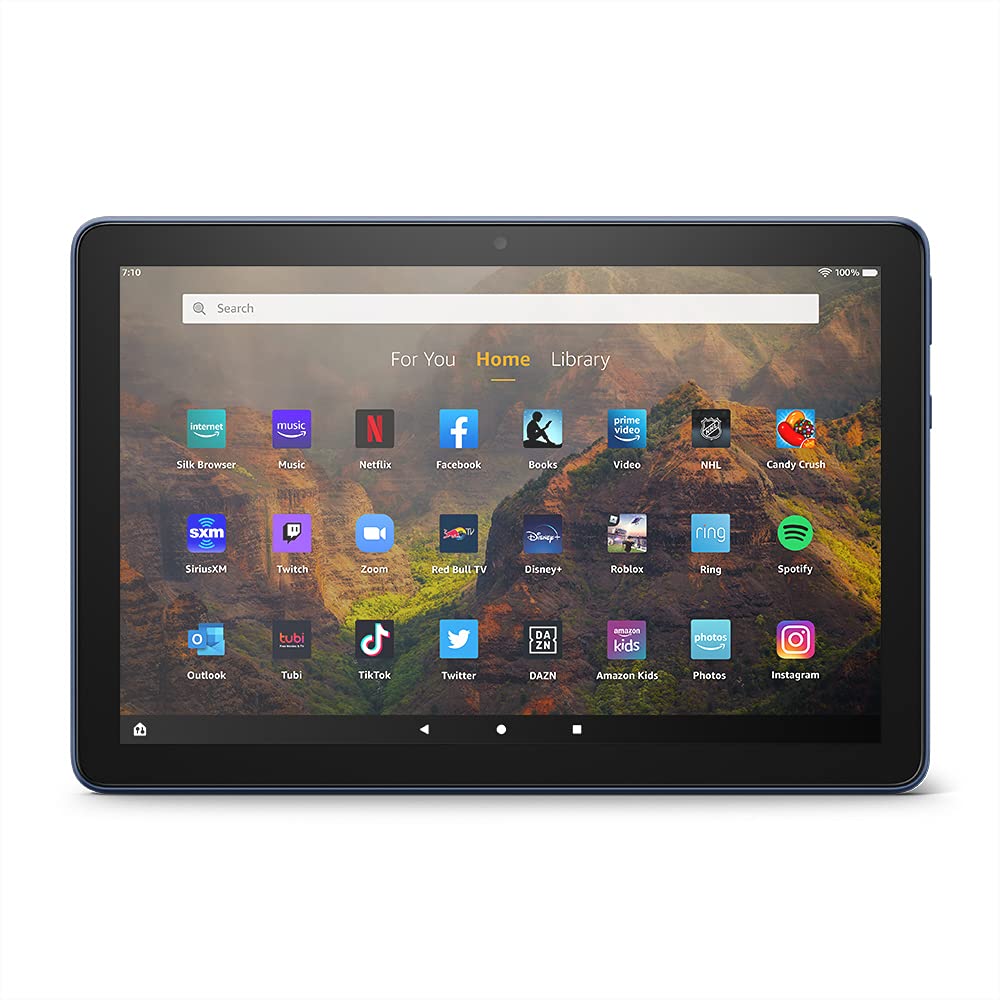
Image 3.1: The Amazon Fire HD 10 tablet's home screen, showcasing a grid of application icons including Silk Browser, Music, Netflix, Facebook, Books, Video, NHL, Candy Crush, SiriusXM, Twitch, Zoom, Red Bull TV, Disney+, Roblox, Ring, Spotify, Outlook, Tubi, TikTok, Twitter, DAZN, Amazon Kids, Photos, and InstagBERBEC.
3.2 Utilizarea aplicațiilor
Applications can be downloaded from the Amazon Appstore. Google Play is not supported.
- Tap an app icon on the Home screen to launch it.
- To find new apps, open the 'Appstore' application.
- Some apps may require a subscription for full access.

Image 3.2: A collage of content available on the Amazon Fire HD 10 tablet, featuring book covers like 'The Silent Patient', Amazon Original series and movies such as 'The Wilds', 'Coming to America', 'The Expanse', 'Dune', 'Hanna', 'One Night in Miami', 'Sound of Metal', 'The Marvelous Mrs. Maisel', 'Upload', and 'The Boys', alongside social media app logos for TikTok, Facebook, and Twitter.
3.3 Multitasking pe ecran divizat
The Fire HD 10 supports split screen functionality, allowing two compatible applications to run side-by-side.
- Deschideți prima aplicație pe care doriți să o utilizați.
- Swipe up from the bottom of the screen to reveal the navigation bar.
- Long-press the icon of the first app in the recent apps view.
- Select 'Split Screen' from the options.
- Choose a second compatible app from your recent apps or app drawer to fill the other half of the screen.

Image 3.3: The Amazon Fire HD 10 tablet, shown with an optional Bluetooth keyboard case, demonstrating its split-screen capability. Two applications are open simultaneously: a calendar app on the left and a messaging app on the right, illustrating enhanced productivity.
3.4 Utilizarea camerei
The tablet is equipped with a 2 MP front-facing camera and a 5 MP rear-facing camera, both capable of 720p HD video recording.
- Open the 'Camera' app from your Home screen or app drawer.
- Atingeți butonul declanșator pentru a face o fotografie.
- Comutați între camerele frontale și cele din spate utilizând pictograma de comutare a camerei.
- Select video mode to record videos.
3.5 Audio and Bluetooth
The Fire HD 10 includes dual integrated speakers and a 3.5 mm stereo jack for headphones. It also supports Bluetooth 5.0 LE.
- Connect wired headphones or external speakers via the 3.5 mm jack.
- To pair Bluetooth devices (headphones, speakers, microphones, LE accessories):
- Go to 'Settings' > 'Connected Devices' > 'Bluetooth'.
- Asigurați-vă că Bluetooth este activat.
- Select your device from the list of available devices and follow pairing instructions.
3.6 Managementul stocării
Your Fire HD 10 comes with either 32 GB or 64 GB of internal storage. You can expand this by up to 1 TB using a microSD card.
- To insert a microSD card: Locate the microSD slot on the side of the tablet, open the cover, and gently insert the card until it clicks into place.
- Manage storage by going to 'Settings' > 'Storage'. Here you can view usage and move compatible apps or media to the microSD card.
4. Întreținere
4.1 Îngrijirea bateriei
- Avoid exposing the tablet to extreme temperatures, as this can degrade battery performance.
- Pentru o durată optimă de viață a bateriei, evitați descărcarea completă și frecventă a bateriei sau menținerea acesteia la 100% încărcată pentru perioade lungi de timp.
- Use only the provided 9W power adapter and USB-C cable for charging.
4.2 Curăţarea dispozitivului
- Turn off the tablet before cleaning.
- Use a soft, lint-free cloth to gently wipe the screen and body.
- Pentru pete persistente, ușor dampen the cloth with water. Avoid using harsh chemicals, abrasive cleaners, or aerosol sprays.
4.3 Actualizări de software
Amazon periodically releases software updates to improve performance and add new features. Ensure your device is connected to Wi-Fi to receive these updates.
- Updates are typically downloaded and installed automatically.
- You can manually check for updates by going to 'Settings' > 'Device Options' > 'System Updates'.
5. Depanare
5.1 Dispozitivul nu răspunde
- If the device is frozen or unresponsive, press and hold the power button for approximately 20 seconds to force a restart.
- Ensure the device has sufficient battery charge. Connect it to the charger and try powering it on again.
5.2 Probleme de conexiune Wi-Fi
- Verify that Wi-Fi is enabled in Quick Settings or 'Settings' > 'Wireless'.
- Asigurați-vă că vă aflați în raza de acțiune a routerului Wi-Fi.
- Reporniți routerul și modemul Wi-Fi.
- Forget the network in 'Settings' > 'Wireless' and reconnect, re-entering the password if necessary.
5.3 Apps Crashing or Not Loading
- Închideți și redeschideți aplicația.
- Clear the app's cache: Go to 'Settings' > 'Apps & Games' > 'Manage All Applications', select the problematic app, and tap 'Clear Cache'.
- Asigurați-vă că software-ul tabletei este actualizat.
- Dacă problema persistă, luați în considerare dezinstalarea și reinstalarea aplicației.
5.4 Durată scurtă de viață a bateriei
- Reduceți luminozitatea ecranului.
- Închideți aplicațiile neutilizate care rulează în fundal.
- Turn off Wi-Fi or Bluetooth when not in use.
- Limitați utilizarea datelor în fundal pentru aplicații.
- Check 'Settings' > 'Battery' to identify apps consuming the most power.
6. Specificații
| Caracteristică | Detaliu |
|---|---|
| Generaţie | Generația a 11-a, lansare 2021 |
| Afişa | Ecran strălucitor de 10.1” 1080p (1920 x 1200) cu peste 2 milioane de pixeli (224 ppi). Ecran ranforsat cu sticlă aluminosilicată. |
| Dimensiune | 247mm x 166mm x 9.2 mm |
| Greutate | 465 grams (Actual size and weight may vary) |
| CPU și RAM | Octa-core 2.0 GHz cu 3 GB RAM |
| Depozitare | 32 GB (24.2 GB available) or 64 GB (55.0 GB available) internal storage. Expandable up to 1 TB with microSD card. |
| Durata de viață a bateriei | Up to 12 hours of mixed usage (reading, web, video, music). Varies by settings and usage. |
| Timp de încărcare | Approx. 4 hours (0-100%) with provided 9W adapter in standby. |
| Conectivitate WiFi | Supports 2.4 GHz and 5.0 GHz networks. Does not support ad-hoc networks. |
| Porturi | USB-C (2.0) for charging, microSD slot for external storage. |
| Audio | 3.5 mm stereo jack, dual integrated speakers, external volume controls. |
| Senzori | Accelerometru, senzori de lumină ambientală. |
| Specificații camerei | 2 MP front-facing, 5 MP rear-facing cameras with 720p HD video recording. |
| Microfoane | 2 built-in microphones. |
| Servicii de localizare | Location-based services via WiFi. |
| Culori disponibile | Black, Denim. |
| Bluetooth | Built-in Bluetooth 5.0 LE with A2DP support for stereo headphones, speakers, microphone, and LE accessories. |
6.1 Funcții de accesibilitate
The Fire HD 10 tablet includes various accessibility features to assist users. These can be accessed via 'Settings' > 'Accessibility'.
- VoceView Cititor de ecran: Provides spoken feedback for users who are blind or visually impaired.
- Lupă de ecran: Allows users to zoom in/out and pan around the screen.
- Acces prin comutare: Enables interaction for users with motor impairments via compatible Bluetooth devices.
- Citire cu voce tare pe Kindle: Alexa can read Kindle books aloud.
- Setări de afișare: Includes options for Closed Captioning, Font Size, Display Size, High Contrast Text, Color Inversion, Color Correction, and Convert Stereo to Mono audio. (Note: Captions are not available for all content.)
7. Garanție și asistență
7.1 Informații despre garanție
Your Amazon Fire HD 10 tablet comes with a 1-year limited warranty and service. Optional 1-year, 2-year, and 3-year extended warranties are available for purchase separately for customers in Canada.
Use of the Fire HD 10 tablet is subject to Amazon's Conditions of Use and associated terms.
7.2 Inclus în cutie
The following items are included with your Fire HD 10 tablet:
- Tabletă Fire HD 10
- Cablu USB-C (2.0)
- Adaptor de alimentare de 9W
- Ghid de pornire rapidă
7.3 Suport suplimentar
For additional assistance, please visit the Amazon Device Support website or contact Amazon Customer Service.


