1. Introducere
Thank you for choosing the NexiGo 15.6-inch Portable QLED Monitor. This manual provides detailed instructions to help you set up, operate, and maintain your new monitor. Please read this manual thoroughly before use to ensure optimal performance and longevity of your device.
2. Produs terminatview
2.1 Caracteristici cheie
- Full HD 1080P QLED Screen: Delivers stunning 1920 x 1080 resolution with a 178° full viewing angle and Eye Care technology.
- Compatibilitate largă: Connects via USB Type-C or Mini HDMI to various devices including laptops, PCs, Macs, PS4, Xbox, and Switch.
- Smart Cover & Screen Protector: Includes a durable PU leather smart cover that doubles as a stand, and a screen protector for added safety.
- Slim, Lightweight & Portable: Features a 0.3-inch profile and weighs 1.48 pounds, ideal for mobile setups.
- Conectivitate avansată: Equipped with 2 x USB Type-C Full Function ports (data transfer, power source), 1 x Mini HDMI port, and built-in speakers.
2.2 Conținutul pachetului
- NexiGo 15.6-inch Portable QLED Monitor
- Acoperire inteligentă
- Protector de ecran
- Cablu USB de tip C la tip C
- Cablu Mini HDMI la HDMI
- USB Type-A to Type-C Power Cable
- Adaptor de alimentare
- Manual de utilizare
2.3 Monitor Layout

Figura 2.3.1: Față view of the NexiGo 15.6-inch Portable QLED Monitor with its smart cover acting as a stand, displaying a scenic landscape.
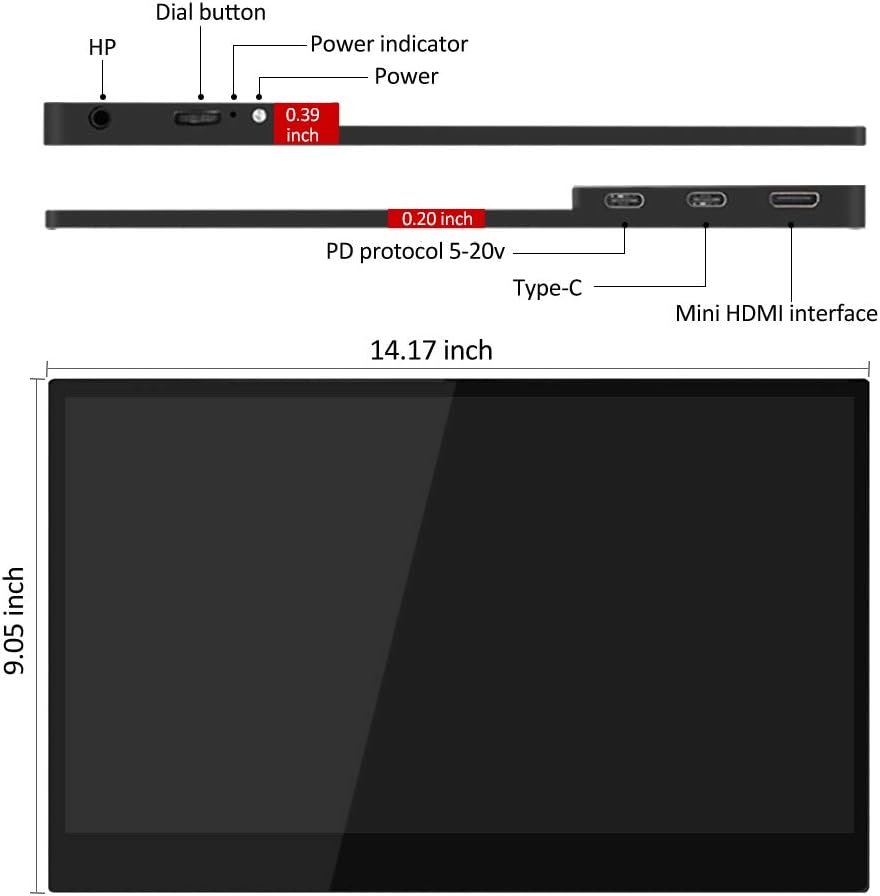
Figure 2.3.2: Diagram illustrating the side and top views of the monitor, highlighting the dial button, power indicator, power port, two Type-C ports, and Mini HDMI interface, along with its dimensions (14.17 inches width, 9.05 inches height, 0.19-0.39 inches thickness).
- Buton de apelare: Used for navigating the On-Screen Display (OSD) menu and adjusting settings.
- Indicator de alimentare: Illuminates when the monitor is powered on.
- Port de alimentare: Connects to the power adapter for external power.
- Porturi Type-C (x2): Full-function ports for power, video, and data transfer.
- Mini HDMI Interface: Connects to devices via Mini HDMI for video input.
- HP (Headphone Jack): Ieșire audio de 3.5 mm pentru căști.
3. Instrucțiuni de configurare
3.1 Using the Smart Cover as a Stand
The included smart cover can be folded into various positions to serve as a stand for your monitor. Position the monitor securely to ensure stability.
3.2 Conectarea la dispozitive
The NexiGo portable monitor offers flexible connectivity options. Ensure your device supports video output via the chosen port.

Figura 3.2.1: Examples of the monitor's wide application, including duplicate monitor setup, connection to a Raspberry Pi, phone screen mirroring, and extended desktop use.
- USB Type-C Connection (Single Cable Solution):
If your device (laptop, smartphone, etc.) has a full-function USB Type-C port (supporting DisplayPort Alternate Mode and power delivery), you can connect the monitor using a single USB Type-C to Type-C cable. This cable will provide both power and video signal.
- Connect one end of the USB Type-C to Type-C cable to your device's full-function USB Type-C port.
- Connect the other end to either of the Type-C ports on the NexiGo monitor.
- The monitor should automatically power on and display your device's screen.
- Mini HDMI Connection (Video) + USB Type-C (Power):
If your device uses HDMI for video output or does not have a full-function USB Type-C port, you will need two cables:
- Connect one end of the Mini HDMI to HDMI cable to your device's HDMI port.
- Connect the Mini HDMI end to the Mini HDMI port on the NexiGo monitor.
- Connect the USB Type-A to Type-C power cable to a power source (e.g., the included power adapter, a USB wall charger, or a laptop's USB-A port).
- Connect the Type-C end of the power cable to one of the Type-C ports on the NexiGo monitor for power.
- The monitor will power on and display the video signal from your device.
- Gaming Console Connection (e.g., PS4, Xbox, Switch):
For gaming consoles, use the Mini HDMI connection for video and a USB Type-C power connection as described above. For Nintendo Switch, ensure the console is powered by its original adapter or a compatible power bank to provide sufficient power to the monitor.

Figure 3.2.2: The NexiGo portable monitor displaying a game from a Nintendo Switch console, demonstrating its use as a gaming display.
4. Instrucțiuni de utilizare
4.1 Meniul de afișare pe ecran (OSD).
The OSD menu allows you to adjust various display settings. Use the dial button located on the side of the monitor to navigate and select options.
- Press the Dial Button: Pentru a deschide meniul OSD.
- Roll the Dial Button Up/Down: Pentru a naviga prin opțiunile meniului.
- Press the Dial Button Again: Pentru a selecta o opțiune sau a confirma o setare.
- Roll the Dial Button Left/Right: Pentru a ajusta valorile dintr-o opțiune selectată.
- Long Press the Dial Button: Pentru a ieși din meniul OSD.
4.2 Setări OSD comune
- Luminozitate/Contrast: Reglați nivelurile de luminozitate și contrast ale afișajului.
- Setări de culoare: Modificați temperatura culorii, nuanța și saturația.
- Sursa de intrare: Manually select between Type-C and Mini HDMI inputs if auto-detection fails.
- Raport de aspect: Choose between 16:9, 4:3, or other available aspect ratios.
- Volum: Adjust the volume of the built-in speakers or connected headphones.
- Modul HDR: Enable or disable High Dynamic Range (HDR) if supported by your device and content.
- Mod de îngrijire a ochilor: Activate low blue light filter for reduced eye strain during prolonged use.
4.3 Display Modes (Windows/macOS)
Once connected, your operating system will detect the monitor. You can configure how your computer uses the external display:
- Duplicate Mode (Mirror): The monitor displays the same content as your primary screen.
- Modul extindere: The monitor acts as an extension of your desktop, allowing you to drag windows between screens.
- Second Screen Only: Only the portable monitor displays content, with your primary screen turned off.
Refer to your operating system's display settings for detailed configuration options.
5. Întreținere
5.1 Curăţarea monitorului
- Opriți și deconectați întotdeauna monitorul de la priză înainte de curățare.
- Folosiți o cârpă moale, fără scame dampcurățat cu apă sau cu o soluție de curățare a ecranelor neabrazivă.
- Nu pulverizați soluția de curățare direct pe ecran. Aplicați-o mai întâi pe lavetă.
- Evitați utilizarea alcoolului, amoniacului sau a produselor de curățare abrazive, deoarece acestea pot deteriora suprafața ecranului.
5.2 Screen Protector Care
The included screen protector helps guard against scratches. If applying a new one, ensure the screen is clean and dust-free for best adhesion. Replace if it becomes excessively scratched or damaged.
5.3 Depozitare și portabilitate

Figure 5.3.1: A person demonstrating the portability of the NexiGo monitor by easily sliding it into a messenger bag.
- When transporting the monitor, always use the smart cover to protect the screen.
- Depozitați monitorul într-un loc răcoros și uscat, ferit de lumina directă a soarelui și de temperaturi extreme.
- Evitați să plasați obiecte grele pe monitor.
6. Depanare
If you encounter issues with your NexiGo portable monitor, please refer to the following common problems and solutions:
| Problemă | Cauza posibila | Soluţie |
|---|---|---|
| "No Signal" message or blank screen |
|
|
| Monitor flickers or disconnects intermittently |
|
|
| No audio from speakers/headphones |
|
|
| Image quality issues (blurry, distorted colors) |
|
|
7. Specificații
| Caracteristică | Detaliu |
|---|---|
| Numărul de model | PMFHD15-HS01 |
| Dimensiunea ecranului | 15.6 inchi |
| Tip panou | QLED |
| Rezoluţie | 1920 x 1080 (FHD 1080p) |
| Raportul de aspect | 16:9 |
| Luminozitatea imaginii | 400 cd/m² |
| Suprafața ecranului | Lucios |
| Conectivitate | 2 x USB Type-C (Full Function), 1 x Mini HDMI, 1 x 3.5mm Headphone Jack |
| Dimensiunile produsului | 13.9 x 8.5 x 0.19 inci |
| Greutatea articolului | 1.48 lire sterline |
| Producător | NexiGo |
8. Garanție și asistență
NexiGo is committed to providing high-quality products and excellent customer service. Your NexiGo portable monitor comes with a standard manufacturer's warranty. Please refer to the warranty card included in your package for specific terms and conditions.
For technical support, troubleshooting assistance, or warranty claims, please contact NexiGo Customer Support:
- Website: www.nexigo.com/support
- E-mail: support@nexigo.com
- Please have your model number (PMFHD15-HS01) and purchase information ready when contacting support.


