1. Introducere
This manual provides detailed instructions for the setup, operation, and maintenance of your Rapoo E9500M Wireless Keyboard. The E9500M is a versatile, ultra-slim keyboard designed for seamless connectivity across multiple devices.
Caracteristici cheie:
- Multi-device compatibility with Windows and Mac operating systems.
- German QWERTZ keyboard layout.
- Advanced energy-saving technology for up to 12 months of battery life.
- Automatic pairing and seamless switching between connected devices.
- Ultra-slim 4.5 mm anodised aluminium design.
2. Conținutul pachetului
Vă rugăm să vă asigurați că toate articolele sunt prezente în colet:
- Rapoo E9500M Wireless Keyboard
- USB Receiver (if applicable for 2.4GHz connection)
- 2 x AA Batteries (pre-installed or included)
- Ghid de pornire rapidă (acest manual)
3. Configurare
3.1 Instalarea bateriei
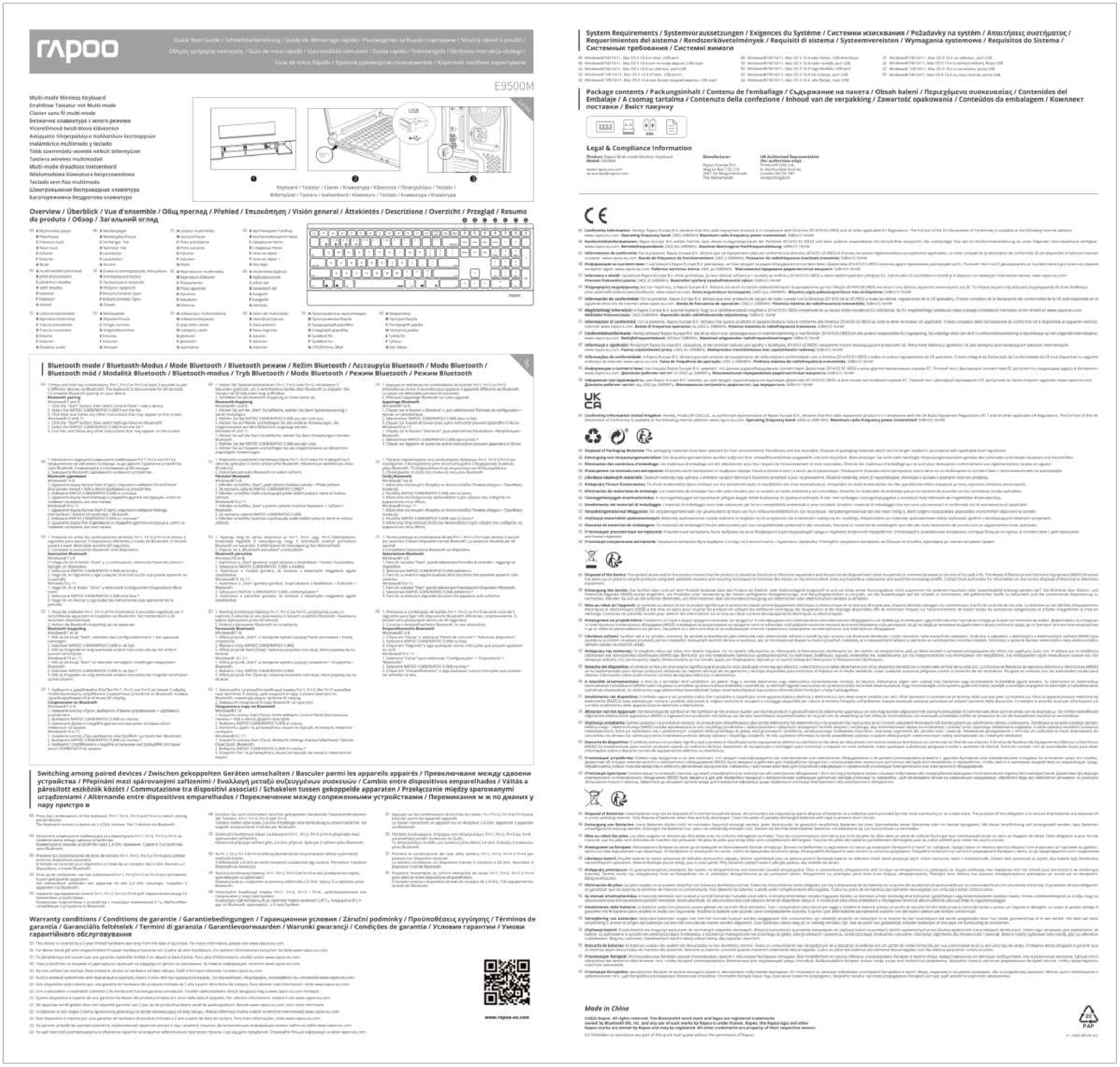
The keyboard requires 2 AA batteries for operation. These are typically included. Locate the battery compartment on the underside of the keyboard, open the cover, insert the batteries according to the polarity indicators, and close the cover.
3.2 Conectarea tastaturii
The Rapoo E9500M supports multi-mode connection (2.4GHz wireless and Bluetooth). You can connect up to 4 devices simultaneously (1 via 2.4GHz, 3 via Bluetooth).
3.2.1 Conexiune wireless de 2.4 GHz
- Conectați receptorul USB la un port USB disponibil de pe computer.
- Porniți tastatura. Tastatura ar trebui să se conecteze automat la receptor.
- Dacă conexiunea nu este stabilită, apăsați Fn + 2.4G (or the corresponding key indicated for 2.4G) to switch to 2.4G mode.
3.2.2 Bluetooth Connection (BT1, BT2, BT3)
- Porniți tastatura.
- Apăsați și mențineți apăsat Fn + 1 (pentru BT1), Fn + 2 (pentru BT2), sau Fn + 3 (for BT3) for 3 seconds until the indicator light flashes slowly. This puts the keyboard into pairing mode.
- On your device (PC, Mac, Tablet), go to Bluetooth settings and search for new devices.
- Select "Rapoo E9500M" from the list of available devices.
- Urmați orice instrucțiuni de pe ecran pentru a finaliza procesul de asociere. Indicatorul luminos va înceta să clipească după conectare.

Figura 1: De sus în jos view of the Rapoo E9500M keyboard, showing the German QWERTZ layout and function keys for multi-device switching (01, 02, 03, 2.4G).
4. Utilizarea tastaturii
4.1 Comutarea între dispozitivele conectate
Once multiple devices are paired, you can easily switch between them by pressing the corresponding function key:
- Presa Fn + 1 pentru a comuta la Dispozitivul Bluetooth 1.
- Presa Fn + 2 pentru a comuta la Dispozitivul Bluetooth 2.
- Presa Fn + 3 pentru a comuta la Dispozitivul Bluetooth 3.
- Presa Fn + 2.4G (or the corresponding key) to switch to the 2.4GHz wireless connection.
4.2 taste funcționale
The top row of keys (F1-F12) also serves as multimedia and shortcut keys when used in combination with the Fn key. Refer to the keycap legends for specific functions such as volume control, media playback, and more.

Figura 2: Față view of the Rapoo E9500M wireless keyboard, illustrating its slim design and full QWERTZ layout.
5. Întreținere
5.1 Înlocuirea bateriei
The keyboard is designed for long battery life (up to 12 months). When the battery indicator light (if present) signals low power, or if the keyboard becomes unresponsive, replace the 2 AA batteries. Follow the battery installation steps in Section 3.1.
5.2 Curățare
Pentru a curăța tastatura, ștergeți ușor suprafața cu o lavetă moale, uscată și fără scame. Pentru murdăria persistentă, ștergeți ușorampen the cloth with water or a mild, non-abrasive cleaning solution. Avoid excessive moisture and do not spray liquids directly onto the keyboard.
6. Depanare
| Problemă | Soluție posibilă |
|---|---|
| Keyboard not connecting/responding. |
|
| Tastele sunt lipicioase sau nu răspund. |
|
| Nu se poate comuta între dispozitive. |
|

Figura 3: Înclinat view of the Rapoo E9500M keyboard, highlighting its ultra-slim profile and full numeric keypad.
7. Specificații
| Caracteristică | Detaliu |
|---|---|
| Model | E9500M |
| Conectivitate | Bluetooth, fără fir la 2.4 GHz |
| Aspectul tastaturii | QWERTZ german |
| Sisteme de operare compatibile | Windows 8, Windows 10, Mac OS 9, Mac OS X 10.2 Jaguar, Windows Vista |
| Platformă hardware | Laptop, PC, Tabletă |
| Sursa de alimentare | Alimentat cu baterie |
| baterii | 2 x baterii AA (incluse) |
| Durata de viață a bateriei | Până la 12 luni |
| Dimensiuni (L x l x H) | 16.8 x 43.3 x 2.3 cm |
| Greutatea articolului | 650 g |
| Culoare | Negru |
| Proiecta | Ultra-slim 4.5 mm anodised aluminium |
8. Garanție și asistență
8.1 Informații despre garanție
Rapoo products are covered by a limited warranty. For specific warranty terms and conditions, please refer to the warranty card included with your product or visit the official Rapoo webPăstrați bonul fiscal ca dovadă a achiziției pentru reclamații în garanție.
8.2 Asistență pentru clienți
For technical assistance, troubleshooting, or product inquiries, please visit the official Rapoo support website or contact their customer service. Contact details can typically be found on the Rapoo website-ul sau în ambalajul produsului.
Official Rapoo Website: www.rapoo.com