1. Produs terminatview
The HP EliteDesk 800 G2 Business Desktop Mini Tower is a high-performance computing solution designed for business environments. This renewed product has undergone testing and certification to ensure it functions like new. It features an Intel Core i7 6700 processor, 32GB DDR4 RAM, and a 512GB SSD, running on Windows 11 Pro.

Imagine: Înclinată view of the HP EliteDesk 800 G2 Mini Tower desktop computer, showcasindatorită designului său compact.
2. Conținutul pachetului
Verificați dacă toate următoarele articole sunt incluse în pachetul dumneavoastră:
- HP EliteDesk 800 G2 Mini Tower Computer
- Cablu de alimentare
- Tastatura USB
- Mouse USB
- USB WIFI Adapter
- Instrucțiuni de garanție

Image: Included USB keyboard and mouse, essential peripherals for desktop operation.
3. Ghid de instalare
3.1. Despachetarea
Carefully remove all components from the packaging. Retain the packaging materials for future transport or service needs.
3.2. Conectarea perifericelor
Conectați monitorul, tastatura, mouse-ul și alte dispozitive la porturile corespunzătoare de pe desktop.
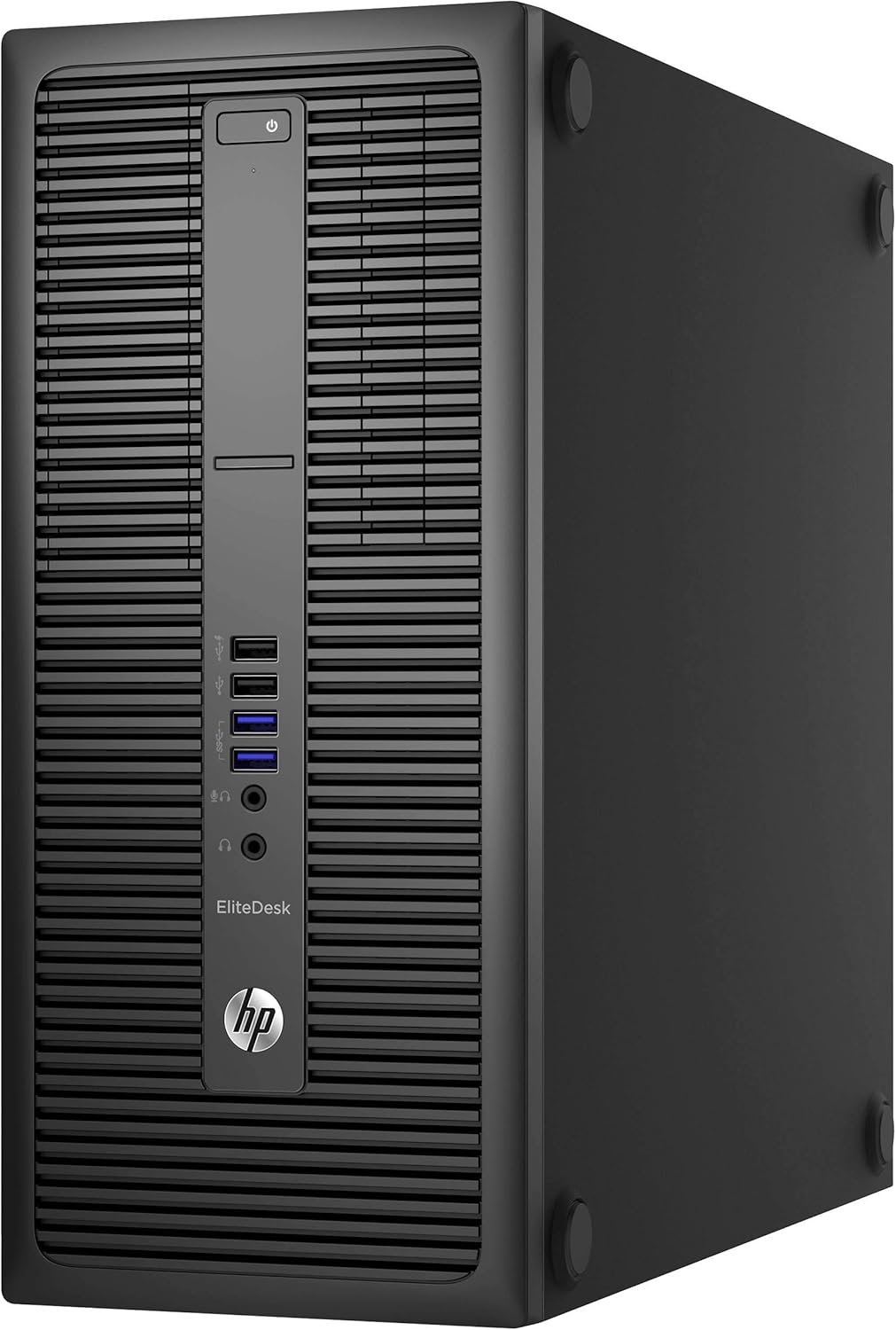
Image: Front panel of the HP EliteDesk 800 G2, showing the power button, optical drive bay, and front USB and audio ports.
- Putere: Connect the power cord to the desktop's power input and then to a wall outlet.
- Monitor: Use a DisplayPort or VGA cable to connect your monitor to the corresponding port on the rear of the desktop.
- Tastatura mouse: Conectați tastatura și mouse-ul USB la orice port USB disponibil.
- Reţea: For wired connection, connect an Ethernet cable to the RJ-45 network connector. For wireless, plug in the provided USB WIFI adapter.
- Audio: Connect speakers or headphones to the audio output port.

Image: Rear panel of the HP EliteDesk 800 G2, highlighting various connectivity options including DisplayPort, VGA, USB 3.0, Ethernet, and audio ports.
3.3. Pornirea inițială
Press the power button located on the front of the desktop. The system will begin to boot up.
3.4. Configurarea sistemului de operare
Follow the on-screen prompts to complete the Windows 11 Pro setup. This typically involves selecting language, region, accepting terms, and creating a user account.
4. Utilizarea desktopului
4.1. Pornire/Oprire
- Pentru a porni: Apăsați butonul de pornire de pe panoul frontal.
- A închide: Faceți clic pe butonul Start din Windows, apoi selectați Alimentare > Oprire.
- Pentru a reporni: Faceți clic pe butonul Start din Windows, apoi selectați Alimentare > Repornire.
4.2. Utilizarea porturilor USB
The desktop features both USB 2.0 and USB 3.0 ports. USB 3.0 ports (often blue) offer faster data transfer speeds and are recommended for external hard drives or high-speed peripherals. Front USB 2.0 ports include a fast-charging option.
4.3. Conexiuni audio
Front panel includes a microphone/headphone combo jack and a dedicated headphone jack. The rear panel has a Line-Out connector for powered audio devices and a Line-In audio connector.
4.4. Conexiuni de afișare
The desktop supports multiple displays via two DisplayPort connectors and one VGA connector on the rear panel.
4.5. Conectivitate la rețea
Connect to a wired network using the RJ-45 Ethernet port. For wireless connectivity, ensure the USB WIFI adapter is installed and configured through Windows settings.
5. Întreținere
5.1. Curatenie
- Exterior: Folosiți un moale, damp o lavetă pentru curățarea suprafețelor exterioare. Evitați substanțele de curățare abrazive.
- Vents: Curățați periodic praful de pe grilele de ventilație folosind aer comprimat pentru a asigura un flux de aer adecvat și a preveni supraîncălzirea.
- Ecran (dacă este cazul): For connected monitors, use a screen-specific cleaner and a microfiber cloth.
5.2. Actualizări software
Regularly check for and install operating system updates (Windows Update) and driver updates to maintain system stability and security.
5.3. Copiere de rezervă a datelor
It is recommended to regularly back up important data to an external drive or cloud storage to prevent data loss.
6. Depanare
Această secțiune abordează problemele frecvente pe care le-ați putea întâmpina.
- Fără putere: Ensure the power cord is securely connected to both the desktop and a working power outlet. Test the outlet with another device.
- Fără afișare: Verify that the monitor is powered on and correctly connected to the desktop. Try a different display cable or monitor if available. Ensure the correct input source is selected on your monitor.
- Performanță lentă: Close unnecessary applications. Check for background processes consuming high resources via Task Manager. Ensure sufficient free space on the SSD.
- Probleme de conectivitate la rețea: For wired connections, check the Ethernet cable and router status. For wireless, ensure the USB WIFI adapter is properly installed and drivers are up to date. Restart your router and modem.
- Perifericul nu funcționează: Ensure the keyboard, mouse, or other peripherals are correctly plugged into the appropriate USB ports. Try a different USB port.
7. Specificatii tehnice
| Caracteristică | Caietul de sarcini |
|---|---|
| Procesor | Intel Core i7-6700 (3.4 GHz, până la 4.0 GHz) |
| RAM | 32 GB DDR4 |
| Depozitare | SSD de 512 GB |
| Grafică | Intel HD Graphics 530 (Dedicated) |
| Sistem de operare | Windows 11 Pro pe 64 de biți |
| Tip fără fir | 802.11ac (via USB adapter) |
| Porturi frontale | USB 2.0 (1x black), USB 2.0 Fast Charging (1x black), USB 3.0 (2x), Microphone/Headphone Combo, Headphone |
| Porturi spate | PS/2 Keyboard, PS/2 Mouse, DisplayPort (2x), VGA, USB 3.0 (4x), USB 3.0 with Wake from S4/S5 (2x), Line-Out, Line-In, Serial, RJ-45 Network |
| Dimensiuni (Lxlxh) | 20 x 17.99 x 10 inci |
| Greutate | 23.6 lire sterline |
8. Informații despre garanție și asistență
8.1. Garantie
This Certified Refurbished product includes a minimum 90-day warranty. For specific terms and conditions, please refer to the warranty instruction document included in your package or contact the seller directly.
8.2. Suport tehnic
For technical assistance, troubleshooting beyond this manual, or warranty claims, please contact the seller from whom you purchased this product. You may also visit the official HP support website for general product documentation and drivers related to the EliteDesk 800 G2 series.